Weekly ecommerce tips, deals & news.
Picture this. A shopper searches Google for exactly the product you sell. At the top of the results, above blog posts and text ads, sits your product. Photo, price, and a direct link to your store. That’s Google Shopping in action, and it’s more doable than most WooCommerce owners think.
Google Shopping is one of the highest-intent channels in ecommerce. Unlike social feeds where people are browsing, Shopping reaches buyers who are actively searching for products. I’ve worked with plenty of store owners who got stuck before they even started. The blocker almost always boiled down to the same thing.
Between Google Merchant Center, product feeds, and Google Ads, the setup can feel like a tangle of moving parts. The good news? Once you break it into steps and use the right tools, the process gets manageable fast. We’ve helped store owners walk through this end-to-end, and the number-one stumbling block is almost always the product feed.
That’s where AdTribes earns its keep. In this guide, I’ll show you how to sell on Google Shopping with WooCommerce. We’ll cover Merchant Center setup, product feeds, and your first paid campaign. Let’s get into it.
Before we get into the how, let’s talk about the why. Google Shopping isn’t just another marketing channel. It’s one of the cleanest ways to put your products in front of buyers who are ready to act.
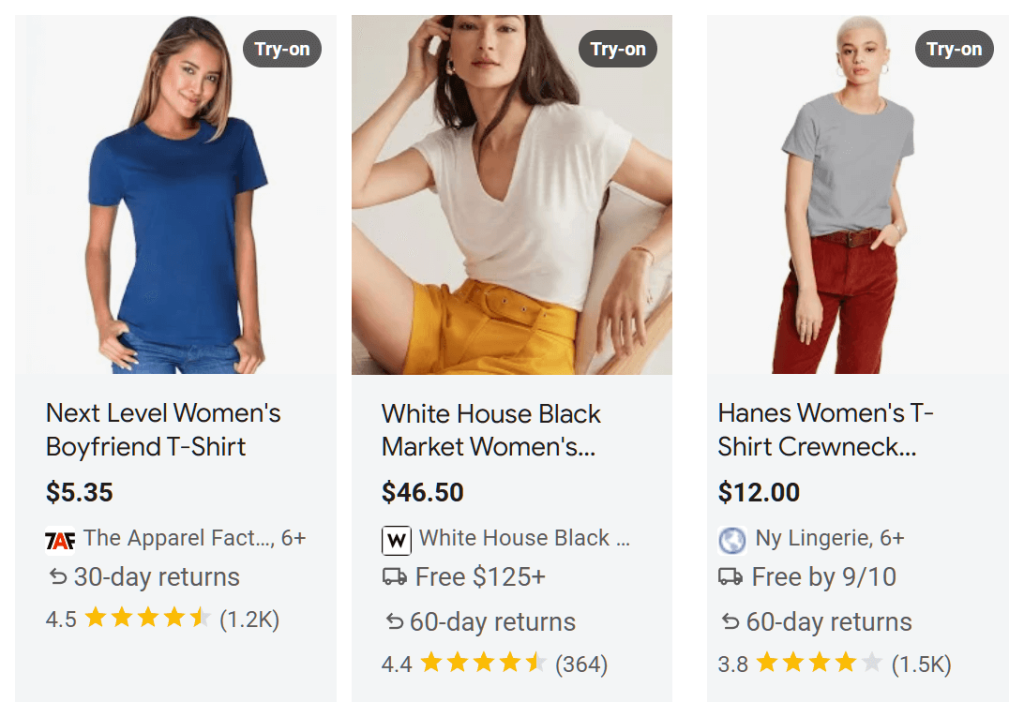
When someone searches for a product on Google, Shopping results typically appear at the top of the page. These cards show a product image, title, price, store name, and often reviews. That’s some of the most prominent real estate on the search results page.
For WooCommerce stores, this is a real opportunity. Your product data already lives in your WooCommerce database. You just need to ship it to Google in the right format. Plus, you don’t have to choose between free and paid placements.
Here’s something many store owners don’t realize. Google Shopping includes free listings. You don’t need to pay for ads to appear. Free product listings show across the Shopping tab, Google Search, Google Images, and Google Lens.
According to Google’s official free listings documentation, free listings are available across many countries. You don’t need a Google Ads account to use them. That said, paid Shopping ads typically get more prominent placement above free results. Most stores benefit from running both.
WooCommerce stores have a real edge here. You can customize every product attribute, from titles and descriptions to images and custom fields. That flexibility means you can shape your product feed to match Google’s requirements without platform limits.
The following table is illustrative and reflects general characteristics of each campaign type.
| Campaign Type | Best For | Control Level | Ease of Setup |
|---|---|---|---|
| Standard Shopping | Experienced advertisers, granular optimization | High (manual bidding, product group control) | Moderate |
| Performance Max | Beginners, broad reach across Google surfaces | Low (Google automates most decisions) | Easy |
| Free Listings | All stores, zero ad budget | N/A (organic only) | Very Easy |
Before you start your WooCommerce Google Shopping setup, make sure you have these in place:
With those boxes checked, the setup gets a lot smoother.
We’ve also covered AdTribes in our top WooCommerce plugins roundup if you want more context on why we recommend it.
Google Merchant Center is where your product data lives on Google’s side. Think of it as the bridge between your WooCommerce store and Google Shopping. Get this part right, and everything downstream gets easier.
Head over to merchants.google.com and sign in with your Google account. You’ll be asked for your business name, country, and time zone. Then accept Google’s terms to finish setup. Note that Google’s UI shifted with the Merchant Center Next rollout, so menu labels may differ from older guides.
Google needs to verify you own your store’s domain. For most WordPress and WooCommerce sites, the HTML tag method is the simplest path. The general steps look like this:
This is where many store owners hit their first snag. Your Merchant Center shipping settings need to match what customers see at checkout on your WooCommerce store. If there’s a mismatch, Google can disapprove your products.
🔍️ Power Tip: Use your WooCommerce store’s existing shipping zones to populate Merchant Center shipping settings. When the numbers line up, you avoid most “shipping mismatch” disapprovals down the line. In our experience, this single step prevents more feed rejections than any other configuration.
If you sell in the US, you’ll need to configure tax settings in Merchant Center. The simplest approach is to use your Merchant Center tax settings and enter the states where you collect sales tax. Match this to your WooCommerce tax configuration so the numbers stay consistent.
This is the step that stops most people in their tracks. It’s also where AdTribes changes the whole experience.
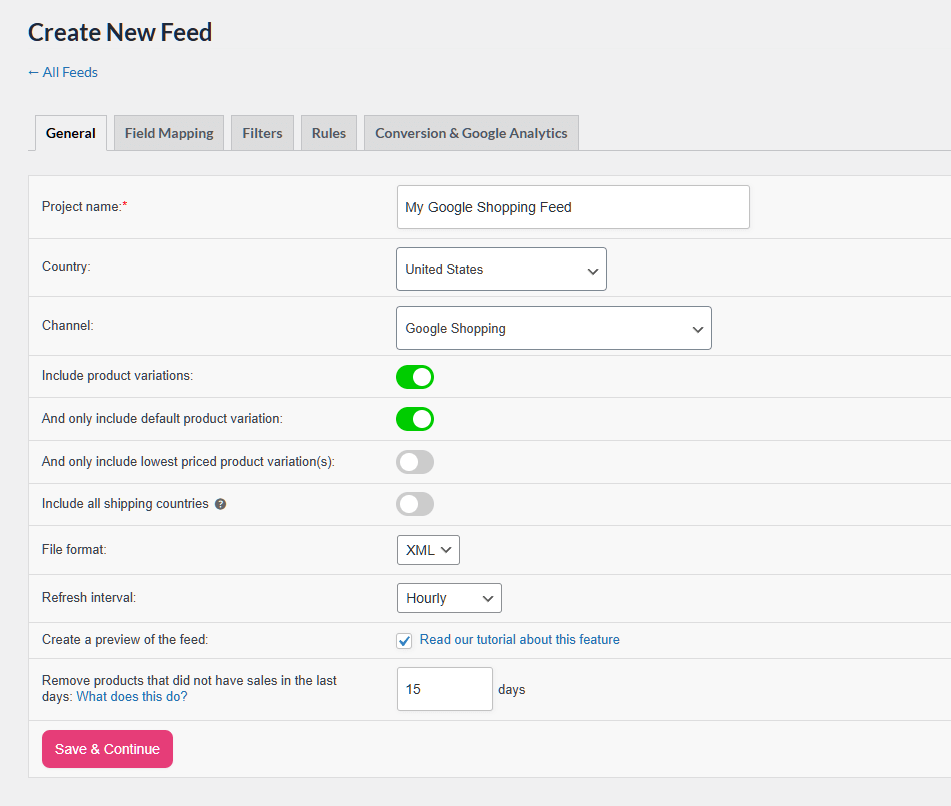
A product feed, or product data feed, is a structured data file containing everything Google needs about your products. That includes titles, descriptions, prices, images, availability, and identifiers like GTIN or MPN. You can dig into the technical side in our guide on the XML product feed.
Without a feed tool, you’d be stuck maintaining a spreadsheet with dozens of columns for every product. With AdTribes, the feed generates itself from your WooCommerce data. That’s a huge time-saver.
Google’s product feed has required and recommended attributes. Here’s how the common ones map to your WooCommerce data:
This table is a reference guide. Google updates its product data specification periodically, so check the official Google Merchant Center product data specification for current requirements.
| Google Attribute | WooCommerce Source | Required? | Notes |
|---|---|---|---|
| id | Product ID or SKU | Yes | Unique identifier per product |
| title | Product Title | Yes | Include brand, product type, key attributes |
| description | Product Description | Yes | Use the full description, not the excerpt |
| link | Product permalink | Yes | The product’s landing page on your store |
| price | Regular Price | Yes | Currency formatting handled automatically |
| sale_price | Sale Price | No | Used only when a sale is active |
| availability | Stock Status | Yes | “in_stock” or “out_of_stock” |
| image_link | Product Image | Yes | Min 100x100px (250×250 for apparel) |
| gtin | Custom field or SKU | Conditional | Needed if the product has a manufacturer GTIN |
| mpn | Custom field | Conditional | Required if no GTIN is available |
| brand | Custom field or attribute | Conditional | Required for most new products |
| google_product_category | Product Category (mapped) | Recommended | Google’s taxonomy; AdTribes can auto-map |
In our experience setting up AdTribes for store owners, the Google Shopping template handles most of the heavy lifting on the first pass. The fields that usually need manual attention are the GTIN source, the brand attribute, and the Google product category mapping. Once those are dialed in, the rest of the feed tends to run itself.
Your feed needs to stay current. Price changes, inventory updates, and new products should all flow through quickly. In AdTribes, set a daily refresh at minimum.
For stores with fast-moving inventory or frequent sales, we recommend a refresh every six to twelve hours. AdTribes handles this via WordPress cron. You configure it once and the feed stays in sync.
Once AdTribes generates your feed, you’ll get a feed URL. Submit it to Merchant Center:
🔍️ What We’ve Seen: The product feed is where most store owners hit a wall, and it’s also where AdTribes saves the most time. Instead of formatting a spreadsheet by hand, you configure your field mappings once and let the feed update itself. We’ve watched store owners go from zero to an approved feed in a single afternoon with AdTribes.
Having your products on Google Shopping is one thing. Getting them to perform well is another. Feed optimization is what separates stores that get a trickle of clicks from stores that pull in steady sales.
Your product title is the single most important element for Google Shopping performance. Follow this formula:
Brand + Product Type + Key Attributes (Color, Size, Material)
Say you sell handmade candles. Instead of “Candle, Large,” write “Willow & Co Soy Candle, Lavender Vanilla, 16oz, Hand-Poured.” The more specific your title, the better Google can match it to relevant searches.
Google has specific image requirements:
One pattern we see across stores: plain-background product photos usually outperform lifestyle photography in the small Shopping ad format. The reason is simple. Shopping cards are tiny, and clean product shots read more clearly at that size. If you’re getting low click-through rates, the image is the first thing I’d look at.
If Google disapproves some of your products, check this table first.
The following table reflects common disapproval patterns we’ve encountered. Google updates its policies regularly, so consult the official Merchant Center documentation for the latest guidance.
| Disapproval Reason | Common Cause | Fix |
|---|---|---|
| Missing GTIN | No barcode entered in WooCommerce | Add a GTIN to product data or request exemption where eligible |
| Price mismatch | Sale price not synced | Make sure your AdTribes feed refresh runs frequently |
| Image too small | Thumbnails used instead of full images | Map the full-size image URL in AdTribes |
| Shipping not set up | Merchant Center shipping missing | Add shipping zones matching your WooCommerce config |
| Policy violation | Prohibited product or misleading copy | Review Google’s Shopping policies and adjust listings |
AdTribes lets you add custom labels (custom_label_0 through custom_label_4) to your feed. These don’t show to customers. They let you segment products in Google Ads for smarter campaign management.
Common label strategies:
With your feed approved and products appearing in free listings, it’s time to amplify results with paid WooCommerce Google Shopping ads.
Standard Shopping campaigns give you direct control. You set bids manually, organize products into groups, and see which search terms triggered your ads. I recommend starting here because the visibility into what’s working (and what isn’t) is genuinely useful when you’re learning.
Performance Max campaigns use Google’s AI to place your products across Search, Shopping, Display, YouTube, and more. They’re easier to set up. The trade-off is less control and less insight into performance details.
🚀 Power Tip: Start with a small daily budget ($10 to $20 per day) on a Standard Shopping campaign. Wait on Performance Max until you have baseline data. Standard gives you visibility into which products and search terms drive clicks, so you can optimize before scaling. We’ve seen plenty of stores burn budget on Performance Max before understanding their product-level economics.
Don’t overthink this. Here’s a practical starting framework:
Cost per click varies a lot by product category and competition. Apparel runs hotter than housewares. Niche specialty products often clear at lower CPCs because fewer advertisers bid against you. Check current industry benchmarks from a trusted PPC publication before locking in your budget assumptions.
Within your Shopping campaign, organize products into product groups. You can split by category, brand, product type, or custom labels. That lets you set different bids for different products, bidding higher on your best sellers and lower on low-margin items.
Launching is just the beginning. The real value comes from ongoing optimization based on data.
In Google Ads, open your Shopping campaign and look at the Products tab. Sort by conversions to find your top performers. Look for products that:
For full-funnel visibility, connect your Google Ads account to Google Analytics. This lets you see what happens after the click. Do Shopping visitors browse related products? Do they come back later to buy? What’s your assisted conversion rate?
That extra layer of data helps you understand the true value of Shopping campaigns beyond last-click attribution. It also helps you spot the products doing real work even when they don’t always close the sale directly.
Even if you’re not ready to spend on ads, you should still set up free product listings. These show up across the Google Shopping tab, Google Search, Google Images, and Google Lens.
Once your Google product feed is approved in Merchant Center, Google can include your products in free listing surfaces automatically. You don’t need a Google Ads account, and there’s no media cost. Free listings won’t get the premium placement that paid ads receive. Still, they generate real traffic, especially for long-tail product searches where ad competition is lighter.
Across stores we’ve worked with, free listings often generate a meaningful share of total WooCommerce Google Shopping traffic. The traffic quality tends to be solid in terms of conversion rate. For stores not ready to invest in ads yet, this is one of the easier wins available.
Let’s recap the five key steps to sell on Google Shopping with WooCommerce:
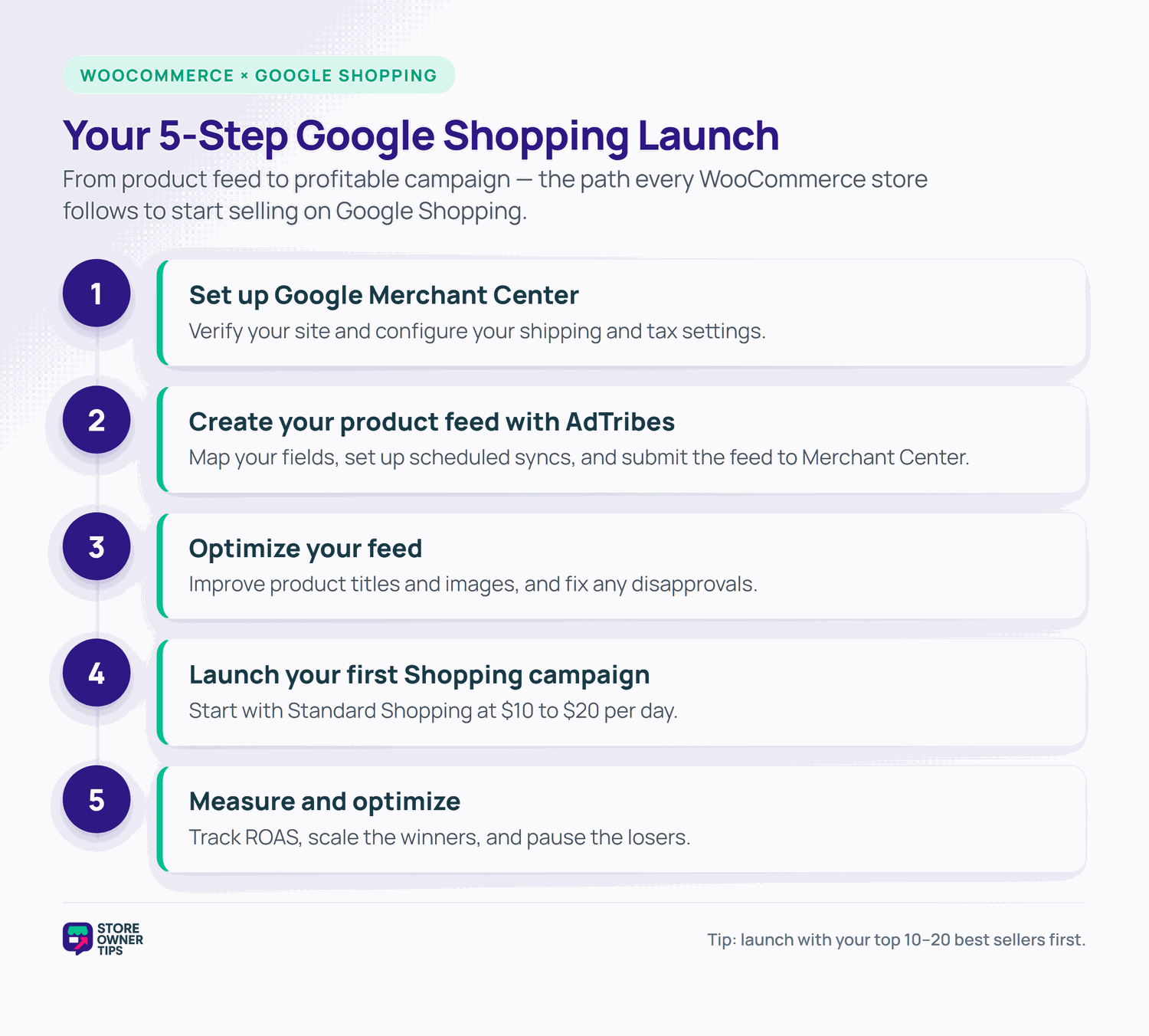
My biggest tip: start with your best-selling products. You don’t need to push your whole catalog on day one. Get your top 10 to 20 products approved, run a small campaign, and learn from the data before expanding.
Want to go deeper on the feed side? The AdTribes team has additional guides on their site. They cover campaign structure, custom labels, and common feed errors. Try it for free for hassle-free Google Shopping product feeds!
No. Google offers free product listings that appear across Shopping, Search, Images, and Lens. They don’t require a Google Ads account. You only need a Google Merchant Center account with an approved Google product feed. For premium ad placement at the top of search results, you’ll need a Google Ads account too.
After submitting your product feed, Google typically takes a few business days to review and approve your products. Review times vary. Some products may be disapproved for data quality issues that need fixing. Once approved, your products appear in free listings automatically. For paid Shopping campaigns, ads can start showing within hours of launch, provided your products are already approved.
Standard Shopping campaigns give you direct control over bidding, product groups, and negative keywords. Performance Max campaigns use Google’s AI to place your ads across all Google surfaces, including Search, Shopping, YouTube, and Display. I recommend starting with Standard Shopping because it’s easier to learn from and optimize. You can test Performance Max later once you have baseline performance data to compare against.
Start with a modest daily budget of $10 to $20 per day focused on your best-selling products. This gives you enough data to evaluate performance without big risk. Monitor your return on ad spend (ROAS) over the first two weeks before making budget decisions. If you’re seeing profitable returns, gradually increase the budget. If ROAS is below your target, fix your feed and product pages before spending more.

Copyright © StoreOwnerTips.com. All Rights Reserved.
