Weekly ecommerce tips, deals & news.
A product data feed, or product feed, is a digital file that contains a detailed list of the items you sell. Store owners use this file to send their inventory information to various sales channels and marketplaces.
This file functions as an automated catalog. You connect it to platforms such as Google Shopping, Facebook, Bing Ads, and TikTok.
Keeping your product feed updated ensures shoppers always see the correct prices and stock levels. We will look at how this data file works and why your online store needs one.
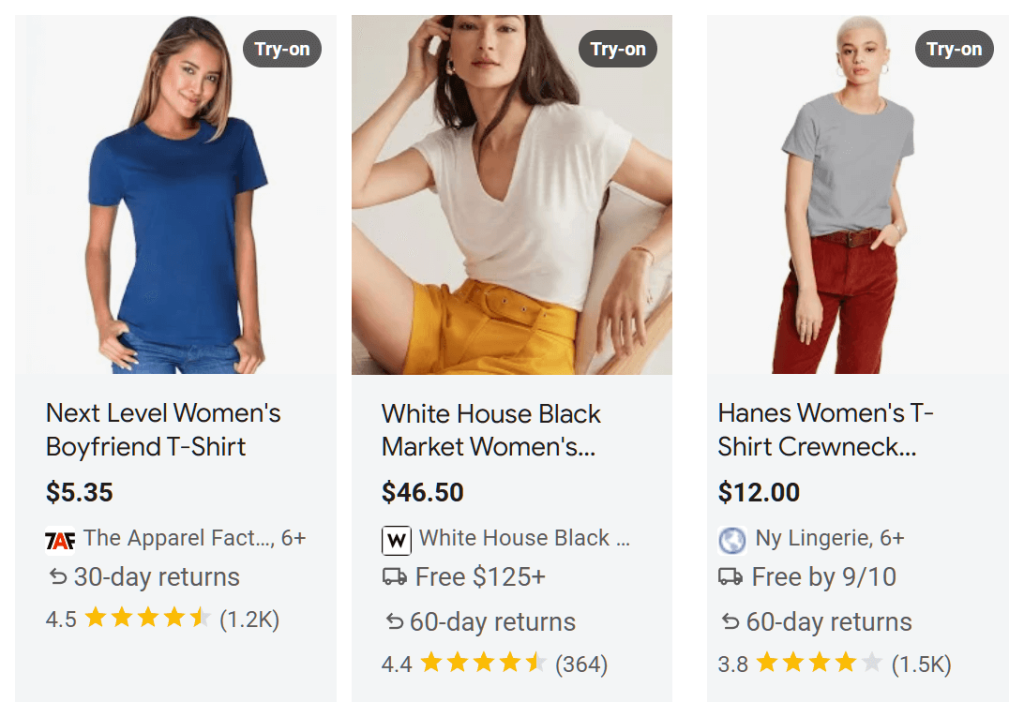
A product data feed is a straightforward data file holding the specific details about your store items. It directly lists your titles, descriptions, prices, and images.
When you decide to sell your items on a new marketplace, you must share your catalog with them. You upload your product data feed instead of typing each item out by hand.
The marketplace reads the product information in your file and automatically generates your store listings. This process saves you hours of time you’d normally spend on manual data entry.
It also separates your inventory data from your main website design. This means your product details can exist everywhere at once without needing a human to copy them over.

Running an online store takes a lot of daily effort. Updating product prices and inventory across multiple platforms gets very messy if you’re doing it manually.
A product feed solves this problem by keeping your information in one place. You simply change the item price in your main WooCommerce store. Your data file then pushes that update to all your connected sales channels.
You’ll want to use a product data feed for these specific reasons:
Imagine you have a catalog of three hundred different shirts. Changing the price of each shirt on five different websites takes days of work.
A product feed updates those prices instantly across every website. You only do the work once in your main store dashboard.
Every sales channel requires highly specific details about the items you want to sell. These platforms need enough data to show shoppers exactly what they’re buying.
Most product feeds will contain standard data points. Here is a look at the core mandatory attributes most platforms require:
| Attribute | Meaning | Optimization Notes |
| Product ID | A unique alphanumeric string for each item | Keep it completely consistent to save your item history |
| Title | The exact name of your item | Put your most important keywords at the very beginning |
| Description | A clear summary of the item | Keep it informational and avoid promotional sales text |
| Image Link | The URL hosting your main picture | Use high-quality photos with clear backgrounds |
| Price | The current retail cost | Must match your landing page price exactly |
| Availability | Your current stock status | Update frequently to stop paying for bad clicks |
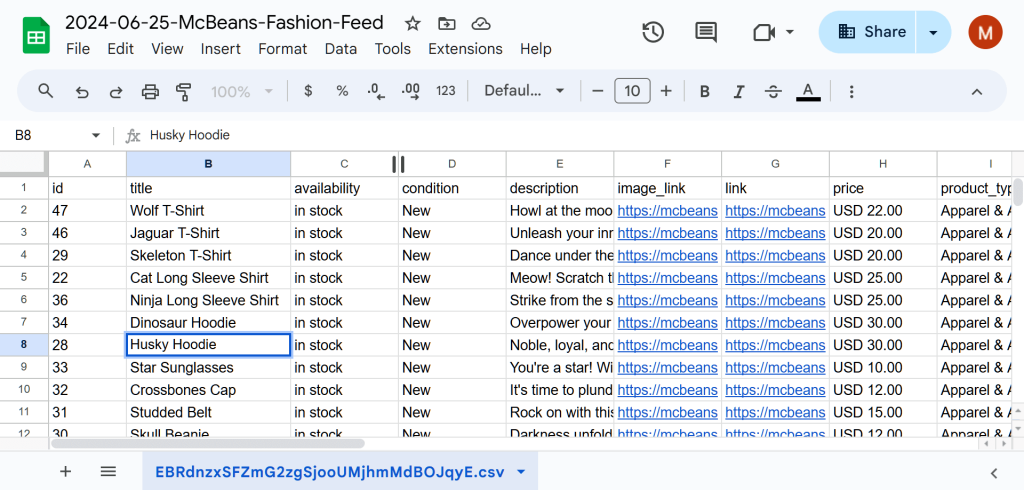
You’ll also need to include global trade item numbers. These are universally recognized numbers, like a UPC or an ISBN for books.
Many platforms also look for manufacturer part numbers. Providing these specific identifiers helps sales channels match your items exactly with user searches.
Google Shopping reads your product titles and descriptions to match your items with user search queries. Accurate details ensure your ads show up for the right buyer searches.
Facebook uses your image link and price data to build automated retargeting ads. When a shopper leaves your store, Facebook shows them an ad featuring the exact item they just viewed.
Other channels like Bing Ads and TikTok Shop use your product feed to build interactive storefronts right inside their apps.
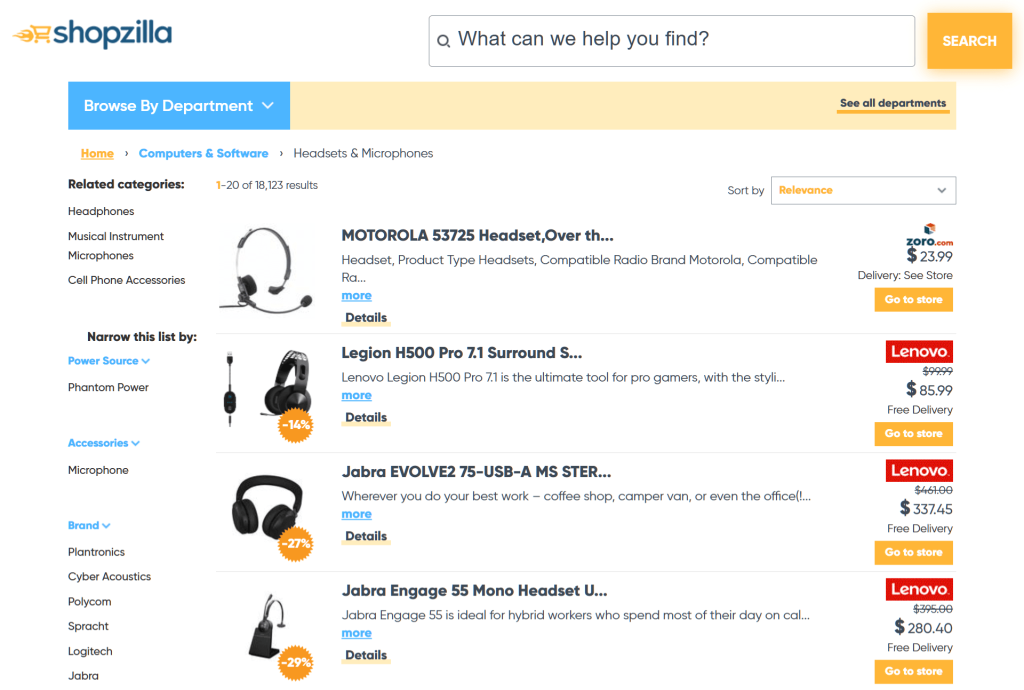
You have the option to build a product data feed manually or automatically. Very small stores with only five or ten items might use a manual spreadsheet.
Most WooCommerce store owners choose an automated setup instead. An automated tool connects directly to your store database and pulls the product information automatically.
When you make any change in your shop dashboard, the file updates itself. You don’t have to touch the file at all after the initial setup.
Different sales channels accept different types of files. You’ll usually work with one of these formats:
| Format | What It Is | Best Used For |
| XML | A file using code tags to organize data | Complex catalogs and automated syncs |
| CSV | A simple file using standard rows and columns | Basic lists without complex item variations |
| TSV | A file using tab spaces instead of commas | Catalogs where titles have a lot of commas |
| JSON | A lightweight text file | Real-time updates and modern web apps |
| TXT | A basic text file | Very simple lists but rarely accepted |
CSV files format your data into standard rows and columns. XML files use code tags to organize the data so computers can read it quickly.
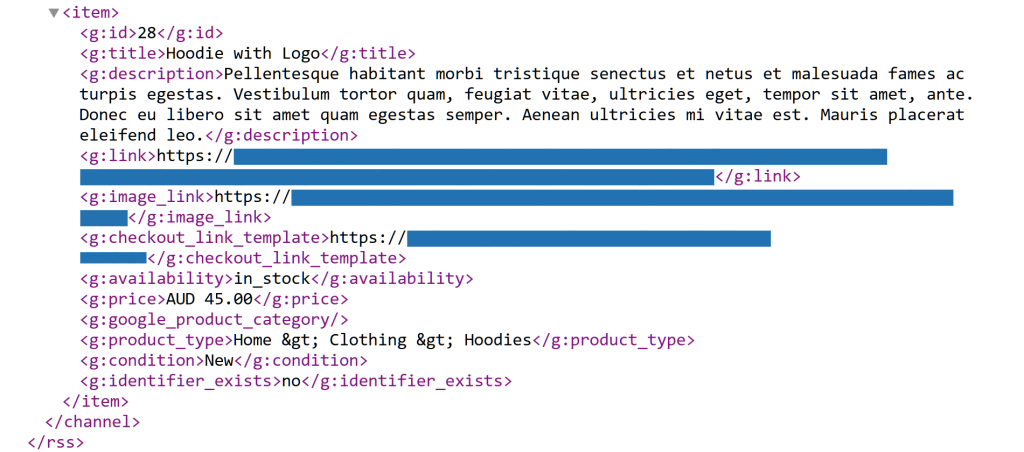
You can deliver your product data feed using a few different methods. Many store owners use a direct URL fetch. This means you give the marketplace a link to your file, and they download it automatically.
You can also use an FTP connection for very large files. This method sends your data through a secure server.
Some advanced sellers use an API connection. An API sends individual product updates instantly instead of waiting for a scheduled file download.
Sending a basic data file to a marketplace is a good starting point. However, optimizing that product feed helps you get more sales and cheaper ad clicks.
Optimization means you actively improve the information inside your file. You want to make your titles and descriptions highly relevant to everyday shoppers.
Here are the best ways to improve your data:
You can also use custom labels inside your product feed. These labels let you group items by performance. Here are some examples:
| Label | Example | Bidding Strategy |
| Profit Margin | High Margin | Bid more money on items that make you the most profit |
| Sales Velocity | Top Seller | Spend more of your budget on your popular items |
| Seasonality | Winter Apparel | Push discounts quickly when the seasons change |
| Price Competitiveness | Cheapest In Market | Bid highly when you know you have the lowest price |
Shoppers compare dozens of options before they finally decide to buy an item. A well-optimized product data feed helps your items get noticed by more buyers.
Sales platforms also reward good data with better visibility. Google charges you less money for ads when your product feed exactly matches what people type into the search bar.
Sometimes, a sales channel will reject your product data feed. This rejection happens when the information violates their specific rules or contains formatting mistakes.
You might see an error message if your file is missing required details. For instance, forgetting to include a shipping price will cause an instant rejection on many platforms.
Another very common issue involves broken image links. If the platform can’t load your product picture, it simply won’t show your listing to buyers.
Here are the most common Google Merchant Center errors:
| Error Type | Reason | How To Fix It |
| Price Disapproval | Your feed price doesn’t match your website | Update your feed timing so they match perfectly |
| ID Issues | Your global trade item numbers are wrong | Check your numbers or mark them as custom goods |
| Visual Rule Break | Your image has text or watermarks | Use clean photos with plain backgrounds |
| URL Integrity | Your link leads to a broken page | Fix the broken links on your website |
| Tax And Shipping | Your feed leaves out the delivery costs | Add accurate shipping rates to your feed settings |
Most sales channels provide a merchant dashboard where you can check the health of your product feed. These dashboards display a clear list of errors and tell you which specific items are affected.
You just need to update the missing or broken information in your WooCommerce store. Once you save those changes, your automated tool will send the corrected data out to the channel.
Many store owners use product feed management software to catch these errors early. This software scans your file before sending it out and warns you about potential problems.
The frequency of your updates depends entirely on how often your store changes. Stores with fast-moving inventory need very frequent updates.
If your stock levels change every hour, you should set your product feed to update hourly. This prevents buyers from purchasing an item you no longer have in your warehouse.
Stores with very stable inventory can update their data once a day. A daily update ensures any small price changes or text edits still reach the sales platforms quickly.
Failing to update your product data feed leads to suspended merchant accounts. Sales channels heavily penalize store owners who advertise incorrect prices or out-of-stock items.
Keeping a fresh and accurate data file protects your reputation. It ensures your customers always have a positive shopping experience.
Many online stores sell products that come in different variations. A single shirt might come in five sizes and three colors.
Your product data feed must handle these variations properly. Each specific variation needs its own line of data in your file.
This setup ensures the sales platform understands you have multiple options available. If you don’t list the variations separately, the platform might only show one size to shoppers.
You format variations by using a parent and child structure in your file. The main item is the parent, and each variation is a child.
You link all the child items to the parent item using a shared group ID number. This allows the sales channel to group them all together on a single product page.
Every marketplace uses its own unique naming rules. Your WooCommerce store might call a data point one thing, but Facebook might call it something else.
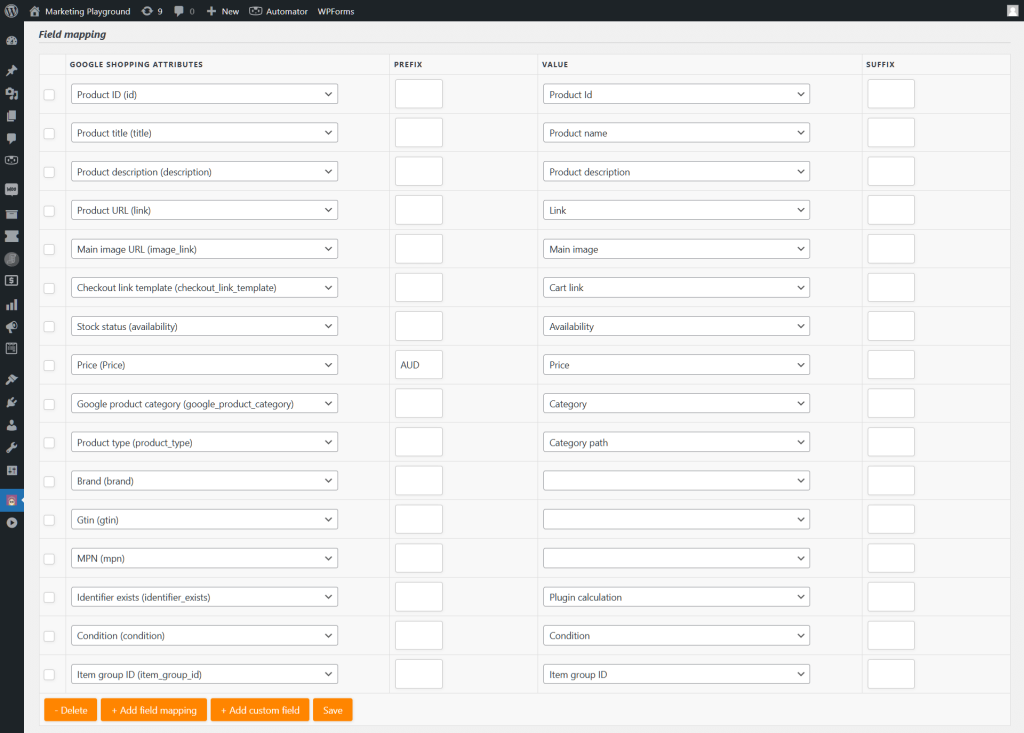
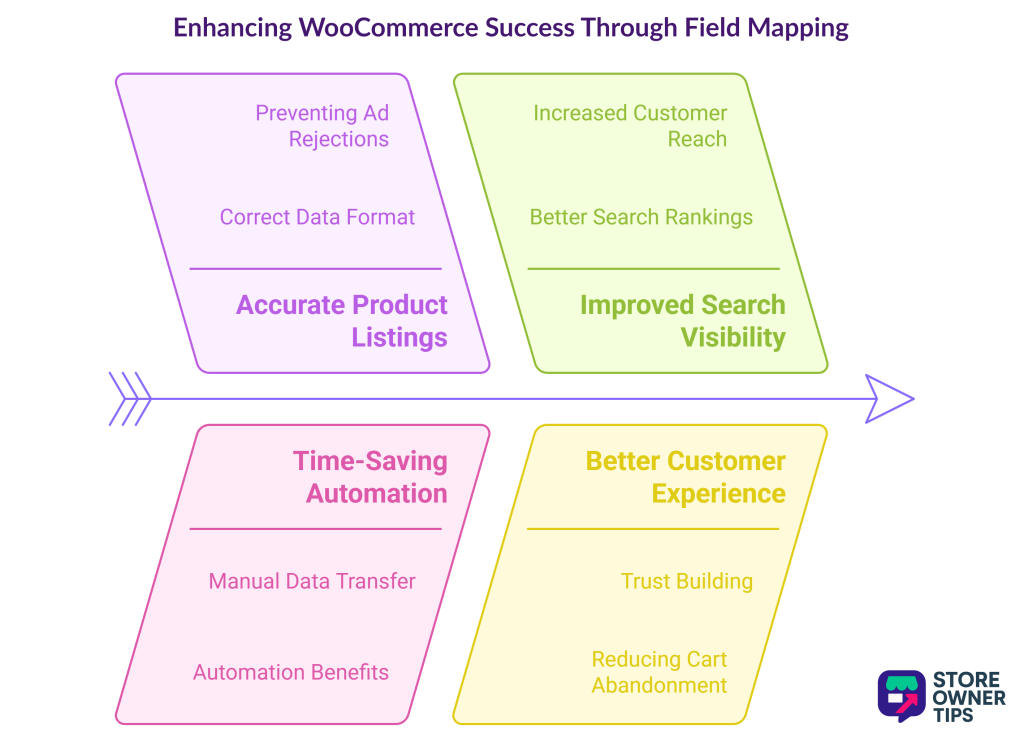
Field mapping translates your store data into the exact format the marketplace wants. For example, it turns your regular price into a format Google understands.
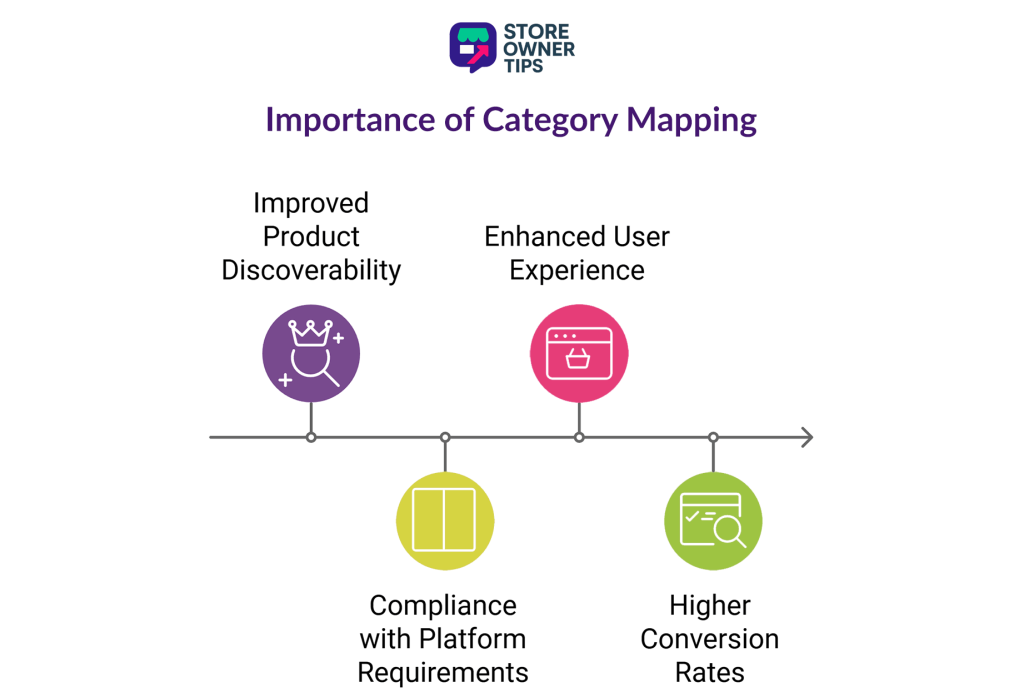
Category mapping lines up your store categories with the giant global categories used by platforms like Google.
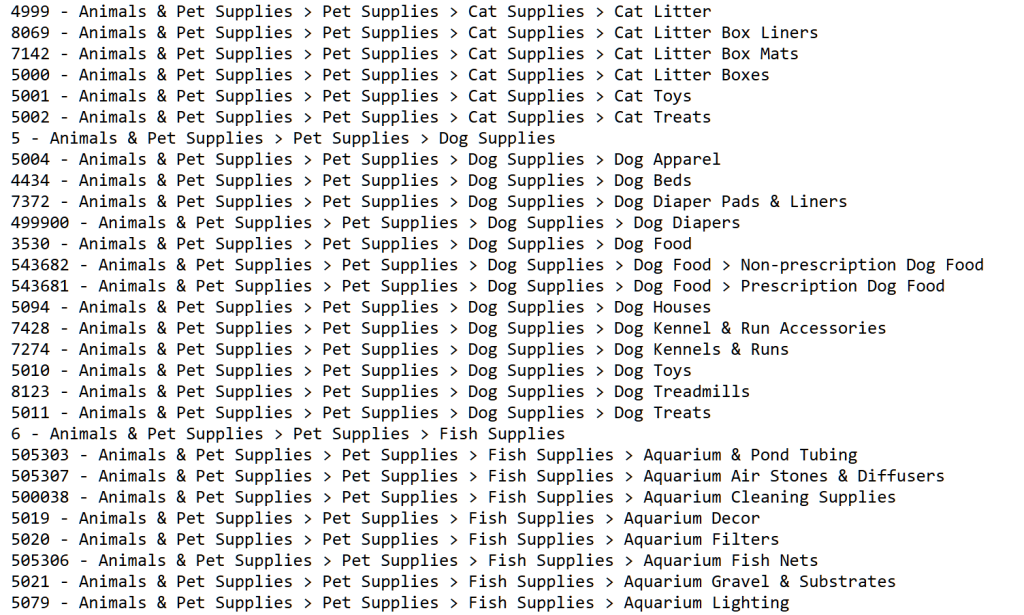
Mapping lets you change information for your ads without messing up your main website. You can set rules that automatically add special sale text just to your data feed.
If you map your items to the correct global categories, search engines know exactly what you sell. This helps them show your ads to the right shoppers.
You don’t just have to send your product data feed to other websites. You can use it right inside your own store to make more money.
Store tools can read your internal feed to offer smart suggestions when a customer checks out. They automatically show related items based on what is currently in stock.
Yes, you can connect your product feed directly to your email marketing setup. Instead of manually copying pictures into emails, the feed does it for you.
When a shopper buys something, an automated email can show them fresh, in-stock items that match their taste perfectly.
Ultimately, a product data feed is an essential tool that helps you automate your store and sell on multiple platforms. When you stop updating your inventory by hand on Google, Facebook, and Amazon, you remove human error and save hours of work.
Keeping your prices and stock levels accurate protects your brand and stops you from paying for clicks on out-of-stock items. Whether you run automated retargeting ads or list your entire catalog on TikTok, an optimized feed ensures buyers see your products and your ad budget is spent wisely.
Related concepts to explore next: To fully use product feeds in your marketing strategy, it helps to understand these connected terms:
Ready to get started? Try setting up an automated product data feed for your WooCommerce store to see how easily you can reach more buyers and sync your inventory across the web.
Copyright © StoreOwnerTips.com. All Rights Reserved.
