Weekly ecommerce tips, deals & news.
Picture this: a shopper visits your WooCommerce store, adds three items to their cart, gets as far as the checkout page—then closes the tab and never comes back.
That’s not an edge case. According to FunnelKit’s cart abandonment research, 70.22% of all online shopping carts are abandoned before purchase. For every 10 people who add something to their cart, seven walk away empty-handed.
Here’s the thing: most of those shoppers weren’t saying no. They got distracted, wanted to think it over, weren’t ready to pay shipping, or just got pulled away. A well-timed abandoned cart email sequence is how you bring them back. In fact, it’s one of the highest-ROI automations any WooCommerce store can have running.
In this guide, we’ll walk through exactly how to set up a sequence of WooCommerce abandoned cart emails from scratch. This includes the 3-email timing framework that consistently outperforms single-email campaigns, subject line templates you can use immediately, and how to layer push notifications on top for maximum recovery.
Jump to:
Before we get into setup, let’s make the revenue case. After all, WooCommerce abandoned cart emails aren’t just a “nice to have” automation.
Say your WooCommerce store does $10,000/month in revenue. With a 70% cart abandonment rate, your customers are leaving roughly $23,000 worth of carts behind every month. Even recovering a conservative, achievable target of 10% means an extra $2,300/month from automations that run completely on their own.
According to research compiled by EmailVendorSelection, campaigns using three cart abandonment emails generate 6.5× more revenue than campaigns with just one. That timing and sequence structure matters, and we’ll cover exactly how to build it.
The most common reasons shoppers abandon carts include:
A recovery email can address all of these directly. And if your checkout process itself needs work, our guide on how to optimize your WooCommerce checkout covers that side of the equation.
To build a full abandoned cart recovery system for WooCommerce, you’ll need:
FunnelKit is already one of our recommended WooCommerce automation tools. Its abandoned cart sequence builder is arguably the most feature-complete option available for WooCommerce stores. Furthermore, it handles cart tracking, automated email sequences, dynamic coupon generation, and detailed recovery analytics all in one place.
If you’re on a very tight budget, there’s also a free option: the WooCommerce Cart Abandonment Recovery plugin (by CartFlows, free on WordPress.org). This handles the basics, including a simple 3-email sequence with timing controls. While it lacks the visual email builder and advanced segmentation of FunnelKit, it’s a solid starting point.
For the rest of this guide, we’ll use FunnelKit for the full setup.
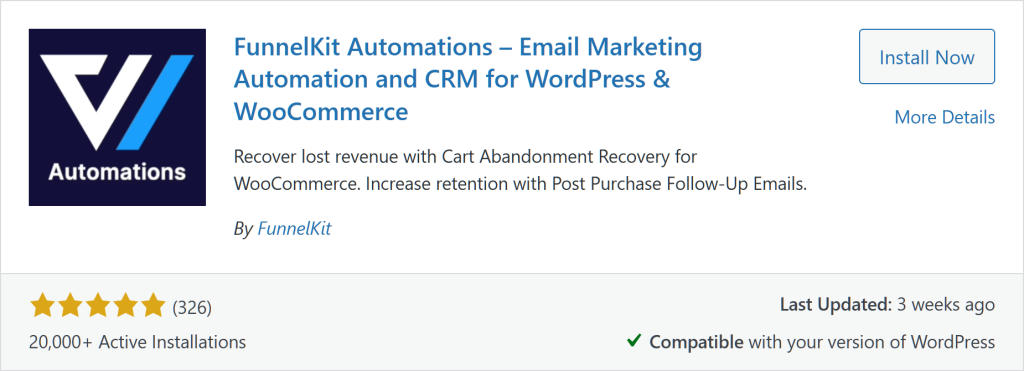
Installing FunnelKit:
Once activated, FunnelKit adds a new Automations menu item to your WordPress sidebar. This is where you’ll build your cart recovery workflow.
🚀 Power Tip: If you’re already using FunnelKit for checkout optimization (upsells, order bumps), your Automations licence covers abandoned cart recovery too. No additional plugin is needed! Check what you already have active before purchasing a new plan.
Connecting your email provider:
Head to FunnelKit Automations → Settings → Email Service and connect your preferred provider. If you’re evaluating which email platform to use alongside this, our guide on the best email marketing plugins for WooCommerce compares the top options side by side.
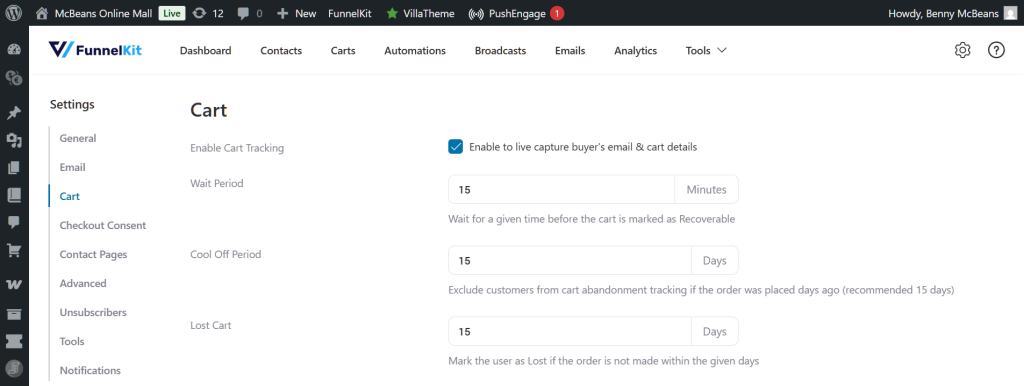
Before FunnelKit can detect an abandoned cart, it needs to be watching your store’s cart sessions.
What abandonment threshold should you use?
The 15-minute default works for most stores. You can shorten it to 10 minutes if you want to catch more sessions early, or lengthen it to 30 minutes if you find your customers tend to browse slowly before completing checkout.
One important note: FunnelKit can only track carts for logged-in users or guests who have entered their email address on the checkout page. Completely anonymous browsers won’t be tracked, which is a limitation of all WooCommerce cart abandonment tools, not just FunnelKit.
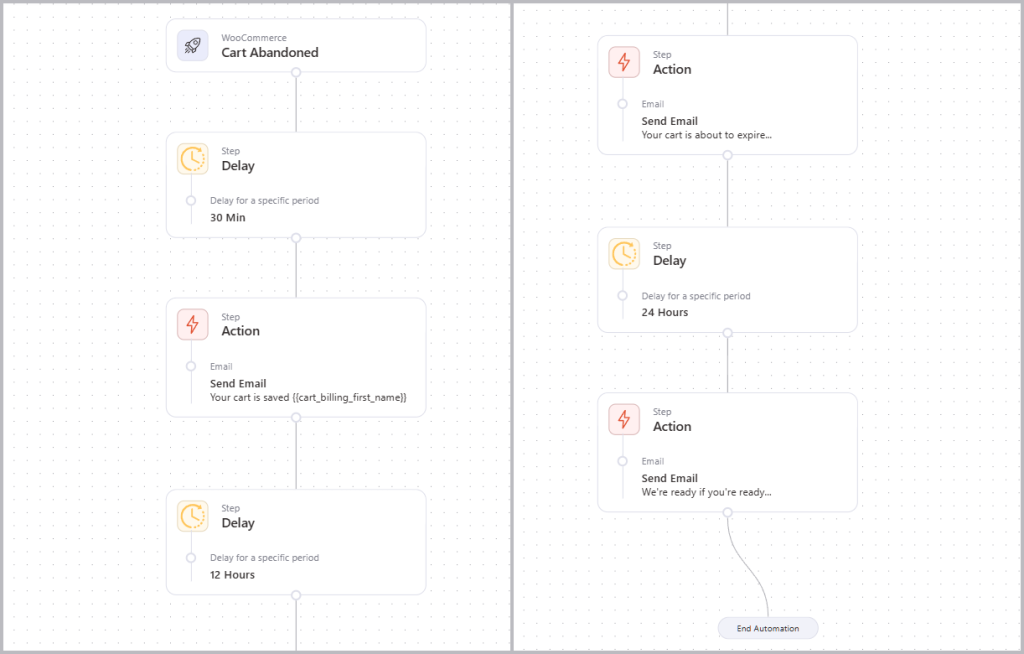
Here’s the recovery sequence framework we recommend based on timing data showing the first 72 hours are your golden recovery window:
Goal: Catch shoppers who were simply distracted. No pressure, no discount, just a friendly nudge.
🚀 Power Tip: Use FunnelKit’s dynamic cart tags ({{cart_items}}, {{cart_total}}, {{customer_first_name}}) to personalise Email 1 with the shopper’s actual products. An email showing the exact item they were considering converts far better than a generic “you left something behind” message.
To set this up in FunnelKit:
Goal: Address the most common reason for abandonment, specifically price hesitation or shipping costs.
For inspiration on structuring effective discount offers, our WooCommerce coupon strategies guide covers the coupon types that convert best.
In FunnelKit: After Email 1’s node, add another Delay (23 hours) → Send Email node for Email 2.
Goal: Final recovery attempt with a clear deadline.
In FunnelKit: Add a final Delay (48 hours) → Send Email node for Email 3. Set a condition to only send Email 3 if the cart is still not recovered (FunnelKit handles this automatically).
The sequence timing is only half the battle. Here are the subject line frameworks that consistently deliver strong open rates for WooCommerce cart recovery.
According to Flowium’s abandoned cart email benchmarks, the average open rate for cart abandonment emails is 39%. This is far higher than standard promotional emails. In other words, your subject line is the single biggest lever.
Email 1: Subject line formulas:
[First Name], you left something behindStill thinking it over? Your cart is savedDid something go wrong at checkout?Email 2: Subject line formulas:
A little something to help you decide — [X]% off[First Name], here's free shipping on your orderWe saved your cart + a gift insideEmail 3: Subject line formulas:
Last chance: your cart expires tonight[First Name], your [X]% discount code expires in 24 hoursStill want [product name]? This offer ends soonEmail body tips:
Need more info on how to set up WooCommerce abandoned cart emails? Then check out this extensive guide.
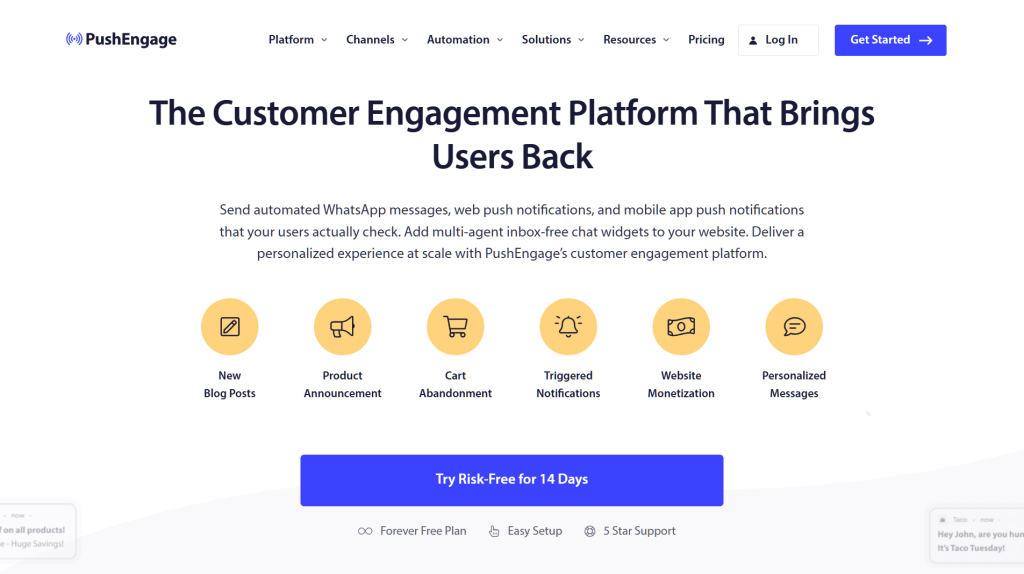
Email recovery has one critical limitation: it only works if you have the shopper’s email address. Push notifications work for everyone who has subscribed to your browser notifications. Thus, it gives you a secondary way to recover abandoned cart revenue even if you don’t have an email address.
We already covered PushEngage in our guide to the top free WooCommerce plugins. However, its cart abandonment feature deserves a specific mention here.
PushEngage lets you send automated push notifications to subscribers when they abandon a cart. In other words, it delivers a nudge directly to their browser or mobile device, even hours after they’ve left your store.
Setting up PushEngage cart abandonment:
The combined strategy: Run FunnelKit emails for subscribers whose email you have, and PushEngage push notifications for all WooCommerce cart abandoners. The two channels are complementary, not competing.
Once your sequence is live, check these metrics weekly inside FunnelKit Automations → Reports:
| Metric | What to Watch For |
| Recovery rate | Target: 10-20% of abandoned carts recovered |
| Email 1 open rate | Should be 35-50%. If lower, test subject lines |
| Email 1 click rate | Should be 15-25%. If lower, check CTA placement |
| Email 2 conversion rate | Measures coupon/incentive effectiveness |
| Revenue recovered | Total revenue attributed to recovery sequence |
If your Email 1 open rate is low, the subject line is the first thing to A/B test. If your click rate is low but open rate is good, the email body or CTA needs work. FunnelKit’s built-in A/B testing lets you test both without needing a separate tool.
🚀 Power Tip: Use our free store health check tool to see if checkout friction is contributing to your abandonment rate. Sometimes, the issue isn’t the recovery sequence but that your checkout page has too many steps. Other possible issues that can cause more abandonment than average in the first place include unexpected fees or a confusing layout.
No. WooCommerce’s default installation does not include abandoned cart email functionality. You need a third-party plugin to track cart sessions and send recovery emails. FunnelKit Automations and the free WooCommerce Cart Abandonment Recovery plugin (by CartFlows) are the most popular options.
Three WooCommerce abandoned cart emails is the sweet spot. Research shows three-email sequences generate 6.5× more revenue than single-email campaigns, while adding a fourth or fifth email shows diminishing returns and risks unsubscribes. Stick to the 30-minute, 24-hour, 72-hour framework for most stores.
No. This is a common mistake. Save the discount for Email 2 (24 hours). Email 1 should be a simple, no-pressure reminder. Offering a discount too early trains customers to abandon carts intentionally to get a coupon. Earn the conversion with the reminder first.
Only partially. WooCommerce can track guest shoppers who have entered their email address on the checkout page before abandoning. Completely anonymous visitors who never reach checkout cannot be tracked by any WooCommerce abandoned cart plugin. This is why it’s crucial to capture emails earlier in the journey via a popup on the product or cart page.
Cart abandonment is the single biggest revenue leak in most WooCommerce stores. The good news: it’s also one of the most straightforward to fix with the right automation in place.
Here’s the setup in a nutshell:
Even a 10% recovery rate on your abandoned carts can meaningfully change your store’s monthly revenue. Moreover, once the email sequence is set up, it runs completely on autopilot.
Not sure how the rest of your store stacks up? Run a free WooCommerce Store Health Check to get a score across SEO, performance, security, conversion, and plugin health, with specific recommendations for each.

Copyright © StoreOwnerTips.com. All Rights Reserved.
