Weekly ecommerce tips, deals & news.
A customer fills their cart, types in their shipping info, and hits “Pay Now.” Suddenly, they get sent to an unfamiliar payment page, so they second-guess their purchase and close the tab. We see this killing sales all the time. Almost always, your checkout system is to blame. This is why you need to choose from the best WooCommerce payment gateways if you want to stop losing sales at the finish line.
The wrong payment gateway costs you money in sneaky ways. People obsess over the basic fee for each swipe. But they forget about hidden costs like currency fees, monthly minimums, and chargeback fees.
The highest hidden cost? Lost sales because your checkout is clunky. According to the Baymard Institute, about 70% of online shopping carts get abandoned. While 43% of those people are window shoppers, 10% to 13% of those ready to buy will bail if they can’t find their favorite way to pay.
For these reasons, we installed, set up, and tested six popular payment gateways in WooCommerce on a real test store. Here’s what we discovered about what keeps shoppers on your site, and what scares them away.
Table of Contents
Before we look at specific choices for accepting online payments, let’s talk about what actually matters:
The “cheapest” option isn’t always the best. A system that costs a tiny bit more but keeps shoppers on your page will easily pay for itself by scoring you more sales. Independent research shows a perfect checkout flow could theoretically boost sales by up to 35%. However, when Stripe tested their own smooth checkout tools in the real world, stores saw a solid 7.4% jump in sales.
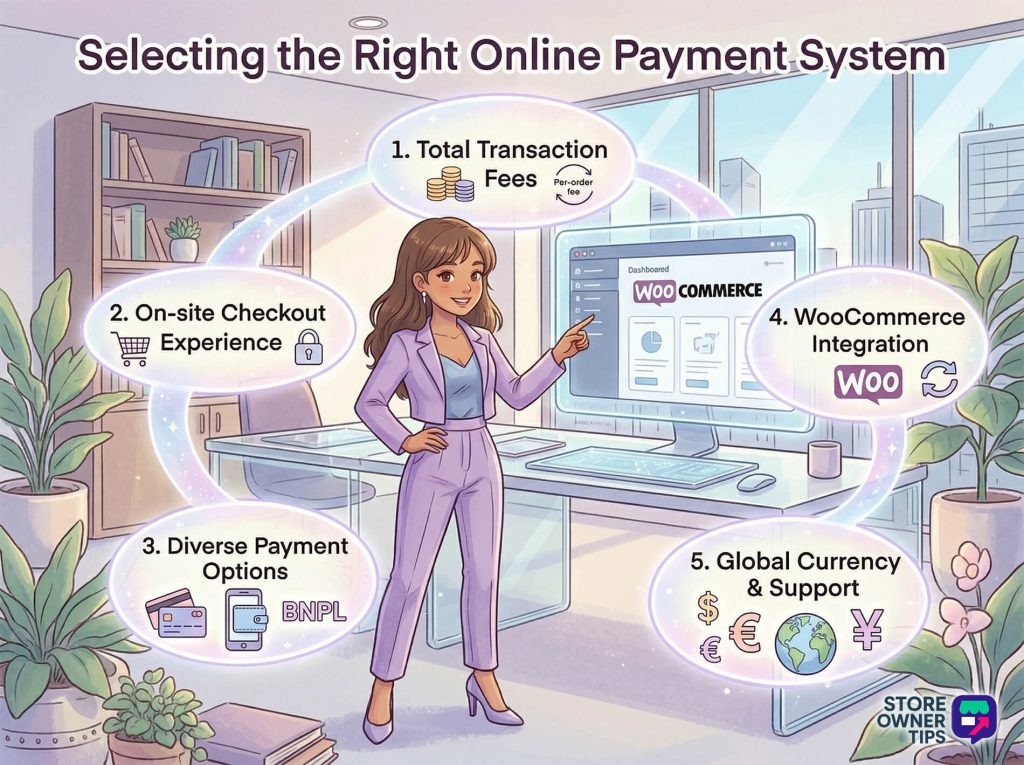
💸 What we see all the time: Store owners stare at the base percentage fee but ignore the flat fees, monthly bills, and currency charges. If your average order is $25, a flat $0.30 fee acts like an extra 1.2% tax. That adds up fast!
Here’s the quick overview of the best WooCommerce payment gateways. We’ll break down each option in detail below.
| Gateway | Transaction Fee (US) | Fixed Fee | Monthly Fee | International Fee | Chargeback Fee |
| Stripe | 2.9% | $0.30 | $0 | +1.5% | Up to $30 |
| PayPal | 2.99% (Cards) / 3.49% (Wallet) | $0.49 | $0 | +1.5% | $20 |
| Square | 2.9% | $0.30 | $0 | +1.0% | N/A |
| Authorize.net | $0.10 per transaction (Gateway Only) | N/A | $25 | Varies by bank | Varies by bank |
| Mollie | 1.8% to 3.25% (Depends on card) | EUR 0.25 | $0 | Built into card type | EUR 19 to 35 |
| WooPayments | 2.9% (+1% on subscriptions) | $0.30 | $0 | +1.5% (plus 1% FX fee) | $15 |
| Feature | Stripe | PayPal | Square | Authorize.net | Mollie | WooPayments |
| On-site Checkout | ✓ | ✓ | ✓ | ✓ | ✓ | ✓ |
| Subscriptions | ✓ | ✓ | ✗ | ✓ | ✓ | ✓ |
| Multi-currency | ✓ | ✓ | Needs Plugin | ✓ | ✓ | ✓ |
| Buy Now Pay Later | ✓ | ✓ | ✓ (Afterpay) | ✗ | ✓ | ✓ |
| In-person POS | ✓ | ✗ | ✓ | ✗ | ✓ | ✓ |
| Local EU Methods | Partial | ✗ | ✗ | ✗ | ✓ | Partial |
| Fraud Tools | Basic | Basic | Basic | Advanced | Basic | Advanced |
Note: We checked these fees in early 2026. Rates change based on your country and how much you sell. Always check the company’s official pricing page before you sign up.
Stripe is considered by many to be the best payment gateway for WooCommerce stores, and it’s trusted by teams across the worldsafe payment network to handle millions of dollars daily. Just know that, like all major payment gateway, Stripe uses strict, robot-driven security checks. If your store suddenly gets a massive wave of sales, their security bots might temporarily pause your payouts or hold onto some of your cash to protect against potential chargebacks.
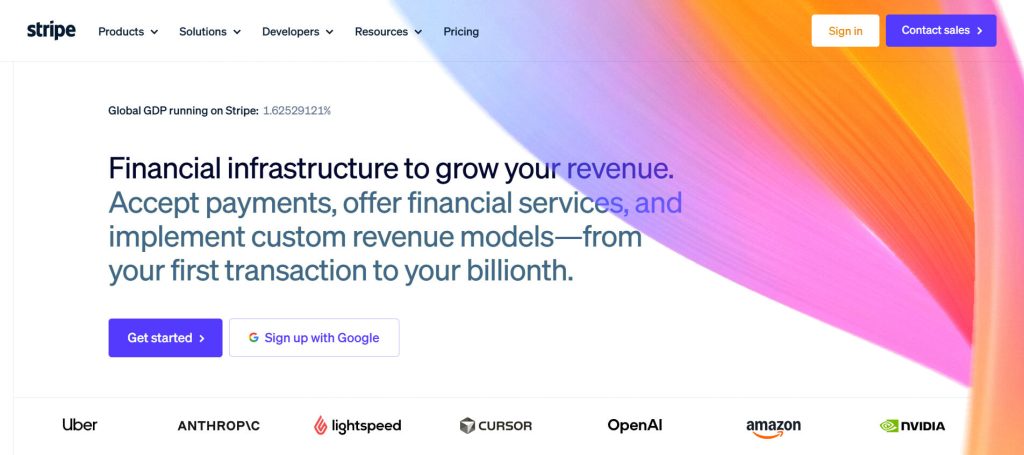
Stripe had the easiest setup out of the bunch. The official Stripe plugin connected to our store in just a few clicks. We didn’t have to copy and paste any API keys manually to make the payment gateway work. Better yet, customers stayed on our website for the whole checkout process. There were no confusing pop-ups or weird redirects to other websites.
We tested a refund straight from our store’s dashboard. Just a heads up: incoming sales usually hit your bank account in two days. However, if you refund a customer, it takes 5 to 10 business days for that money to show up on their credit card. This is just standard bank lag, but it’s good to know so you can warn your buyers. When we issued the refund, the status updated automatically in both Stripe and our store. We didn’t have to fix the books manually. This smooth, two-way update is where Stripe really shines.
Pros:
Cons:
Best for: Most WooCommerce stores, especially if you want a slick, professional checkout with zero setup headaches.
Always a “Best WooCommerce Payment Gateways” contender, PayPal is still one of the most famous names in online shopping. Over the last few years, the way it connects to WooCommerce has gotten much better. The newest version lets you accept credit cards directly on your site, right next to the classic yellow PayPal button.
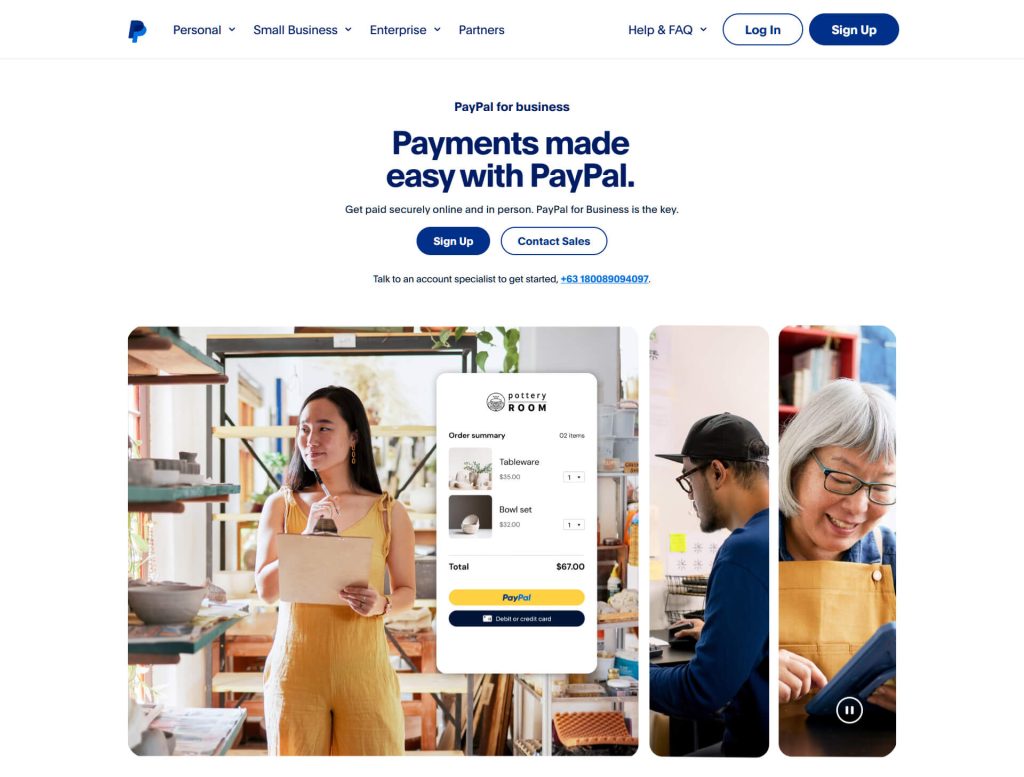
The fact that you can now host card fields right on your page is a huge upgrade. However, loading extra payment buttons means your website has to work a bit harder. Depending on your web host and your customer’s internet speed, your checkout page might load a tiny bit slower. Always test your checkout on your phone to make sure it still feels fast.
The famous “PayPal Buyer Protection” badge definitely builds trust, acting almost like a money-back guarantee for nervous shoppers. If you’re a new, unknown brand, offering PayPal right next to regular credit cards is a great way to win over nervous shoppers. A 2024 study showed that 59% of loyal PayPal users will ditch their cart if they don’t see the PayPal button. Even in the general public, about 25% of shoppers will leave if they can’t pay with their favorite method.
Pros:
Cons:
Best for: Stores that want to build instant trust, especially when selling to first-time buyers.
You probably know Square from their little white card readers at local coffee shops. But they also hook up to WooCommerce. This makes Square a great choice if you sell stuff both online and in a physical store.
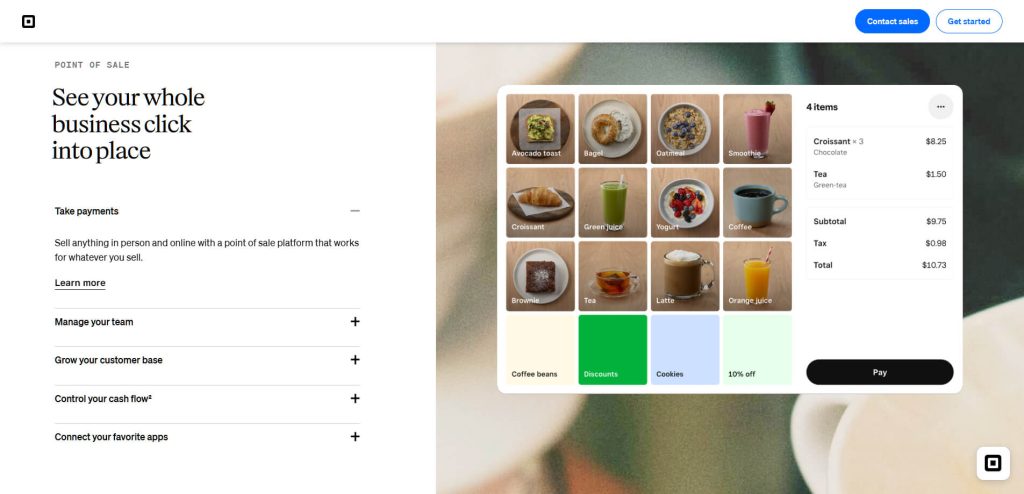
Square’s plugin keeps your inventory perfectly synced. If you change a price on your website, it updates your physical cash register (called a POS, or Point of Sale system). If you sell an item in person, it drops the inventory count on your website. For hybrid stores, this automatic syncing is a massive time-saver we didn’t see anywhere else.
While it looked clean, the checkout page was a bit more basic than Stripe’s setup. However, Square includes Cash App Afterpay right out of the box. If you sell expensive items, this built-in “buy now, pay later” feature is a fantastic way to get more sales without installing extra plugins.
Pros:
Cons:
Best for: Business owners who sell both online and face-to-face and need their inventory to match up perfectly.
Authorize.net is one of the oldest players in the game, and Visa owns it now. It’s built for big, established businesses that need heavy-duty fraud protection and don’t mind paying a little extra for it.
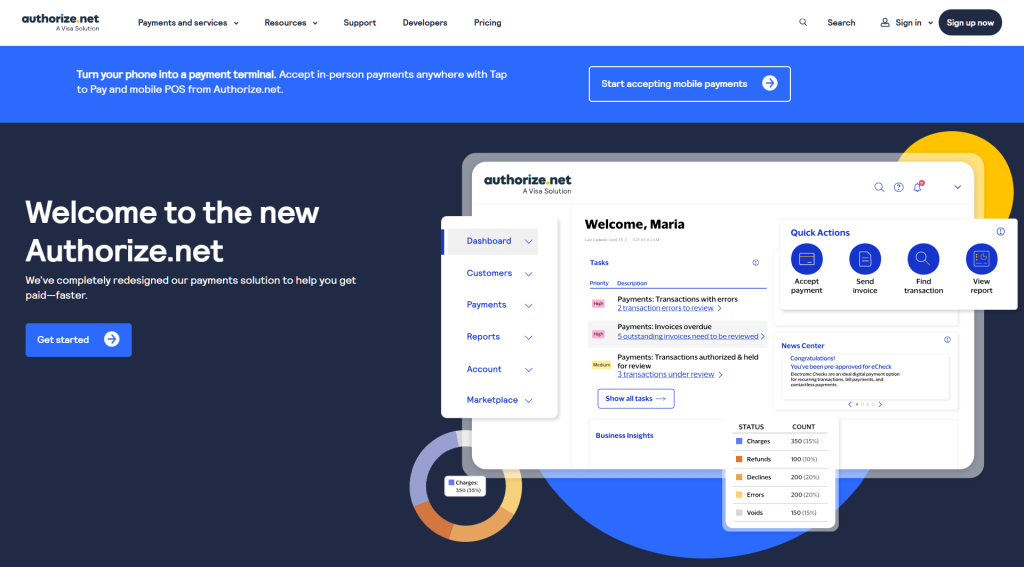
Getting started takes more effort than Stripe. Authorize.net forces you to connect your store using manual API keys, which are like super-secure digital passwords. While setup takes time, it acts like a high-tech digital vault. For example, it automatically updates your customers’ expired or lost credit cards behind the scenes so their monthly subscriptions keep humming along. Plus, if you use their “Gateway Only” plan, you just pay a $25 monthly fee and a tiny $0.10 per transaction. This lets you shop around to find the absolute best processing rates from different banks.
Authorize.net’s biggest superpower is its top-tier fraud blocker. We configured custom fraud filters (velocity filters, IP blocking, transaction limits) that aren’t available on Stripe or PayPal without third-party tools. If your store makes over $50,000 a month, this level of control is a lifesaver.
Pros:
Cons:
Best for: Big stores moving serious volume that need strict fraud blocking and don’t mind a payment gateway with a tricky setup.
As one of the best WooCommerce payment gateways, Mollie is the hands-down winner for stores based in Europe. Stripe and PayPal rule the US market, but Mollie was built perfectly for European shoppers.
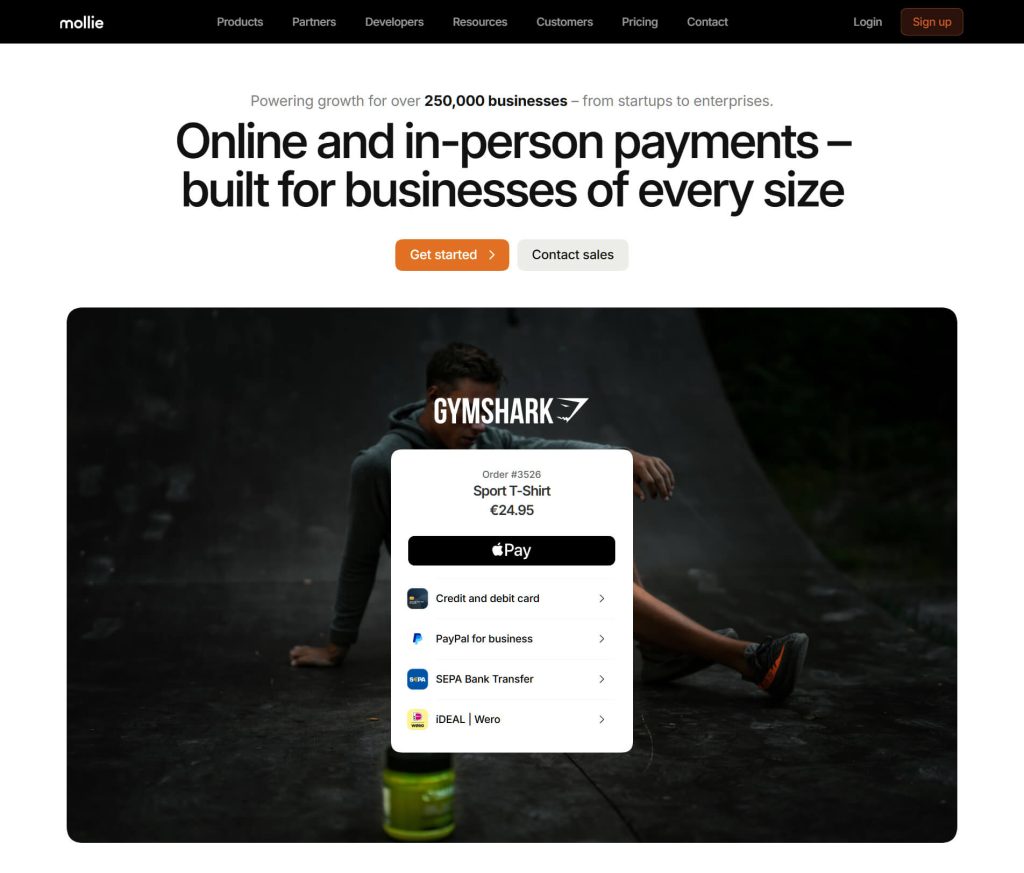
Mollie natively supports iDEAL, Bancontact, SOFORT, and other local payment methods that Stripe and PayPal treat as add-ons. We set up 8 different payment methods in minutes. Each one showed up as a neat, separate button at checkout. If you want European customers to buy from you, you absolutely need these local options.
Mollie doesn’t charge a monthly fee, but their transaction rates shift depending on the card used. Standard European consumer cards cost a low 1.8% + €0.25. But if your customer uses a business card, that jumps up to 2.9%. If someone from America or outside Europe buys from you, the fee climbs to 3.25%. Also, watch out for chargebacks (when a customer disputes a charge). If that happens, Mollie hits you with a painful €19 to €35 fine.
Pros:
Cons:
Best for: European stores that need to offer local favorites like iDEAL and SOFORT.
WooPayments is the official payment gateway built right into WooCommerce. Behind the scenes, it runs on Stripe’s technology.
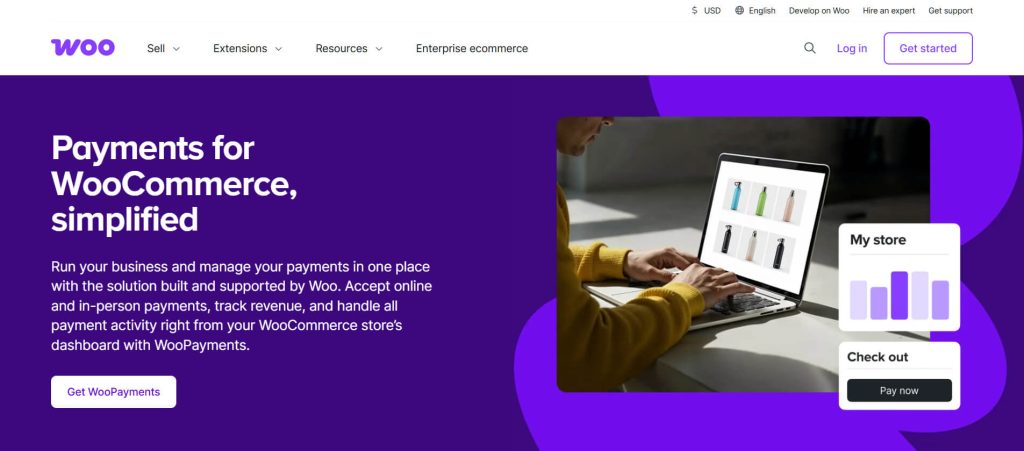
Since the WooCommerce team built it, this option is deeply baked into your store. We managed our money, tracked payouts, and handled refunds without ever leaving our WordPress dashboard. Seeing our bank deposits right next to our daily orders made tracking cash super easy.
Because it runs on Stripe’s engine, we saw the exact same speed and reliability. The catch? WooPayments sneaks in a few hidden fees. They hit you with an extra 1% fee on all subscription sales. They also tack on another 1% if you accept foreign currencies. However, there’s a massive perk: you get a powerhouse fraud blocker totally free, right inside your dashboard.
Pros:
Cons:
Best for: Store owners who want the absolute easiest setup and love doing everything in one single screen.
Here’s our simple cheat sheet for making a choice:
💡 Pro Tip: Don’t just pick a single option. We suggest offering Stripe (or WooPayments) for credit cards, plus PayPal as a backup. Stores we work with see 10% to 15% of their shoppers pick PayPal when both are visible. That’s easy money you’d lose if you only offered one button!
While you’re considering the ideal payment gateway to use, it’s a great time to do a quick online store health check. Make sure the rest of your checkout is fast and friendly, too!
Yes, you can use more than one WooCommerce payment gateway, and you totally should! WooCommerce lets you run multiple gateways at the same time. Your shoppers will see all your active options at checkout and click the one they like best. The most popular combo is Stripe paired with PayPal.
For normal US sales, Stripe and WooPayments tie at 2.9% + $0.30. But watch out, because WooPayments sneaks in a 1% fee on subscriptions. For European shops, Mollie offers a dirt-cheap 1.8% + €0.25 rate. Just remember that only applies to standard local cards; business and international cards cost more. Always remember: saving a penny on fees isn’t worth it if a clunky checkout scares your customers away!
Yes! Every system on our list demands this security lock to keep your customers’ sensitive credit card data worldsafe and secure. Most web hosts give you one for free. If your host tries to charge you for it, that’s a huge red flag.
You can easily turn on a new WooCommerce payment gateway right next to your old one without breaking your site. However, your past sales data will stay trapped inside your old dashboard. It won’t move over. If you sell monthly subscriptions, you’ll have to ask your active customers to type in their credit card numbers again. This can be a huge hassle.
Finding the perfect payment gateway comes down to where you live, how much you sell, and if you need special tools like a physical cash register or strict fraud blockers. For most folks, here’s the quick rundown:
Are you just starting out? Then read our guide on how to start an online store! We talk about setting up payment gateways as part of the whole launch process. Looking to supercharge your site? Check out our list of top WooCommerce plugins to make your store even better!

Copyright © StoreOwnerTips.com. All Rights Reserved.
