Weekly ecommerce tips, deals & news.

Imagine a demand letter landing in your inbox. Worse still, it says your store owes thousands of dollars in damages. The reason? A blind shopper couldn’t finish checkout because your product images had no alt text.
Ecommerce accessibility isn’t just the ethical choice. In the US, it’s effectively a legal requirement. Plus, it affects roughly 16% of people worldwide, or 1.3 billion potential customers.
In 2024 alone, plaintiffs filed over 4,000 digital accessibility lawsuits. In fact, ecommerce sites were the target in 77% of them. As a result, this stopped being a niche concern years ago.
This guide covers WCAG 2.1 AA compliance for WooCommerce stores in plain terms. You’ll learn what the standards require, how to audit your store, and which tools actually help.
Table of Contents
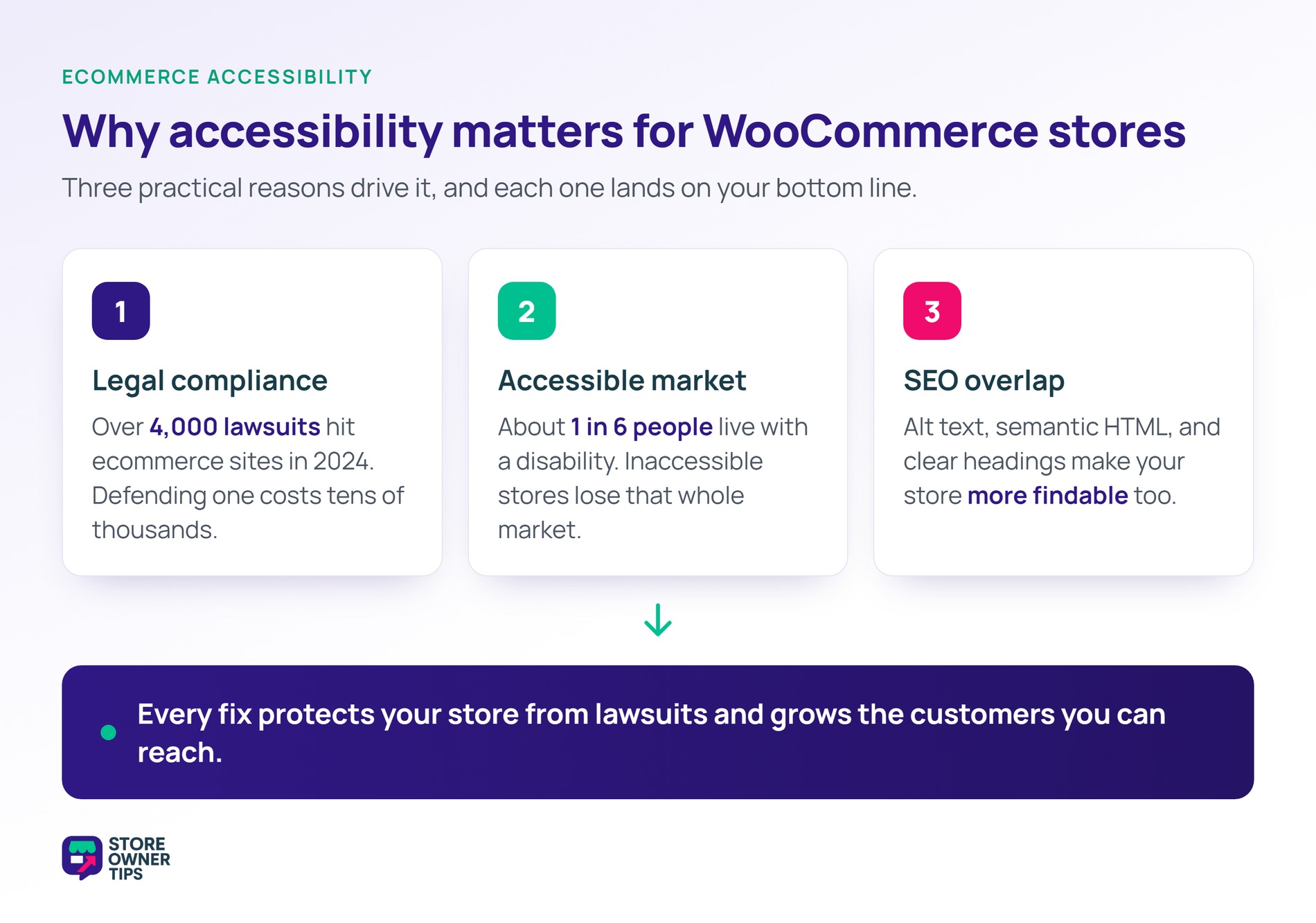
I’ve found ecommerce accessibility comes down to three practical reasons. Ultimately, each one affects your bottom line.
ADA (Americans with Disabilities Act) lawsuits against ecommerce stores have grown fast in recent years. Plaintiffs’ firms scan thousands of sites for common accessibility failures. Then they file suit against any they find.
In practice, defending one of these suits can cost tens of thousands of dollars. That’s true even when you eventually comply. Plus, the EU Web Accessibility Directive, UK Equality Act, Canadian AODA, and Australian DDA all impose similar rules.
About 16% of people worldwide, or 1 in 6, live with a significant disability. That covers vision, hearing, motor, and cognitive needs. As a result, inaccessible stores lose that entire market. By contrast, accessible stores capture customers competitors ignore.
Many accessibility requirements also help SEO. Alt text, semantic HTML, and proper headings all count here. In practice, making your store accessible makes it more findable too. Advanced Coupons has a broader guide on optimizing your ecommerce site.
Web Content Accessibility Guidelines (WCAG) is the international standard for ecommerce accessibility. WCAG 2.1 AA is the level most legal requirements reference.
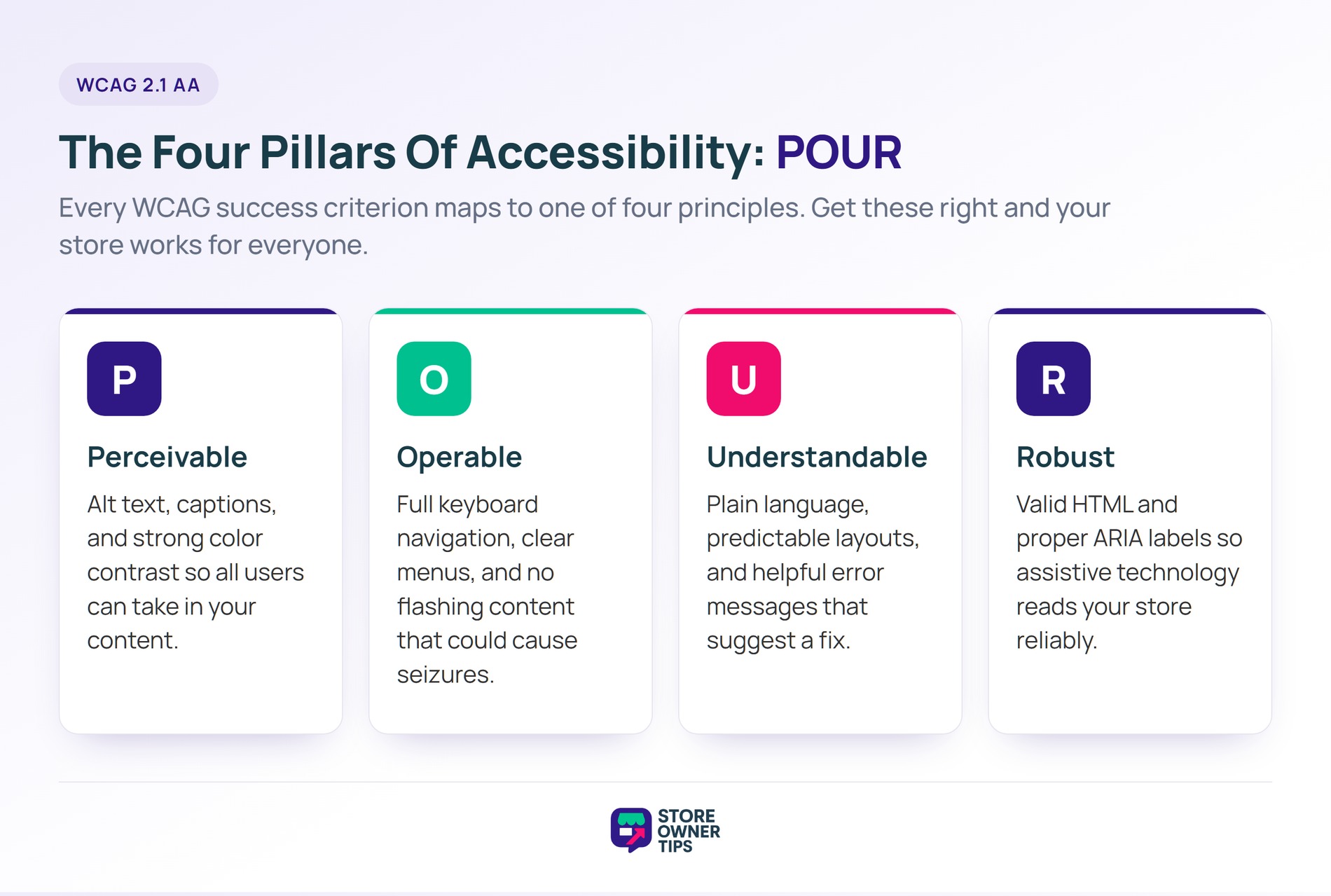
WCAG rests on four pillars, known together as POUR.
Perceivable: Users must be able to perceive your content.
Operable: Users must be able to use the interface.
Understandable: Users must be able to understand your content.
Robust: Content must work with assistive technology.
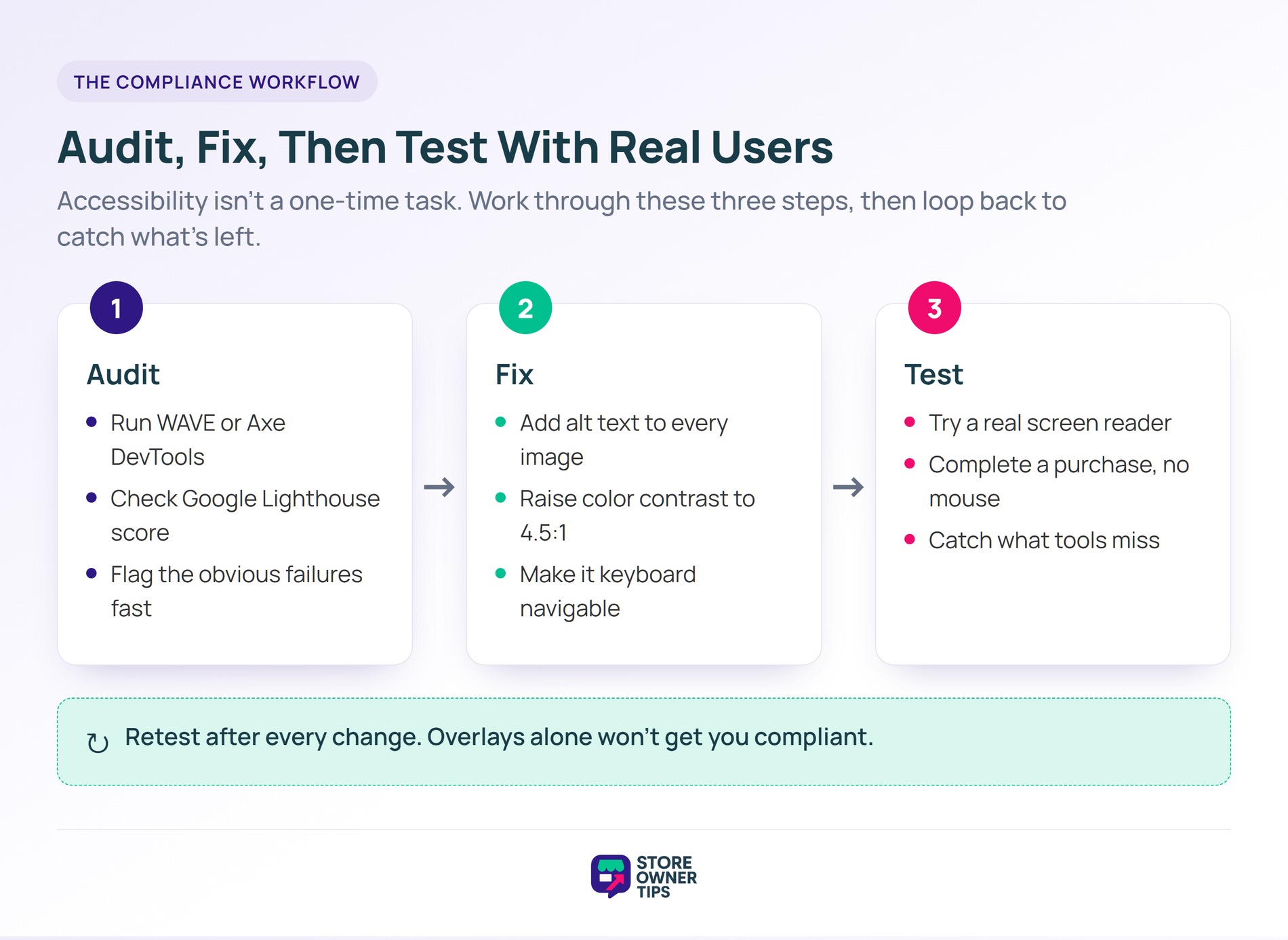
Start with automated audits to catch the low-hanging fruit. These tools flag the obvious ecommerce accessibility failures fast.
WAVE is a free browser extension from WebAIM. It highlights errors and warnings directly on your live pages.
What it catches:
What it misses:
Axe DevTools is a browser extension from Deque. Notably, it’s more detailed than WAVE. The free version covers most needs, while the Pro version adds automated testing in development workflows.
Lighthouse is built into Chrome DevTools. Additionally, it includes an accessibility audit score with specific improvement recommendations. It grades page speed too, so pair it with these speed fixes.
Siteimprove offers enterprise-grade automated scanning. It scans entire sites instead of individual pages. It’s expensive, but useful for large catalogs.
Making your online store accessible is about more than just avoiding legal risk; it ensures that every single person who visits your site can browse, search, and checkout without frustration.
When you leave your digital storefront unoptimized, you inadvertently lock out millions of shoppers who rely on assistive technologies to navigate the web. By focusing on a few core adjustments to your design and underlying code, you can build a highly usable experience that protects your business and opens your doors to everyone.
Here are five practical steps to bring your store up to international ecommerce accessibility standards.
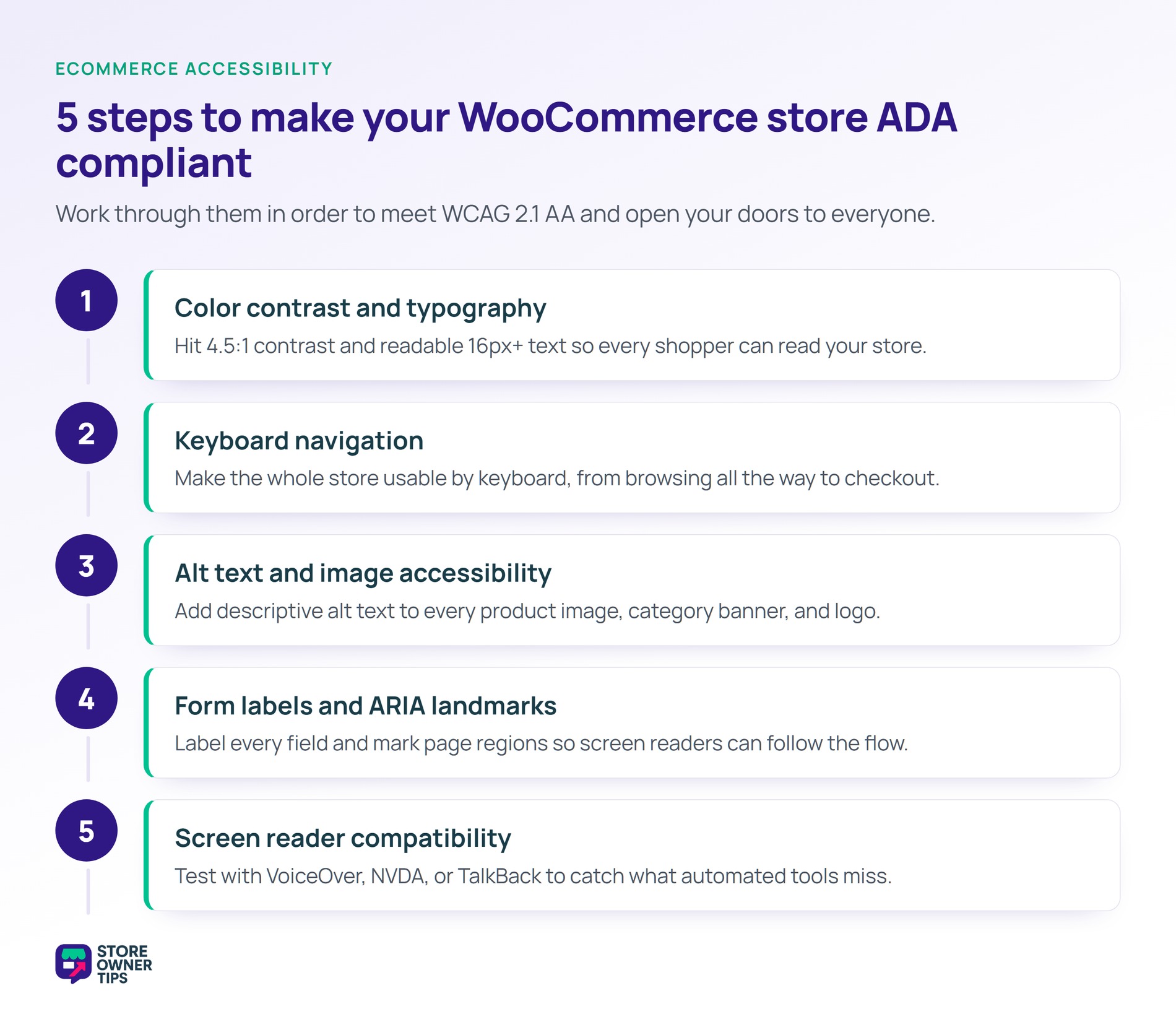
Color contrast is usually the first accessibility fail on ecommerce sites. The target is 4.5:1 for normal text and 3:1 for large text.
Common failures:
How to fix it:
Typography matters too:
Small design choices like these compound across your product pages.
Many users can’t use a mouse. Instead, they navigate via keyboard using Tab, Enter, and Arrow keys.
Here’s a quick test. Unplug your mouse, then try to complete a purchase using only the keyboard.
What should work:
Common failures:
Alt text describes images for screen reader users, and it is a core part of ecommerce accessibility. Every image needs appropriate alt text.
WooCommerce makes alt text easy to add. When you upload images, there’s a dedicated alt text field. Use it every time. AdTribes has a full guide on high-quality product images worth a read.
Forms are everywhere in ecommerce. Think checkout, account creation, search, and filters. They all need proper labels.
<label> element associated with the input via the for attributeARIA landmarks help screen reader users navigate your site structure.
Most quality WooCommerce themes use these automatically. Still, it’s worth checking your theme to verify.
Test your store with a screen reader to find issues automated tools miss.
Even 10 minutes of screen reader testing reveals problems tools skip. Think navigation flow, implicit context, or awkwardly worded headings.
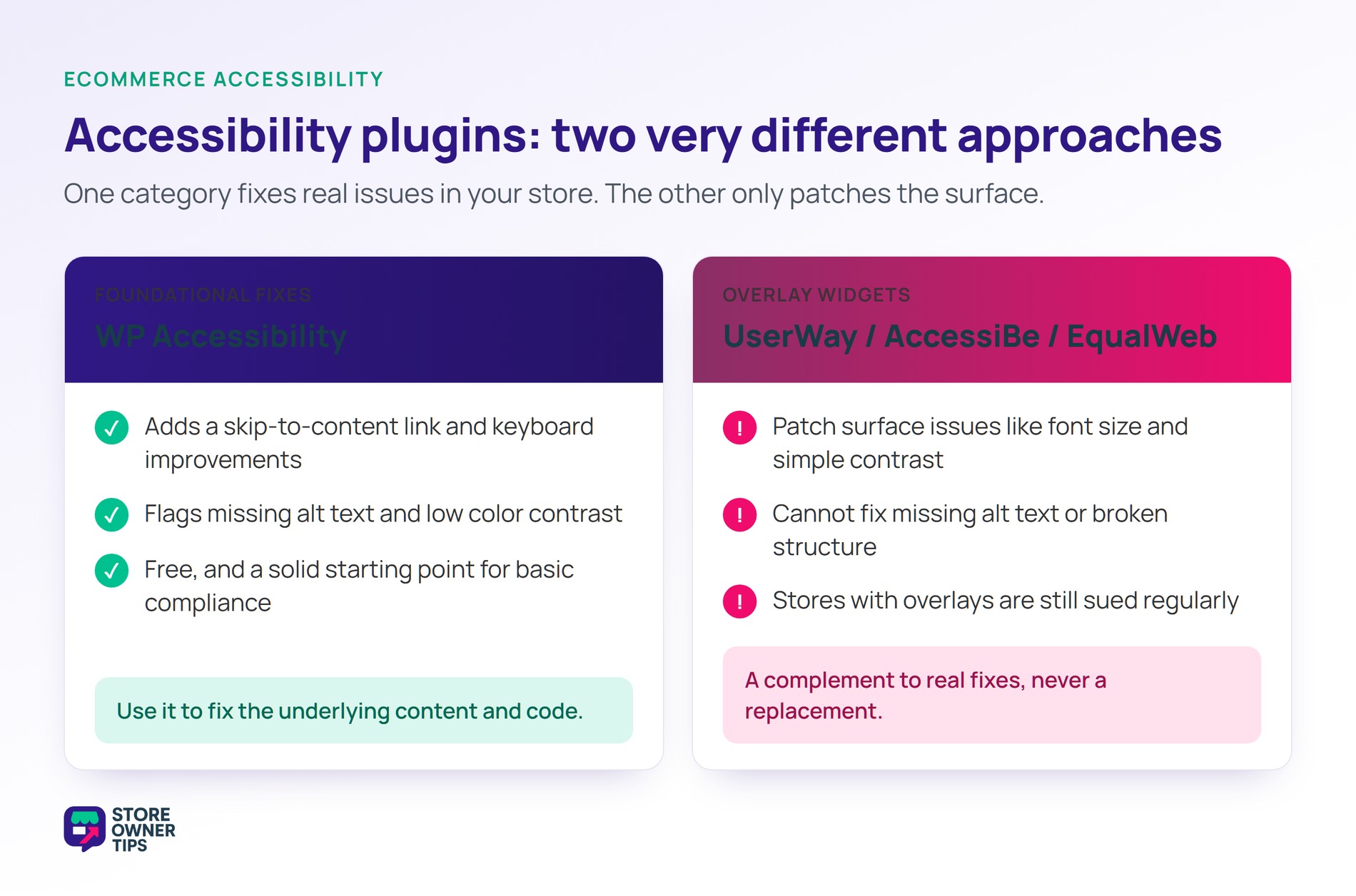
Several plugins help with WooCommerce accessibility. Here are the two categories worth knowing. Advanced Coupons also rounds up more plugins to increase sales worth adding.
WP Accessibility is a free plugin that adds common fixes:
It’s a good starting point for basic compliance.
These are AI-powered accessibility overlay widgets. They promise to fix accessibility issues automatically.
What I’ve noticed in practice:
Honest take: use them as a complement to real fixes, never a replacement. An overlay can’t fix missing alt text on product images. Fix the root issues first, then use overlays for user-controlled preferences.
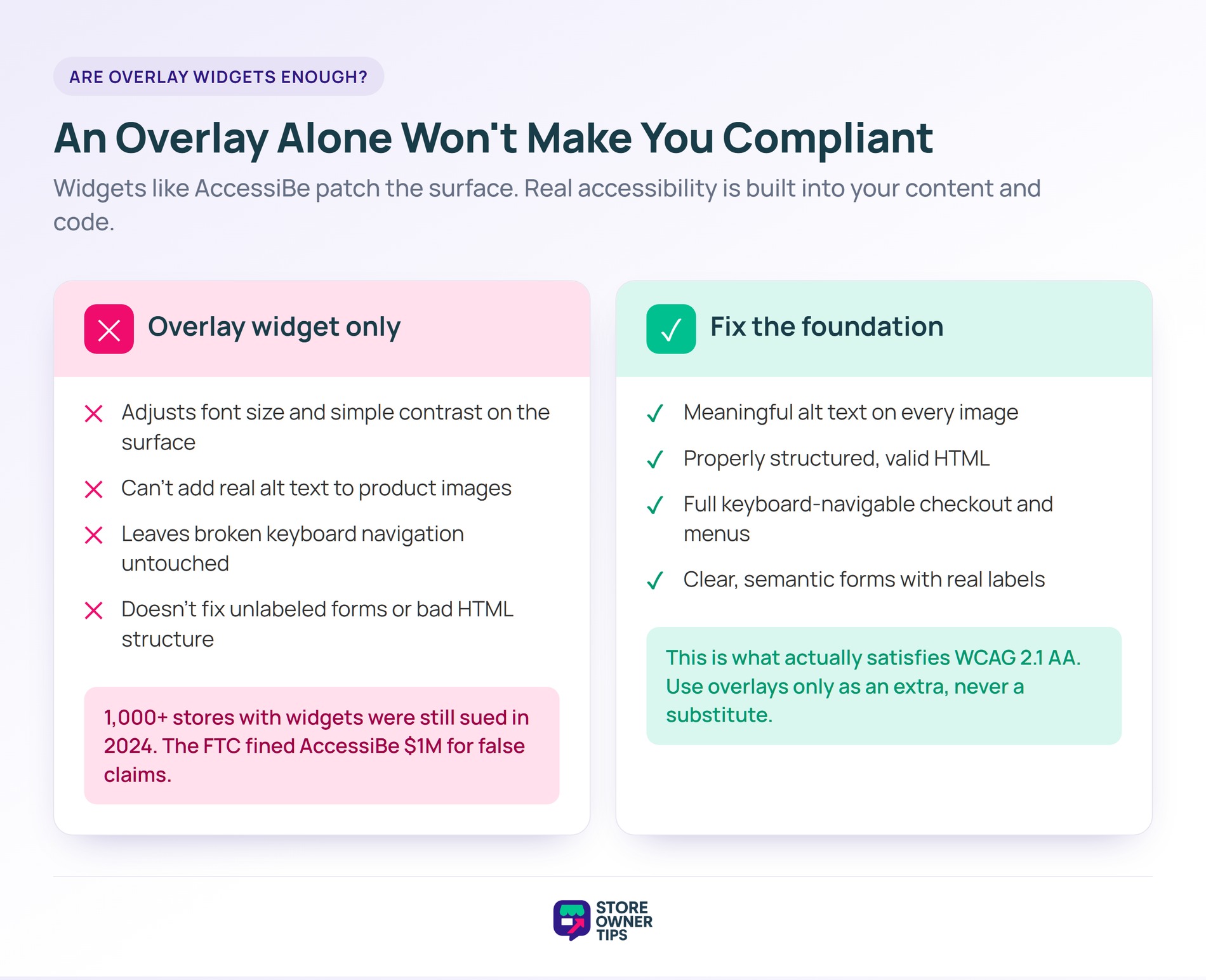
Short answer: no. Overlay widgets handle surface-level ecommerce accessibility issues but miss the structural ones.
Real accessibility requires the following:
These can’t be retrofitted by an overlay. They need to be built in from the start.
The data backs this up. In 2024, over 1,000 businesses were sued despite having accessibility widgets installed. That’s more than 25% of all cases. The FTC also fined accessiBe $1 million in 2025 for misleading compliance claims.
We’ve seen stores buy an overlay and assume they’re covered. They’re not. Real accessibility means fixing the underlying content and code, not adding a widget on top.
In the US, the ADA is widely interpreted to apply to commercial websites. Courts have consistently ruled that ecommerce sites must be accessible. Similar laws exist in the EU, UK, Canada, and Australia.
WCAG 2.1 AA is the international accessibility standard most legal requirements reference. Compliance with it typically satisfies the ADA, AODA, and similar laws. In short, it’s the benchmark to aim for.
Ecommerce accessibility starts with an automated audit using WAVE or Axe. Fix the issues it finds, then test with a screen reader. The WP Accessibility plugin handles common fixes. Don’t rely on overlay widgets alone.
They help with some surface issues but don’t provide full WCAG compliance. Businesses with overlays are still sued regularly. Use them alongside real fixes, not as a replacement.
It depends on your store size and how many issues you have. A small store might spend a few hundred to a couple thousand dollars. Larger stores with big catalogs can spend far more on a full audit and remediation.
Yes, quite a bit. Alt text, semantic HTML, proper headings, and keyboard-friendly interfaces all help both accessibility and SEO. You’re improving two things at once.
Ecommerce accessibility is a legal requirement, a moral duty, and a business opportunity all at once. Comply with WCAG 2.1 AA to protect your store from lawsuits and expand your market at the same time.
Here’s what to do next:
If you’re starting today, install WAVE and audit your top 5 pages. Fix the highest-priority issues first: alt text, color contrast, and keyboard navigation. Then retest. You’ll likely catch 70-80% of common failures in one focused afternoon.

Copyright © StoreOwnerTips.com. All Rights Reserved.
