Weekly ecommerce tips, deals & news.
An online gift registry is a public, shareable list of products someone wants for an event. The registry tracks each item as guests buy it. Guests see what’s still needed, buy it, and the list updates.
What separates a registry from an ordinary wishlist is that quantity tracking, plus the fact it’s public by design. For a WooCommerce store, hosting one yourself keeps the wedding or baby shower spend in your own checkout. It doesn’t go to a registry site.
Most store owners meet registries from the wrong side. A customer emails asking whether you can “do a registry” for their wedding list. The honest answer is usually a spreadsheet and a lot of manual checking.
That manual version breaks fast. Two aunts buy the same dinner set. Someone else buys an item that’s already covered. Now you’re refunding gifts during an event week.
The good news is that this is now a solved problem in WooCommerce. Below is how registries work, what changes for the guest, and how to set one up.
Jump to:
A registry is a wishlist with quantities and an audience. That’s the whole difference, and it’s the part that makes it work.
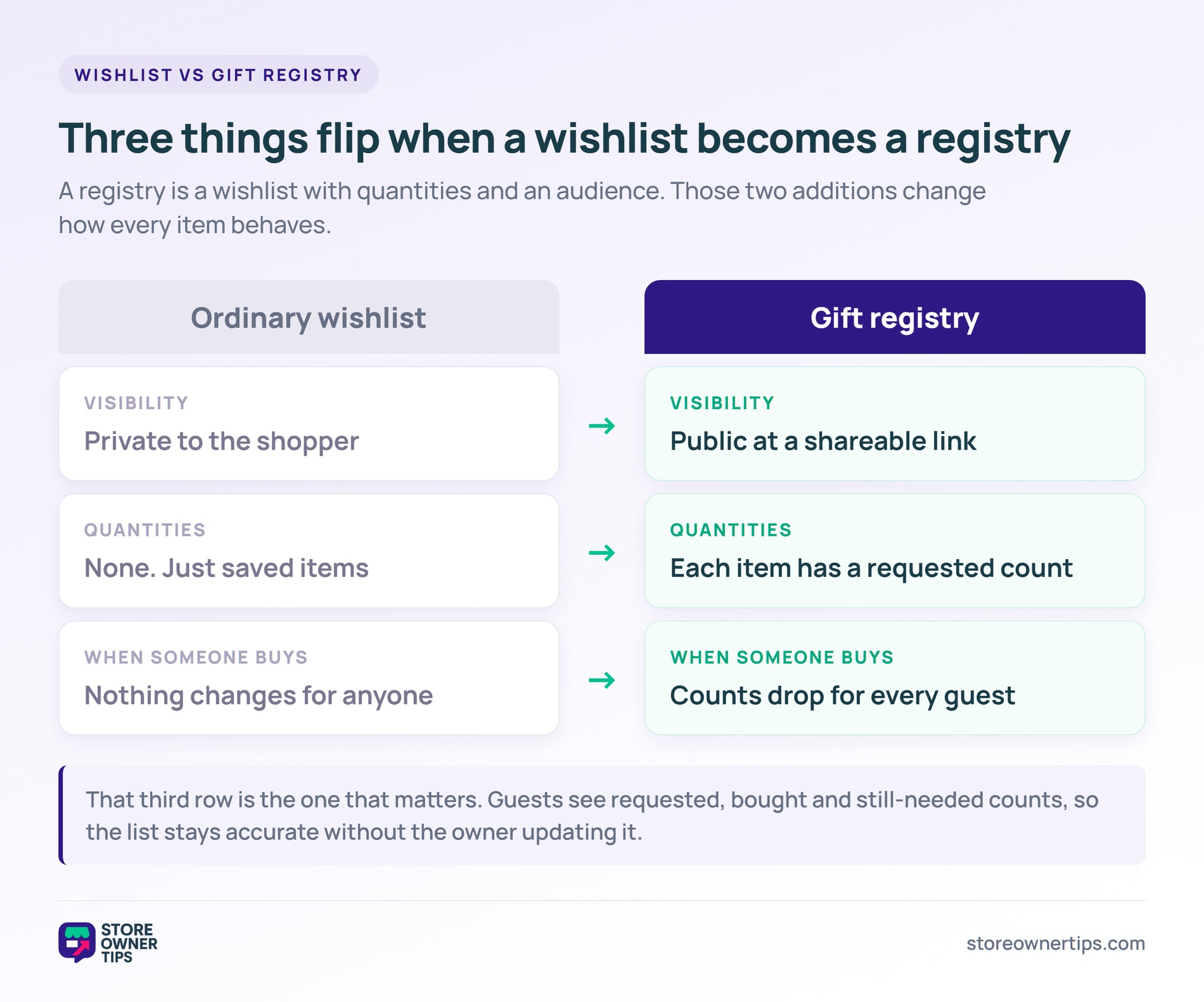
An ordinary wishlist is private and open-ended. The shopper saves things they might want, for themselves, with no quantity attached. Nobody else sees it, and a purchase changes nothing on the list.
By contrast, a registry flips all three. It’s public at a shareable link, each item carries a requested quantity, and buying decrements that quantity for everyone. Guests see requested, bought and still-needed counts on each item.
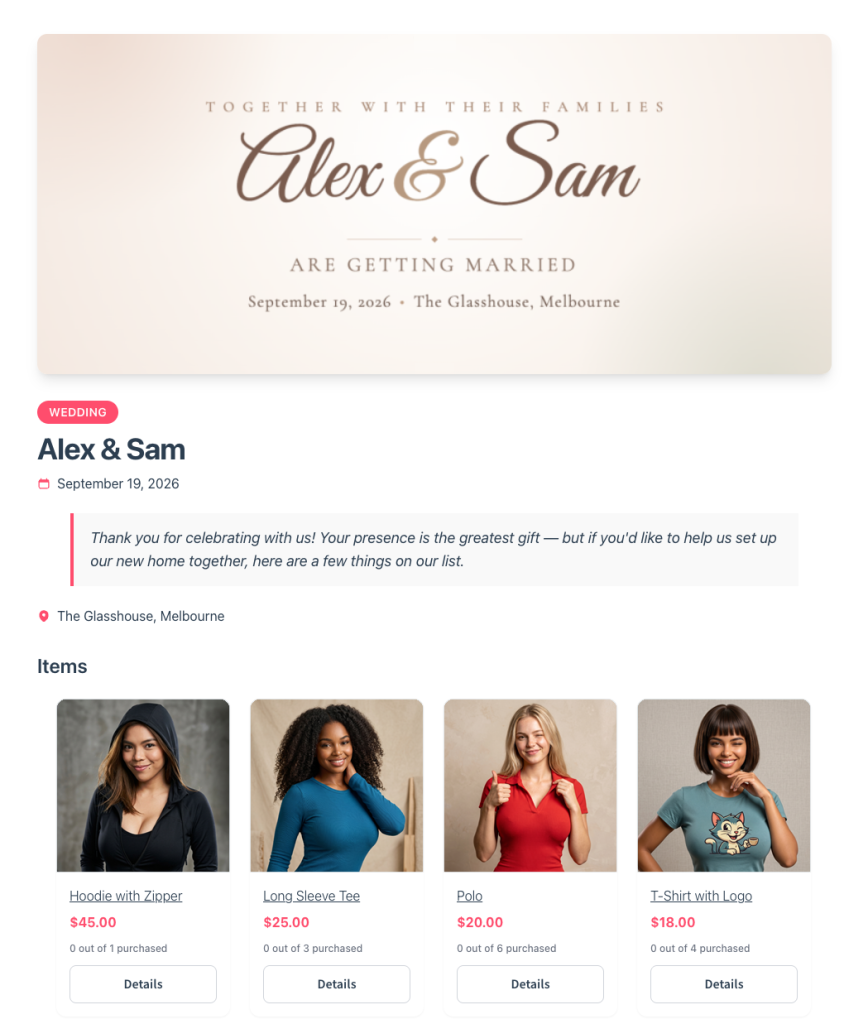
Three things follow from that, and they’re what store owners care about:
In practice, hosting the registry yourself keeps the checkout, the customer data and the margin. Send people to a third-party registry site and you hand over all three.
The big registry platforms are universal by design. They let a couple add products from any store, which is genuinely useful for the couple. For a retailer, though, it means your products sit in a list next to everyone else’s.
A registry on your own store inverts that. Every item is yours, every checkout is yours, and every guest becomes a customer record you keep.

Guest experience matters more here than on a normal product page. Registry buyers are often first-time visitors who came for one item. According to Baymard Institute, 18% of non-browsing cart abandonments happen because the site wanted the shopper to create an account. The same research puts the average documented cart abandonment rate at 70.22%, last updated in September 2025.
So a registry that forces sign-up before checkout works against itself. Guest checkout isn’t a nice extra here, it’s the default the format needs.
The platform question, at least, has a clear answer. According to W3Techs, WooCommerce runs 48.1% of all e-commerce systems it surveys as of September 2026. If you’re already on Woo, the registry can live inside the store you have.
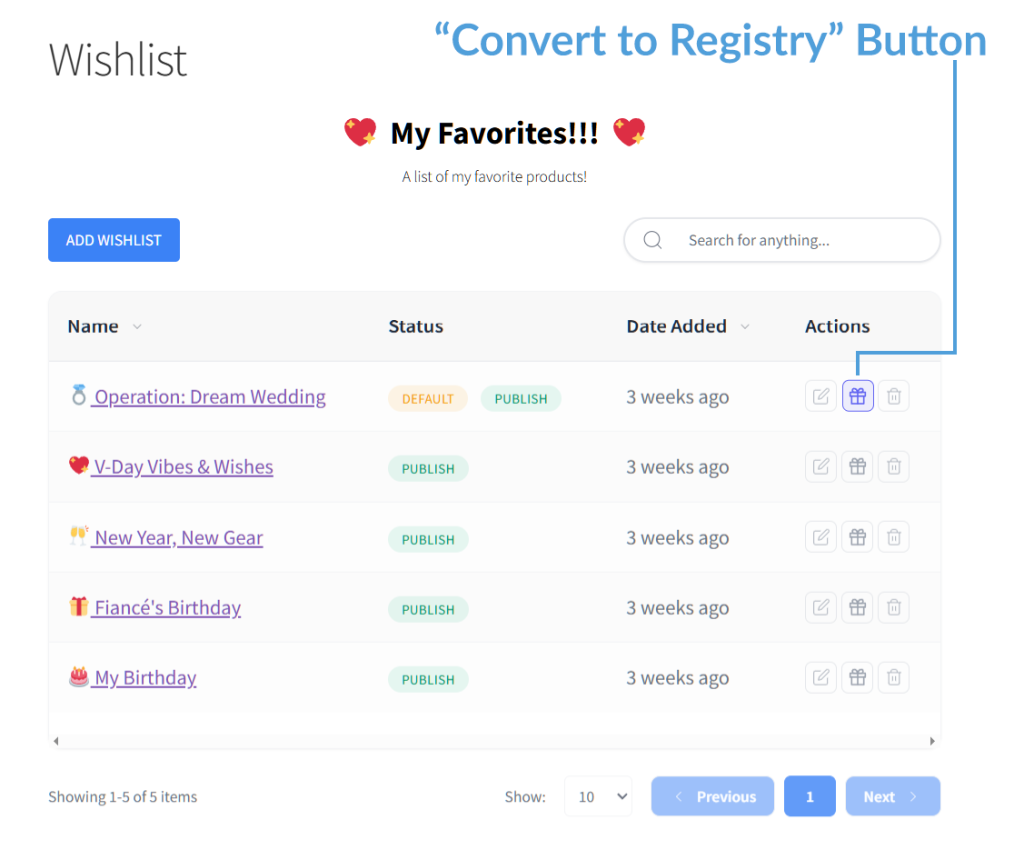
Still, the cleanest way to build a registry is to start from a wishlist your customer has already made. They’ve done the product selection, so the registry step is just adding event details and quantities.
That’s the model the SaveTo Wishlist Gift Registry Addon uses. It runs on top of the free SaveTo Wishlist Lite plugin. Wishlists come first, and registries are the layer above.
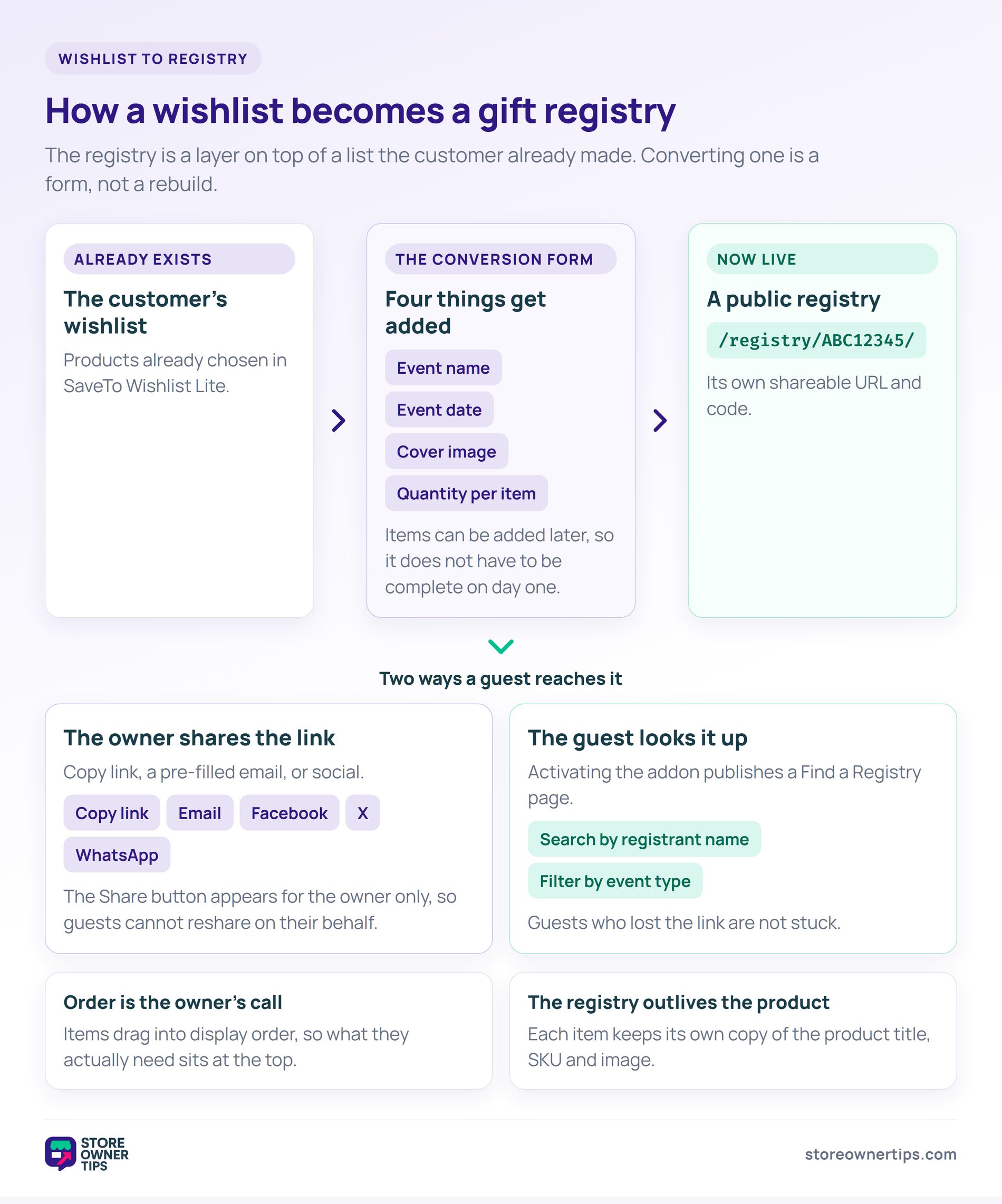
Converting one takes a form. The customer names the event, sets a date, and adds a cover image. They also pick how many of each item they want. Owners can keep adding items after the registry exists, so it doesn’t have to be complete on day one.
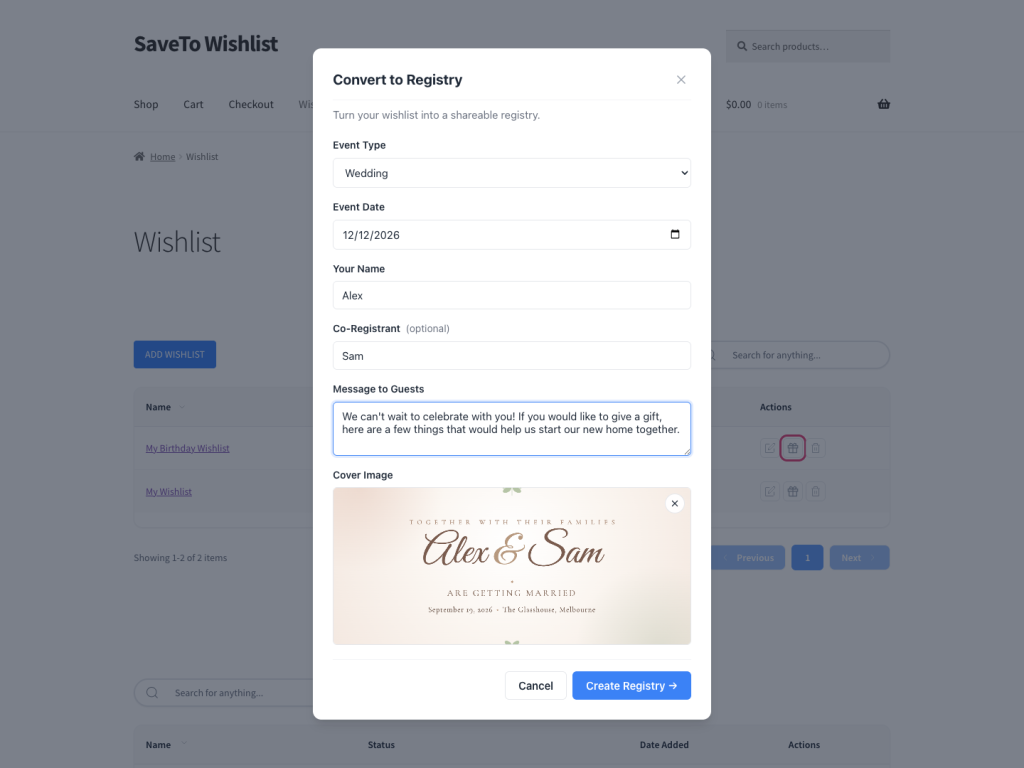
The registry then gets its own public URL with a shareable code, in the shape of /registry/ABC12345/. Owners share it with a copy-link button, a pre-filled email, or Facebook, X and WhatsApp. That Share button only appears for the owner, so guests can’t reshare on their behalf.
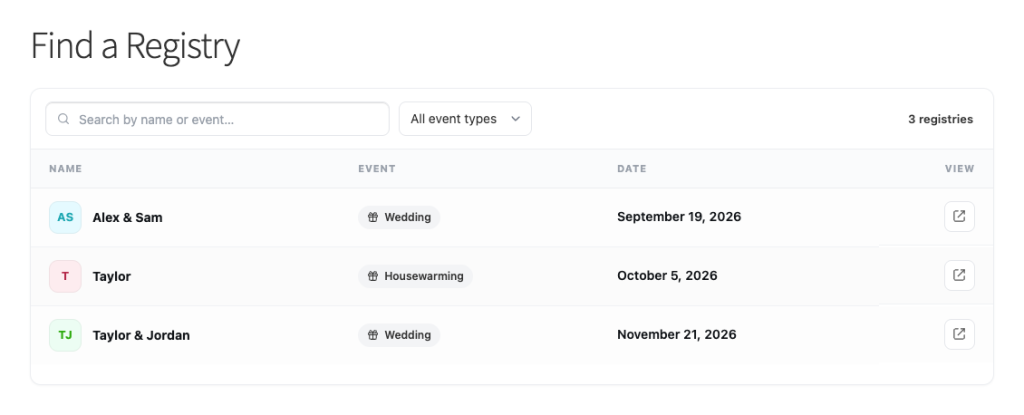
Guests who lost the link aren’t stuck. Activating the addon publishes a Find a Registry search page. Guests look up a registrant by name there, and filter by event type.
Two smaller details matter more than they look. Owners can drag items to control the display order, so the things they actually need sit at the top.
Each registry item also keeps its own copy of the product title, SKU and image. The registry survives you deleting the product later.
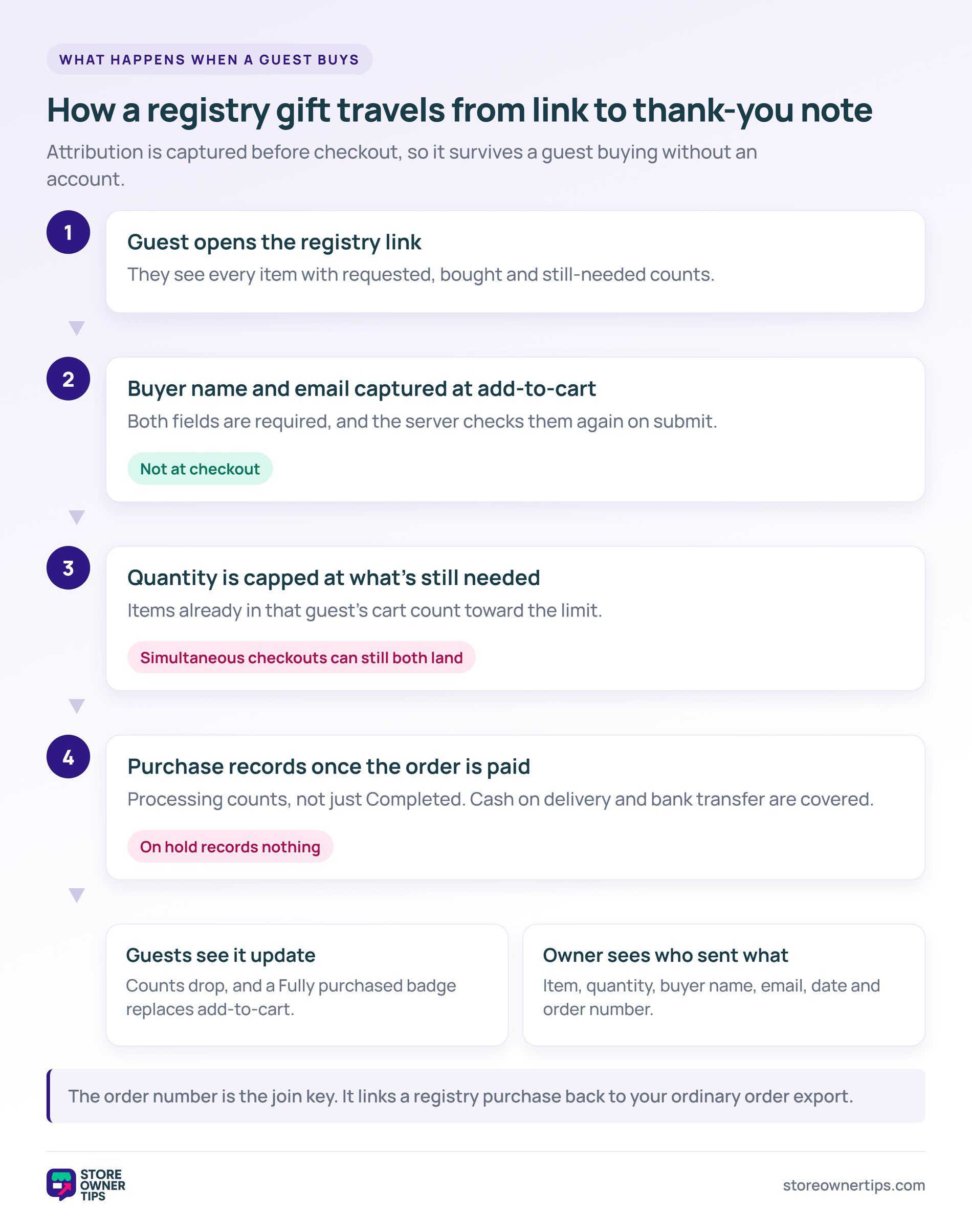
However, this is the part that separates a working registry from a public wishlist. Buying has to change what everyone else sees, and it has to tell the owner who sent what.
The guest enters their name and email when they add the gift to the cart, not at checkout. The form requires both fields, and the server checks them again on submit.
Doing it at add-to-cart rather than checkout is deliberate. It means the attribution survives even when the guest checks out as a guest, which most of them will.
Meanwhile, each item tracks requested, bought and still-needed counts. Once guests buy the full quantity, a Fully purchased badge replaces the add-to-cart control.
The addon also refuses cart-adds above what’s left, with a message naming the remaining quantity. Anything already sitting in that guest’s cart counts toward the cap.
Here’s the honest limit, because it’s worth knowing up front. Adding to a cart doesn’t reserve the item. If two guests check out the last unit at the same moment, both orders go through.
The owner’s dashboard then shows the item as fully purchased with one extra. A refund puts the quantity back.
The addon records a purchase once the order reaches a paid status, which by default means Processing as well as Completed. That matters if you accept cash on delivery, bank transfer or cheque.
Orders sitting On hold record nothing. So a report filtered to Completed orders only will undercount what the registry actually did.
As a result, the owner’s dashboard lists every purchase. Each row shows the item, quantity, buyer name, buyer email, date and order number. They can mark each one as thanked.
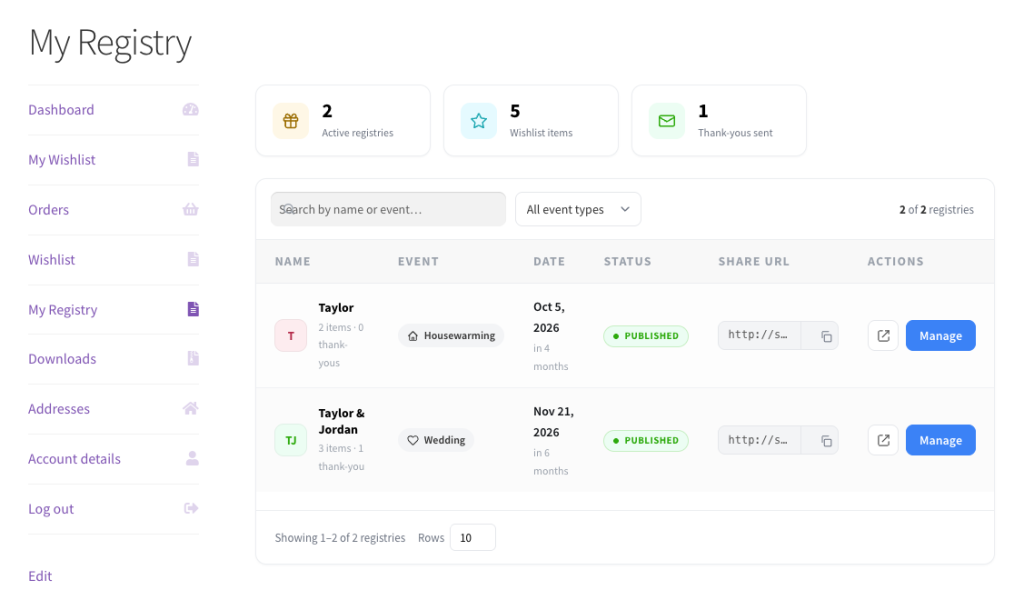
That order number is the useful bit for you as the store. It’s the join key between a registry purchase and your ordinary WooCommerce order export.
Email notifications cover the rest. Owners get a message on a new purchase and on a refund. The store admin gets one whenever a customer creates a registry.
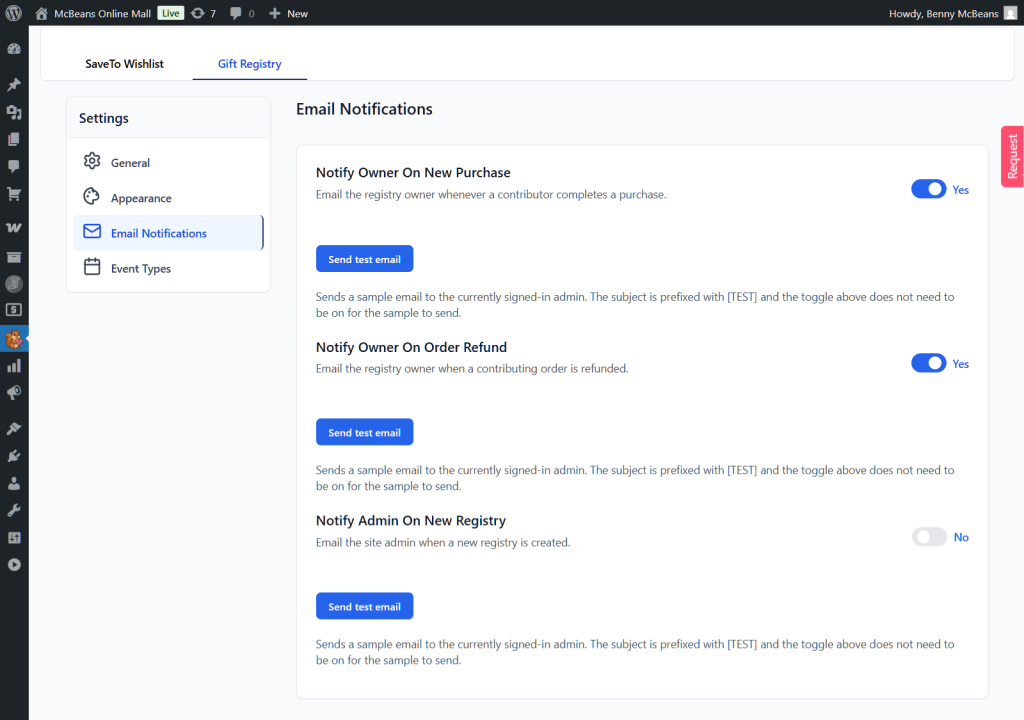
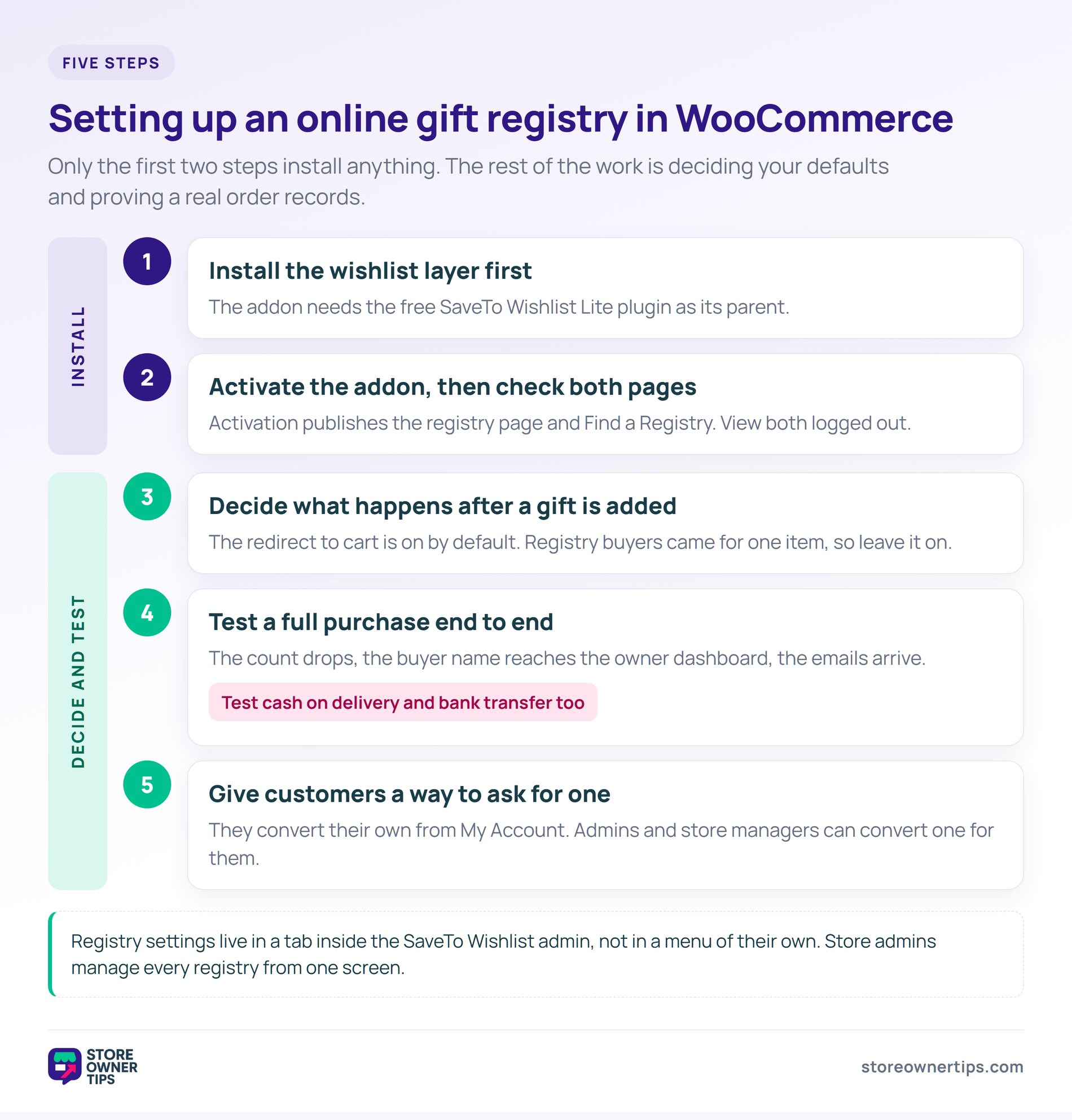
That said, setup runs in five steps. Most of the work is deciding your defaults, not installing anything.
The Gift Registry Addon needs SaveTo Wishlist Lite as its parent plugin. Install and activate the free plugin before the addon, since every registry starts as a wishlist.
Activation publishes the registry landing page and the Find a Registry search page. Visit both once as a logged-out visitor to confirm they render on your theme.
Registry settings live in a tab inside the SaveTo Wishlist admin, not in a separate menu. That’s where you set the defaults below.
There’s a setting that redirects the guest to the cart after they add a gift, and it’s on by default. Leave it on for most stores.
Registry buyers usually came for one item. Sending them straight to the cart matches that intent. The alternative drops them into a list they don’t plan to browse.
Build a test registry, then buy one item from it in a logged-out browser. Check that the count drops, the buyer name reaches the owner dashboard, and the emails arrive.
Test a cash-on-delivery or bank-transfer order too if you offer them. That’s the path where purchase recording used to fail, and it’s the one most stores forget to check.
Customers convert their own wishlists from the Gift Registries tab in My Account. That tab stays hidden until they own a registry, so nobody sees an empty menu item.
Your team can also do it for them. Admins and store managers can convert a customer’s wishlist from the backend. That covers the phone and email requests.
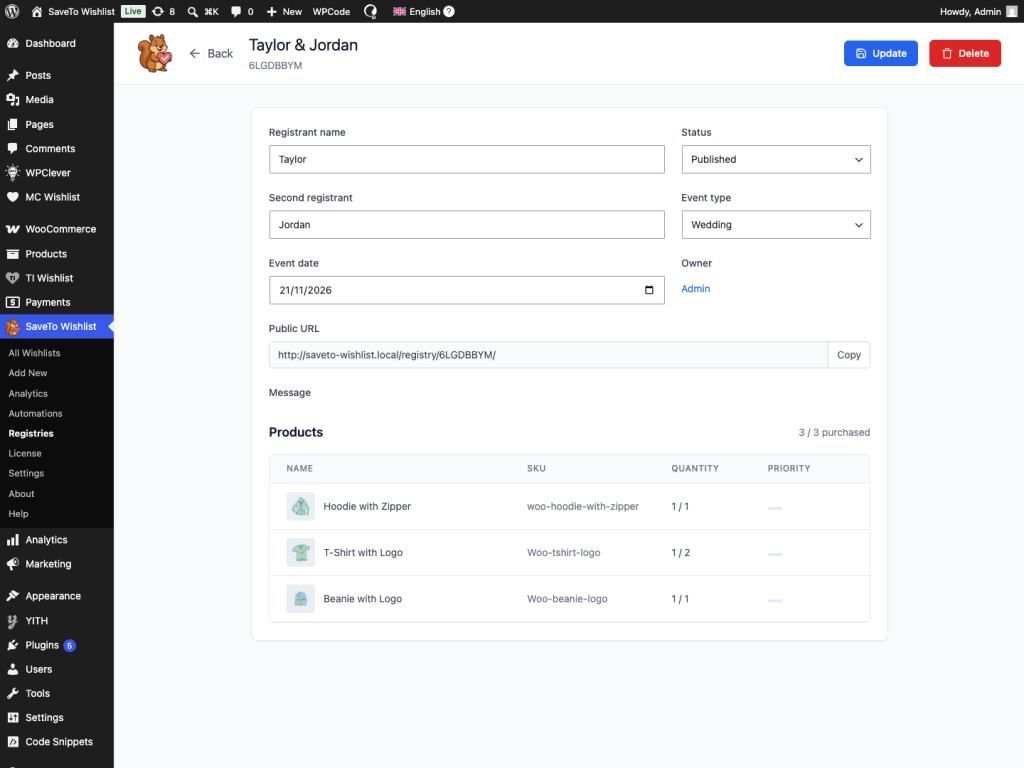
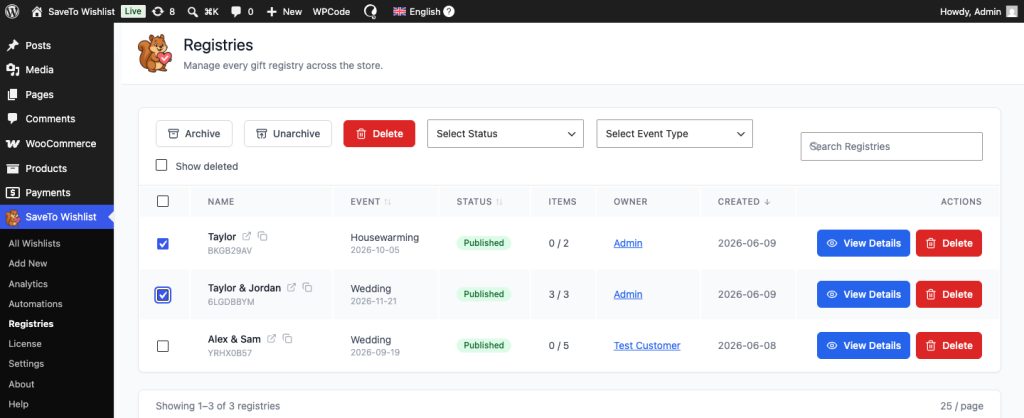
Store admins manage every registry from one screen, with a list view, a detail view and bulk actions.
Registry guests ask more order-status questions than ordinary shoppers. StoreAgent has a guide to answering those from live order data.
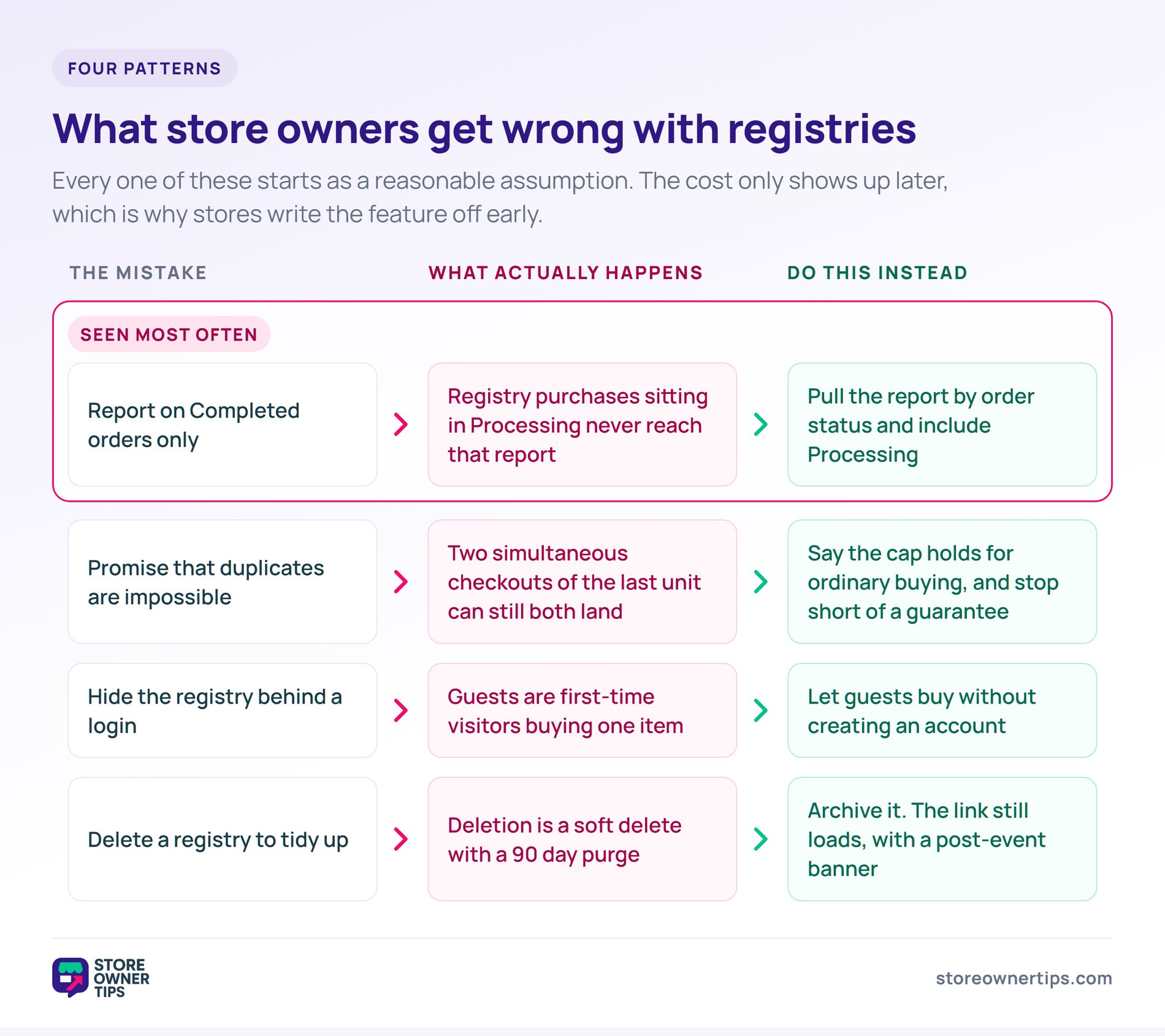
🔍️ One thing we see constantly: A store launches registries, then reports on Completed orders only. Registry purchases sitting in Processing never make that report. The numbers look weak, and the store writes the feature off early.
It’s an easy miss, because the dashboard itself is right. The gap only appears when you pull your own report and filter by order status.
Three other patterns come up often:
Plus, archiving is worth understanding properly. An archived registry still loads for anyone with the link, shows a post-event banner, and refuses further cart-adds. Guests get a clear message rather than a broken page, which is the outcome you want after the wedding.
If the wishlist layer underneath is new to you, our guide to WooCommerce wishlists covers the basics first. It’s also worth browsing the best WooCommerce plugins if you’re still assembling the wider stack.
An online gift registry is a public, shareable list of specific products someone wants for an event. Each item carries a requested quantity, and buying one reduces what’s left for everyone else. Guests open the registry link, see what’s still needed, and buy it directly. Weddings, baby showers and birthdays are the common uses.
Three things change. A wishlist is private, a registry is public at a shared link. A wishlist has no quantities, a registry tracks how many of each item are wanted. And buying from a wishlist changes nothing for anyone else, while buying from a registry updates the counts everybody sees.
Yes, guests buy without registering. The SaveTo Wishlist Gift Registry Addon captures the buyer’s name and email at add-to-cart, so the purchase is still attributed. That matters, because Baymard Institute finds 18% of non-browsing cart abandonments happen because a site wanted an account.
It caps it rather than guaranteeing it. The addon refuses any cart-add above the quantity still needed, counting items already in that guest’s cart. The gap is timing: if two guests check out the last unit simultaneously, both orders succeed. The owner’s dashboard then flags the item as fully purchased with one extra.
The Gift Registry Addon is bundled with the Plus and Business plans. Plus is $99.50 a year and Business is $199.50 a year. The Growth plan doesn’t include it. All of them sit on top of the free SaveTo Wishlist Lite plugin, which the addon needs as its parent.
Archive it. An archived registry still loads for anyone holding the link. It shows a post-event banner and refuses further cart-adds. Deleting is different: it’s a soft delete, and the registry and its purchase records are permanently removed 90 days later.
Honestly, it depends on whether your catalog suits gifting. Homewares, kitchen, baby, and anything people buy in sets are the natural fits. If your products are consumable or highly personal, the format works less well.
Where it does fit, the appeal isn’t a feature list. It’s that one customer hands you their guest list, and each of those guests arrives knowing exactly what to buy.
Two adjacent plays are worth a look. Wholesale Suite covers B2B setup if corporate clients start asking for bulk gift lists. AdTribes has holiday marketing tips for the seasonal peaks registries cluster around.
Here’s what to do next:
If your customers already save products for events, an online gift registry turns those lists into orders you can see. The SaveTo Wishlist Gift Registry Addon comes bundled with the Plus and Business plans. The pricing page lays out exactly what each tier includes.

Copyright © StoreOwnerTips.com. All Rights Reserved.
