Picture the last Sunday of the month. The WooCommerce orders screen is open in one tab, QuickBooks in the other, and you’re typing each sale in again. Then the bank deposit comes up, say, $312 short of the total you just entered. The card processor kept its fees before paying you.
Manual WooCommerce accounting costs more than a Sunday. Every re-typed order is a chance for a wrong amount, a missed refund, or tax filed as income. Then your accountant has to untangle it at year end.
The short answer: stop re-keying. Send each order’s sale, tax, shipping, fee and refund to your accounting software with a connector or a scheduled export. Then, once a month, reconcile those records against what your payment processor paid out.
Below, you’ll see what one order becomes in your books and three ways to move it. Then come the spots where syncs go wrong, plus a month-end check.
Jump to:

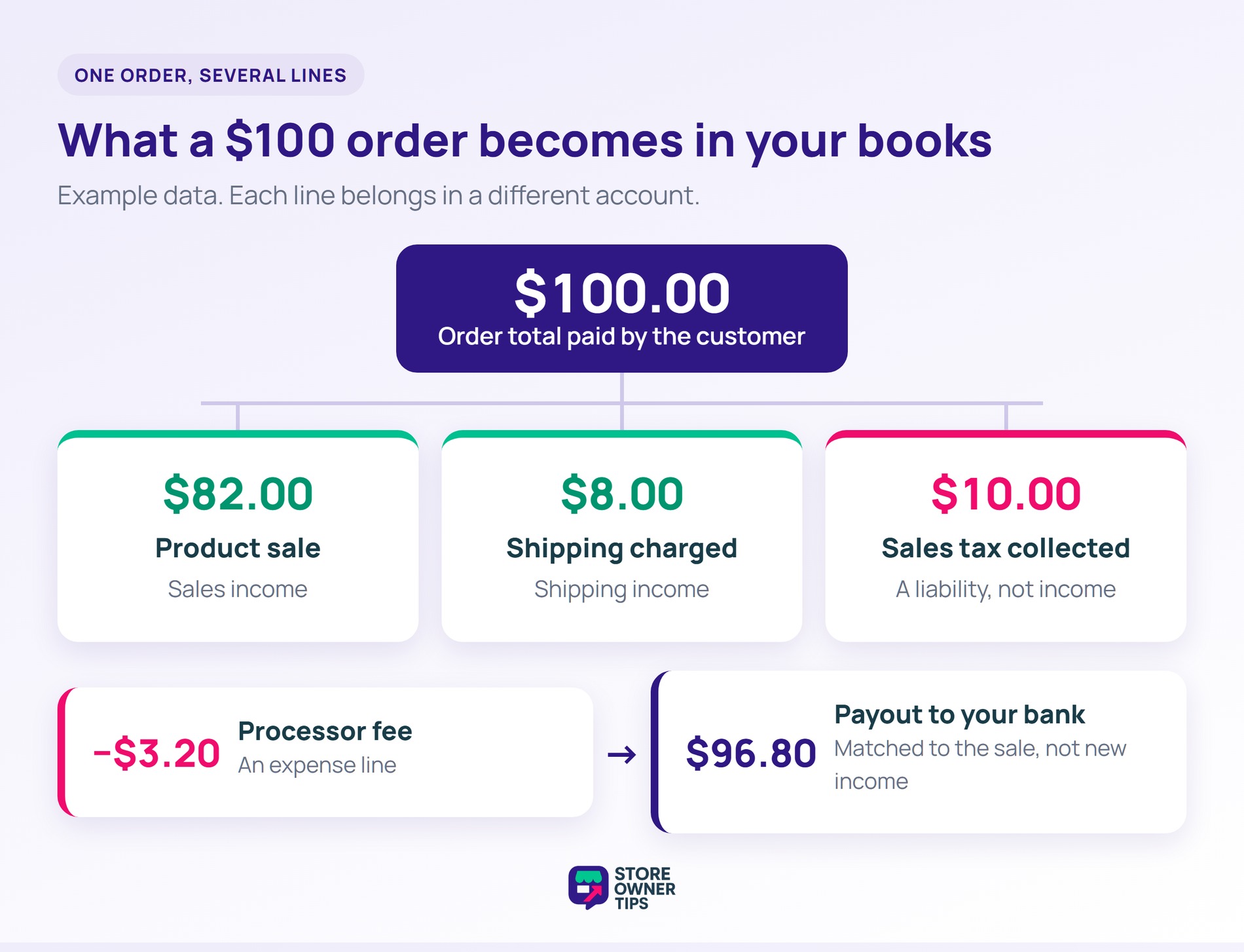
In WooCommerce accounting, one order is not one number in your books. It’s several lines, and each one belongs in a different account. Most “the books don’t match” problems start when an order gets recorded as a single total.
Here’s what that looks like in practice (example data):
| Line | Amount | Where it goes in the books |
|---|---|---|
| Product sale | $82.00 | Sales income |
| Shipping charged | $8.00 | Shipping income |
| Sales tax collected | $10.00 | Sales tax payable (a liability) |
| Order total paid by customer | $100.00 | Not an account of its own |
| Processor fee deducted | −$3.20 | Merchant or processor fees (an expense) |
| Payout to your bank | $96.80 | A deposit, matched to the sale, not new income |
Three things in that table trip people up:
Accounting tools also record the sale in one of two ways. QuickBooks, for example, uses a sales receipt for an order paid at checkout. It uses an invoice for an order paid later. Most retail orders are sales receipts.
A B2B store that sells on 30-day terms needs invoices, so the balance stays open until the customer pays. Those accounting records are separate from the PDF invoices your customers receive. If you need those, see our guide to generating invoices automatically.
WooCommerce accounting data reaches your books three ways: type it in, connect the two systems, or import a scheduled export. Each one fits a different order volume and a different person doing the books.
Manual entry is free and works fine for a maker selling 40 orders a month. Errors creep in at the edges: a missed partial refund, a dropped shipping line, or tax typed into sales. Past a few dozen orders a month, the time and the error rate both climb.
A connector links your store to your accounting software and pushes orders across on a timer or as they happen. Intuit’s own WooCommerce Connector is one example. Intuit’s help article describes it as a free QuickBooks Online integration that syncs about hourly, with a Sync Now button.
However, Intuit is moving stores to newer e-commerce connectors that sync every few hours, so check which one you’re on. Connectors suit a store doing 600 orders a month across Stripe and PayPal. At that volume, typing anything is out of the question.
Connectors differ on which accounting package they support and how they report failures. Choosing one is a separate job, covered in our QuickBooks integration comparison. What matters here is what it has to send.
The third route keeps a file in the middle. Store Exporter Deluxe, from our sister brand Visser Labs, exports WooCommerce orders to CSV, TSV, XLS, XLSX or XML. It can run those exports on a schedule. Then it sends the file by email or FTP/SFTP, or saves it on your server.
You can limit an order export to a date range, such as last week, so each file covers one period.
The export includes tax totals, per-rate tax columns, refund totals and refund dates. You choose which columns go in the file. The column names won’t match your accounting software’s import template out of the box. So you or your bookkeeper map them during the import.
Visser has a step-by-step QuickBooks import walkthrough and a guide to mapping a WooCommerce export to Xero’s import. Scheduled exports are part of the paid Deluxe version ($49 a year for one site, per Visser’s pricing page). The free Store Exporter covers one-off exports.
Can WooCommerce connect to QuickBooks Desktop? Intuit lists its connector for QuickBooks Online plans only. A file import works with either, which makes the export route the usual answer for Desktop users. For a wider look at file-based tools, see WooCommerce export plugins compared.
Choose by order volume and by how often you close the books. Want orders posted automatically, or a file to review first? Pick a connector for the first and a scheduled export for the second.
| Store | Usual fit |
|---|---|
| A maker with about 40 orders a month | Manual entry, reconciled monthly |
| 600 orders a month across two processors | A direct connector |
| A B2B store invoicing on terms, or QuickBooks Desktop | Scheduled export, then import |
A sync that runs without errors can still leave your books wrong. Fees, refunds and tax are the three weak points in WooCommerce accounting.
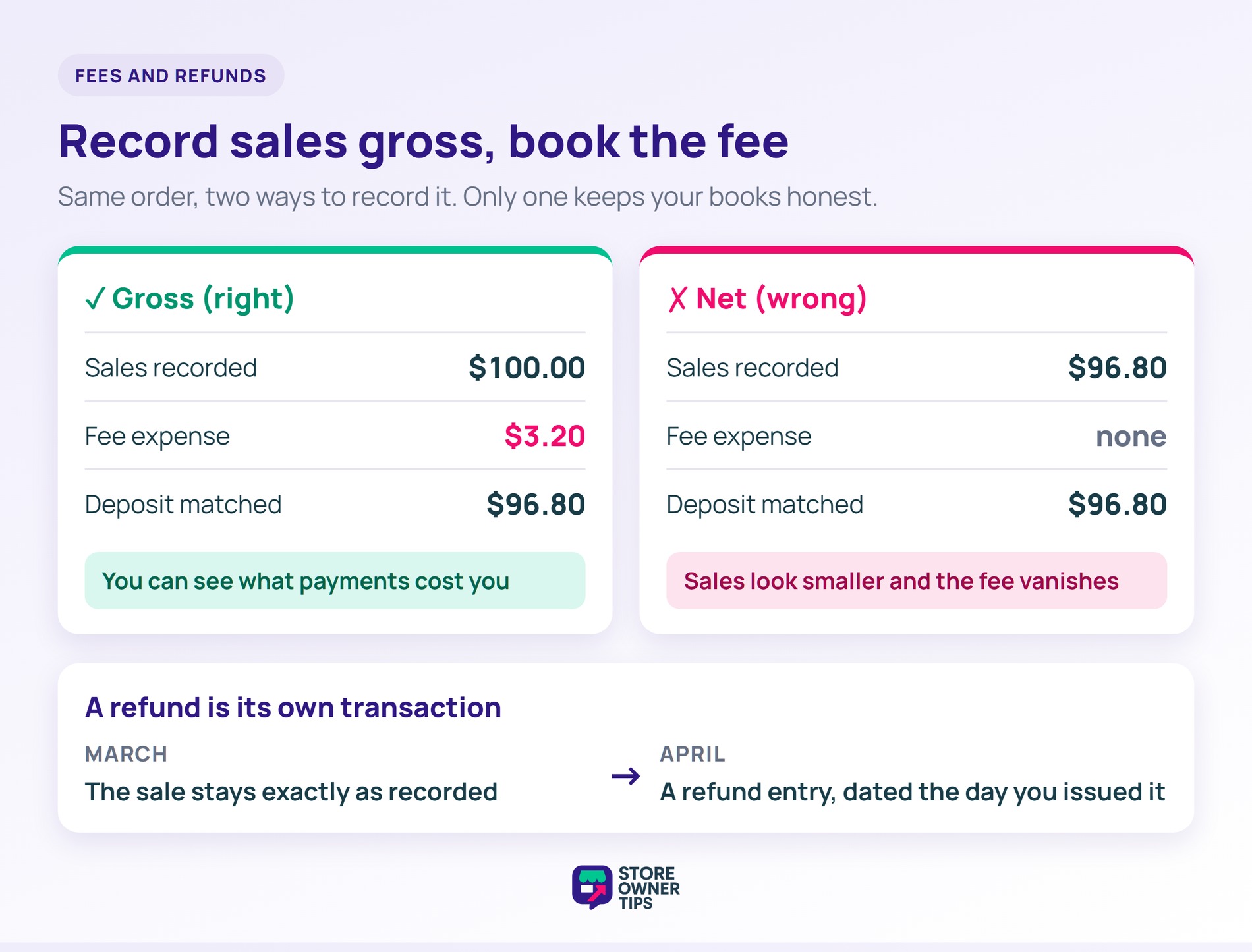
Record sales at the full amount the customer paid, then record the processor fee as an expense. Don’t record sales at the net payout figure. Netting hides what you spend on payment gateway fees, and it makes your sales look smaller than they were.
Your WooCommerce order doesn’t hold the processor’s fee. That number lives in the payout report from Stripe, PayPal or whichever processor you use. Whatever method you pick, the fee comes from that report.
🔍️ What We’ve Seen: the sync runs every night without an error, and the books are still wrong. The connector records each sale at the full order total, and the payout arrives net of fees. Someone then fixes the gap by lowering sales instead of booking the fees. Revenue looks smaller than it was, and the fee expense never appears at all.
A refund is its own transaction, dated the day you issued it. If a customer buys in March and gets a refund in April, March’s sale stays as it was. April gets a refund entry. Editing the March sale changes a month you may already have closed or filed.
Partial refunds follow the same rule. Record the amount refunded, and include any tax refunded with it. With a connector, check its documentation for how it sends refunds, because support differs between tools. With an export, include refund rows or run a separate refund export for the period.
Map every tax line to your sales tax payable account, not to income, in your WooCommerce accounting setup. If tax lands in sales income, your revenue is overstated and your tax liability is missing. That gap tends to surface when the return is due.
Selling across many tax rates, or through marketplaces that collect tax for you? Check the setup with your accountant before the first sync.
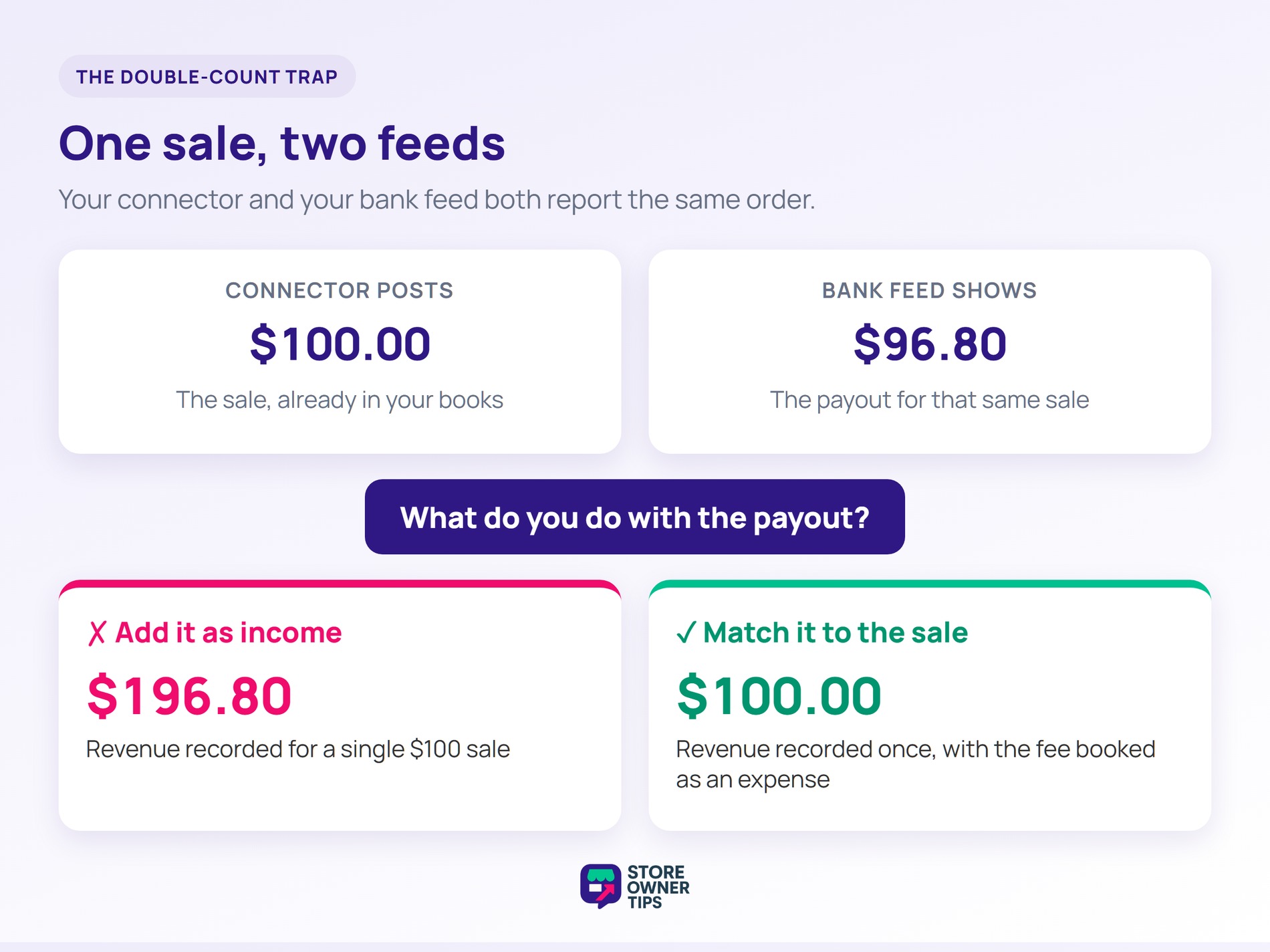
The double-count trap is a WooCommerce accounting error where two feeds record the same sale. Your connector posts the order as a sale. Then your bank feed shows the payout, and someone accepts it as new income. Now one sale appears twice, and revenue is doubled for that day.
Intuit’s help article on duplicate bank-feed transactions lists this exact case. A connected app and your bank record the same sale. Its fix is to match downloaded transactions to records already in QuickBooks instead of adding them. It also says to pick one way to record each sale, an invoice or a sales receipt, but not both.
So match each payout to the sales already recorded, never add it as income. One payout often covers a batch of orders, minus the fees.
The same trap shows up when you switch methods mid-year. Say you typed January to June by hand and turn on a connector in July. Pick a cut-over date and only sync orders after it, because re-importing history the books already hold copies every sale. Intuit gives the same advice for file imports: start after the newest transaction already in the books.
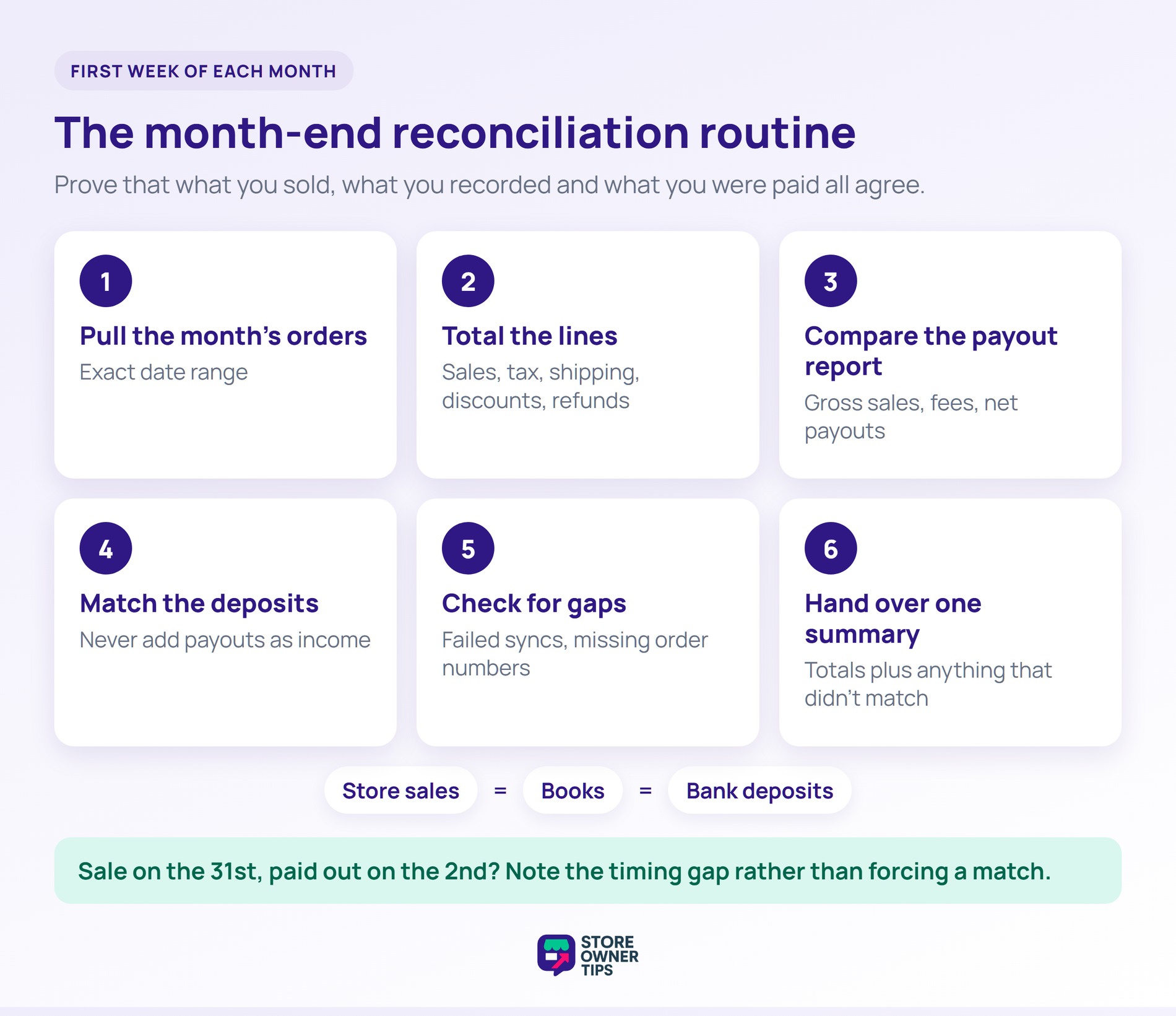
WooCommerce accounting reconciliation proves that what your store sold matches what your books recorded and your bank received. Run these six steps in the first week of each month:
Most small differences come from payouts that straddle month end. Think of a sale on the 31st paid out on the 2nd. Note those rather than forcing a match. A difference you can’t explain is a reconciliation error, and it’s cheaper to chase it this month than next year.
Yes. WooCommerce has no accounting of its own, but a connector or a scheduled export file links it to QuickBooks. Intuit offers its own free connector for QuickBooks Online, and third-party connectors and file exports cover other setups. Whichever you use, check that it sends tax, shipping, fees and refunds as separate lines.
Yes, but usually through files rather than a live link. Intuit lists its WooCommerce connector for QuickBooks Online plans. A scheduled export from a plugin such as Store Exporter Deluxe works with QuickBooks Desktop. You bring the file in with QuickBooks’ own import tools.
Record them gross. Enter the full amount the customer paid as sales, and record the processor’s fee as an expense. Netting fees out of sales understates your revenue and hides what payments cost you. The fee figure comes from your processor’s payout report, not from the WooCommerce order.
Match payouts in the bank feed to the sales your connector or import already recorded. Don’t add them as new income. A payout is the same sale arriving as cash. If you switch from manual entry to a connector, pick a cut-over date and only sync orders after it.
It depends on the tool, so read your connector’s documentation first. Then test it with one partial refund. With exports, include refund rows or a separate refund export for each period. Either way, date the refund the day it was issued.

Automation copies whatever mapping you give it, hundreds of times a month. If tax lands in income on day one, the sync repeats that mistake on every order until someone catches it. That’s why the order of work matters more than the tool. Understand the ledger lines first, then pick a method, then reconcile every month.
Rather review a file before it reaches your books? Store Exporter Deluxe can send last month’s orders to your bookkeeper on a schedule. That takes the typing out of WooCommerce accounting while you keep control of every line.

Copyright © StoreOwnerTips.com. All Rights Reserved.
