Weekly ecommerce tips, deals & news.
“Hide the prices from the public.” It’s one of the most common requests trade suppliers bring to a store build. It sounds like a single setting, and most advice on WooCommerce catalog mode treats it that way.
Dig into the request and it usually splits into three. Retail visitors shouldn’t see trade prices. One product range shouldn’t be visible to anyone without an account. And clearance stock should be browsable but not buyable.
Those are three separate decisions. They need different setups, and they carry different consequences for search. I’ve watched stores pick the wrong one and quietly lose their product rankings.
This guide separates the three and shows how to set up each one. It also spells out what each one costs you in search traffic.
Jump to:
Work out which of these three you actually need before you install anything. They look similar from the outside, and they behave differently once they’re live.
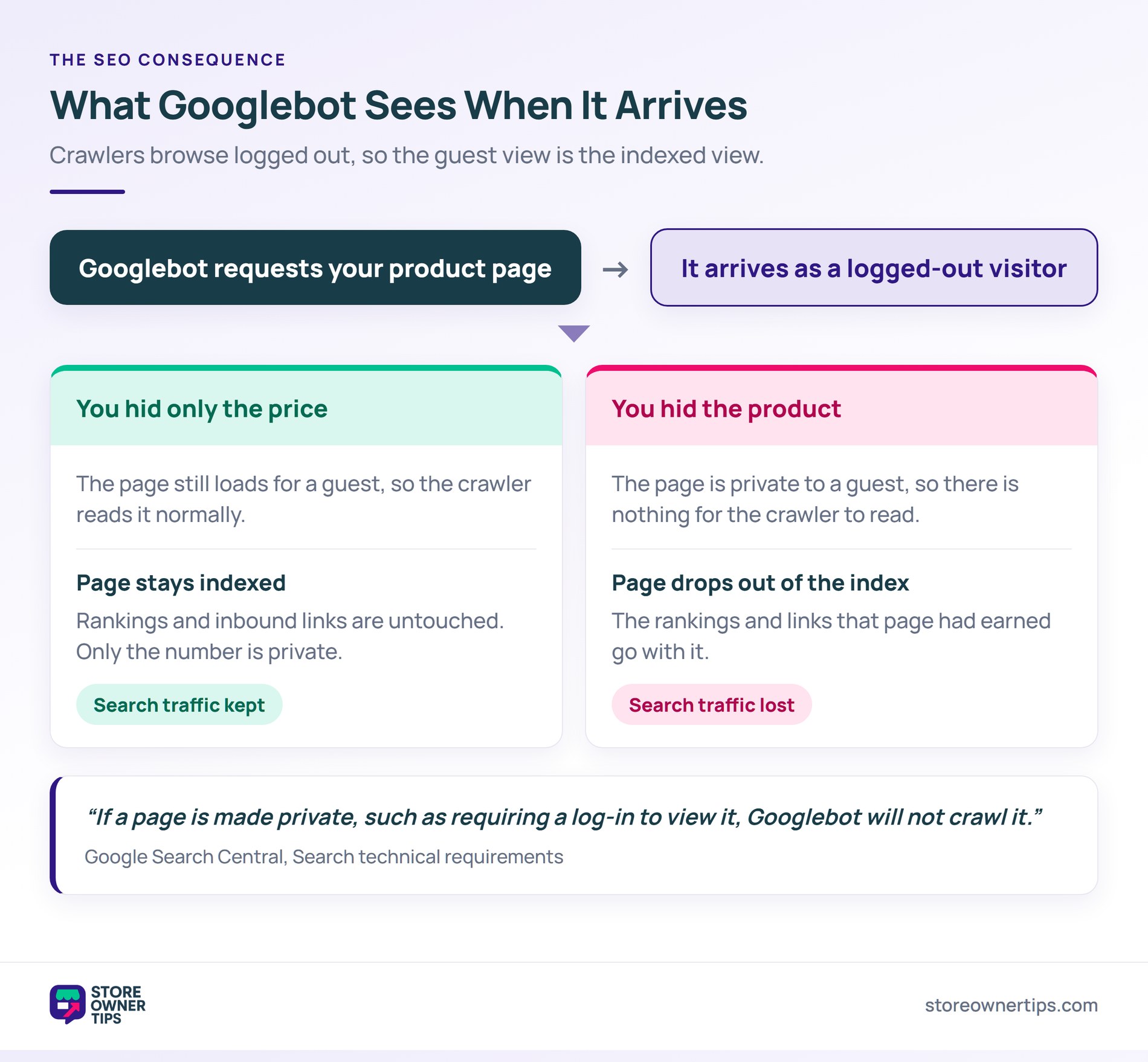
Hide the price. The product stays visible and indexable, but the price is swapped for something else. That might be a login prompt, a price-on-application message, or a quote request. The customer can still find the product and see that you sell it, just not the number.
Hide the product. The product doesn’t appear in listings, site search or category pages for the wrong audience. It exists for the right audience and doesn’t exist for everyone else.
Disable purchasing. Everything stays visible, price included, but there’s no add-to-cart button. The store becomes a catalogue rather than a shop.
Here’s how the three compare.
| Hide the price | Hide the product | Disable purchasing | |
|---|---|---|---|
| Guest sees the product | Yes | No | Yes |
| Guest sees the price | No | No | Yes |
| Guest can add to cart | Depends on the plugin | No | No |
| Product page stays indexable | Yes | No | Yes |
| Typical use | Trade pricing | Members-only range | Clearance or display-only |
Two cells in that table need a footnote. Hiding a price doesn’t automatically remove the add-to-cart button, so check that your plugin does both. And a hidden product only leaves the index once its own URL is hidden too, not just its listing.
Choosing between them comes down to what you’re protecting. Hiding prices protects your numbers from competitors and from retail customers seeing trade rates. Hiding products protects a range that shouldn’t be public at all. Disabling purchasing isn’t protection at all: it’s a different business model, where the store works as a showroom.
None of the three is fully covered by WooCommerce out of the box, and the effort involved differs a lot.
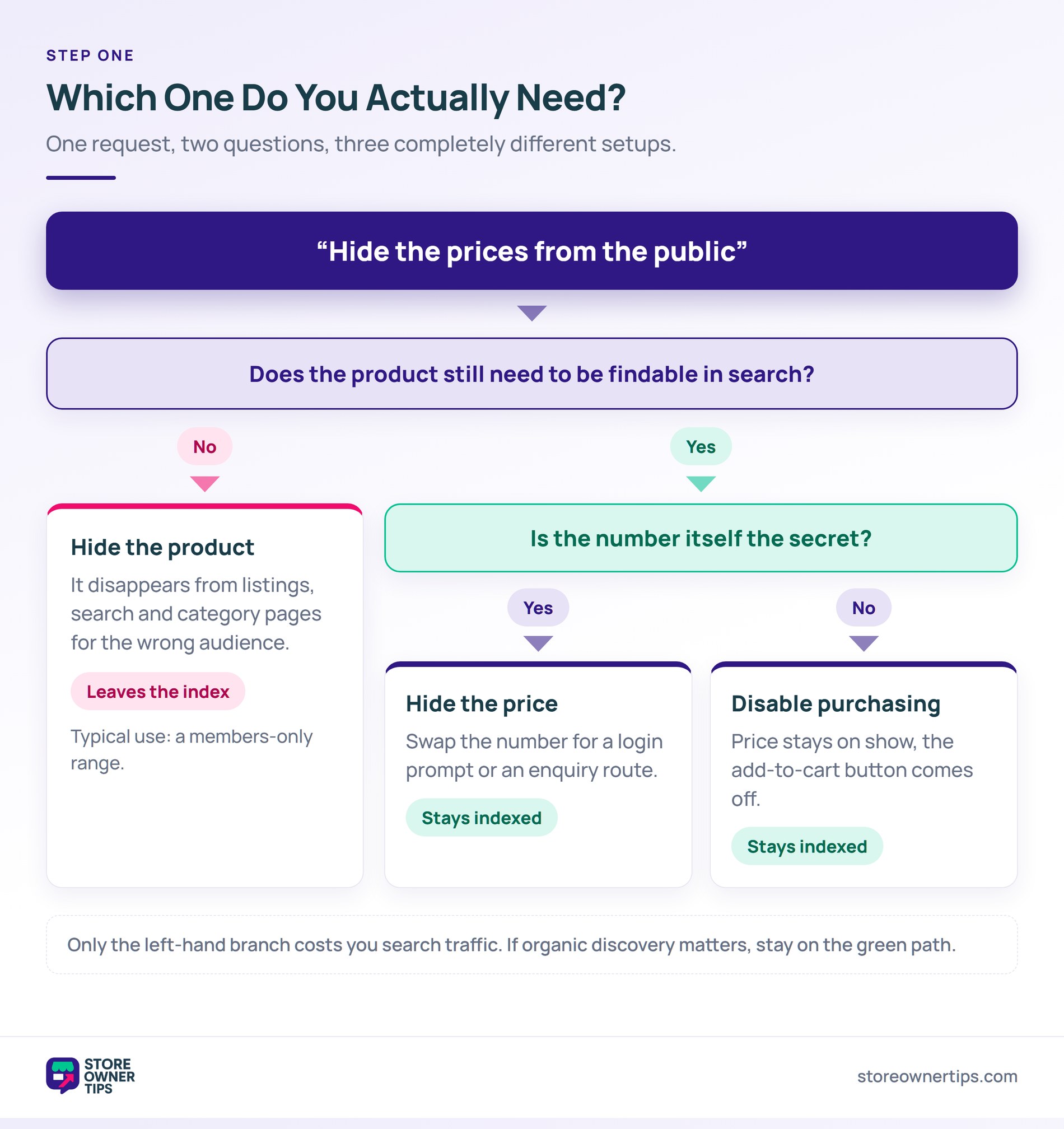
WooCommerce does ship one visibility control of its own. Catalog visibility on the product edit screen offers four choices: shop and search results, shop only, search results only, or hidden. That setting applies to every visitor, though. It can’t single out guests or a user role, which is why all three jobs need a plugin.
Disabling purchasing is the simplest of the three and the closest to native. Removing the add-to-cart button across the store is well-trodden ground. Most catalog mode plugins handle it in a setting or two, and some themes include the option directly.
Hiding prices from logged-out visitors needs a plugin, and the question that matters is what replaces the price. A blank space leaves the visitor guessing. By contrast, a “Log in for pricing” link with a clear route to registration tells them exactly what to do next.
That said, registration walls carry a real cost. Baymard’s cart abandonment research puts “the site wanted me to create an account” behind 18% of abandoned carts. That’s checkout rather than pricing, but the friction is the same. Keep the sign-up short, and say what the visitor gets for filling it in.
Hiding products entirely takes the most work. A product has to disappear from several places at once. That means shop and category listings, site search, sitemaps, and any related-products or upsell modules. In practice, a plugin that only filters the main shop loop leaves products discoverable through search or a stray widget.
Role-based visibility is the mechanism underneath most of this. WooCommerce user roles decide what a visitor can see. As a result, a plugin that works with roles gives you finer control than a blanket on-off switch.
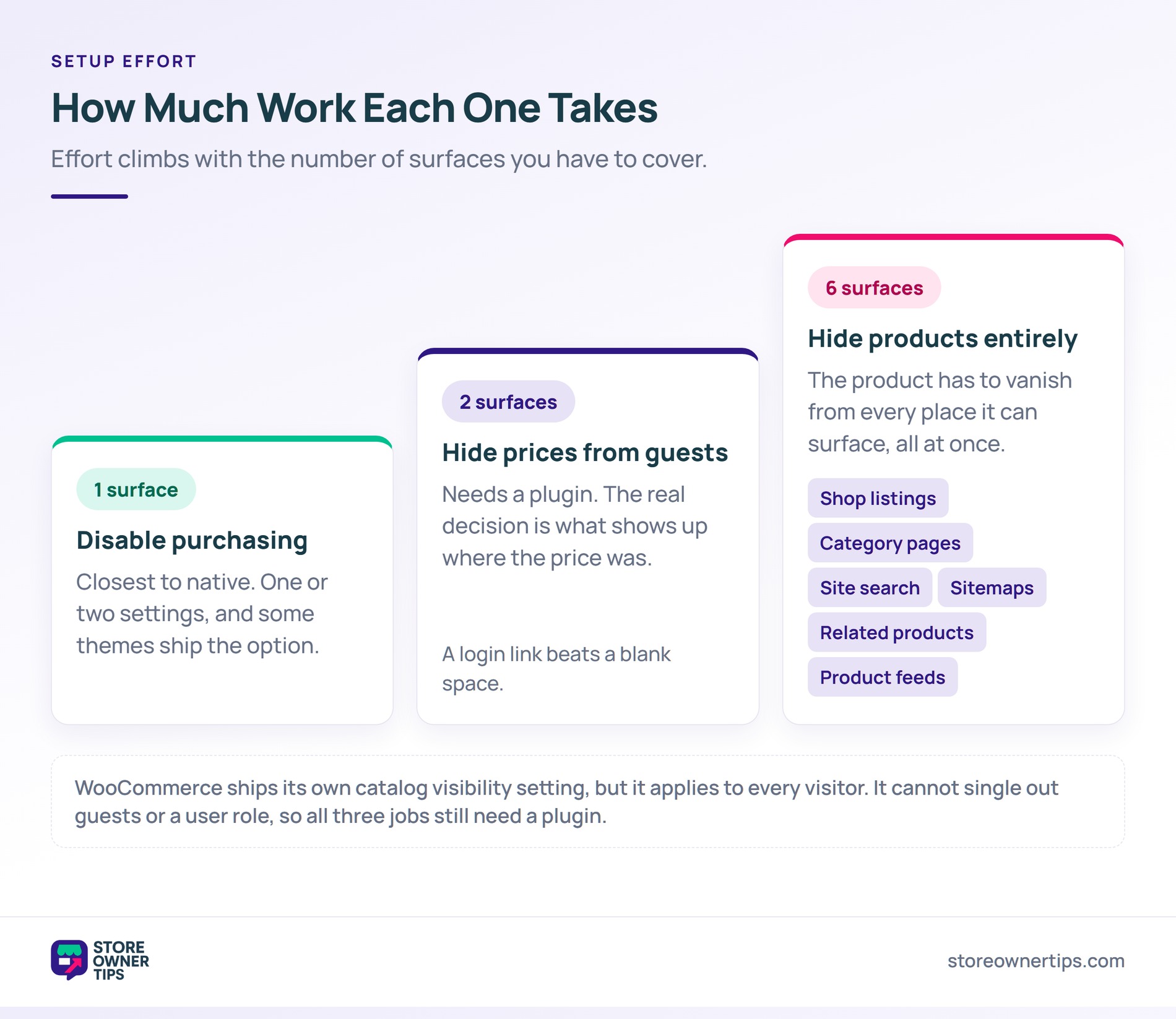
Hiding products from guests hides them from search engines too. Google’s own technical requirements say it plainly: “If a page is made private, such as requiring a log-in to view it, Googlebot will not crawl it.” Crawlers arrive as logged-out visitors, so a guest’s view is roughly Google’s view.
This one catches people out because nothing visibly breaks. The store keeps working, pages still load for logged-in customers, and the shop looks fine from the admin side. Meanwhile, the damage shows up weeks later as a slow slide in organic traffic to product pages. By then the change that caused it is easy to overlook.
The mechanism is simple once it’s stated, and it’s the reason the three decisions matter so much.
Still, there’s a caveat worth checking on your own store. If a plugin filters a product out of listings but leaves its URL publicly reachable, the page can stay indexed. Test the direct product URL in a logged-out browser to see which of the two you’ve got.
So if organic discovery matters at all, hiding prices is almost always the better choice than hiding products.
🔍️ What we’ve seen: a store hides its whole trade range from guests, then sees no enquiries come in. The range generates nothing because nobody outside the account list can find it. The pattern that works is to leave the products visible and indexable. Hide only the prices, and put a clear registration route where the price used to be.
The middle path worth knowing is price on application. The product page stays fully indexable, and the price is replaced with an enquiry route. You keep the search traffic and still keep your numbers private. Our guide to WooCommerce SEO covers what makes product pages rank in the first place.
If you’re hiding prices because trade customers pay differently, role-based pricing solves that more directly than catalog mode.
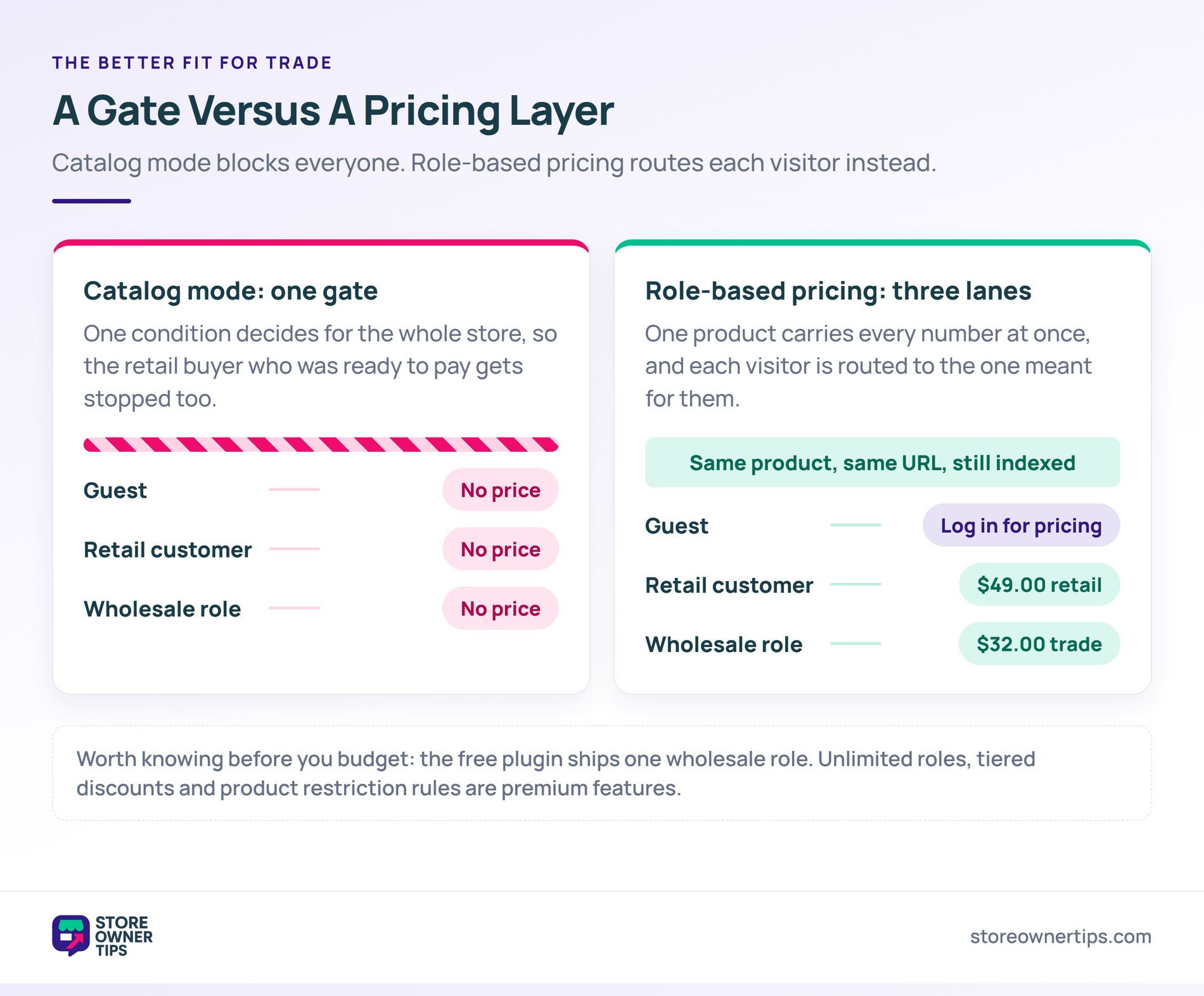
The difference is worth being precise about. Catalog mode is a blunt instrument, removing prices or purchasing for everyone who doesn’t meet one condition. Role-based pricing works as a layer instead. Retail visitors see retail prices, approved wholesale roles see wholesale prices, and all of it sits on the same product.
That matters for stores serving both audiences, which describes a lot of the stores asking this question. You don’t want to hide prices from retail customers who are ready to buy at retail. You want trade prices visible only to trade.
Wholesale Suite handles this through wholesale roles. Prices are set per role, so the same product carries a retail number and a trade number at once. The free version ships one Wholesale Customer role. Unlimited roles, tiered discounts and product visibility rules come with the premium plugin.
Visibility works separately from pricing. A Restrict To Wholesale Roles option sits in the publish box on the product edit screen. It limits a product to the roles you pick. You can restrict whole categories the same way, which is how trade-only ranges usually get built.
One honest caveat: those restriction controls are a premium feature, not part of the free plugin. The docs also don’t spell out whether a restricted product’s own URL stays reachable to a guest. Check that on your own store before you rely on it.
A wholesale customer usually expects an application process too. Pair the pricing setup with a registration flow rather than leaving people to work it out. Our guide to starting a WooCommerce wholesale store covers the full setup. For the tools that handle account approval, WooCommerce B2B plugins compares the options.
Meanwhile, if buyers need a negotiated number rather than a fixed trade price, that’s a quoting problem. It isn’t a visibility one. Our roundup of WooCommerce request a quote plugins covers the tools for it.
Catalog mode means removing the add-to-cart button so products display without being purchasable. A WooCommerce catalog mode plugin does this across the store or for selected products, and some themes include the option. Decide first whether you want to remove purchasing at all. Hiding prices is a different setting with different consequences.
Hiding the price alone doesn’t, because the product page stays visible and indexable. Hiding the product does, because crawlers browse as logged-out visitors. Google’s technical requirements state that a page requiring a log-in won’t be crawled. If organic traffic matters to you, hide prices rather than products.
Yes, using role-based pricing rather than WooCommerce catalog mode. Prices are set per user role. Retail customers see retail pricing and wholesale roles see trade pricing, on the same product. This usually beats hiding prices from everyone, because retail customers can still buy normally.
You need a plugin that applies role restrictions everywhere a product can surface. That means shop listings, category pages, site search, sitemaps and related-product modules. A plugin that only filters the main shop loop leaves products findable through search. Check each surface after configuring, and test the direct product URL while logged out.
Product feeds are one more surface to check, since a hidden product can still sit in a Google Shopping feed.
“Hide prices” is usually a request containing three different requirements. The version that keeps your search traffic is rarely the one people reach for first.
For stores selling to both retail and trade, role-based wholesale pricing in WooCommerce is usually the right answer. It keeps your retail catalogue visible and indexable, and shows trade pricing only to the accounts you’ve approved. You get the search traffic and the pricing control in the same setup.

Copyright © StoreOwnerTips.com. All Rights Reserved.
