Weekly ecommerce tips, deals & news.
Picture this: a shopper lands on your product page, scrolls for half a second, and bounces. Your traffic numbers look fine, but your sales dashboard tells a different story. The problem usually isn’t your product—it’s your product page.
We’ve spent years poking around WooCommerce stores of all sizes, and the same handful of fixable issues keep showing up. The average ecommerce product page converts at roughly 2-3%, which means for every 100 visitors, 97 leave without buying. That’s a lot of missed revenue sitting right there on your WooCommerce product pages.
The good news? Small, targeted changes can make a real difference. Based on what we’ve actually seen working across real WooCommerce stores, we’ve pulled together seven product page optimization tips that can help you turn more browsers into buyers. No fluff, no generic advice. Just stuff that works.
Here’s the thing about online shopping: your customers can’t touch, feel, or try on your products. Thus, product images are your #1 trust signal, and they’re doing all the heavy lifting that a physical store’s shelf display would normally handle.
We’ve tested this across dozens of stores, and the difference between a single blurry product photo and a well-optimized image gallery is night and day. In fact, Justuno discovered that 93% of consumers consider visual appearance the key deciding factor in a purchase.
Here’s what a solid product image setup looks like in WooCommerce:
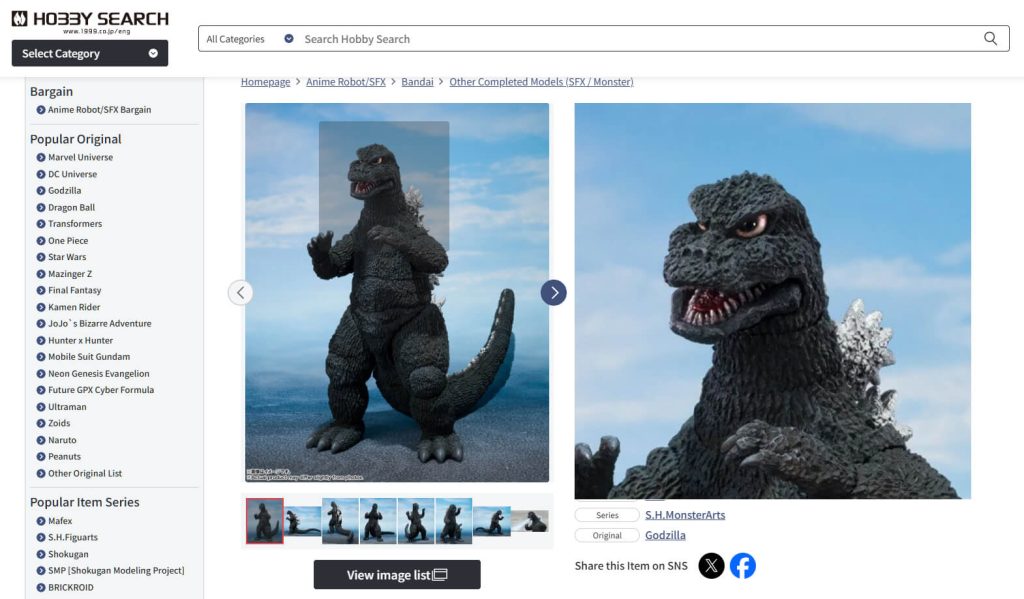
Power Tip: Adding a short product video alongside your images can dramatically increase time on page. Even a 15-30 second clip showing the product in use gives shoppers the confidence that photos alone can’t. You can embed videos directly in your WooCommerce product gallery or simply embed them in the product description.
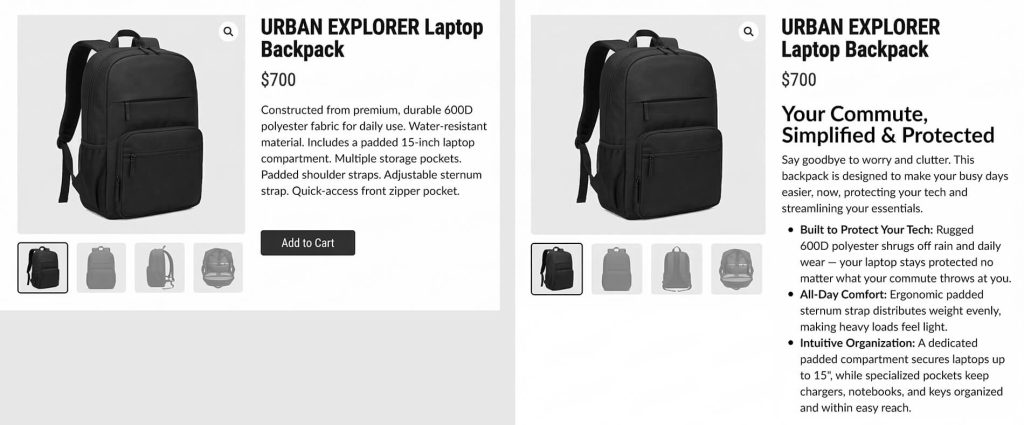
Most product descriptions we come across read like a spec sheet that someone copied from the manufacturer. Features are important, but benefits are what sell.
Here’s the difference:
The trick is to take every feature and ask “so what?” until you land on something the customer actually cares about.
Structure matters too. From our observation, stores increase time-on-page and add-to-cart rates just by reformatting descriptions from a wall of text into a scannable layout with:
If writing product descriptions for your entire catalog sounds overwhelming, tools like StoreAgent can help you generate benefit-driven descriptions using AI, and then you just polish them with your brand voice.
For a deeper dive on writing descriptions that convert, check out our guide on writing WooCommerce product descriptions.
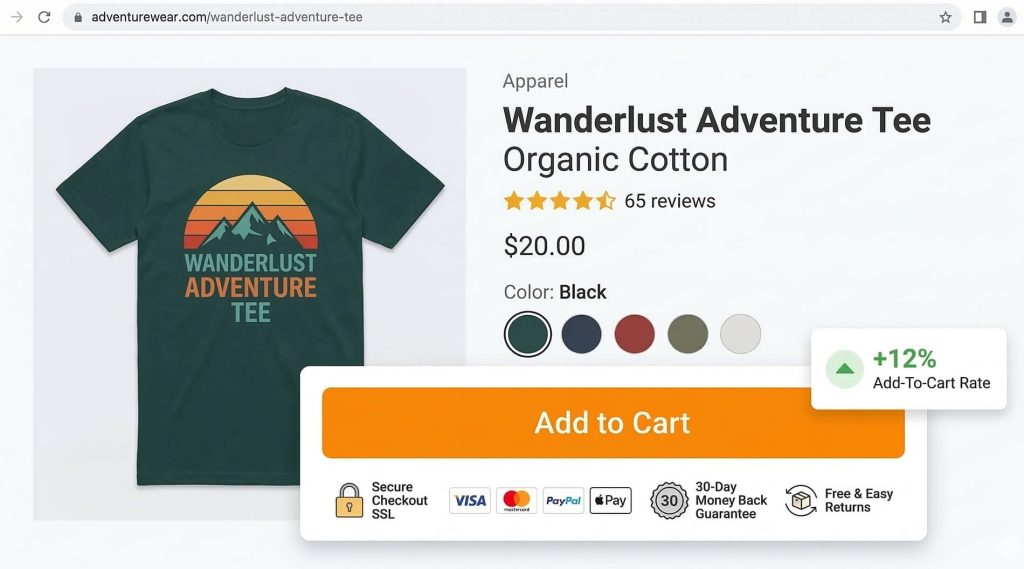
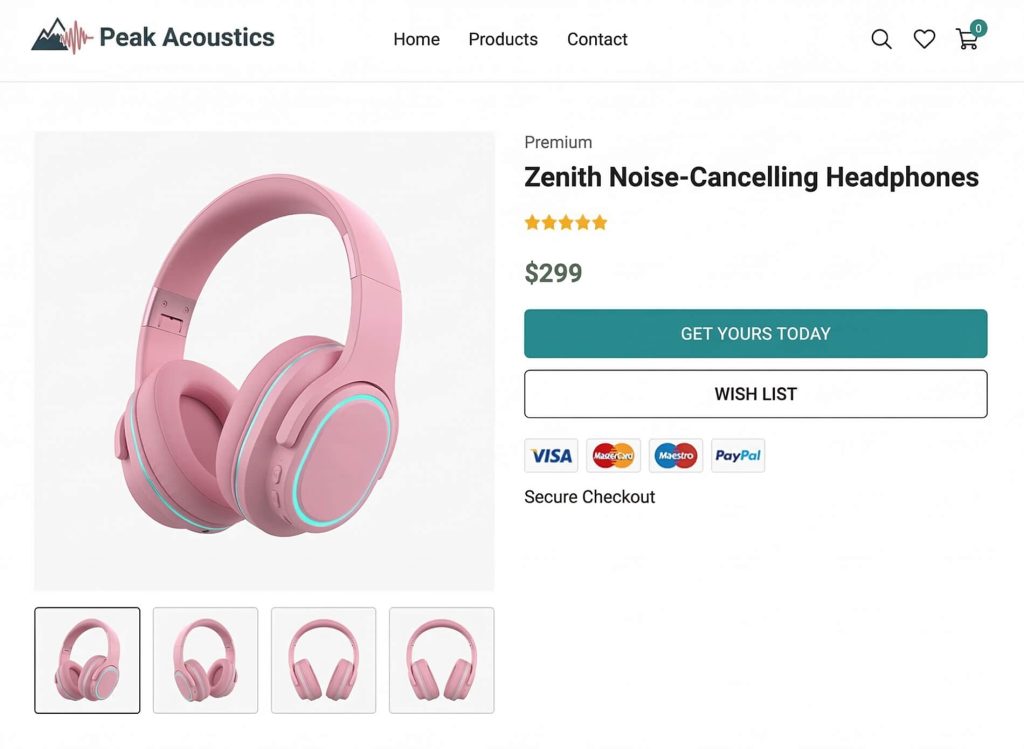
When someone is about to hand over their credit card info, they need reassurance. Trust badges are those small visual indicators that tell customers, “this store is legit.” Examples include payment logos, SSL certificates, and money-back guarantees.
The types that matter most:
Placement is everything. We’ve tested badges in sidebars, in footers, below product descriptions, and the winner is consistently right near the Add to Cart button. That’s where the buying decision happens, so that’s where the reassurance needs to be.
What We’ve Seen: Stores that added trust badges directly below their Add to Cart button saw a noticeable uplift in add-to-cart rates. In one case, a small apparel store we worked with added a simple “Secure Checkout” badge with payment icons and saw a 12% jump in add-to-cart clicks within two weeks. It’s one of those changes that seems too simple to matter, until you see the numbers.
Most WooCommerce themes let you add badges via widgets or custom HTML blocks. There are also free plugins like Trust Badge by Developer 99 that make it point-and-click.
Your Add to Cart button is arguably the most important element on the page, yet most WooCommerce stores leave it completely at the default. That generic gray button buried below the fold? It’s not doing you any favors.
Here’s what to look at:
Here’s a move we love: adding a wishlist button right next to your Add to Cart button. Not every visitor is ready to buy right now, but giving them a low-commitment action keeps them in your funnel. SaveTo Wishlist integrates directly with WooCommerce and lets hesitant shoppers bookmark products to come back to later—which they actually do.
Reviews are non-negotiable. According to Spiegel Research Center, displaying reviews can increase conversion rates by up to 270% for higher-priced products. That’s not a typo.
WooCommerce has built-in review functionality, which is a solid starting point. But there are a few things you can do to make reviews work harder:
What We’ve Seen: Even a handful of genuine reviews dramatically outperforms zero reviews. We’ve watched stores go from 0 reviews to just 5-10 and see measurable conversion improvements. Don’t wait until you have hundreds. Get those first few reviews any way you can (post-purchase emails work great for this).
For visitors who browse reviews but still aren’t convinced, an exit-intent popup can be the nudge they need. OptinMonster lets you trigger a targeted offer right as someone moves to close the tab. In our experience, it recovers otherwise lost visitors.
Need more ideas on driving sales? Our ecommerce marketing ideas roundup has plenty of strategies that complement WooCommerce product page optimization.
Here’s a stat that should get your attention: mobile devices now account for the majority of ecommerce traffic. However, mobile conversion rates are roughly half of desktop. That gap represents a massive opportunity.
If your WooCommerce product pages aren’t optimized for mobile, you’re essentially turning away more than half your visitors. Here’s a quick mobile audit checklist:
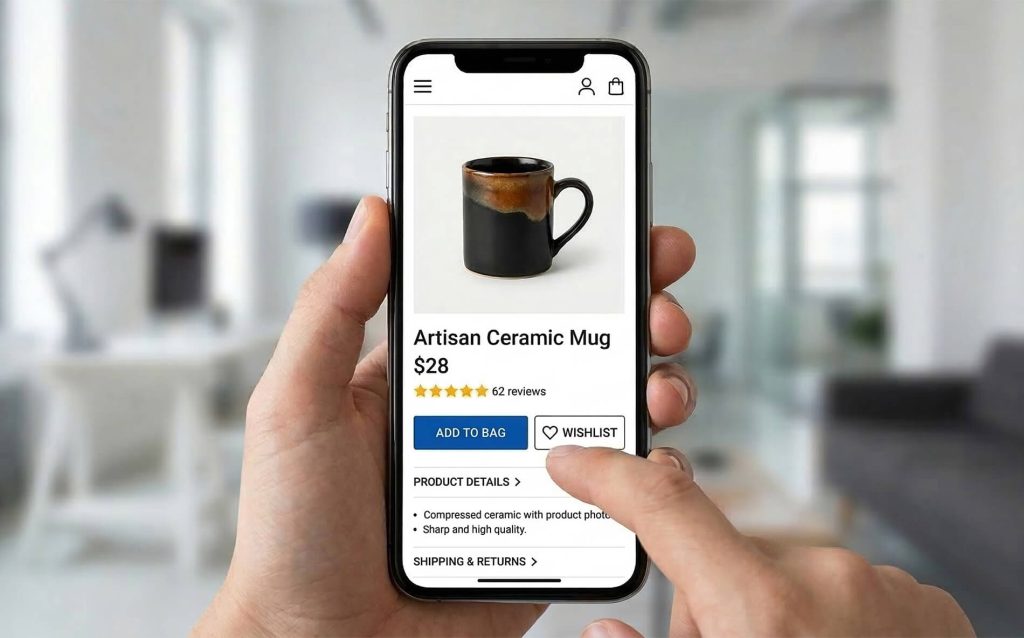
Run your product pages through Google’s Mobile-Friendly Test as a quick sanity check. It won’t catch everything, but it flags the obvious issues.
Page speed isn’t just a UX nice-to-have. After all, it directly impacts your bottom line. Google research shows that as page load time goes from 1 second to 3 seconds, bounce probability increases by 32%. Jump to 5 seconds, and that number hits 90%.
For WooCommerce product pages specifically, here are the quick wins:
Here’s a quick recap of all seven tips in a handy checklist:
| Tip | Difficulty | Impact | Tools / Plugins |
|---|---|---|---|
| High-quality, zoomable images | Easy | High | WooCommerce gallery, lightbox |
| Benefit-driven descriptions | Medium | High | StoreAgent (AI) |
| Trust badges near CTA | Easy | Medium-High | Free badge plugins |
| Optimized call-to-action | Easy | High | SaveTo Wishlist |
| Reviews & social proof | Medium | High | WooCommerce reviews, OptinMonster |
| Mobile-first design | Medium | High | Theme settings, Google mobile test |
| Page load speed | Medium | High | WP Rocket, ShortPixel |
You don’t have to tackle all seven at once. We’d recommend picking 2-3 that resonate most with your current situation and implementing them this week. Then come back for the rest.
Start with one tip today! You’d be surprised how much a single change can do.
For more plugin recommendations to level up your store, browse our roundup of the top WooCommerce plugins.

Copyright © StoreOwnerTips.com. All Rights Reserved.
