Picture Saturday, 9:50am. Twenty-four people are queuing for a workshop room that seats twenty. Your ticket product had stock for twenty in one variation and twenty more in another. The door list is an orders screen on a phone with one bar of signal.
Selling WooCommerce tickets is the easy part. The real work sits in four decisions that often get made on the day, not before the first sale. They cover seat numbers, attendee names, door entry and what happens if the event moves.
Here’s the short version. Make each event a virtual product and use its stock as your seat limit. Split ticket types into variations, collect one name per ticket, and set refund and transfer rules before the first sale. A ticket plugin then adds printable tickets and check-in.
I’ve seen each of these trip up event sellers, so this guide covers setup, selling, the door and late changes. Choosing a ticket plugin is a separate decision with its own guide.
Jump to:
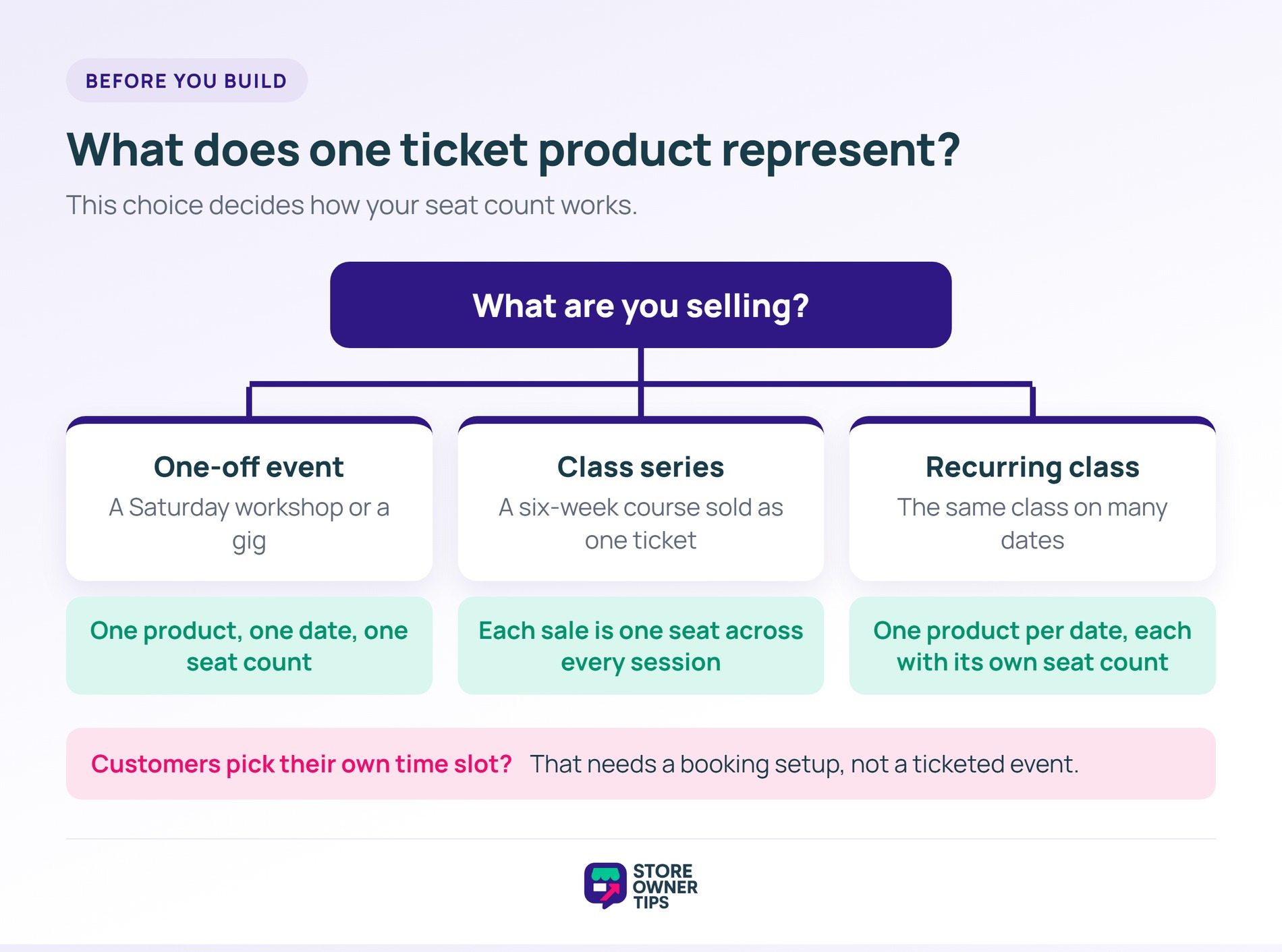
Start by deciding what one product represents, because that choice controls how your seat count works.
You can sell dates as variations of one product. However, each date then needs its own stock, and ticket types on top multiply the combinations. One product per date is easier to run.
That said, if customers pick their own time slot, you need a booking setup rather than a ticketed event.
Recurring events add up fast. In WC Vendors’ Prolific Writers Life case study, the marketplace hosts 50+ workshops a month. Its experts duplicate recurring events from the WC Vendors dashboard instead of rebuilding each one.
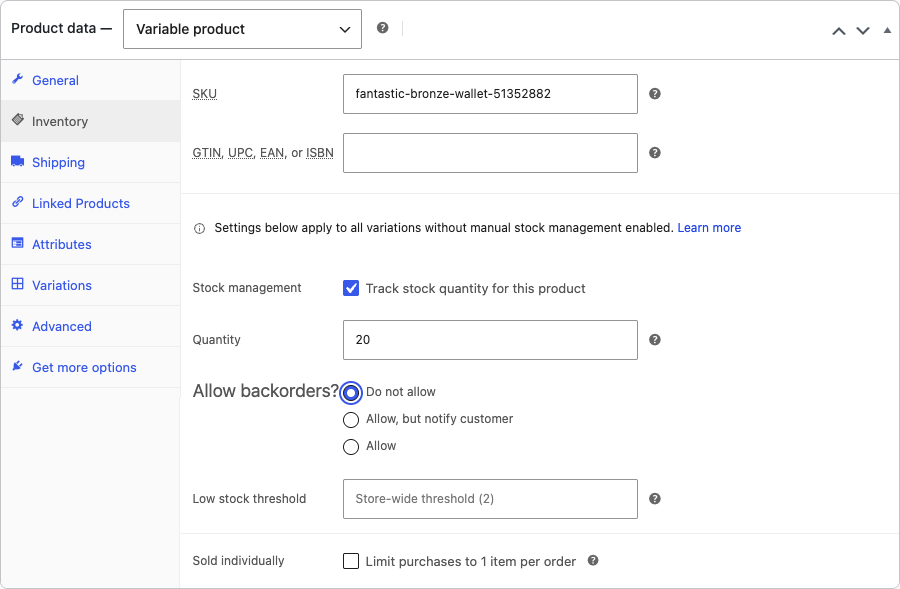
A ticket is a virtual product, and its stock quantity is your seat limit. A virtual product doesn’t need shipping, so WooCommerce hides the shipping section and skips shipping at checkout. If you’ve sold anything intangible before, our guide to selling virtual and digital products in WooCommerce covers the basics.
Next, turn on stock management, enter the number of seats, and leave backorders off. Allowing backorders lets stock go below zero, which is overselling by another name.
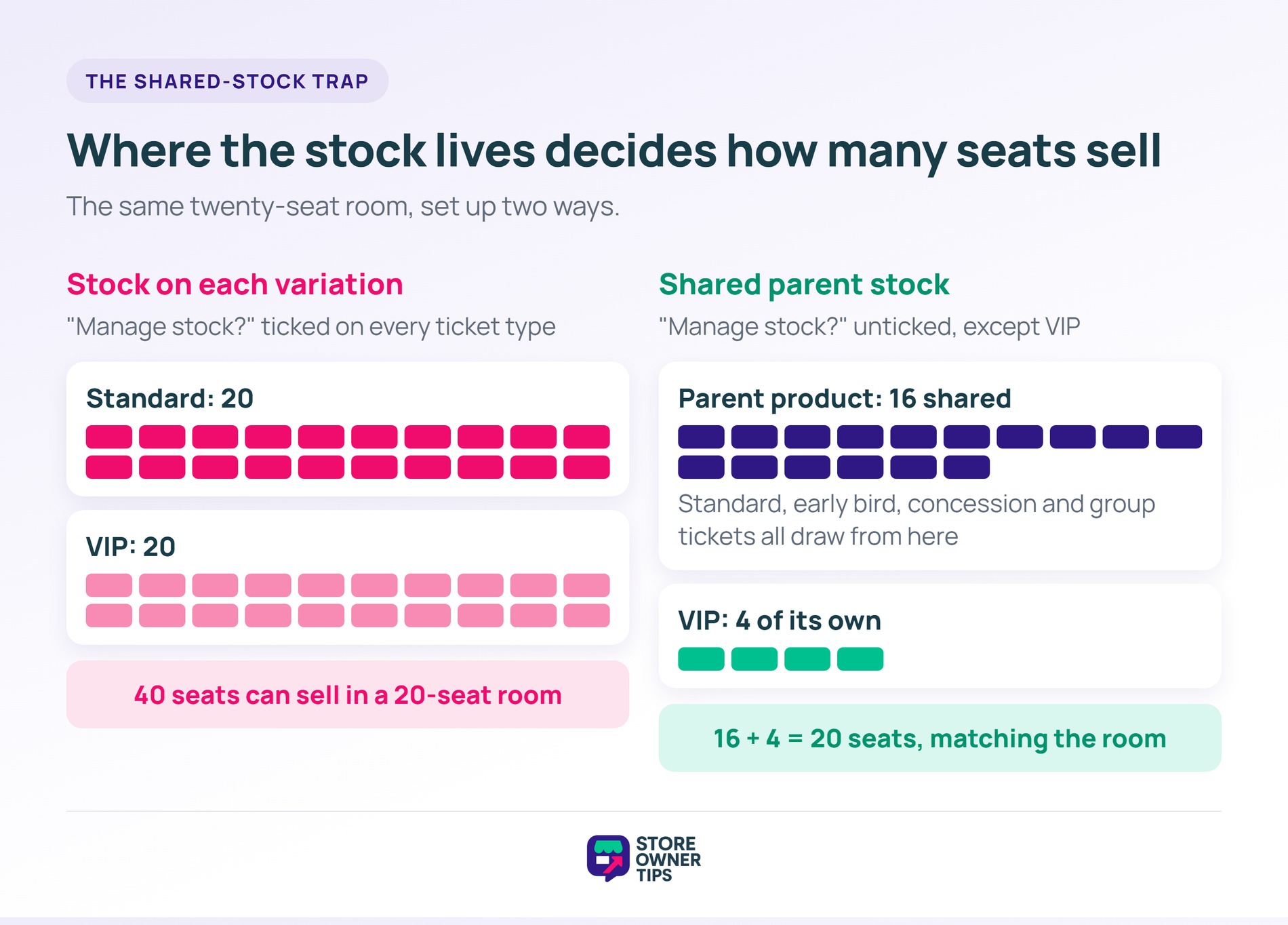
Ticket types usually become variations: standard, concession, VIP. The trap is where the stock lives. If you tick “Manage stock?” on each variation, each one gets its own count. So twenty standard plus twenty VIP can sell forty seats in a twenty-seat room.
The fix is simple to set. Leave “Manage stock?” unchecked on the variations, and they all draw from the stock set on the parent product. That single number is the room.
However, if VIP has its own seat limit, give only that variation its own stock. It then stops drawing from the shared pool, so lower the parent stock by the same number.
For early-bird pricing, add a sale price and click “Schedule” to set start and end dates. It ends on its own. On a variable product, set it per variation. Meanwhile, our glossary entry on yield management explains why prices that rise as seats fill can make sense.
Members-only events need a membership layer on top. Our roundup of membership plugins for members-only events compares the options.
For group tickets, Advanced Coupons is a WooCommerce coupon plugin with a free version. Its BOGO deals are part of that free version. That makes a “buy 4, get the 5th free” group deal free to set up.
Here’s what a ticket plan looks like in practice (example data):
| Ticket type | Set up as | Price rule | Counts against | Note |
|---|---|---|---|---|
| Standard | variation | full price | shared parent stock (16) | default |
| Early bird | standard variation, scheduled sale price | lower price until a set date | shared parent stock (16) | ends automatically |
| Concession | variation | reduced | shared parent stock (16) | say what proof is needed at the door |
| VIP | variation with its own stock (4) | higher | its own stock only | list what VIP includes |
| Group of 5 | Advanced Coupons BOGO deal | buy 4, 5th free | shared parent stock (16) | one name per ticket still required |
In this example, the room seats twenty: sixteen shared seats plus four VIP seats.
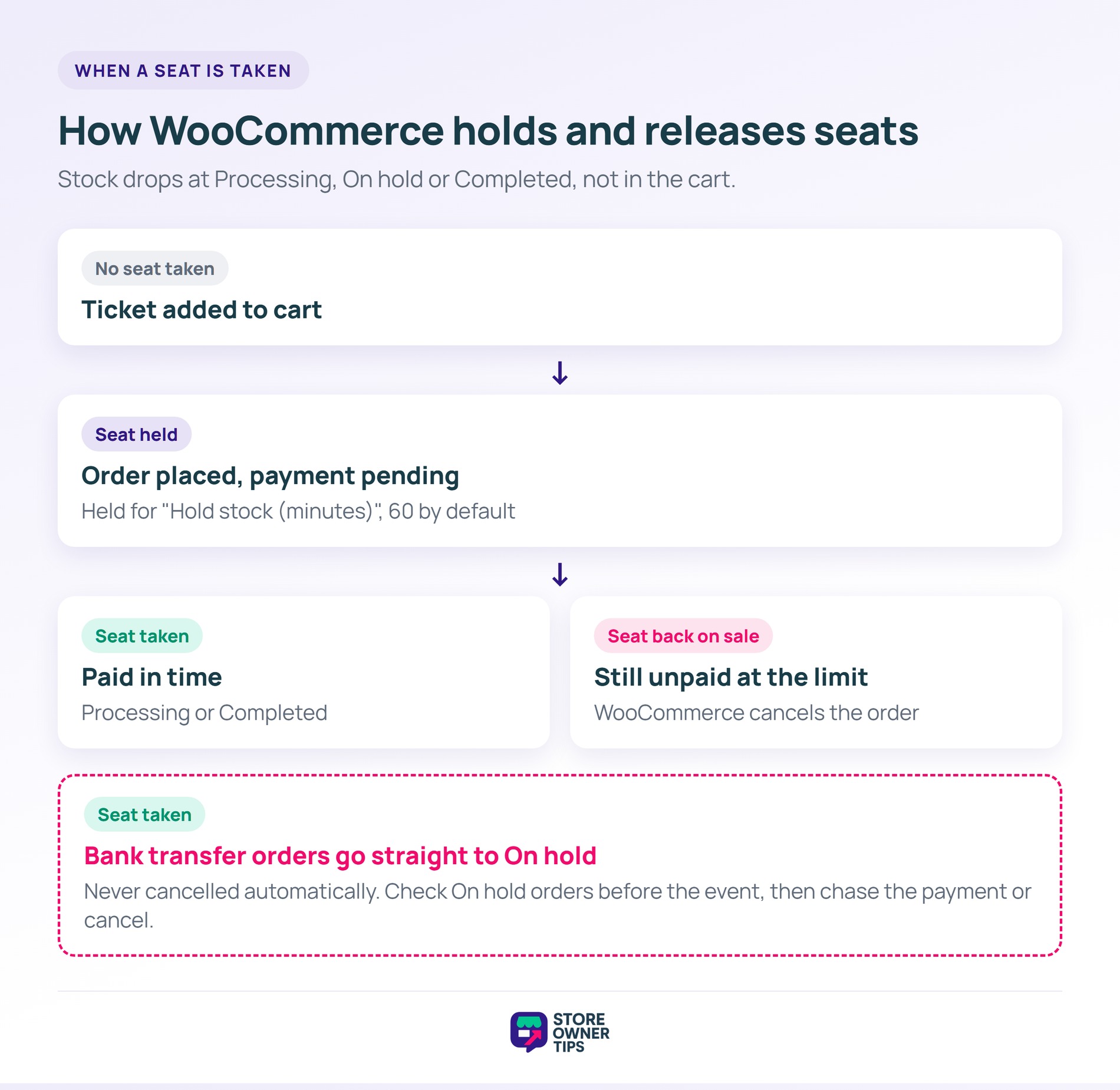
Adding a ticket to the cart doesn’t take a seat. WooCommerce reduces stock once an order reaches Processing, On hold or Completed. Between cart and payment, a hold protects the seat.
Go to WooCommerce > Settings > Products > Inventory and find “Hold stock (minutes)”. The default is 60.
When a buyer places an order, their seats are held for that many minutes, and nobody else can buy them. If the order is still unpaid when time runs out, WooCommerce cancels it. The seats then go back on sale.
A shorter hold frees abandoned seats sooner. Still, leave enough time for buyers who pay on an external payment page, though. If you leave the box blank, holds stop and unpaid orders are no longer cancelled automatically.
Bank transfer orders skip that clean-up. They go straight to On hold, which takes the seat right away. WooCommerce never cancels them on its own, however long the payment takes.
So filter your orders by On hold a few days before the event. Chase each payment, or cancel the order to free the seat. Cancelling puts the seats back in stock.
A few test orders show whether your setup counts seats the way you planned. Place them yourself before you announce the event. A 100% off coupon keeps them free. Using the example plan above:
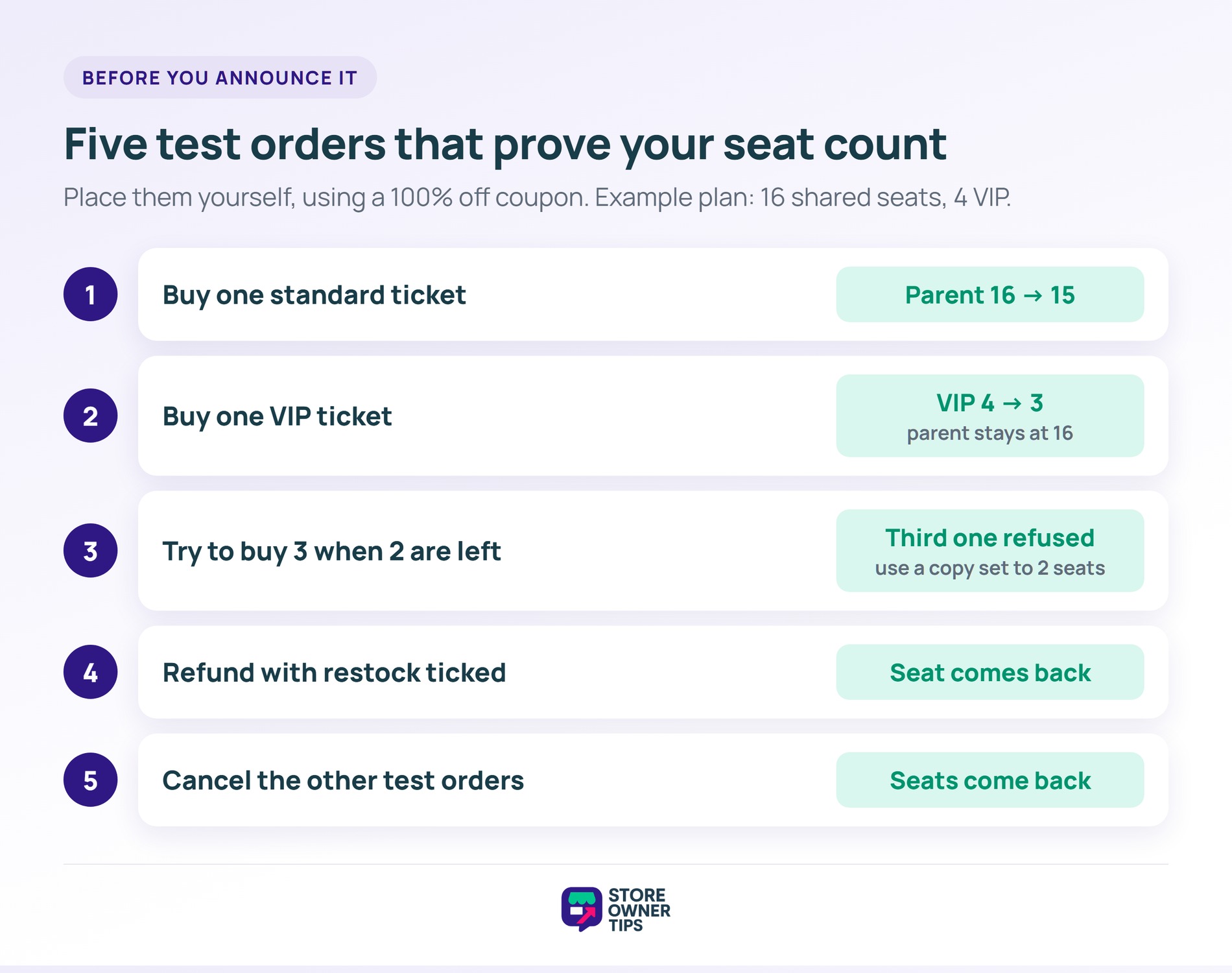
At zero, WooCommerce marks the ticket “Out of stock” and stops selling it. Two settings under WooCommerce > Settings > Products > Inventory shape what happens around that point.
Sold-out events still get refunds, and a restocked seat goes straight back on sale. The people who wanted one won’t know unless you tell them.
SaveTo Wishlist Pro can send that message. Shoppers save the sold-out ticket to their wishlist.
When its status changes back to In stock, the back-in-stock automation emails everyone who saved it. It’s included from the first paid plan, Growth. Shoppers do need to save the ticket first, so it only reaches people who chose to wait.
An order isn’t an attendee. One customer can buy four tickets, and the billing name tells you nothing about the other three people.
Collect one name per ticket, plus only what the event needs:
Every extra field slows the buyer down, so keeping checkout short matters here too. However, a plain WooCommerce checkout collects details per order, not per ticket. Per-ticket fields come from a ticket plugin.
The order confirmation is the ticket until a plugin makes a separate one. Make sure it carries:
Then send two reminders, one seven days out and one the day before. Both repeat the address and start time.
Keep a third message ready for last-minute changes. Set the reminders up once with automated WooCommerce email workflows so every event gets them.
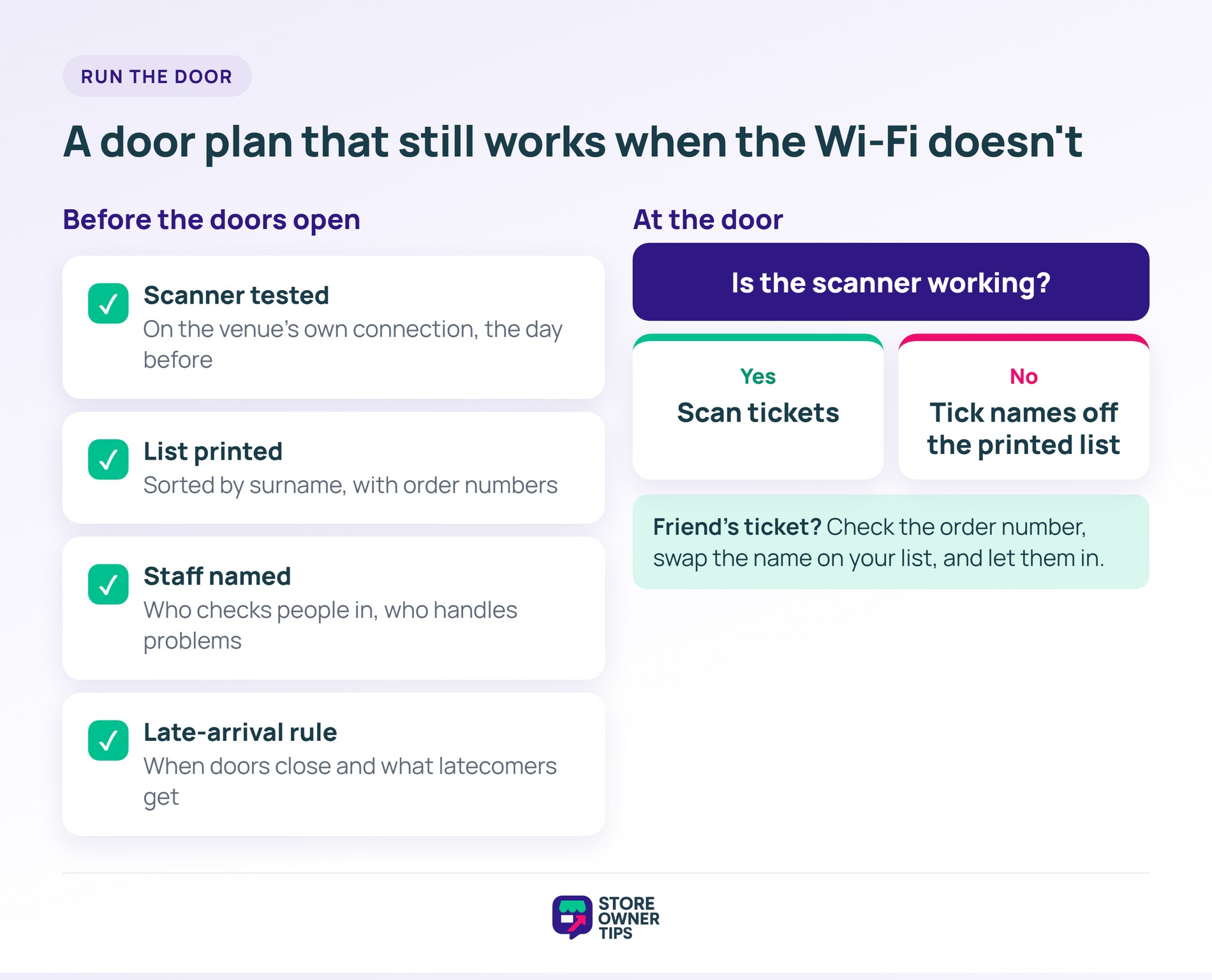
You need a check-in method that still works when the venue’s Wi-Fi doesn’t. That means scanning tickets, ticking names off a list, or both.
Scannable tickets and a check-in app come from a ticket plugin. Without one, you can still build a door list from your orders screen. Either way, a printed list is your backup.
🔍️ What we’ve seen: Some events rely only on a phone scanner on venue Wi-Fi. When the signal drops, the door stalls. Staff start waving people through, and the headcount is lost. A printed list keeps the line moving.
Before the doors open, run through this plan:
If someone arrives on a friend’s ticket, check the order number. Then swap the name on your list and let them in.
Write your refund policy before the first sale and show it at checkout. That way, every buyer agrees to the same rules before paying.
Handle a transfer as a name change. Update the attendee name and add an order note, and your seat count stays correct.
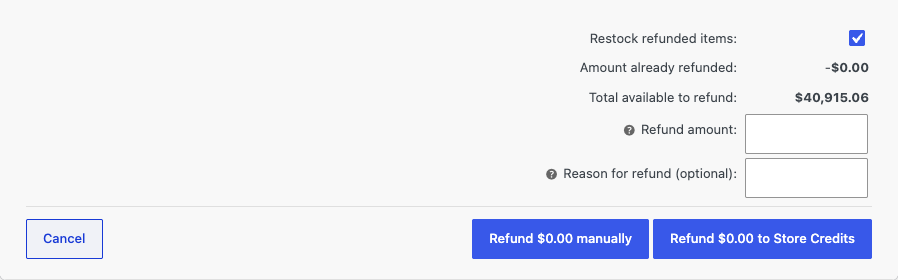
When you do refund a ticket, put the seat back on sale. The refund screen has a “Restock refunded items” box for this. Tick it, and the seat returns to stock.
If the event moves or is cancelled, offer a choice: a cash refund, or credit toward the new date. Credit suits buyers who still want to come, while cash suits the ones who can’t.
Advanced Coupons handles the credit side in its free version, through store credit. On the order screen, you can refund the ticket as store credit with a “Refund $XX to Store Credits” button. Your customer then spends it on the rescheduled date. The order must belong to a registered customer, so guest buyers need a cash refund.
Turn on stock management, set the stock to your seat count, and don’t allow backorders. If your ticket types are variations, set stock on the parent product so they share one number. Per-variation stock lets each type sell up to its own limit.
Yes, if your policy allows it. Treat it as a name change: update the attendee name, add an order note, and keep the original order. Your policy should say how late a transfer can happen.
Offer both and let the customer choose. Credit keeps the money in your store and suits a rescheduled date, while cash suits anyone who can’t attend.
Send one seven days before and one the day before. The first leaves time to plan travel or pass the ticket on. The second repeats the address and start time.
Most event-day problems come from decisions that didn’t get made in advance. A ticket plugin handles barcodes and check-in, while your seat count and cancellation policy stay your call.
With those settled, your WooCommerce tickets are ready to sell. Want to offer store credit instead of cash when plans change? The free version of Advanced Coupons adds a store credit refund button to your orders.

Copyright © StoreOwnerTips.com. All Rights Reserved.
