Weekly ecommerce tips, deals & news.

Every January, accountants start asking store owners for last year’s orders. It’s the same request every year, and it catches a lot of WooCommerce stores out. WooCommerce has no native order exporter, so the fields the accountant wants simply aren’t there. The right WooCommerce export plugin turns a weekend of copy-pasting into a twenty-minute job.
I’ve seen this play out enough times to know where it goes wrong. Store owners reach for the built-in product exporter, find it doesn’t touch orders, then start hand-building a spreadsheet.
The root problem is that “export” covers several unrelated jobs. The native tools handle one of them well and the rest not at all.
So this guide separates the jobs first, then shows exactly where WooCommerce stops. After that, we’ll go through the plugins worth considering for each, and where each one stops.
Jump to:
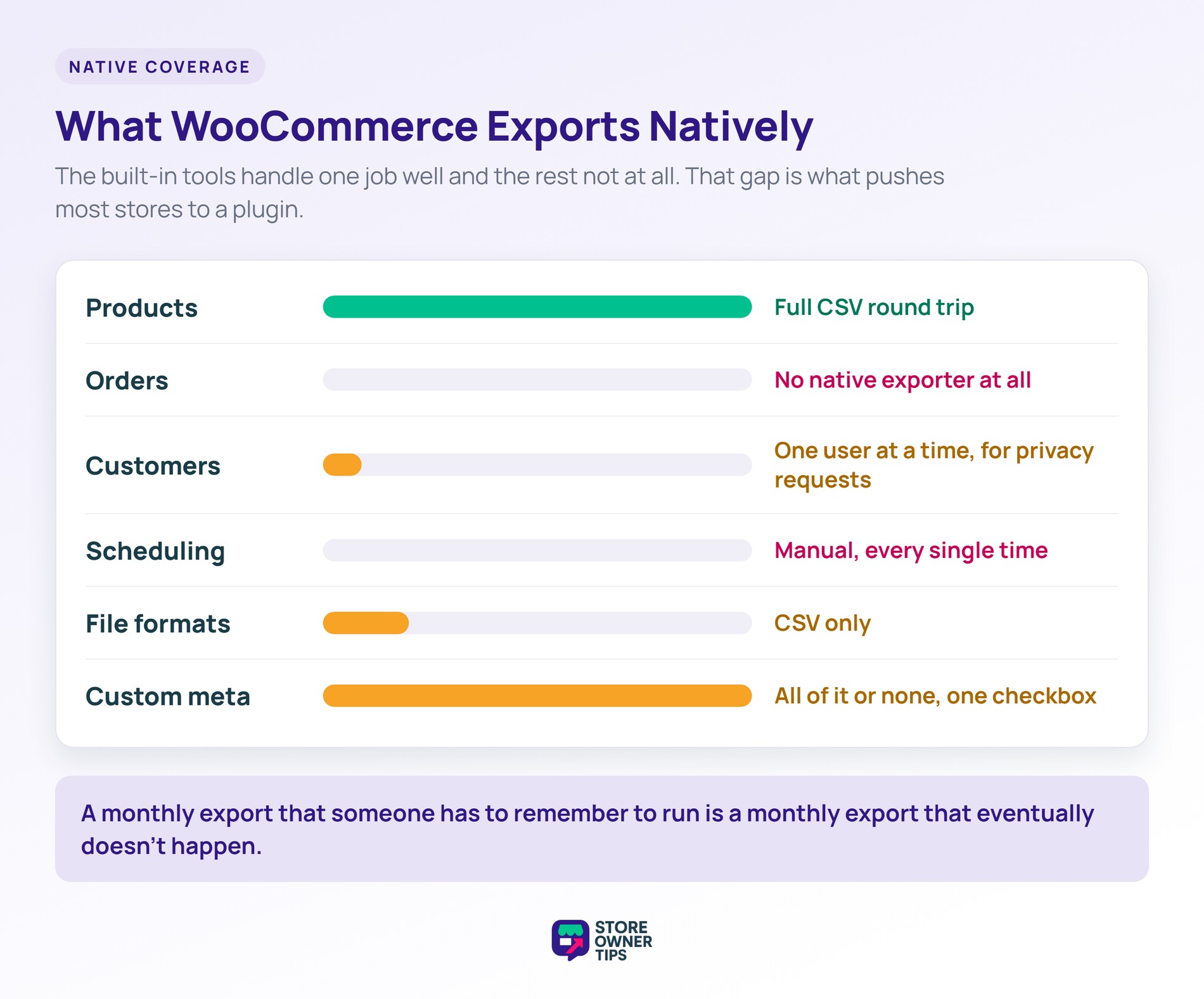
WooCommerce ships a product CSV exporter, and that’s essentially the whole of it. Products go out, products come back in through the matching importer, and nothing else is covered. If you sell downloads, it’s also worth checking how you’re exporting digital products, since download fields are easy to lose in a round trip.
For catalogue work, that round trip is genuinely useful. You export, edit in a spreadsheet, and re-import, which is still the cleanest way to make wide catalogue changes. Our roundup of WooCommerce bulk edit plugins covers when an editing panel beats a spreadsheet.
Here’s where it stops:
Still, customers are worth naming as a separate gap. WordPress includes a personal-data export tool, but it runs one user at a time for privacy requests. That’s a compliance feature, not a customer list export.
As a result, those last two limits are what push most stores to a plugin. A monthly export that someone has to remember to run is a monthly export that eventually doesn’t happen.

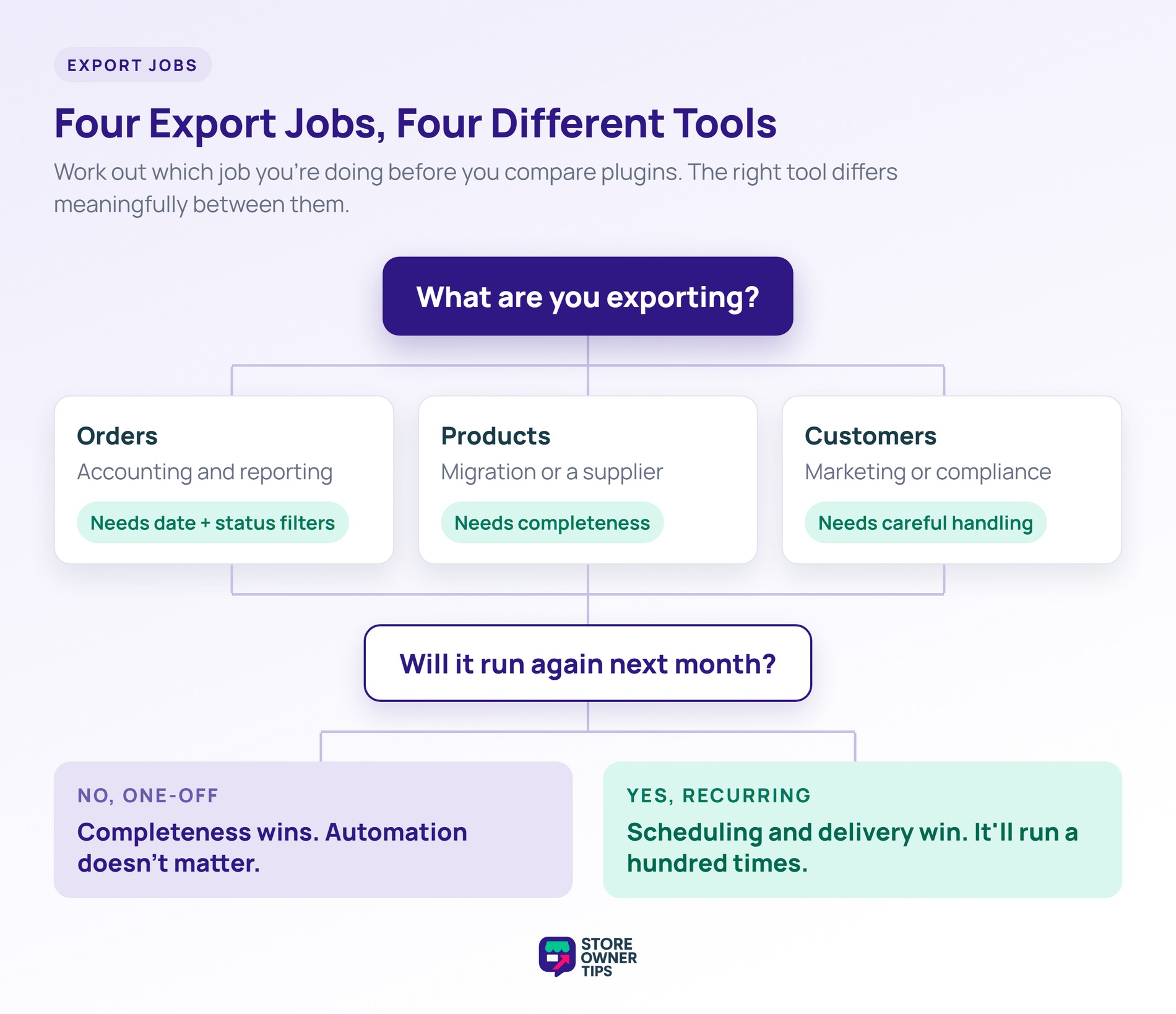
Work out which of these four jobs you’re doing before you compare anything. The right tool differs meaningfully between them.
The distinction that matters most is one-off versus recurring. A migration wants completeness and doesn’t care about automation. By contrast, a monthly accounting file wants reliability and delivery, because it’ll run a hundred times.
Five options cover almost every version of this problem. They’re ordered by how much of the export job each one takes off your hands.
The widest coverage of the five, and the only one that includes scheduling and delivery without a second purchase.
Filtering is where it earns its place. Orders filter by status and by date range, with relative presets like last week and last month alongside custom dates. Meanwhile, you can narrow further to a single product, category, customer or payment gateway. Users filter by role, date registered and date modified.
That sounds mundane until you need twelve months of completed orders without the cancellations. That’s the accountant request, and here it’s a single screen rather than a spreadsheet afternoon.
Scheduling is built as a real feature rather than a bolt-on. Each schedule is its own saved record you can edit or clone. So last quarter’s setup becomes this quarter’s starting point. Delivery covers six routes: media library, server path, email attachment, POST to a URL, FTP or SFTP, and Google Sheets.
However, failure reporting is the part most tools skip. Here, a Recent Schedules panel and a dashboard widget show whether the last run succeeded, and why it didn’t. So a broken FTP upload surfaces as a message instead of a file that quietly never arrives.
It writes CSV, TSV, XLS, XLSX and XML, which helps when the receiving system is fussy about structure. Plus, export templates save a column set once so nobody rebuilds it.
It also reads from 125+ WooCommerce and WordPress plugins. So subscription fields, coupon records and vendor product data come through rather than dropping out. On top of that, custom meta can be picked field by field, not just as one blob.
One honest caveat before you decide. Importing is a separate product, Product Importer Deluxe, so needing both directions means two purchases rather than one.
Store Exporter Deluxe runs $49 a year for a single site, with an unlimited licence available for agencies.
Best for: order exports with real filtering, and any export that should run unattended.
The strongest free option, as long as orders are all you need.
With 100,000+ active installs, it’s one of the most widely used order exporters in the plugin directory. The free version covers the core job properly: pick your fields, rename the labels, reorder columns, filter, export. It writes six formats for free, including Excel, XML, JSON, PDF and HTML. That’s more than several paid tools manage.
Two limits decide whether it’s enough. The free version only hands you a browser download, so nothing lands on your server automatically. Scheduling, with email or FTP delivery, sits in Pro from $30 a year.
It’s also orders only, where Store Exporter Deluxe covers 15+ data types on one licence. Visser Labs keeps a head-to-head breakdown if you’re weighing the two.
Best for: occasional manual order exports, and finding out whether you need more.
Built around the round trip, which is its real advantage over an export-only tool.
If your work is catalogue maintenance, one tool handling both directions keeps the column mapping consistent. Better still, you map once and save it as a template. It matches each row to an existing product by SKU or ID. Then it updates only the fields that changed, which sidesteps the blank-column problem covered further down.
It stays products-focused, though. Pricing starts at $69 a year for one site, against $49 for Store Exporter Deluxe. That one also exports orders, customers, coupons and subscriptions. That said, if products are the whole job and you want both directions in one plugin, the premium is defensible.
Best for: spreadsheet catalogue editing, where export and import are one workflow.
The official marketplace extension, and the most predictable of the five.
In practice, it exports three record types, orders, customers and coupons, in CSV or XML. Custom formats let you rearrange fields and add meta or static values, so an accountant’s column order stays reproducible. Meanwhile, scheduled exports deliver by email, FTP or HTTP POST.
Advanced Coupons has a guide to reading a coupon usage report once that data is out.
The trade-off is scope against price. It’s $79 a year for three record types and two formats. Store Exporter Deluxe is $49 for 15+ types, five formats and six delivery routes. Still, if you specifically want an official extension on the invoice, that’s a reasonable reason to pick it.
Best for: stores that prefer official extensions and have modest filtering needs.
The most flexible of the five, and the most work to set up.
It’s a general WordPress export tool, so it reaches data that isn’t product or order data at all. If you need an unusual output structure, a drag-and-drop column builder will get you there.
The cost shows up in two places. WooCommerce products and orders need the WooCommerce Export Package at $169 a year, or a Pro bundle above it. You also build the export template yourself.
By comparison, Store Exporter Deluxe shows every WooCommerce data type immediately at $49. Plus, there’s no add-on to install and no template to build. Visser Labs has a full comparison of the two.
Best for: unusual export structures, and exporting WooCommerce data alongside the rest of your site.
Here’s how the five map across the jobs. Prices and feature sets move between versions, so confirm current details on each vendor’s own site before buying.
| Tool | Price | Data types | Scheduling | Delivery | Formats |
|---|---|---|---|---|---|
| Native WooCommerce | Free | Products only, no order export | No | Browser download | CSV |
| Store Exporter Deluxe | $49/yr, 1 site | 15+, including orders, products, customers, coupons, subscriptions | Yes, included | Media, server, email, FTP/SFTP, POST to URL, Google Sheets | CSV, TSV, XLS, XLSX, XML |
| Advanced Order Export | Free, Pro from $30/yr | Orders only | Pro only | Free: download only. Pro: email, FTP, APIs | CSV, Excel, XML, JSON, PDF, HTML |
| Product Import Export for WooCommerce | From $69/yr | Products, import and export | Yes | FTP/SFTP, WP or server cron | CSV, XML, Excel, TSV, Google Sheets |
| Customer / Order / Coupon Export for WooCommerce | $79/yr | Orders, customers, coupons | Yes | Email, FTP, HTTP POST | CSV, XML |
| WP All Export | $99/yr, WooCommerce package $169/yr | Site-wide, WooCommerce needs the add-on package | Yes | Zapier (email, Dropbox, Google Sheets, Google Drive) | CSV, XLSX, XML |
A recurring export that a person runs is a recurring export that eventually gets missed.
The pattern is predictable. Someone sets a calendar reminder, it works for three months, then a busy week arrives. The reminder gets dismissed, and nobody notices until the accountant asks. The data was always there, so the process was the failure point.
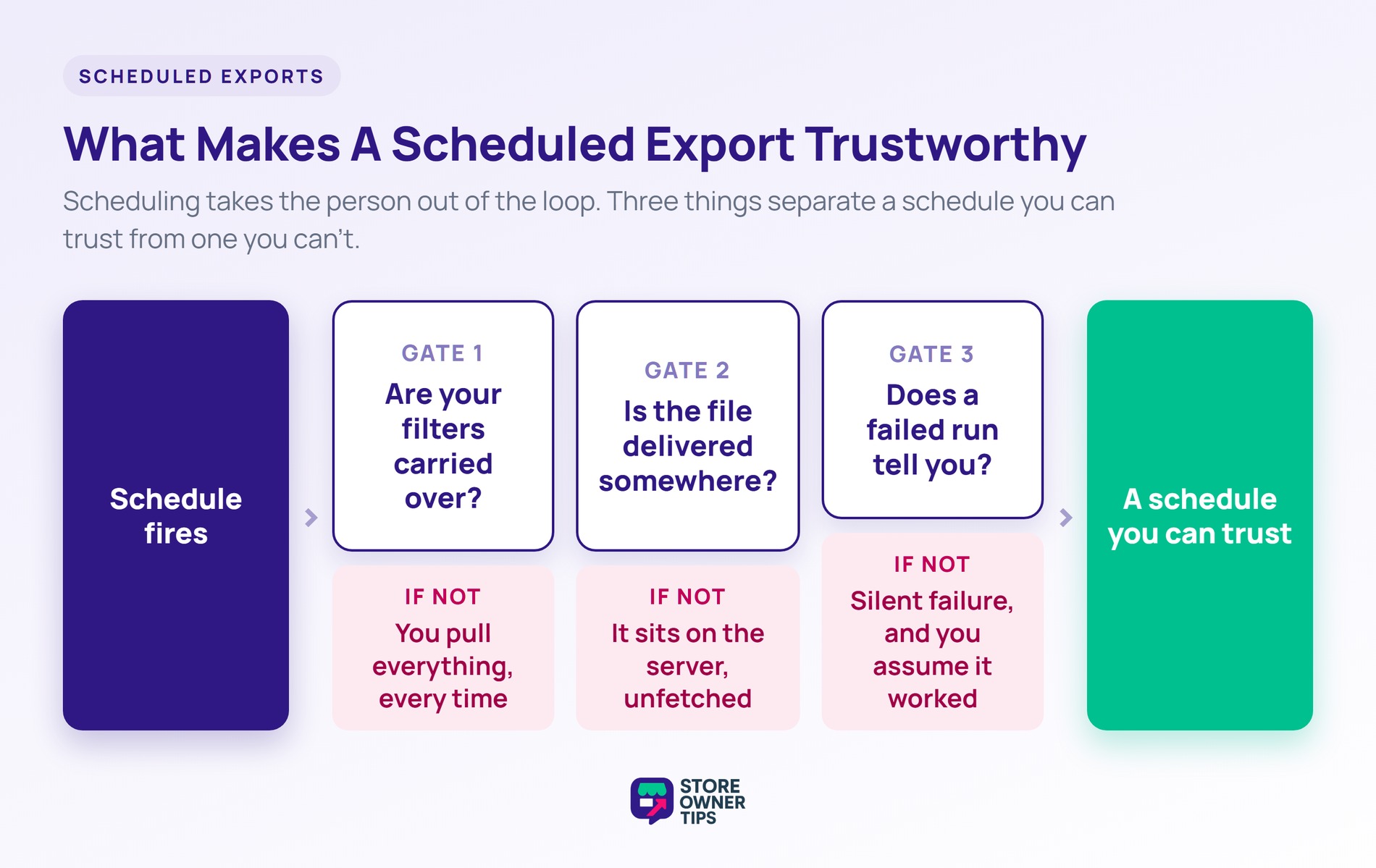
Scheduling takes the person out of the loop. In practice, three things separate a schedule you can trust from one you can’t:
🔍️ What we’ve seen: stores set up a scheduled export, confirm the first file arrived, then never check again. Months later the file is still landing, but a plugin update renamed a column. As a result, the receiving system has been quietly dropping a field ever since. Check the contents of a scheduled export quarterly, not just that it exists.
For catalogue work, our guide to WooCommerce inventory management covers what to do with the data once it’s out. Exports also feed supplier relationships. Our guide to running a wholesale store and Wholesale Suite’s B2B setup guide both get into that.
One distinction is worth keeping straight. An export gives you a file to work with. A product data feed pushes catalogue data to an external channel on a schedule.
AdTribes covers that side in their guide to ecommerce product data management. We compare the tooling in our roundup of WooCommerce product feed tools. They get confused constantly, but a feed is for advertising channels and an export is for you.
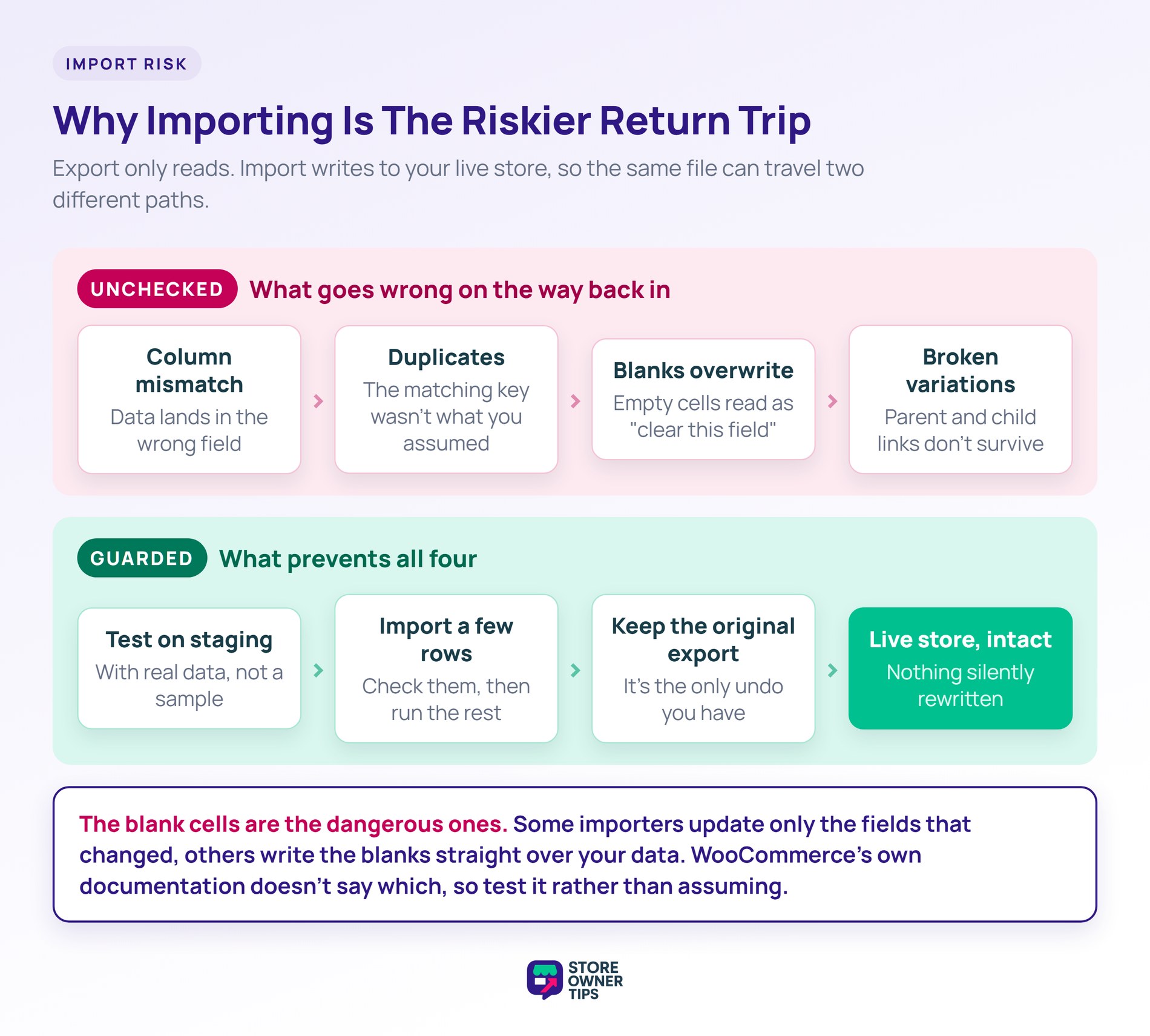
Import deserves more caution than export, because export only reads and import writes to your live store.
By contrast, the failure modes on the way back in are specific:
That third one does the most damage, and it’s importer-dependent. That said, some tools update only the fields that changed, while others write the blanks straight over your data. WooCommerce’s own importer documentation doesn’t state which behaviour it uses, so test it rather than assuming.
Three rules keep imports safe:
If you can’t test on staging, take a full backup immediately before. Then run the import at your store’s quietest hour. Visser Labs’ rundown of product import plugins walks through the mapping step, which is where most of this goes wrong.
WooCommerce has no native order exporter, so you’ll need a plugin. Choose one that filters by date range and order status, because a raw export of everything is rarely what’s wanted. If the export recurs, pick a tool that can schedule it and deliver the file automatically.
Yes, with the native product CSV exporter and with most export plugins. Still, verify it on a small selection first. Variations are where exports most often lose data, particularly attribute mappings and parent-child relationships. If you’re exporting for a migration, open a variable product in the output file before trusting the whole export.
An export produces a file for you to use. That might mean sending it to an accountant, migrating systems, or editing in a spreadsheet. A product feed generates structured catalogue data on a schedule for an external channel to consume. They’re built differently and serve different purposes, despite both being your data in a file.
It’s safe with preparation. Test on staging with real data, then import a few rows before running the full file. Keep the original export as your rollback.
The most common damage comes from blank columns being read as instructions to clear fields. So check how your importer treats empty values before running anything at scale.
Not natively, but several plugins support it. Look for scheduling that carries your filters, delivers the file somewhere useful, and tells you when a run fails. FTP or email beats saving to the server, since a file nobody fetches hasn’t solved anything. A schedule that fails silently is worse than a manual export.
Exporting isn’t one capability, it’s four jobs with different requirements. Once you know whether you’re doing a one-off migration or a recurring accounting file, the shortlist gets short quickly.
If your problem is the January accountant request on a schedule, Store Exporter Deluxe is the closest fit here. You get order and date filtering, six delivery routes, and success-or-failure reporting on every run. That’s $49 a year on a single site. That’s the combination the native tools don’t attempt.

Copyright © StoreOwnerTips.com. All Rights Reserved.
