Weekly ecommerce tips, deals & news.

A seasonal price change lands on your desk. Four hundred products need a 10% increase, and the Products list shows twenty at a time. That’s the moment most store owners start hunting for the best WooCommerce bulk edit plugins.
Here’s the part most roundups skip. They treat bulk editing as one job. It isn’t.
Bulk editing is at least four different jobs that happen to share a name. The tool that wins one of them is often the wrong pick for another. I’ve seen store owners buy a capable plugin and still do the work by hand, because it solved a different job than the one in front of them.
This guide separates those four jobs. First we’ll cover what WooCommerce already does before you install anything, then which tools suit each job.
Jump to:

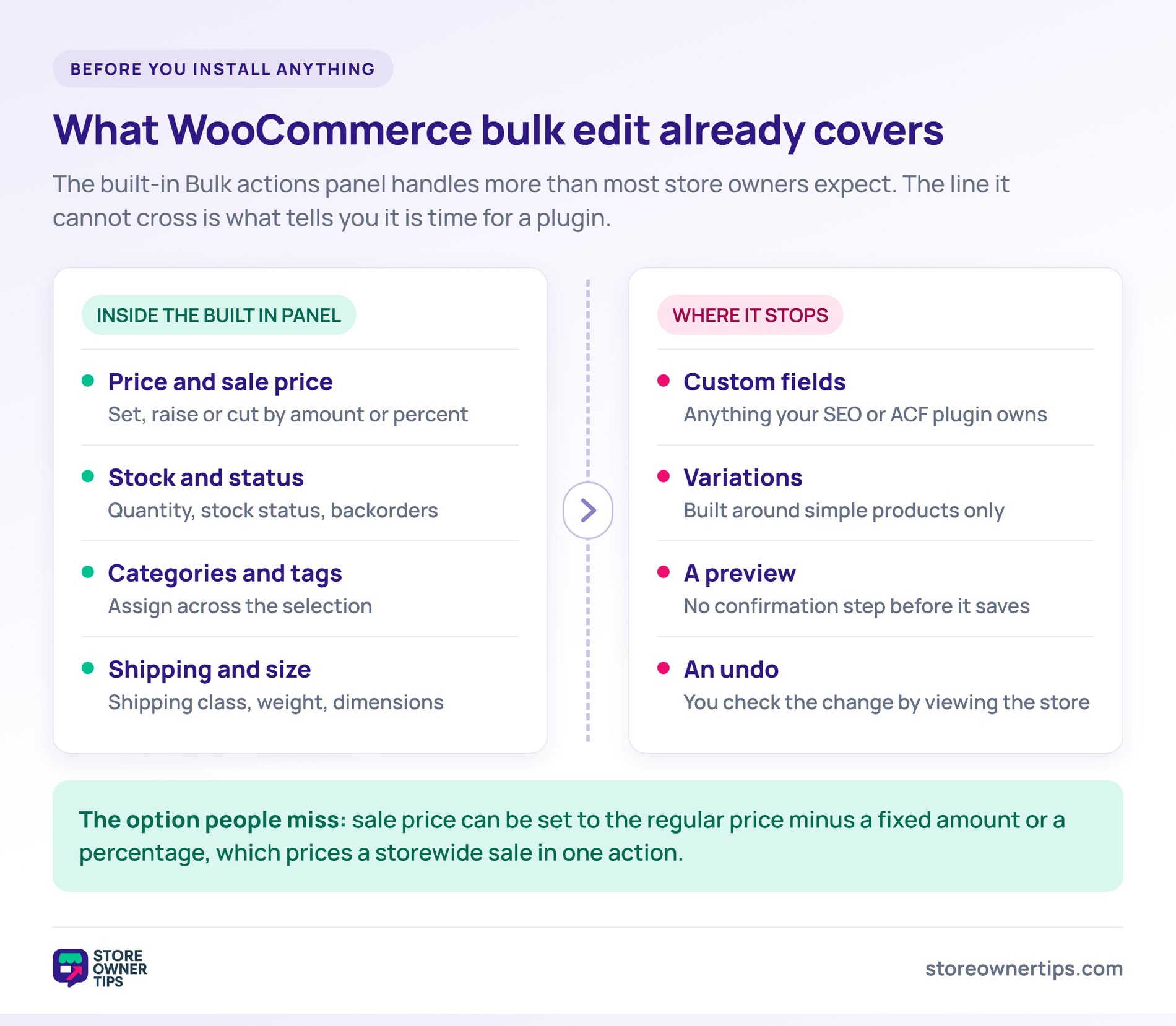
WooCommerce already bulk edits price, sale price, stock, status, categories, tags, shipping class and dimensions, with no plugin at all. Select the products you want on the Products list, choose Edit from the Bulk actions dropdown, and a panel opens for everything you selected.
The price controls do more than most people expect. You can change to a value, increase by a fixed amount or a percentage, or decrease the same way. Sale price adds a fourth option: set it to the regular price decreased by a fixed amount or percentage. That last one handles a storewide sale in a single action.
Where it stops is precision. The panel edits everything in your current selection, and that selection comes only from what the Products list can filter by. It can’t reach custom fields either. There’s no preview and no undo, so you find out what happened by looking at the store.
Variations are the bigger gap. The built-in panel is designed around simple products, and variable or grouped products fall outside what it changes reliably. As a result, a variation-heavy catalogue can look edited while most of it isn’t.
You’ve outgrown it at one of two moments. The first is when you’re ticking products across several pages of results. The second is when you open a spreadsheet to work out which products you actually meant to change.
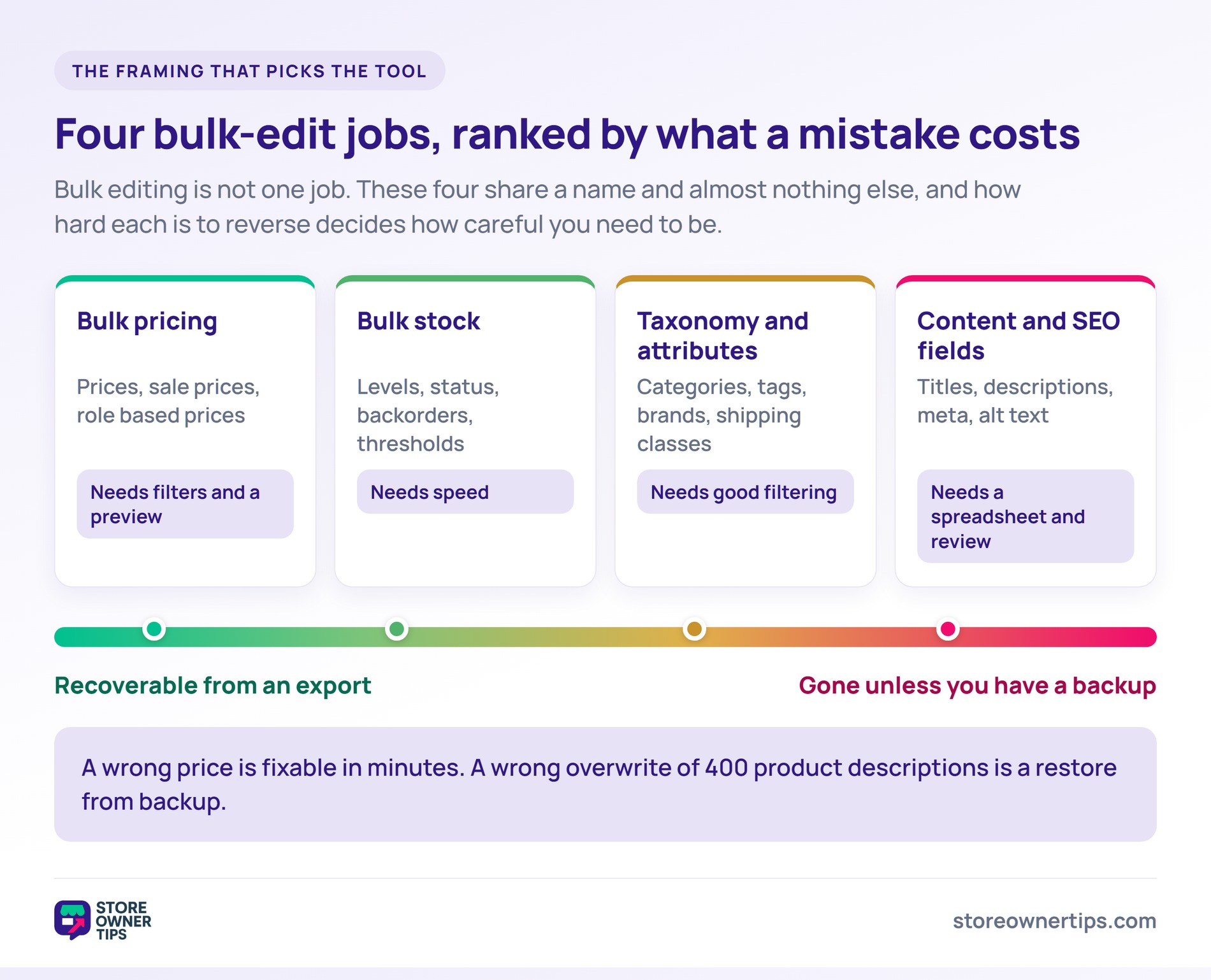
Naming the job you’re doing is what makes the tool choice obvious. Ask which of these four you’re actually about to do:
These jobs differ in how reversible they are. A wrong price is embarrassing and fixable in minutes. By contrast, a wrong overwrite of 400 product descriptions is a restore-from-backup situation.
They also differ in what tooling they need. Pricing wants conditional filters and a preview. Inventory wants speed. Taxonomy wants good filtering, and content wants a spreadsheet-like surface plus a way to check your work before it goes live.
Most tools are genuinely good at one or two of these and adequate at the rest. That’s the whole reason a single answer to “best bulk edit plugin” doesn’t exist.
Here’s how the main options handle those four jobs, and where each one earns its keep. AdTribes has a wider primer on ecommerce product data management if you want the strategy view.
The built-in option, and the right starting point for most stores.
I reach for this more than any plugin, mostly because the fastest bulk edit is the one that needs no install. A percentage price rise across a filtered category takes under a minute.
Two things are worth knowing in practice. The selection is bound to your current filtered view, so the real skill is filtering the Products list well before you touch Bulk actions. There’s also no confirmation summary. You click Update and it’s done, which is fine for stock status and genuinely nerve-wracking for prices.
Best for: small, simple changes to price, status and stock, where you can express your selection through the Products list filters.
A free VillaTheme plugin that puts your catalogue into a spreadsheet-style table you edit inline.
That interface changes how you work. You see current values while you’re changing them, rather than pushing a blind change onto a selection. In a taxonomy tidy-up, that’s often the difference between catching a miscategorised product and shipping it.
The free version covers regular and sale price, stock, title, description, short description, categories, tags, attributes, SKU, images, weight and dimensions. It loads variations too. Copy-paste, find-and-replace, drag-fill and undo all work inside the table before you commit anything.
Two trade-offs are worth flagging. Custom meta fields and edit history sit in the Pro version, so the fields your SEO plugin owns usually fall outside the free build. Plus, a table view of a very large catalogue gets slow.
Best for: taxonomy, attributes and mixed-field tidy-ups where seeing the current values matters.
A filtered, spreadsheet-style editor built around reviewing your changes before they save.
Preview is the differentiator here. You stage the edits first, and price drops highlight in red, so a misplaced decimal shows up before it reaches the store. Undo and redo keep working right up until you commit.
Variations are the other reason to look at it. It edits them individually or in bulk instead of flattening a variable product into one row. That matters more than it sounds: a store with 40 products and 600 variations is a different problem, and tools that flatten it quietly miss most of the catalogue.
There’s a free version, though it’s narrower than it first looks. Editing categories, sale prices and attributes sits in Pro, along with saved filters and bulk variation creation. Pro runs $59 for one site and $89 for five.
Best for: variation-heavy catalogues, and anyone who wants to see a change before it lands.
A long-standing CodeCanyon plugin ($69) built around deep filtering and saved views.
You filter by title, category, attributes, price range, SKU, tags, description, stock, product type, shipping class or dimensions, then edit whatever matches. Saved views remember which fields you work with, so a quarterly price job starts from the same setup every time.
It’s worth being precise about what that saves you. The plugin stores your filters and field layout, not an automated rule that re-applies itself. You still run each edit, but you stop rebuilding the setup first.
It also reaches further into the product record than most. Custom meta fields and custom taxonomies become editable columns, text supports append, prepend and replace, and a change can be reverted after the fact.
Best for: recurring edits behind complicated filters, and jobs that touch custom fields.
Worth naming separately, because it solves a job the general bulk editors don’t.
If your bulk pricing work is really “set different prices for trade customers”, a general bulk editor is the wrong shape entirely. You don’t want to overwrite prices. You want a second set of prices that only certain user roles see.
Wholesale Suite handles bulk wholesale pricing in WooCommerce as role-based rules layered over your retail prices. You can set it globally, by product category as a percentage, or product by product. Quantity tiers sit on top of that, so larger orders price better without a separate edit.
Retail prices stay untouched, which is the part that matters here. I’ve seen stores bulk-overwrite retail to trade pricing, then have no record of what retail used to be.
That said, it isn’t a general bulk editor and isn’t trying to be. Stock, taxonomy and content edits still need one of the tools above. There’s a free Wholesale Prices plugin if you want to test the role-based model before paying for anything.
Best for: stores selling to both retail and trade, where “bulk pricing” really means role-based pricing. Our guide to running a wholesale store on WooCommerce covers the wider setup, and there are more options in our roundup of wholesale plugins for WooCommerce.
Here’s how the four jobs map across the options. Feature sets move between versions, so check current documentation before you buy.
| Tool | Prices | Stock | Taxonomy | Content/SEO | Best for |
|---|---|---|---|---|---|
| Native WooCommerce | Set, raise or cut by amount or % | Yes | Categories and tags only | No | Small, simple changes |
| Bulky (free) | Yes | Yes | Yes | Content yes, meta fields in Pro | Tidy-ups with visible current values |
| PW Bulk Edit | Regular price free, sale price in Pro | Yes | Pro | Limited | Variation-heavy catalogues |
| Advanced Bulk Edit ($69) | Yes | Yes | Yes | Yes, including custom fields | Deep filters and repeat jobs |
| CSV round trip | Yes | Yes | Yes | Yes | One-off structural changes |
| Wholesale Suite | Role-based and tiered | No | No | No | Trade pricing alongside retail |
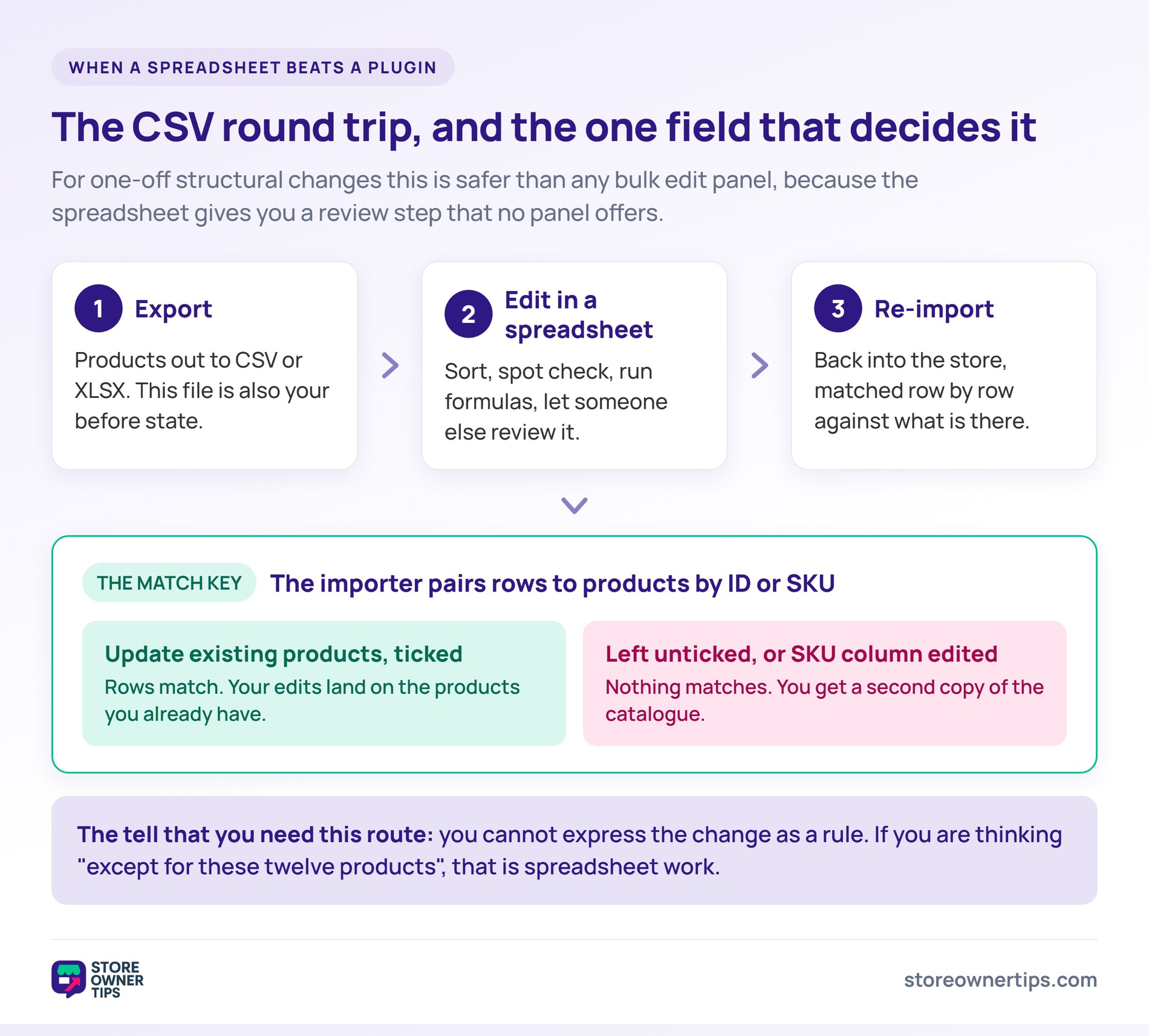
For one-off structural changes, exporting to a spreadsheet, editing there and re-importing is usually safer than any plugin.
The reason is review. A spreadsheet lets you sort, spot-check, run formulas, and hand the file to someone else before anything touches the live store. No bulk edit panel gives you that.
It also hands you a before-file for free. The original export is an exact record of the old values, which is the closest thing to an undo that bulk editing has.
One detail decides whether the re-import works: the match key. WooCommerce’s importer matches rows to existing products by ID or SKU, and you have to tick “Update existing products”. Miss that and you create duplicates instead of changing anything. Protect the SKU column and the round trip is routine.
Visser Labs has a full walkthrough of bulk editing WooCommerce products with CSV, including the spreadsheet formulas and the formatting traps that catch people out. Their Store Exporter Deluxe covers the export half with field selection and filtering. Worth knowing up front: it exports rather than imports, so the re-import still runs through WooCommerce’s built-in importer.
This is the right approach for bulk content and SEO fields in particular, because those need reading rather than rule-setting. It’s also right whenever the change is complex enough that you’d want a second pair of eyes on it.
🔍️ What we’ve seen: Store owners reach for a bulk edit plugin when what they actually need is an export, a spreadsheet and an import. The tell is when you can’t express the change as a rule. If you catch yourself thinking “well, except for these twelve products”, you’re doing spreadsheet work. Forcing that through a rules-based editor is how the twelve exceptions get missed.
If you go this route, it’s worth understanding how an export differs from a product data feed, since the two get confused constantly. A feed pushes catalogue data out to an external channel on a schedule. An export gives you a file to work on. Our roundup of product feed tools covers the former.
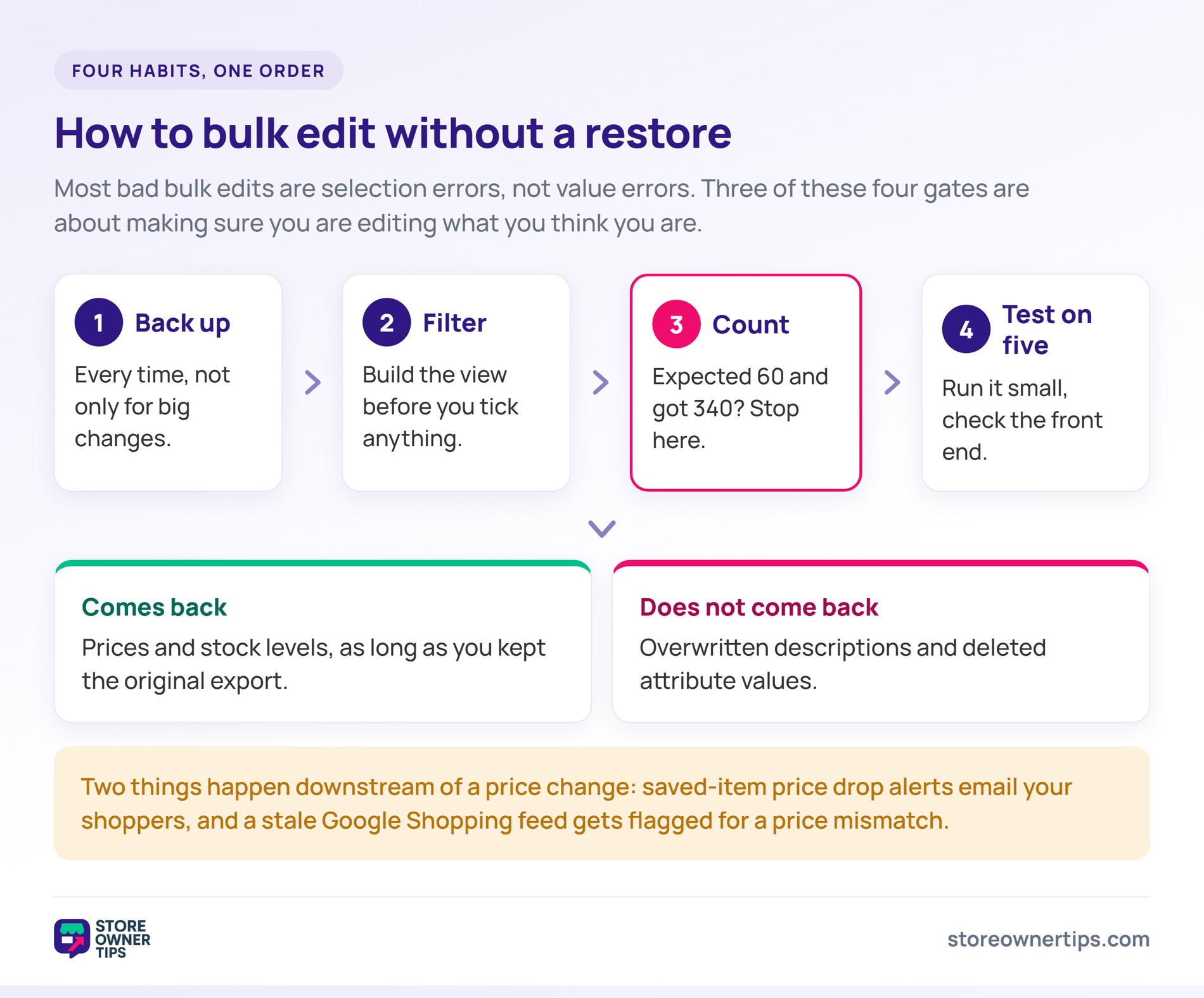
Four habits prevent almost every bulk edit disaster.
The count check is the one that catches people, and it’s an easy step to skip when you’re in a hurry. If you expected 60 products and the filter returns 340, stop and work out why.
Two downstream effects catch people out after a bulk price change. A price cut can fire wishlist price drop alerts to shoppers who saved those items. And if you send products to Google Shopping, refresh the feed too. Otherwise Merchant Center flags a price mismatch.
For stock work specifically, our guide to WooCommerce inventory management covers the settings that make bulk stock edits less frequent in the first place.
Yes. WooCommerce includes a bulk edit action on the Products list. It handles status, price, sale price, stock, categories, tags, shipping class and dimensions. Select your products, choose Edit from the Bulk actions dropdown, and apply the change. You’ll want a plugin or a CSV round trip once you need real filtering, variation support, or custom fields.
Use the native bulk edit panel for straightforward changes. It can set a price outright, or raise or lower the existing one by a fixed amount or a percentage. Sale price can also be set to the regular price minus an amount or percentage. For recurring price work, a bulk edit plugin with saved filters fits better. For trade pricing alongside retail, use role-based pricing rather than overwriting.
Not well with the native tools. The built-in bulk edit is designed around simple products, so a variation-heavy store can find most of its catalogue untouched by a bulk change. Bulky, PW Bulk Edit and WooCommerce Advanced Bulk Edit all edit at variation level. Whichever you choose, verify it on one test product before running the full job.
It’s safe if you back up first, filter carefully, and test on a small selection before the full run. The risk isn’t the number of products, it’s how reversible the field is. Price and stock changes come back from an export. Overwritten descriptions and removed attributes generally don’t.
Bulk editing applies a change to products already in your store, through a rule or a selection. A CSV round trip exports your data to a spreadsheet, lets you edit it there, and imports it back. Bulk editing is faster for rule-shaped changes. The CSV route is better when the change needs review, has exceptions, or involves reading content rather than setting values.

Bulk editing isn’t really a feature category. It’s a set of unrelated jobs sharing a name. Once you know which job you’re doing, the tool choice mostly answers itself, and you stop hunting for one plugin that does everything adequately.
If your bulk pricing work is really about selling to trade customers at different prices, don’t overwrite your retail prices to get there. Wholesale Suite layers role-based and quantity-tiered wholesale pricing over the prices you already have, so retail stays intact as the catalogue grows. The free Wholesale Prices plugin is enough to see whether the role-based model suits your store.

Copyright © StoreOwnerTips.com. All Rights Reserved.
