Weekly ecommerce tips, deals & news.

Every course you sell needs a product page. That means a description, a short summary, tags, and answers to the questions students ask before they buy. For a creator juggling curriculum, filming, and student support, that writing piles up fast.
AI content tools for course creators take on the first draft of that work. They write product descriptions, category pages, and image alt text, and some answer pre-purchase questions through a chatbot. You review the drafts, then spend the saved hours on teaching.
This guide covers what these tools write and how to set them up in WooCommerce. It also shows how to check the output before it goes live.
Jump to:
Selling courses means writing more product copy than most creators expect. A single photography course can become four products. There’s a basic tier, a premium tier, a bundle, and a membership option. Each one needs its own copy.
Good product descriptions also take a specific skill set. They need benefit-focused language, natural keywords, and calls to action that convert browsers into buyers. That’s copywriting, which is a different job from teaching.
AI content tools close that gap. You enter the basic course details, and the AI drafts the page copy for you to review. As a result, more of your week goes to course development and your students.

A WooCommerce-native tool works inside your store, so it can read your catalog directly. General-purpose AI writers sit outside WordPress. With those, you copy course details in and paste the results back, one product at a time.
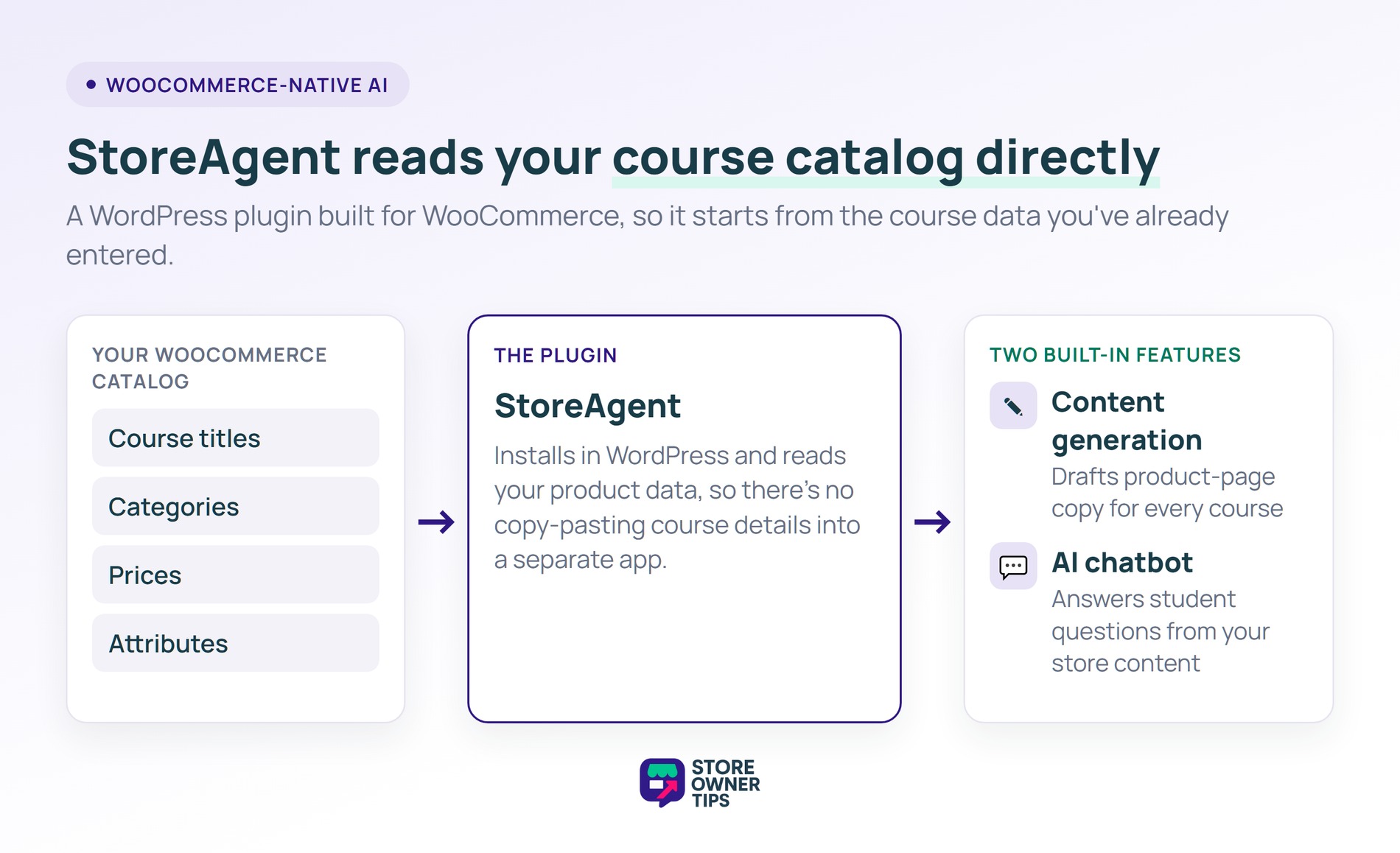
StoreAgent is built for WooCommerce stores. It installs as a WordPress plugin and reads your live catalog, including categories, prices, and attributes. So the AI starts from data you’ve already entered, not a blank prompt.
That suits course stores well, including ones running an LMS like MasterStudy LMS, which can sell courses as WooCommerce products. Because StoreAgent works with WooCommerce product data, your courses, memberships, and bundles all get the same tools. StoreAgent’s free WooCommerce MCP server also lets Claude or ChatGPT edit those course products for you, straight from a chat.
The plugin covers two jobs: content generation for product pages and an AI chatbot for student questions. Both read from your store’s content. So clearer product descriptions also give the chatbot better answers to work from.
StoreAgent’s content tools cover six kinds of store copy that course businesses need:
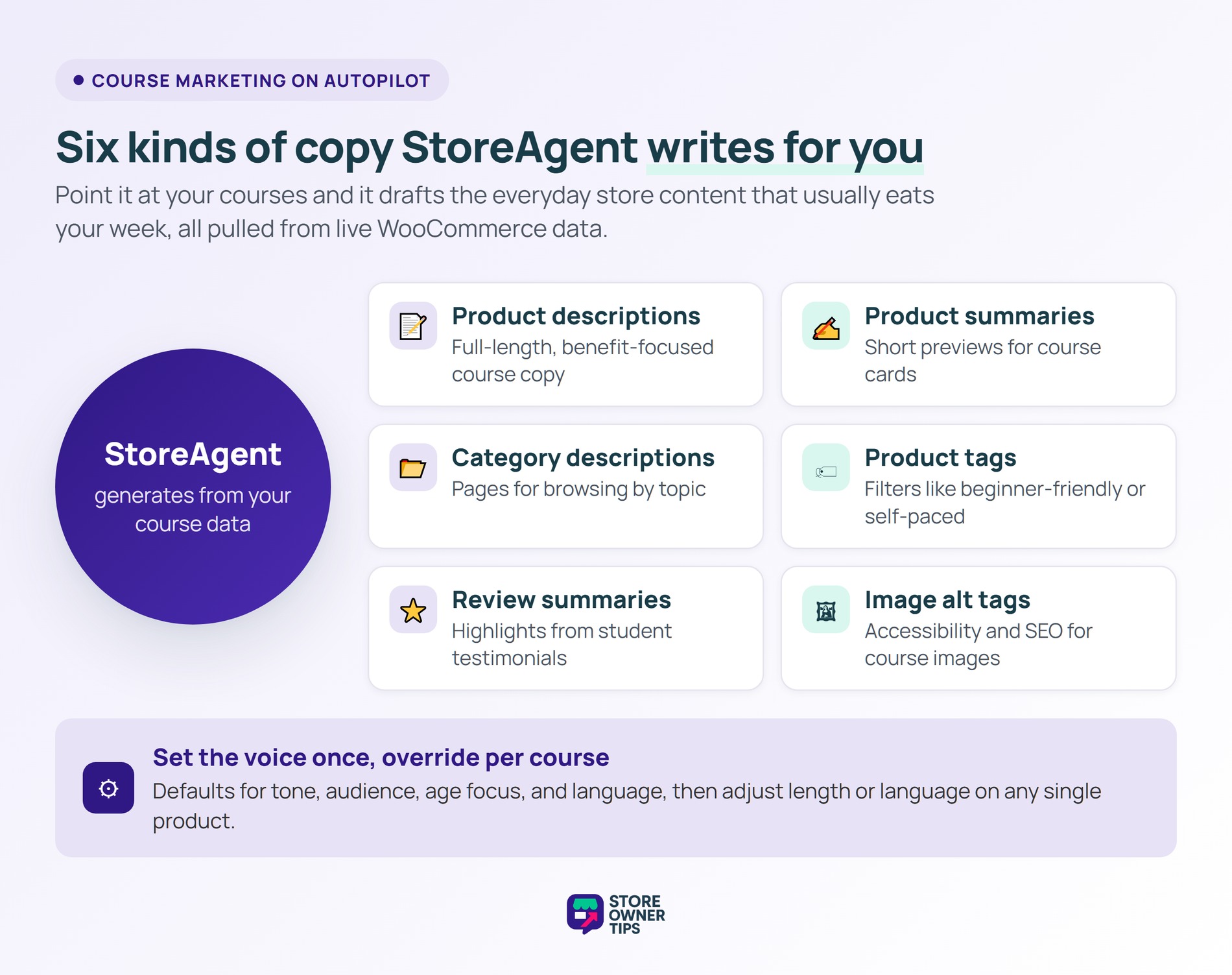
Each tool shapes its output for the content type and works from your product’s details. That way, every page reflects the actual course instead of a generic template.
Two ways to customize your AI content:
Set your most common preferences as defaults, then adjust individual courses when needed. Here’s how each tool works in a course store.
Product Description AI writes full-length copy for your course sales pages. Give it the right details, and it explains what students learn, who it’s for, and why to enroll.
How to use it:
Getting more from it:
Set your tone once in the tool settings, so every course page sounds like the same teacher. Use the interesting facts step for what students get: the outcomes, projects, or skills the course delivers.
That said, the form is built for all kinds of products. Steps like size options or ingredients won’t apply to a course, so skip them. When you launch several courses at once, bulk processing can run the tool across all of them.
Product Summaries AI writes the short description that appears on shop pages, category listings, and course cards. That preview is often what decides whether a student clicks through.
How to use it:
Getting more from it:
Write the full description first, because the summary is built from it. Bulk runs also skip products that have no description.
Then use the summary for your course’s main selling point in one sentence. Keeping summaries a similar length makes your shop pages look tidy, too.
Category Description AI writes copy for the category pages where students browse courses by topic. Clear category copy helps students find the right level. It also gives search engines context for topic searches like “beginner photography courses”.
How to use it:
Getting more from it:
Write category copy that steers students toward the right skill level or topic. Many students browse by category before opening a course, so clear copy shortens their search.
Also, include your keywords where they fit naturally. Category pages can rank for broader topic searches than a single course page.
Product Tags Generator AI suggests tags that help students filter and find courses. Tags like “beginner-friendly”, “includes certificate”, or “self-paced” make a large catalog easier to browse.
How to use it:
Getting more from it:
Use the same tags across similar courses, so filters stay reliable. For instance, tag every beginner course “beginner-friendly” so new students find a starting point.
Outcome tags like “portfolio building” help too. Students often search for results, not just topics.
Review Summaries AI reads a course’s reviews and summarizes the themes students mention most. Shoppers see that summary at the top of the reviews section, so they don’t have to scroll through every review.
How to use it:
Getting more from it:
Review summaries work as social proof, because students tend to trust other students. Meanwhile, the themes they surface are useful for your descriptions. Feature the benefits students mention most.
Image Alt Tags AI analyzes your course images and writes descriptive alt text. Alt text lets students using screen readers understand your visuals. It also helps search engines understand what each image shows.
How to use it:
Getting more from it:
Describe what the image actually shows, and add a course keyword only where it fits naturally. Alt text written for people tends to serve search engines well too.
Each image uses one AI task, though. On a large media library, start with your course product images.
Each tool handles one content job. Together, they cover most of the copy a course catalog needs, with you reviewing every draft.
Setup takes four steps, all inside your WordPress dashboard.
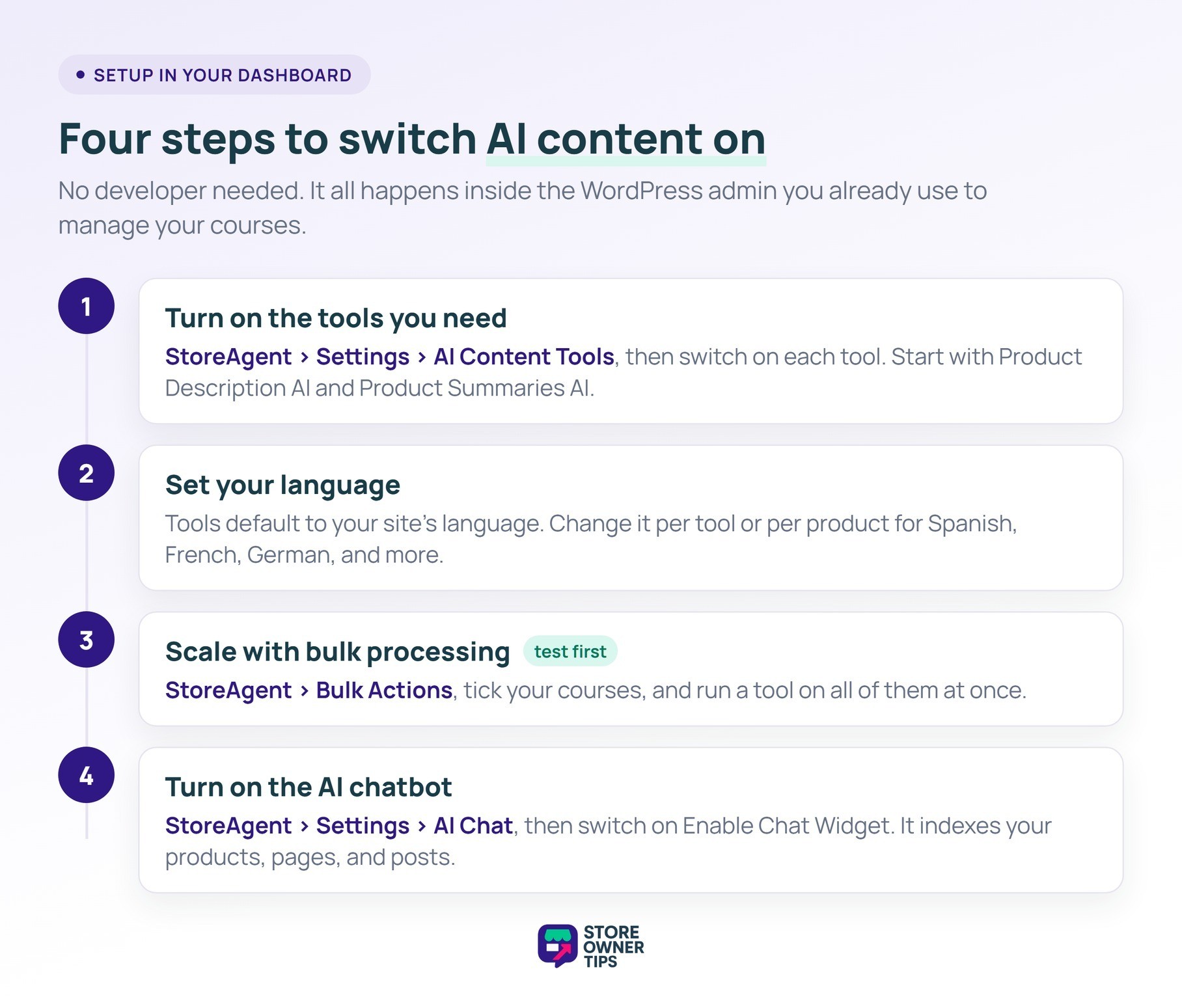
1. Turn on the tools you need. Go to StoreAgent > Settings and open the AI Content Tools tab. Each tool has its own switch, so turn on the ones you plan to use.
Start with Product Description AI and Product Summaries AI on your three to five best-selling courses. Those pages already get the most visitors, so better copy there reaches the most students first.
2. Set your language. The content tools can write in any language WordPress supports, and they default to your site’s language. Change it in a tool’s settings or per product to write in Spanish, French, German, or your students’ language.
3. Scale with bulk processing. Once you’re happy with individual courses, use bulk generation under StoreAgent > Bulk Actions. Tick the courses you want, then run a tool on all of them at once. Your default settings keep the results consistent.
Keep an eye on usage, though. Every run uses AI tasks from your StoreAgent plan, and the free Lite plan includes 200 one-time tasks. So test on a few courses before you run the whole catalog.
Go to StoreAgent > Settings and open the AI Chat tab, then switch on Enable Chat Widget. The tab also shows the chatbot’s indexing status, so you can see when it’s ready to answer.
The WooCommerce chatbot indexes your products, pages, posts, and custom post types. So it starts from what’s already on your site. You can also set its communication tones, colors, and position, so the widget matches your brand.
The chatbot is multilingual, too. Students ask in their language and get replies in that language, at any hour.
The chatbot answers from your store’s own content, so it can only answer what your site already says. Prices and stock are checked live. However, details like refunds or access length have to be written down somewhere first.
Before you switch it on, make sure your site answers the questions students ask before they buy:
Course-specific answers belong in each product description. Store-wide answers, like your refund policy, fit better on one policy or FAQ page. That way you write them once and the chatbot reads them everywhere.
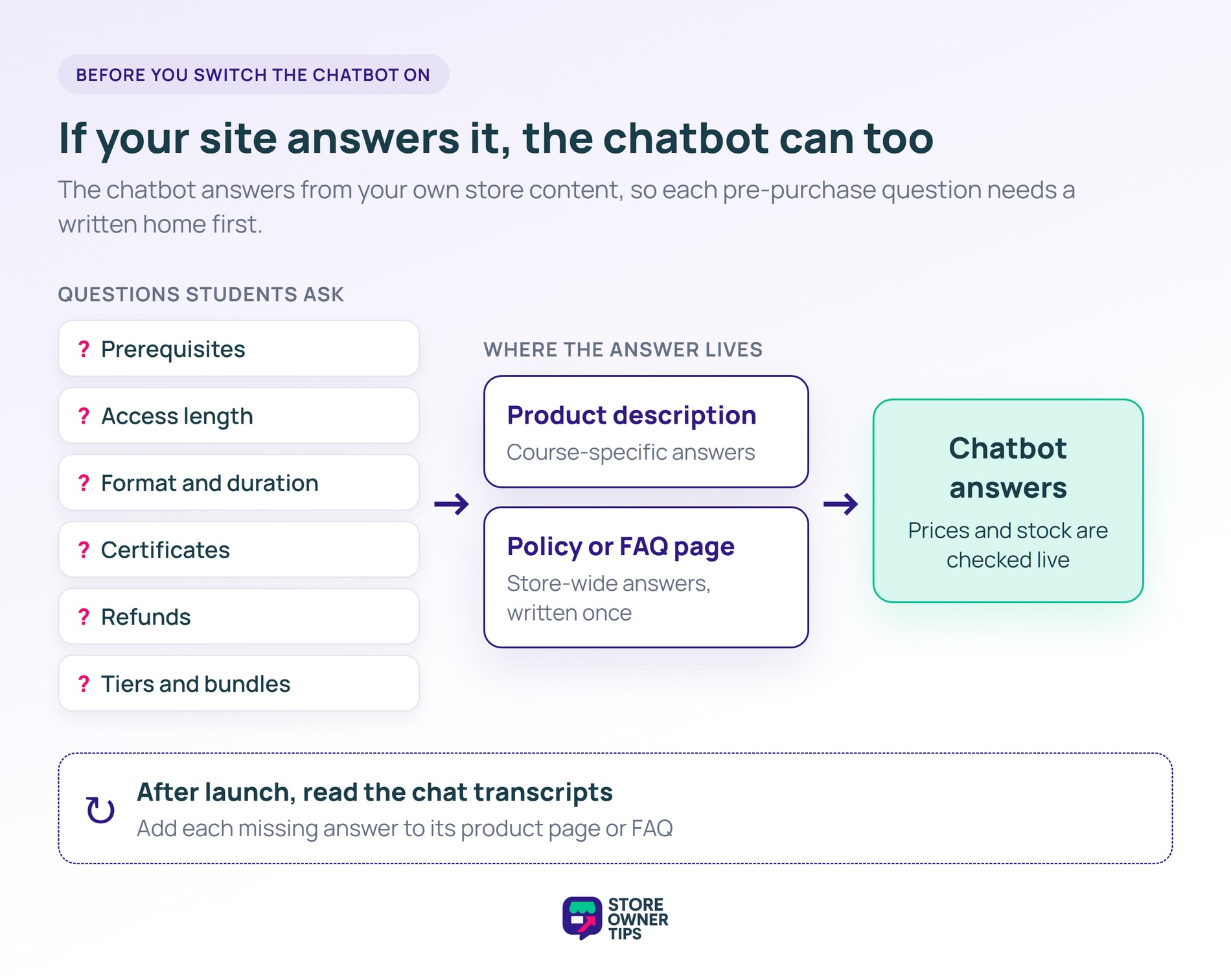
After launch, look for questions the chatbot couldn’t answer well. On the Pro and Business plans, StoreAgent keeps a chat history you can search and export. Add each missing answer to the matching product page or FAQ. Every gap you fill helps both the chatbot and the students reading that page.
AI drafts quickly, but it fills gaps with plausible guesses. With courses, those guesses tend to land on the details students rely on to decide. So read every draft against your actual curriculum before it goes live.
Check these details first:
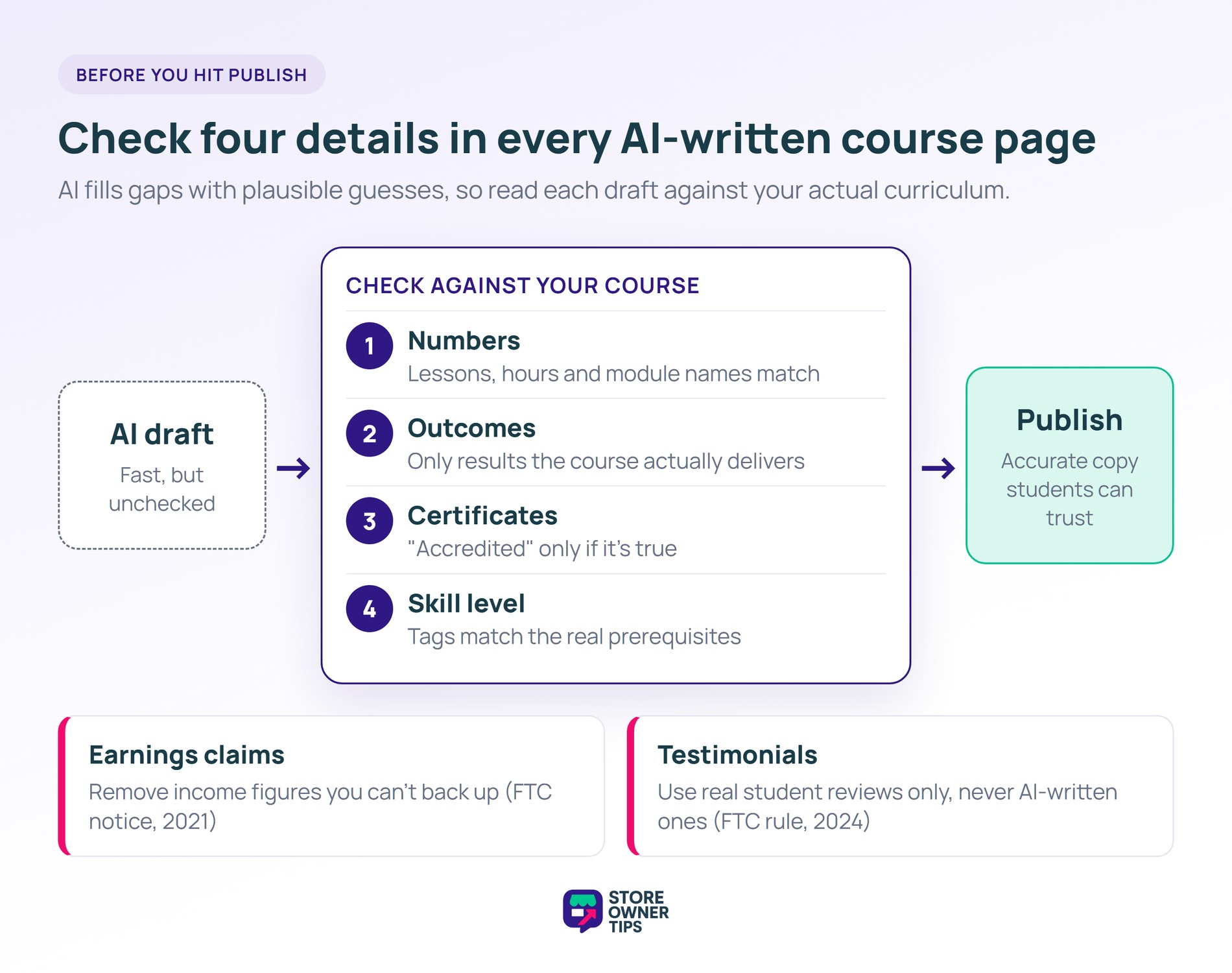
Earnings promises need extra care if you teach business, marketing, investing, or freelancing. In October 2021, the FTC sent a warning notice to more than 1,100 businesses selling money-making opportunities. The list included business and investment coaching.
False earnings claims, including claims that results are typical, could bring penalties of up to $43,792 each at the time. So remove any income figure the AI adds unless you can back it up.
Reviews need the same honesty. Review Summaries AI condenses reviews your students actually left, which keeps it grounded.
However, AI shouldn’t write testimonials for you. The FTC’s 2024 rule on fake reviews bans reviews by people who don’t exist, including AI-generated ones. It also bans testimonials from people with no real experience of the product.
Start with where the tool works. If you sell courses through WooCommerce, WordPress-native tools that connect to your existing products save you the copy-paste step. That applies whether you run a plain WooCommerce store or sell through an LMS like MasterStudy.
Plenty of capable AI writers exist outside WordPress. ChatGPT is a popular all-purpose option for drafting copy. Jasper is built for marketing teams that need a consistent brand voice. Copy.ai has grown into a platform for sales and marketing workflows.
Any of them can write a decent course description. However, none of them works inside WooCommerce. You paste in your course details, then copy each result back into each product by hand. They also can’t see your prices, bundles, or student reviews unless you paste those in too.
That’s why StoreAgent is the better fit for a course store. It writes descriptions, tags, review summaries, and alt text straight into your products, using the data already in your catalog. A general writer works fine for two or three courses. Once you add tiers and bundles, the in-dashboard workflow saves far more time.
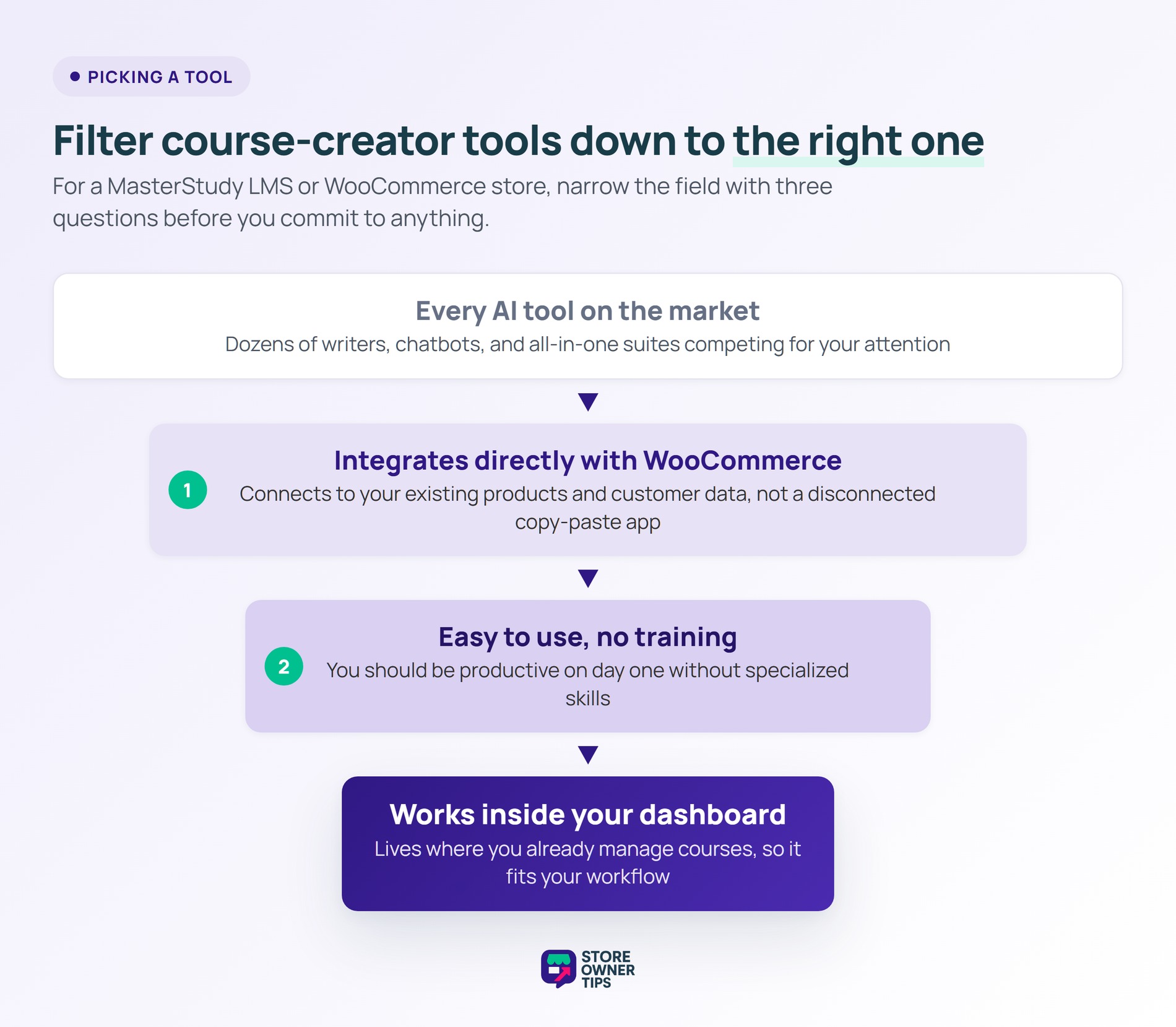
Ease of use matters too. You shouldn’t need technical skills to generate a course description. Look for tools that work inside your WooCommerce dashboard, where you already manage products.
AI content tools let course creators spend less time on product copy and more on teaching. They draft descriptions, summaries, category pages, tags, and alt text. Meanwhile, a chatbot can answer pre-purchase questions from your own store content.
Start with your best-selling courses and see how the new copy performs. Then scale to your full catalog with bulk processing. Read each draft against your curriculum before it goes live. Then use your chat history to fill the gaps students ask about.
Your students get clearer product pages, and you get time back for your courses and community.
They’re writing assistants that draft the copy a course store needs. That includes course descriptions, short summaries, category pages, tags, and image alt text.
Instead of starting from a blank page, you enter a few course details and get a draft in moments. You then review and edit it before publishing.
No. Plugin-based tools work inside the WordPress and WooCommerce dashboard you already use. You fill in short forms and click a button to generate a draft. If you can edit a product in WooCommerce, you can use them.
It can, as long as you set it up and review it. Most tools let you pick a tone, such as friendly or professional, before generating.
Still, read each draft and add your own phrasing and course details. That’s what makes the copy sound like you and keeps it accurate.

Copyright © StoreOwnerTips.com. All Rights Reserved.
