Weekly ecommerce tips, deals & news.
Switching ecommerce platforms feels risky. What if you lose SEO rankings? What if orders disappear mid-migration? And what if customers can’t log in?
The honest answer: the actual data transfer is the easy part. It’s the pre-migration planning that decides whether the move succeeds. Specifically, URL redirects and payment gateways are where most migrations go wrong.
This guide walks through how to migrate from Shopify to WooCommerce safely. It covers the pre-migration checklist, tool options, URL redirect strategy, and the go-live playbook. If you’re still weighing the move, our WooCommerce vs Shopify comparison breaks down the trade-offs first.
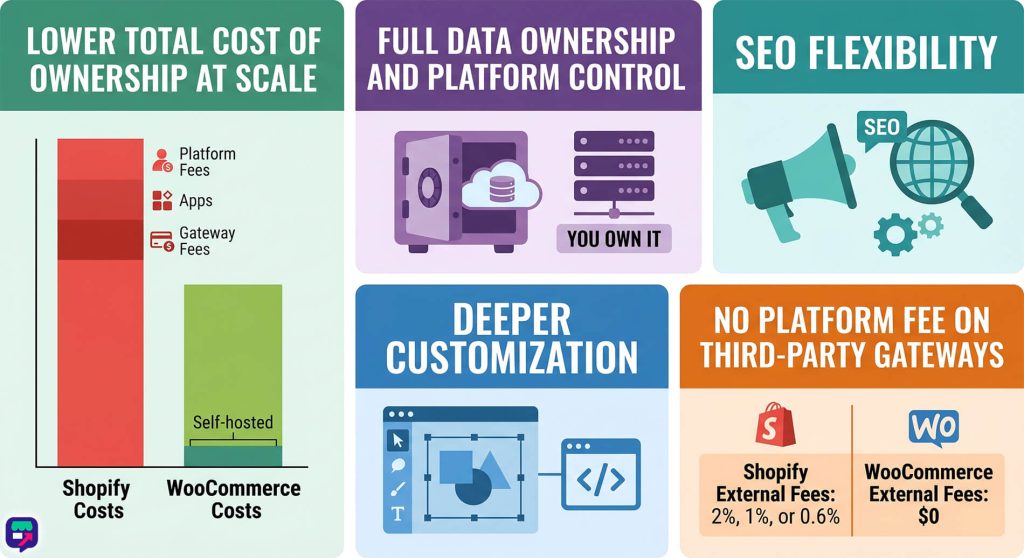
Store owners migrate for specific reasons. The most common:
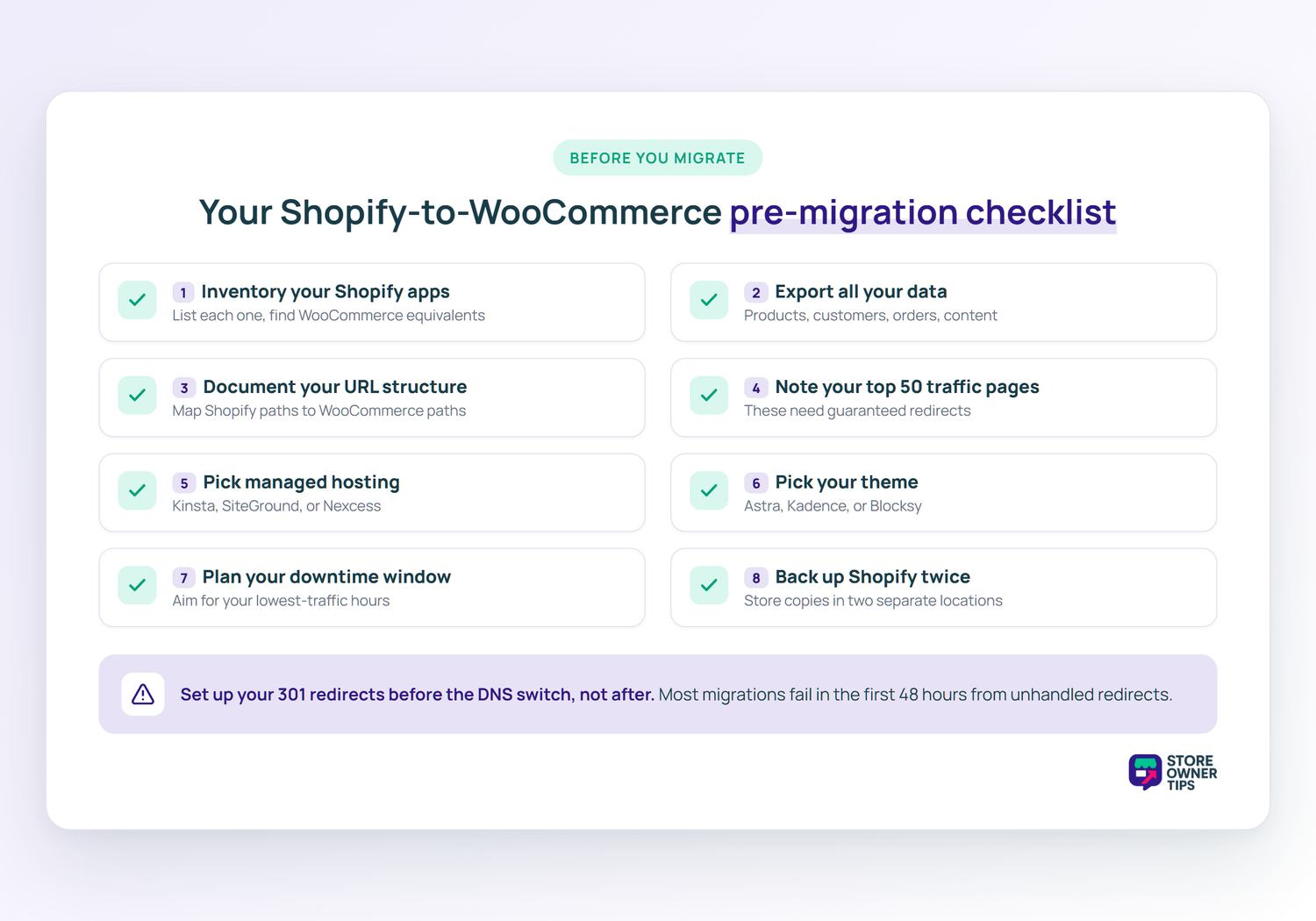
Before you officially migrate your Shopify store to WooCommerce and touch anything, work through this checklist. Skipping these steps causes most migration problems.
/products/product-name/ and /collections/category-name/. WooCommerce uses /product/product-name/ and /product-category/category-name/ by default.🔍️ One pattern we see often: migrations fail in the first 48 hours because of unhandled URL redirects. Thus, it’s a good idea to set up redirects before switching DNS, not after. 301 redirects need to be live the moment Google starts crawling your new site.
Never migrate to production directly. Always use a staging environment first.
Your hosting provider (Kinsta, SiteGround, Nexcess) should offer one-click staging. If not, use a plugin like WP Staging. The staging site should mirror what production will look like. Same theme, same plugins, same WooCommerce settings.
Install at minimum:
Two clean paths exist for moving your essential product data, customer lists, and order history, each with different tradeoffs.
WooCommerce ships an official “Migrate & Import Shopify to WooCommerce” extension. It pulls products, customers, orders, coupons, blog posts, and pages directly from the Shopify API into WooCommerce. The setup connects via your Shopify store URL plus a private API key.
For most stores, this is the safest default. The extension is built and maintained inside the WooCommerce ecosystem. That makes it the option most likely to keep working as both platforms evolve. See the official WooCommerce migration documentation for setup steps.
Pros: first-party tooling, broad data coverage, supported by WooCommerce. Cons: less flexibility for complex field mapping or one-off cleanup tasks.
If you have fewer than 500 products and want full control, manual CSV migration is viable. Export your core product data, customer info, and orders from Shopify as CSVs. Then use Visser Labs’ WooCommerce migration tools (Product Importer Deluxe and Store Exporter Deluxe) to load the data into WooCommerce.
Visser’s tools support every WooCommerce product type. They also let you map product data fields precisely between source and destination. That matters when your Shopify info has custom attributes without a default WooCommerce match.
Pros: full control over field mapping, no per-migration service fee, useful for ongoing exports after launch. Cons: more hands-on. Images often need to be handled separately.
For most stores, start with WooCommerce’s official Shopify migration extension. Got complex variations or custom fields? Visser Labs’ Product Importer Deluxe gives you precise control over field mapping.
Shopify themes don’t transfer to WooCommerce. You’ll need to rebuild your design using a WooCommerce theme.
The closest visual equivalents:
Most store owners find this step takes one to three weeks, depending on design complexity. If you have budget, hiring a WooCommerce developer to handle this part is usually worth it. They’ll know which theme features map best to your existing Shopify design.
This is the most important step, and the one most migrations get wrong.
Shopify URLs look like:
/products/my-product-name/collections/my-category/blogs/news/my-blog-postWooCommerce defaults look like:
/product/my-product-name/product-category/my-category/my-blog-postEvery URL that changes needs a 301 redirect from the old location to the new one. Google Search Central confirms that 301s preserve link equity when set up correctly.
Install the Redirection plugin (free) and create redirects for:
You can bulk-import redirects as a CSV. Create a spreadsheet mapping old URLs to new URLs and import in one pass.
Verify redirects are working by pasting 10 random old URLs into a browser. Confirm each one redirects to the correct new URL with a 301 status code. Use a tool like httpstatus.io to check in bulk.
Shopify Payments only works on Shopify. You’ll need to pick a WooCommerce-compatible payment gateway before go-live.
Options:
Set up the gateway on staging and run a $1 test transaction end-to-end. Verify the payment lands in your merchant account. Don’t skip the test. Payment gateway misconfiguration is the most common cause of post-migration order loss.
See our payment gateway comparison for a deeper breakdown.
Before switching DNS, run through this checklist on your staging site:
The DNS switch itself is fast. The cleanup takes longer.
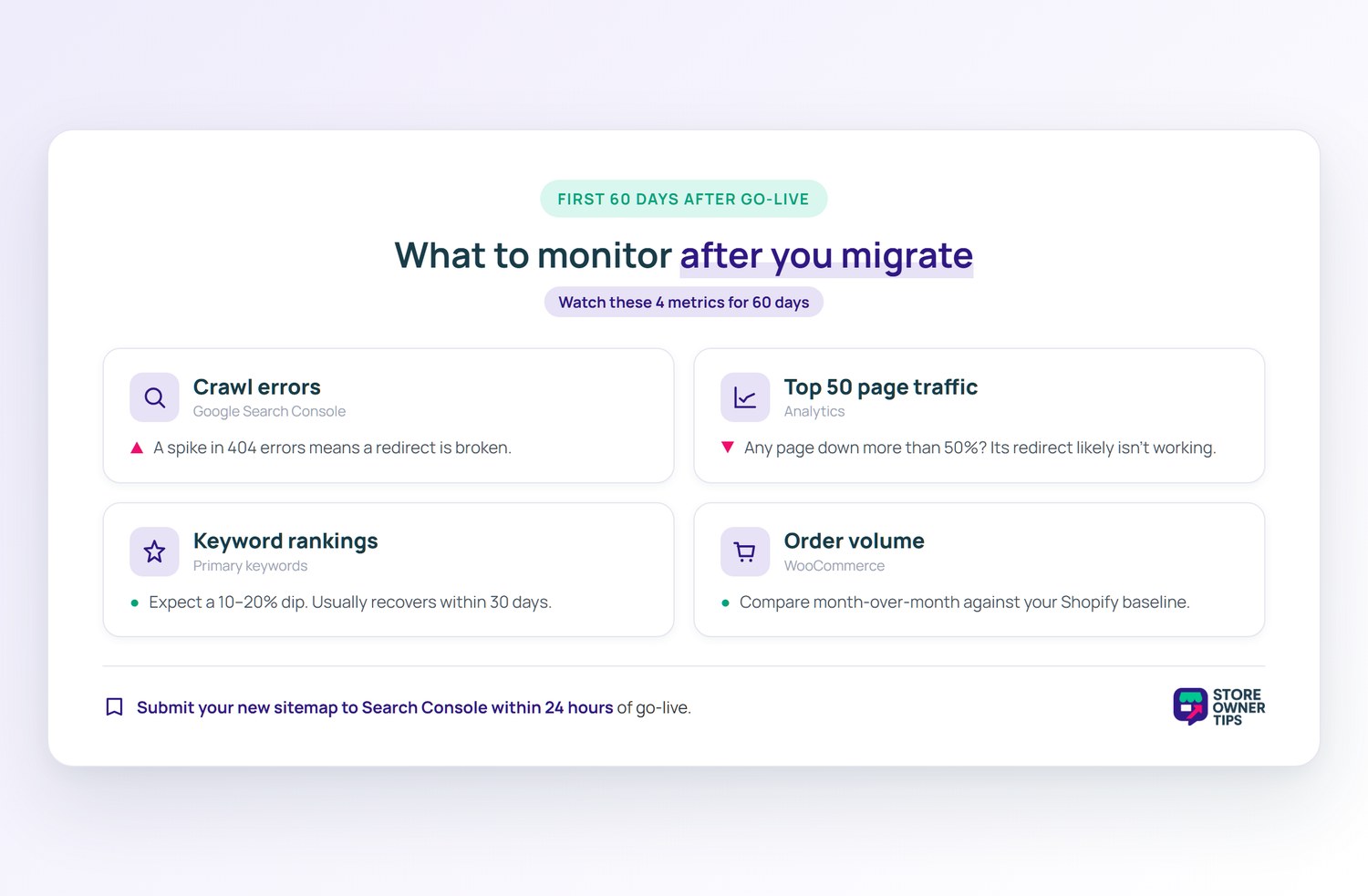
After go-live, watch these metrics for the first 60 days:
Submit your new sitemap to Google Search Console within 24 hours of go-live. Resubmit any URLs that drop rankings significantly.
Small stores (under 100 products) can completely migrate from Shopify to WooCommerce in one to two weeks. However, mid-size stores (500+ products) typically take three to six weeks. Furthermore, complex stores with heavy customizations can run two to three months.
Temporarily, often yes. Most migrations see a 10 to 20% ranking dip for two to four weeks while Google re-crawls the new URLs. However, rankings usually recover if redirects are set up correctly.
No. Basically, Shopify hashes passwords in a way that doesn’t transfer to WooCommerce. Therefore, customers will need to reset their passwords after migration. Send a proactive email explaining this before go-live.
It depends on your review app. Basically, major reviews apps like Judge.me support exporting and re-importing reviews into WooCommerce. If you’re using Shopify’s native reviews, export them as a CSV and re-import them on the WooCommerce side.
Software costs range from $0 (manual CSV) to a few hundred dollars for paid migration tools. Add theme cost ($0 to $250), plugin costs ($0 to $500), and hosting ($20 to $100 per month). Typically, developer help runs $1,500 to $5,000 for a full migration.
Yes. Keep Shopify active while you build WooCommerce on staging. Then, when you’re ready, switch DNS to WooCommerce. Keep Shopify running at the old URL for at least 30 days as a fallback.
Migrating from Shopify to WooCommerce isn’t as scary as it sounds. A proper pre-migration checklist, redirects set up before DNS switch, and thorough staging tests eliminate most of the risk.
Here’s what to do next:
For most stores, the right stack is straightforward. Use WooCommerce’s official Shopify migration extension for data. Pair it with Astra or Kadence for the theme. Add Visser Labs for any custom CSV work and the Redirection plugin for URL management. Line all four up, test thoroughly, and you’ll migrate to WooCommerce without breaking a sweat.

Copyright © StoreOwnerTips.com. All Rights Reserved.
