Weekly ecommerce tips, deals & news.
Picture this: a customer is scrolling Instagram on their lunch break. They spot your product in a Shopping post, tap the tag, and check out. All without ever leaving the app.
That’s the power of social commerce. Connecting your WooCommerce store to Facebook and Instagram makes it possible. Learning to sell on Facebook and Instagram with WooCommerce turns followers into buyers without rebuilding your catalog.
Social commerce isn’t a “nice to have” anymore, it’s where your customers already shop. According to eMarketer’s 2026 forecast, US social commerce sales are on track to surpass $100 billion in 2026. Facebook and Instagram are leading the charge.
The good news? Getting set up is more straightforward than you might think. I’ll walk you through the entire process step by step. You’ll go from Facebook Commerce Manager setup to tagging products in Instagram Reels. Plus, we’ll show you how AdTribes makes the trickiest part (syncing your product catalog) practically automatic.
For more ways to drive traffic and sales, check out our ecommerce marketing ideas guide.
Let’s start with the obvious: your customers are already on these platforms. Facebook has over 3 billion monthly active users, and Instagram has around 3 billion. They’re not just scrolling, they’re shopping. According to Demandsage’s Instagram statistics report citing official Instagram data, 44% of users shop on the platform weekly.
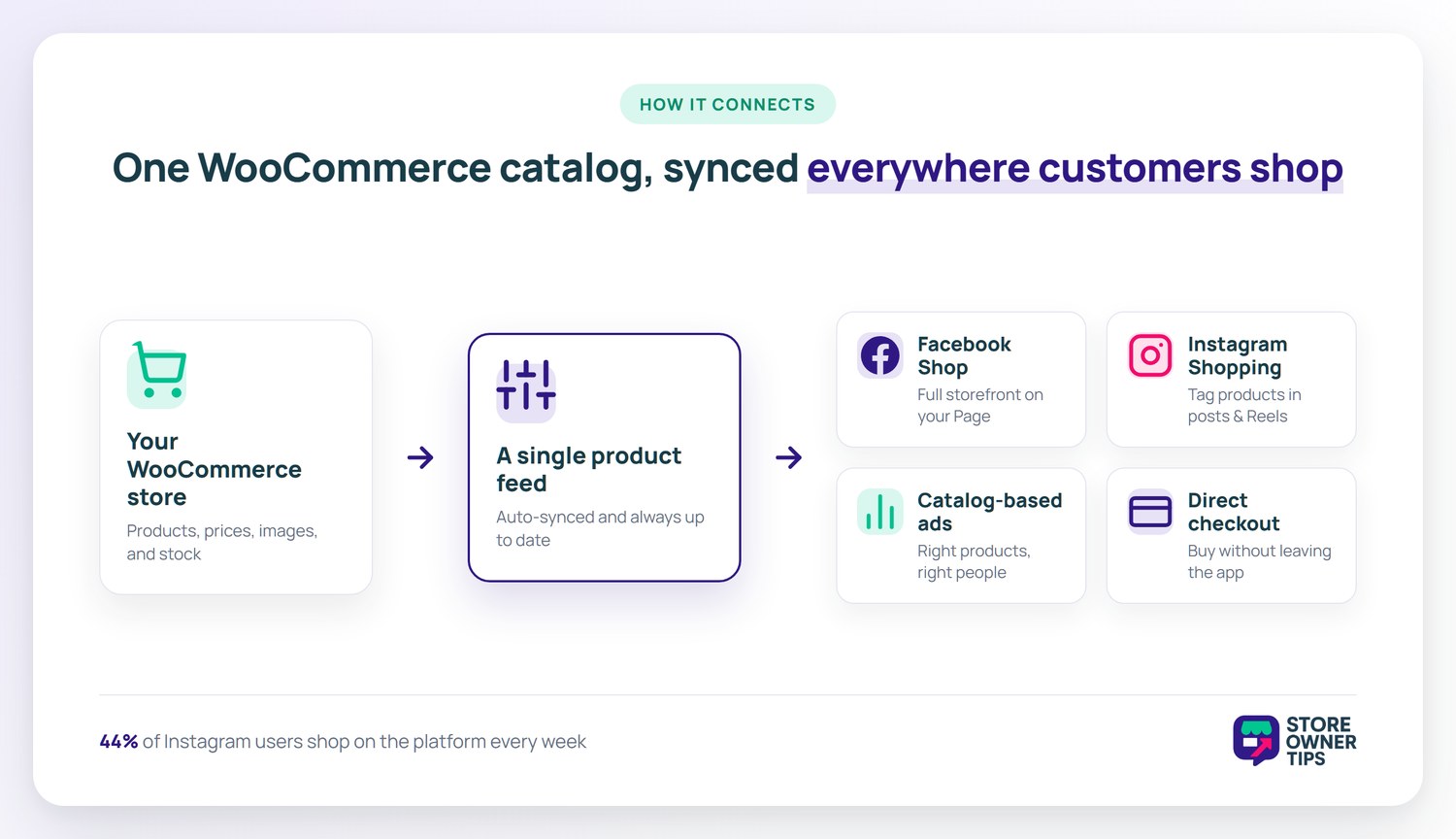
The beauty of social commerce for WooCommerce stores? You don’t need to recreate your catalog from scratch. Your existing product data syncs directly from WooCommerce to both platforms. That includes titles, descriptions, images, prices, and inventory, all through a single product feed.
Here’s what that unlocks:
The best part? You manage everything from one place: Facebook Commerce Manager. With the right product feed tool, your WooCommerce store stays perfectly in sync.
Before we get into setup, make sure you have everything on this checklist:
Power Tip: If you haven’t connected your Instagram account to your Facebook Page yet, do that first. Go to your Facebook Page settings, click “Linked Accounts,” and connect Instagram. This is required for Instagram Shopping. It also ensures both platforms share the same product catalog.
Don’t worry if some of these are new to you. We’ll walk through each one.
Facebook Commerce Manager is your central hub for selling on both Facebook and Instagram. Think of it as the control panel where your product catalog, orders, and settings all live.
This is an important decision. You have two main options:
I’ve found that website checkout works best for most WooCommerce store owners. You’ve already invested in building a great checkout experience. Use it.
Commerce Manager requires shipping and return policy information before your shop goes live. Pull these directly from your existing WooCommerce settings to keep things consistent:
🚀 Power Tip: Selling on both Facebook and Instagram? Set them up through the same Commerce Manager account. This keeps your catalog, orders, and reporting in one place. It also saves you from managing duplicate product data.
Here’s the part that trips up most store owners. It’s also where AdTribes saves you the most time.
A product feed, or product data feed, is a structured data file that tells Facebook and Instagram everything about your products. That includes titles, descriptions, prices, images, availability, and categories. Without it, you’d have to manually upload every product to Commerce Manager one at a time.
With a product feed, your entire WooCommerce catalog syncs automatically. New products appear on Facebook and Instagram. Price changes update themselves. Out-of-stock items get removed. That’s the difference between spending hours on manual data entry and a short initial setup.
AdTribes handles the tedious part. It maps your WooCommerce product data to Facebook’s required catalog fields. The key mappings include:
| WooCommerce Field | Facebook Catalog Field | Notes |
|---|---|---|
| Product Title | title | Keep under 150 characters |
| Description | description | Use the short description for better formatting |
| Regular Price | price | Includes currency code automatically |
| Sale Price | sale_price | Only included when a sale is active |
| SKU | id | Unique identifier for each product |
| Product Image | image_link | Must be at least 500×500 pixels |
| Stock Status | availability | Maps to “in stock” or “out of stock” |
| Product Category | google_product_category | Helps Facebook categorize your products |
The field mapping is largely automatic for most stores. Category mapping and brand fields are the two areas where manual adjustment is most often needed. Overall, the process feels far less tedious than manual catalog uploads.
This part matters. Your product feed needs to stay up to date, especially for inventory and pricing changes.
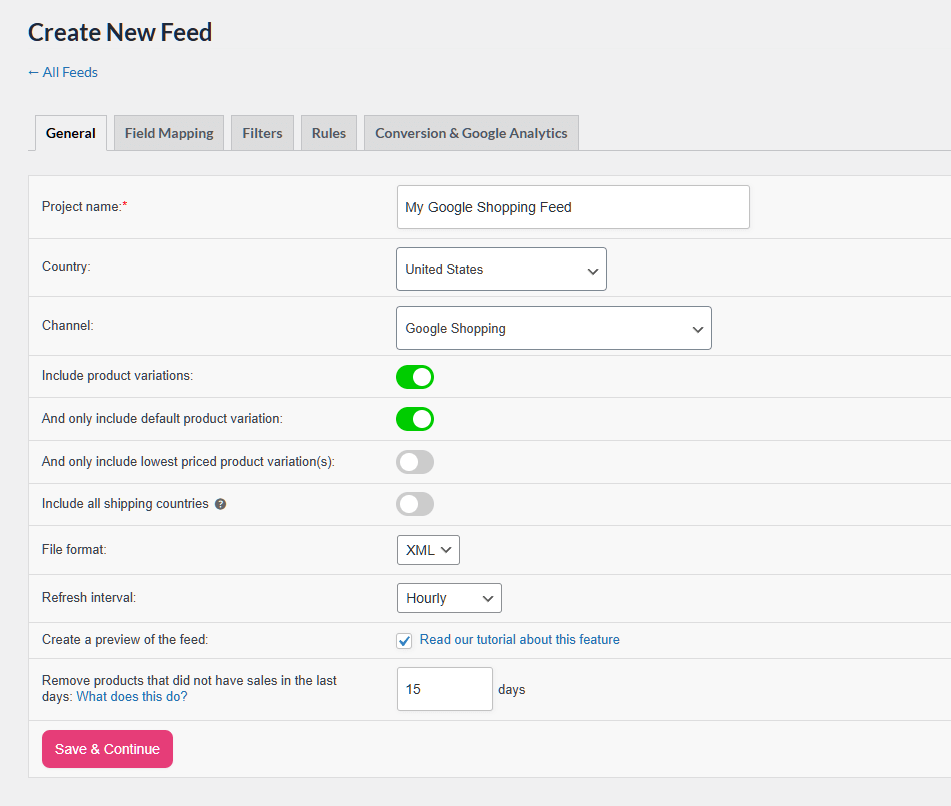
In AdTribes, go to the feed settings and set a refresh schedule. We recommend every 4 to 6 hours for most stores. If you run frequent flash sales or have fast-moving inventory, bump it to every 1 to 2 hours.
🔍️ What We Commonly See: Stores with frequent AdTribes syncs avoid the dreaded “product unavailable” errors. These errors happen when inventory changes aren’t reflected fast enough on Facebook. Switching from daily to 4-hour syncs typically solves this completely.
Once your feed is generated, AdTribes gives you a feed URL. Copy that URL and follow these steps:
If some products get rejected, don’t panic. Here are the most common issues:
With your product catalog synced via Commerce Manager, setting up Instagram Shopping is the easy part.
Once approved, you’ll see a “Tag Products” option when creating posts, Stories, and Reels.
Having Instagram Shopping enabled is just the start. Here’s what we’ve found works best:
🚀 Power Tip: Start by tagging your top 10 best-selling products in your first batch of shoppable posts. You’ll get meaningful engagement data faster than spreading tags across your entire catalog. Test the feature with products you already know people want.
Organic reach is great, but paid Shopping ads can accelerate your results significantly. The good news? Your Commerce Manager catalog powers both organic and paid.
| Feature | Organic Shopping | Paid Shopping Ads |
|---|---|---|
| Cost | Free | Pay per click or impression |
| Reach | Limited to followers plus algorithm | Targeted to specific audiences |
| Product Display | In-feed tags, Shop tab | Dynamic product ads across Facebook and Instagram |
| Best For | Building awareness, engaging existing audience | Driving targeted traffic, retargeting cart abandoners |
Don’t overthink your first budget. Here’s what we recommend:
The key metric to watch is ROAS (Return on Ad Spend). If you’re spending $15 per day and generating $60 in sales, that’s a 4x ROAS. It’s a solid starting point for most WooCommerce stores.
Setting up social commerce is only half the battle. You also need to know if it’s actually working.
Use Commerce Manager Analytics for organic shopping metrics. That covers product views, clicks from tags, and Shop tab visits. Use Facebook Ads Manager for paid campaign performance. Cross-reference both with your WooCommerce reports to get the full picture.
When your ROAS is consistently above your break-even point, that’s your signal to scale. When it dips, pause and optimize before spending more.
Let’s recap what we covered:
Our biggest piece of advice? Start small. Sync your top 10 to 20 products first, create a handful of shoppable posts, and see how your audience responds. You can always expand once you’ve got the workflow down.
Already selling on Google Shopping? Here’s how to add Facebook and Instagram to your channel mix. For more ways to grow your store, explore our full list of ecommerce marketing ideas.
And don’t forget to try AdTribes for easy product feed syncing!
Yes. Instagram Shopping requires your Instagram Business or Creator account to connect to a Facebook Business Page. This is because Meta manages product catalogs through Facebook Commerce Manager, which serves both platforms. You don’t need to actively post on your Facebook Page. However, it must exist and be linked to your Instagram account before you can enable product tagging.
Technically yes. You can manually upload products to Facebook Commerce Manager using CSV files or add them one by one. However, this approach quickly becomes unmanageable for stores with more than a handful of products. Any price change, stock update, or new product requires manual updates. A feed plugin like AdTribes automates the sync. Your WooCommerce catalog stays accurate across both platforms without ongoing manual work.
Initial catalog review typically takes a few business days, though it can vary. Facebook reviews your products against their commerce policies. They check for prohibited items, accurate imagery, and proper product data. Once your catalog is approved, new products added through your feed sync are usually reviewed more quickly. Maintain accurate product data to minimize delays.
Visually appealing products tend to perform strongest on Instagram. That includes fashion, accessories, home decor, beauty products, and lifestyle goods. Products that photograph well and lend themselves to lifestyle content see the highest engagement. However, any product can sell on Instagram with the right content strategy. Focus on showing your products in real-world contexts and use Reels and Stories to demonstrate them in action.

Copyright © StoreOwnerTips.com. All Rights Reserved.
