Weekly ecommerce tips, deals & news.
Imagine you’re scrolling through your WooCommerce store’s analytics and notice the same pattern: customers load up their carts, reach checkout, see the shipping cost, and bail. It happens every single day.
Free shipping could fix that overnight, but you’re worried about eating the cost. Good news: there’s a way to offer free shipping that actually makes you more money, not less.
Let’s be real: price is still the number-one reason people buy. But free shipping is the ultimate deal-sweetener. According to the National Retail Federation, 67% of shoppers say free delivery makes their overall shopping experience better. It removes the hesitation. When you force shoppers to pay extra just to get the item, it creates friction. And friction kills sales.
If you’re running an online store without a WooCommerce free shipping offer, you’re missing out on sales. However, adding one will only boost your profits if you set it up the right way.
Let’s walk through exactly how to do that.
There’s a reason “free” is the most powerful word in ecommerce. It’s not rational. It’s emotional.
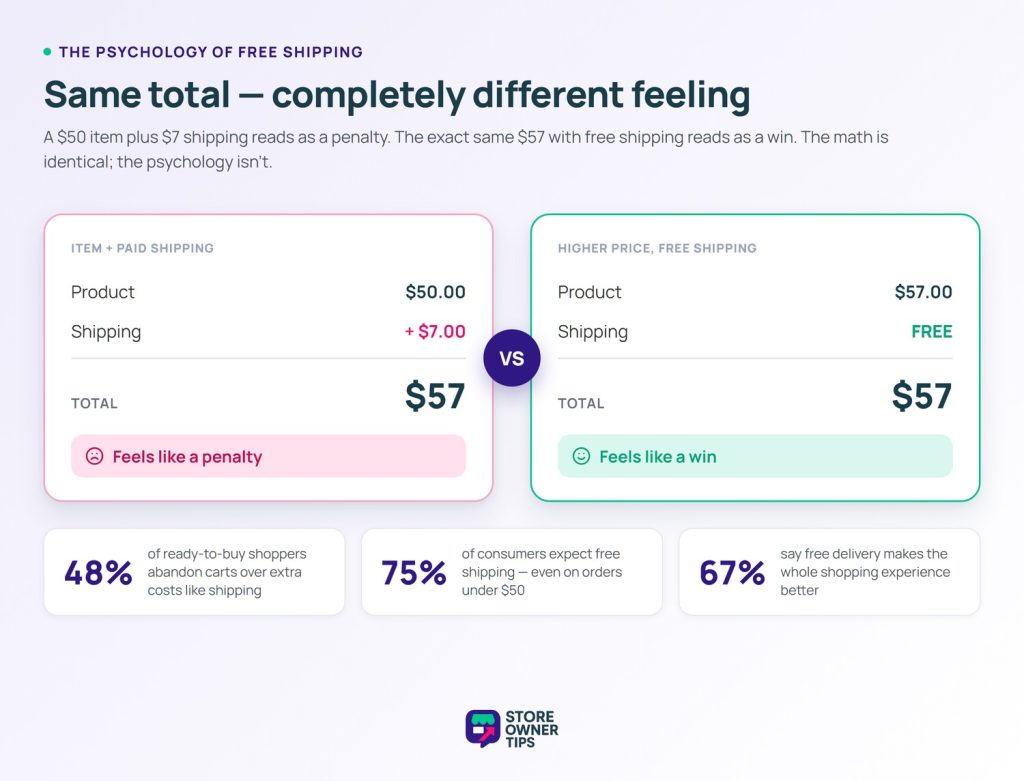
Consider this: a $50 product with $7 shipping feels worse to a shopper than a $57 product with free shipping. Logically, they’re the same. Psychologically, they’re worlds apart. The shipping charge creates friction, and friction kills conversions.
The data backs this up. Once you filter out the window shoppers, the Baymard Institute found that up to 48% of ready-to-buy shoppers abandon their carts because of extra costs like shipping, taxes, and fees. It’s a massive roadblock.
And according to the National Retail Federation, 75% of consumers expect free shipping, even on orders under $50. But here’s the reality check: shipping isn’t cheap. Because of rising fulfillment costs, the average store actually has to set their free shipping threshold around $64. You’re caught in a tug-of-war between what customers want and what you can afford. The secret to winning is setting a smart threshold that nudges them to spend just enough to cover your shipping bills.
Also, keep in mind that free shipping isn’t a magic wand. If your checkout is clunky—like forcing users to fill out 20 different form fields to pay—you’ll still lose sales. You have to offer a great shipping deal and a fast, easy checkout.
Curious about how to improve your store’s checkout process and boost profits? Then read the following guide:
How To Set Up WooCommerce Free Shipping (Without Killing Your Margins)
This is the part most guides skip, and it’s arguably the most important. Set your threshold too low, and you’re giving away shipping on orders that can’t absorb the cost. Set it too high, and customers ignore it entirely.
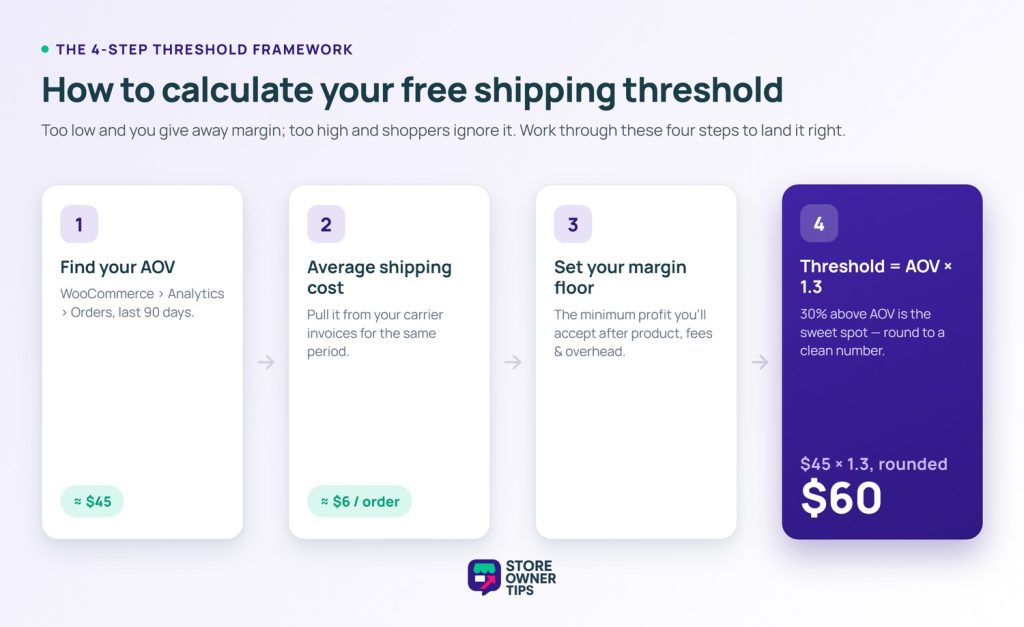
Here’s a simple four-step framework:
Go to WooCommerce > Analytics > Orders to find your Average Order Value over the last 90 days.
🚀 Power Tip: Use the advanced filters on this page to remove refunds or massive wholesale orders. Think of this like taking the highest and lowest scores out of a test average. Basically, it gives you a much truer picture of what a normal customer spends. Let’s say your true AOV is $45.
Check your shipping carrier invoices for the same period. If you’re spending an average of $6 per shipment, that’s your number.
Determine your margin floor and tax impact. What’s the minimum profit per order you can accept? Factor in product cost, shipping cost, payment fees, and overhead.
Warning: Before you raise your product prices to hide the cost of “free” shipping, talk to your accountant! If you bake shipping costs into the product price instead of billing it separately, many governments will tax that shipping money, hurting your profits even more.
Don’t set it at 15% or 20%. Logistics experts warn this will actually lose you money per order.
A 30% jump is the sweet spot. It safely covers your shipping costs while asking the customer to add just “one more small item” to their cart. Here’s what this looks like in practice:
The Formula: Threshold = AOV x 1.3
The Math: $45 x 1.3 = $58.50, which we round up to $60. By asking them to spend $60, you safely cover the $6 shipping fee and protect your profits!
🚀 Power Tip: Round your threshold to a clean number that feels achievable. “$60 for free shipping” converts better than “$58.50 for free shipping.” It sounds small, but clean numbers feel like real milestones to shoppers. We’ve tested this; rounded thresholds consistently outperform precise ones.
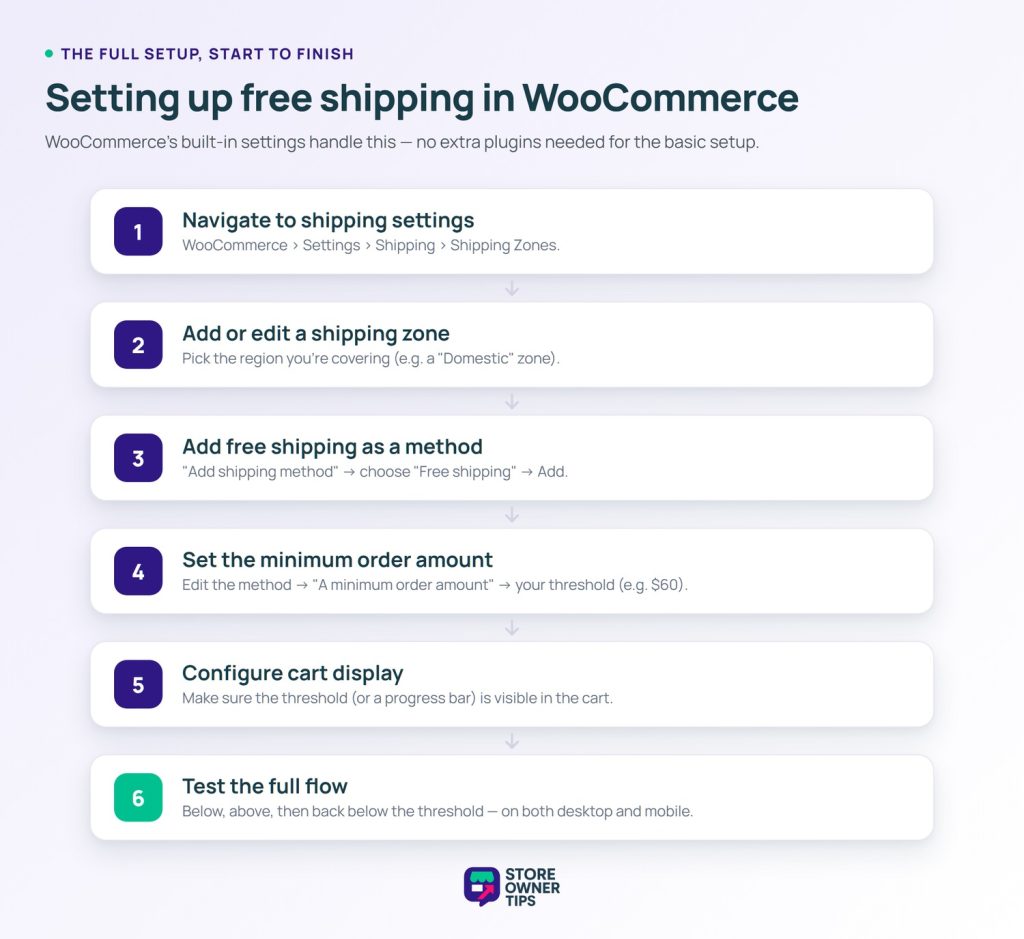
Here’s how to set up free shipping using WooCommerce’s built-in settings. No extra plugins are needed for the basic setup.
Go to WooCommerce > Settings > Shipping > Shipping Zones. If you haven’t set up shipping zones yet, you’ll need to create at least one (e.g., “United States” or “Domestic”).
Click on the zone you want to add free shipping to. If you’re setting up WooCommerce free shipping for domestic orders only, edit your domestic zone.
Click “Add shipping method” and select “Free shipping” from the dropdown. This step tells your store that you want to offer free delivery for this specific region. Click Add.
Click Edit on the Free Shipping method. Under “Free shipping requires…” select “A minimum order amount“. Enter the exact amount for free shipping you calculated earlier (e.g., $60).
Make sure customers can see the free shipping threshold while shopping. Most modern WooCommerce themes will automatically display all available shipping methods directly in the cart. Some themes also support a progress bar showing how close the customer is to free shipping — if yours doesn’t, there are lightweight plugins that add this.
Before going live, I always run through the complete flow as a customer:
I’ve caught misconfigured zones and tax-calculation conflicts on this step more than once. Spend five minutes testing now to avoid customer complaints later.
WooCommerce’s native free shipping is great for simple “spend X, get free shipping” rules. But what if you need something more targeted?
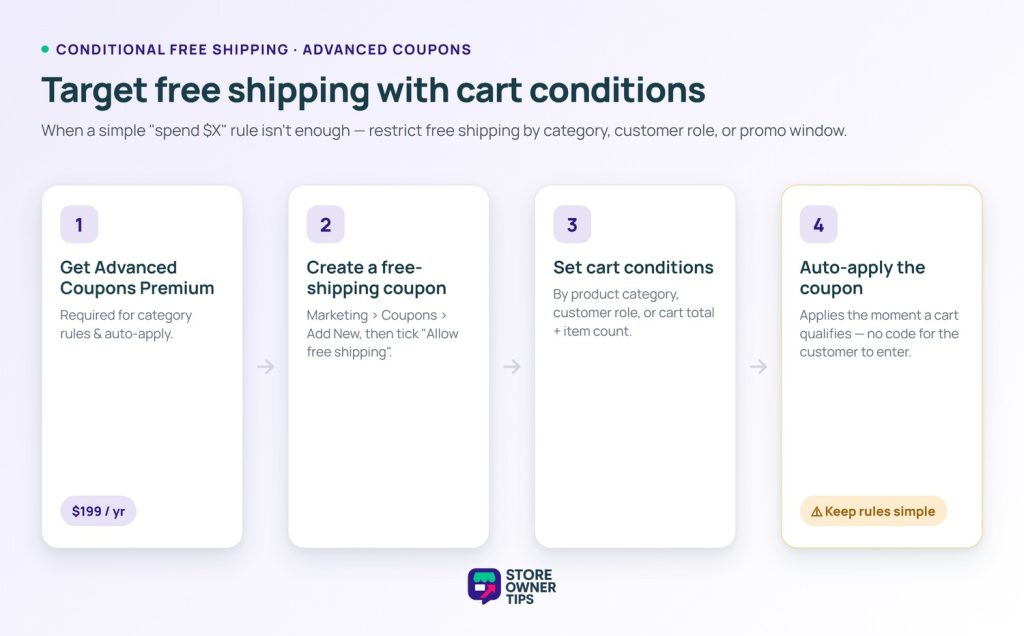
Maybe you want to offer WooCommerce free shipping only on specific product categories, or only for logged-in customers, or only during a promotional window. That’s where Advanced Coupons comes in.
The free version of Advanced Coupons won’t work for advanced category rules or auto-applying which you’ll need it to complete these steps.
That’s where Advanced Coupons Premium comes in. This upgrade extends WooCommerce’s native coupon system with advanced cart conditions.
Take note that a premium license costs $199 per year (though they often offer a first-year discount of $99). Make sure your extra sales will cover that ongoing yearly cost!
Go to Marketing > Coupons > Add New. Check the “Allow free shipping” box under the General tab. Give the coupon a descriptive name (e.g., “FREESHIP-SUMMER”).
Under the Cart Conditions tab, you can build rules like:
You can toggle the auto-apply option so customers don’t need to enter a code. The system will apply free shipping automatically the second their cart qualifies.
Tech Warning: Auto-apply means your website server has to constantly check the cart in the background every single time a customer changes an item. If you have too many rules, it can slow down your checkout page. Keep your rules simple!
A quick note on limitations: Advanced Coupons adds a layer of flexibility that native WooCommerce simply doesn’t have. But it does add another plugin to your stack. For stores that just need basic threshold-based free shipping, the native WooCommerce setup is perfectly fine. Use Advanced Coupons when you need conditional logic. However, don’t overcomplicate things if you don’t need to.
Free shipping isn’t just a shipping setting. It’s also marketing lever. Here are some ways to use it strategically:
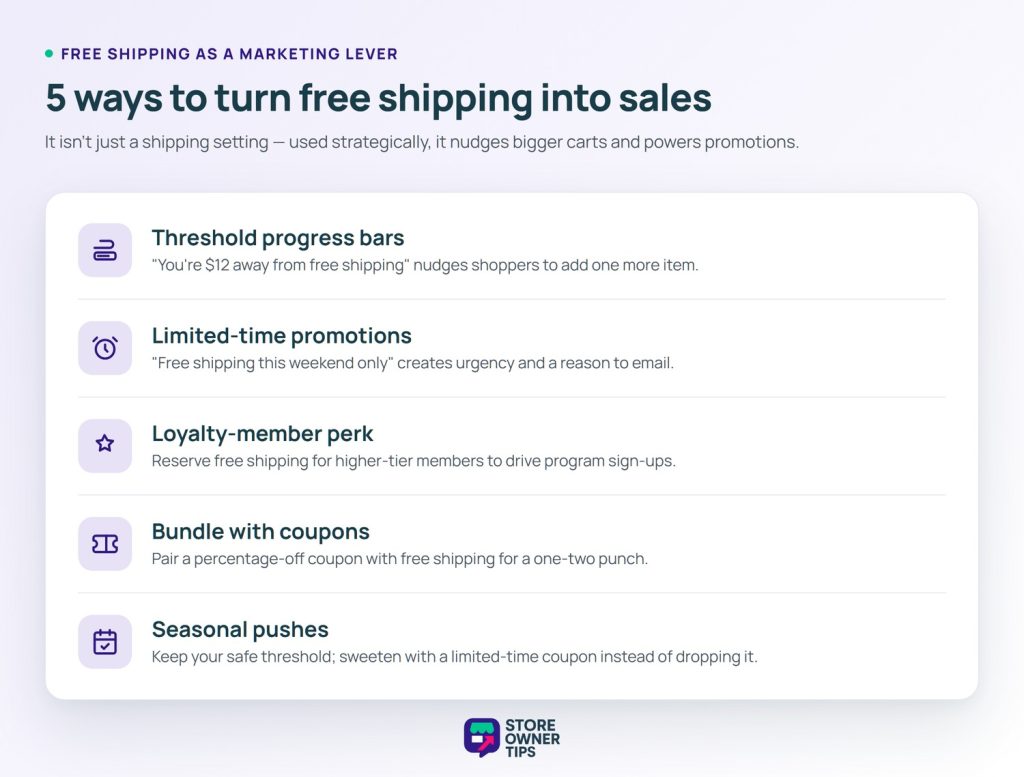
Pair these strategies with upsell tactics to push customers past your threshold naturally. If a customer has $40 in their cart and your threshold is $60, recommending a $20 accessory gets them to free shipping while adding margin to the order.
Don’t just set it and forget it. Here’s what to track:
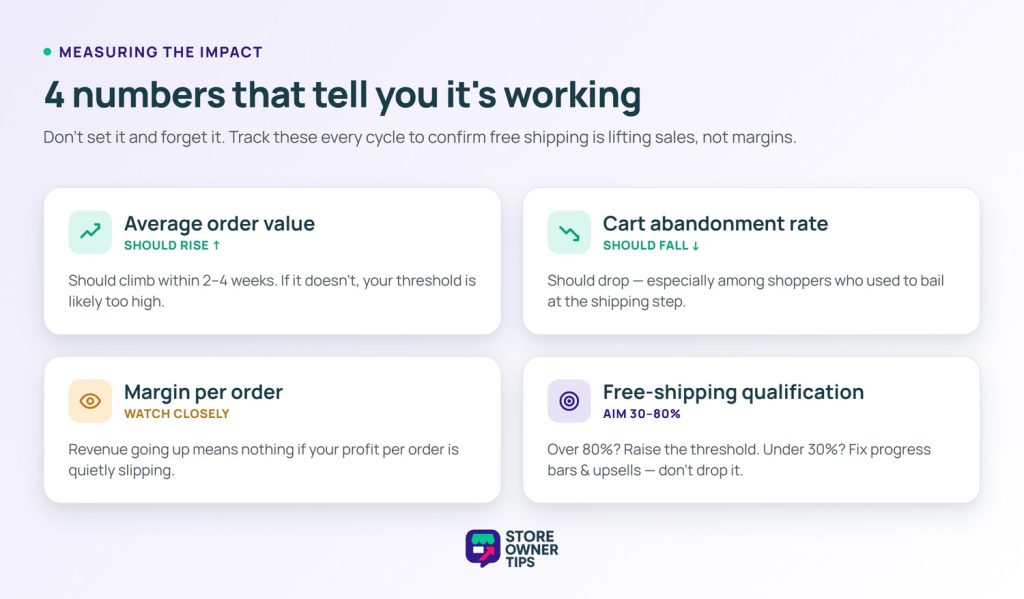
Adjust quarterly. Your AOV will shift over time, and your threshold should shift with it. Build a calendar reminder to review these numbers every 90 days.
If your average order size isn’t climbing, don’t just blindly lower your threshold! Doing so could wipe out your profit margins. Instead, check your cart progress bars and upsell offers. Customers usually want to reach the threshold, they just need you to make it easy for them to find that perfect “one more item.”
Free shipping isn’t a margin killer—it’s a margin tool when you set it up with the right threshold and the right conditions. The math is straightforward: set your threshold above your current AOV, absorb the shipping cost on larger orders, and watch your average order value climb.
Here’s your action plan:
Your customers want free shipping in WooCommerce. Give it to them—on your terms.
Set your threshold at 30% above your current average order value. If your AOV is $45, a threshold of around $60 is the sweet spot. This perfectly aligns with the cost of adding “one more item” to the cart. It’s high enough to protect your profits, but small enough that customers feel it’s easily achievable. Round to a clean number for better psychology. “$60 for free shipping” converts much better than “$58.50.” Monitor your AOV over the first month and adjust if needed.
Yes. While a fair price is always the number-one reason people buy, WooCommerce free shipping is the ultimate deal-maker. Research shows that 67% of shoppers feel free delivery heavily improves their shopping experience. Removing surprise shipping fees cuts down hesitation and encourages shoppers to actually finish checking out. Stores that switch from flat-rate to threshold-based free shipping typically see their overall conversion rate jump by 10-30% within the first month. It is one of the most reliable ways to boost sales without slashing your product prices. The key is setting the right threshold so you aren’t losing money on shipping costs while still incentivizing those larger orders.
Not right out of the box. WooCommerce has “shipping classes” to tag items. However, if a customer hits your $60 free shipping threshold, the system gives them free shipping on the entire cart, even if there’s a massive, heavy item in it! To safely exclude heavy items from free shipping, you will need to use a premium plugin (like WooCommerce Advanced Shipping Packages) or hire a developer to write custom code. Advanced Coupons also lets you create conditional free shipping coupons based on cart contents, categories, or customer roles, giving you even more flexibility.
WooCommerce doesn’t show a free shipping progress bar by default, but several lightweight plugins add this feature. Look for plugins that display a message like “Spend $X more for free shipping” in the cart and mini-cart. Some WooCommerce themes include this feature natively. Making the threshold visible while customers shop is critical. If they don’t know about it, they can’t be motivated by it.

Copyright © StoreOwnerTips.com. All Rights Reserved.
