Weekly ecommerce tips, deals & news.
A client once sold 47 units of a product that had 12 in stock. The result: 35 disappointed customers, three weeks of apology emails, and a dent in their repeat-purchase rate they never fully recovered from.
WooCommerce has gotten better at inventory management, but native features still have blind spots that cost real money. This guide covers how WooCommerce inventory management actually works, where native features fall short, which plugins fix those gaps, and the workflows that stop you from overselling, under-stocking, or reordering too late.
WooCommerce includes basic stock management out of the box. You enable “Manage Stock” on a product, set a stock quantity, and WooCommerce decrements it with each sale.
Native features include:
Where native WooCommerce falls short:
Many stores we see have “Manage Stock” disabled at the global level. Turn it on, set low-stock thresholds, and enable out-of-stock visibility before you install a single inventory plugin. These free native features create a solid foundation for your inventory management and prevent a lot of basic overselling headaches.
For stores that need more than native WooCommerce offers, there is plenty of WooCommerce inventory management software to choose from. Let’s look at three plugins that cover the main use cases.
| Plugin | Starting Price | Multi-Location | Bulk Edit | Purchase Orders |
|---|---|---|---|---|
| ATUM Inventory Management | Free / Add-ons vary (e.g., $216/yr) | Premium add-on | Yes | Premium add-on |
| Visser Labs Product Import/Export | $79/yr (Bundle) | N/A (sync tool) | Yes | N/A |
| Stock Manager for WooCommerce | Free / $49/yr | No | Yes | No |
Pricing shown is approximate as of early 2026. Check each plugin’s website for current rates.
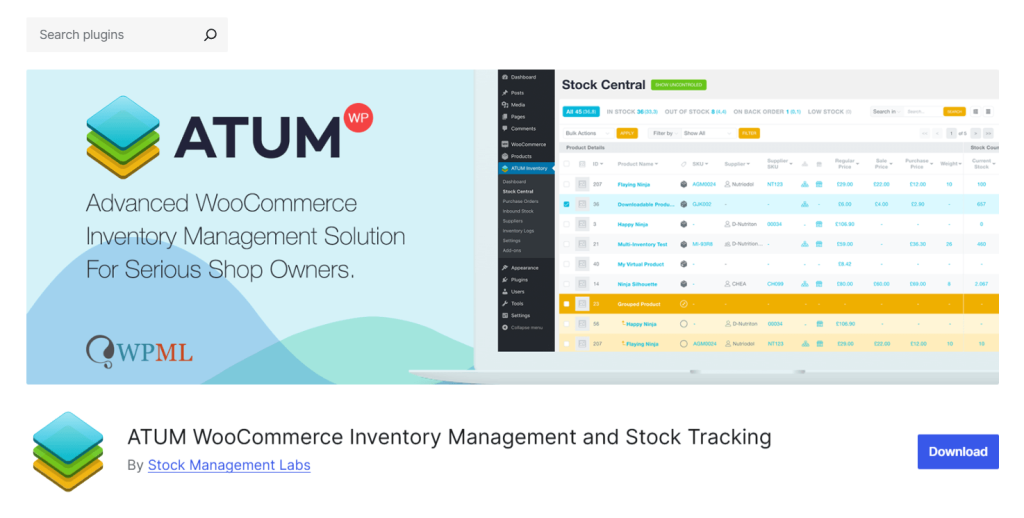
When it comes to inventory management for WooCommerce, ATUM is a highly robust free plugin. Keep in mind that ATUM doesn’t have a single “Pro” upgrade for a flat fee. Instead, you buy specific add-ons.
For example, their Multi-Inventory add-on alone costs $216 per year. If you need barcodes, pick-and-pack features, or export tools, you have to buy those separately, which can add up to several hundred dollars for a growing store.
The free version handles stock control, purchase orders, and supplier management in a dedicated admin panel that’s significantly more usable than WooCommerce’s native interface.
What I noticed in practice:
Pros:
Cons:
Best for: Stores that want serious WooCommerce inventory management and are comfortable setting up a more complex system.
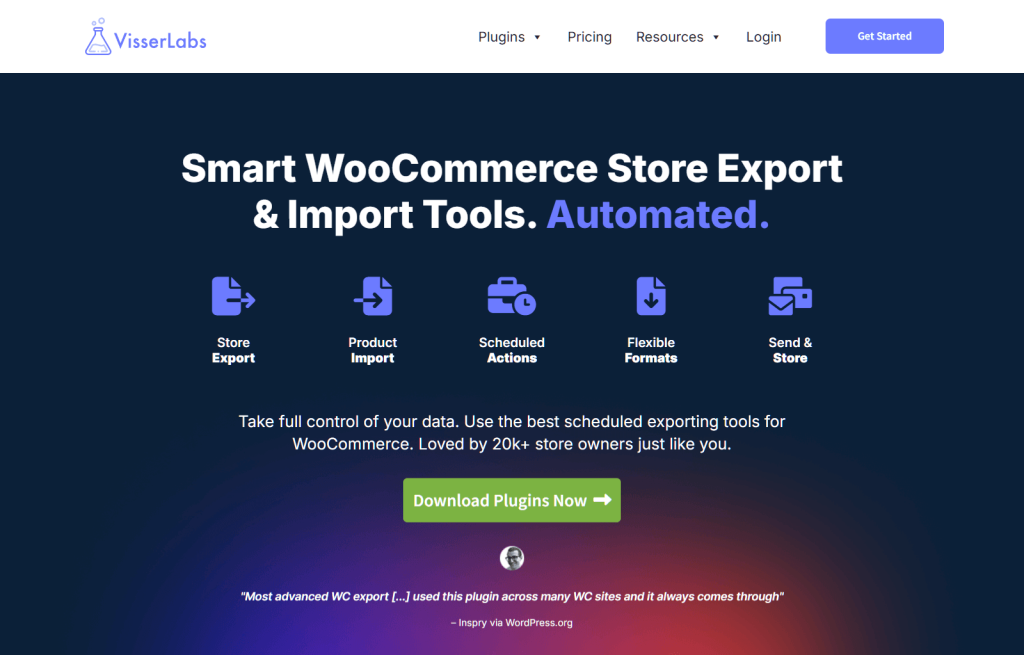
Visser Labs’ Product Import/Export plugins aren’t traditional inventory management software. They offer highly capable CSV-based bulk update tools for WooCommerce. Rather than making you buy separate tools at a premium, Visser bundles their import and export plugins for $79 per year (or an agency bundle for $199 per year). They also offer a 14-day, no-questions-asked money-back guarantee, giving you a safety net if the software doesn’t fit your setup.
Combined, these tools let you pull your product catalog as a spreadsheet, edit it in Excel or Google Sheets, and re-import to bulk-update stock levels, prices, and product details.
What I noticed in practice:
Pros:
Cons:
Best for: Stores that manage inventory externally (ERP, warehouse software, spreadsheets) and need reliable bulk sync to WooCommerce.
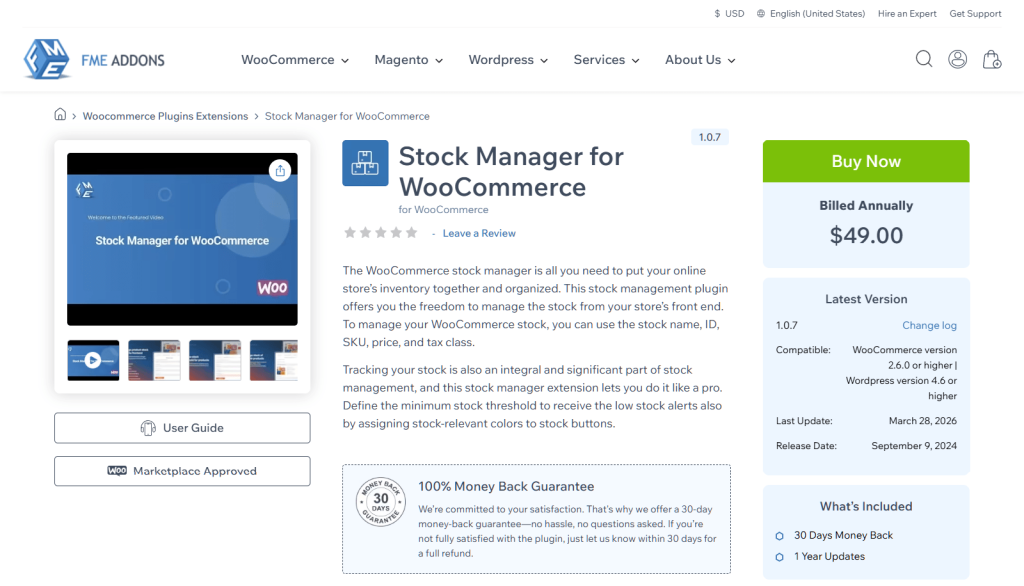
A simpler plugin, Stock Manager focuses on bulk stock editing. While it lacks purchase orders, the $49/year Premium version does include barcode scanning to speed up warehouse work. Plus, they offer a 30-day money-back guarantee if it doesn’t work for you.
🚨 Take Note! While Stock Manager is a solid tool, you must prioritize security. Versions older than 3.6.0 had a Cross-Site Request Forgery (CSRF) vulnerability. This is a flaw where a hacker could trick you into clicking a bad link and quietly mess up your stock numbers. Always keep this plugin updated!
What I noticed in practice:
Pros:
Cons:
Best for: Small-to-mid stores that just need better bulk stock editing.
Beyond picking your inventory management software, the workflows you set up determine whether tracking your stock actually prevents overselling.
Enable “Manage Stock” on every product. Set a low-stock threshold appropriate to your reorder lead time. If it takes 14 days to receive new stock, set the threshold at 14 days’ worth of average sales.
For stores with multiple physical locations or warehouses, you need a plugin that supports location-specific stock counts. ATUM Multi-Inventory add-on, Hike POS, or Vend (Lightspeed) are the three realistic options.
Regular bulk updates are faster through Visser Labs’ Product Import/Export workflow: export catalog → update in spreadsheet → re-import. Saves hours compared to in-admin editing.
For physical store or warehouse operations, adding barcode scanners to your WooCommerce inventory management speeds up receiving and fulfillment. ATUM, Stock Manager, and most POS plugins support USB or Bluetooth barcode scanners.
Set up email alerts when products hit low-stock threshold. You can also use plugins like ATUM to see what has already sold and spot basic low-stock trends.
However, be careful expecting a standard plugin to do complex, automated forecasting. Predicting exactly when you’ll run out of stock based on seasonal trends takes a massive amount of computing power. If your WordPress site tried to do all that heavy math, it would severely slow down your store for shoppers.
For true predictive forecasting, you’ll want a dedicated SaaS tool like Shelf Planner that handles the heavy lifting on its own servers.
If you have fewer than 50 products and single-location operations, native WooCommerce stock features are usually enough without needing extra inventory management tools. At 100+ products or multi-location, a plugin saves significant time and prevents overselling.
ATUM Inventory Management is a very robust option. However, the right choice always depends on your specific setup. For instance, if you need deep accounting tools, an integration like Zoho Inventory might actually be a much better fit.
Enable “Manage Stock” on every product, set “Allow backorders” to “Do not allow” on items you can’t back-order, and enable “Hide out of stock items from the catalog” in WooCommerce settings.
Not natively. You need a premium add-on like ATUM Multi-Inventory. Alternatively, you can use a POS system like Hike POS, but you must configure the POS as your “master ledger.” This means the POS does all the heavy lifting for your separate locations and then pushes the final, safe stock numbers back to WooCommerce.
Use Visser Labs Product Import/Export with scheduled CSV sync from your ERP, or use a dedicated integration like Zapier / Uncanny Automator to push updates from your ERP to WooCommerce.
Yes, with the right plugin. ATUM supports barcode input, most POS plugins include barcode scanning, and Stock Manager Pro has barcode features.
Strong WooCommerce inventory management starts with native features (most stores underuse them) and scales up with the right plugin for your size. For many growing stores, ATUM Inventory Management is a robust starting point, though your final choice should be based strictly on your unique supply chain and operational needs.
Here’s what to do next:
Are you ready to get serious about WooCommerce inventory management? Then install ATUM free, set up low-stock thresholds on your top 50 SKUs, and watch overselling disappear. Most stores that add proper inventory controls recover their time investment within the first month.

Copyright © StoreOwnerTips.com. All Rights Reserved.
