Weekly ecommerce tips, deals & news.
Picture this: a customer adds a $45 pair of running shoes to their cart, checks out, and leaves. But what if, right before they hit “Place Order,” they saw a matching pair of moisture-wicking socks for $8? Or a bundle deal that saved them 15% on shoes, socks, and insoles?
That one small prompt could turn a $45 order into a $70 order. Setting it up in WooCommerce is straightforward. WooCommerce upselling and cross-selling isn’t a one-time switch, it’s a steady AOV lever.
Here’s a number worth remembering. Lifting your average order value by 10% has the same profit impact as getting 10% more customers. However, it costs you almost nothing. Industry research consistently shows well-executed cross-selling and upselling lifts revenue by 10% to 30%. WooCommerce gives you multiple ways to make that happen.
The problem? Most store owners only scratch the surface. They either skip WooCommerce’s built-in upsell features entirely. Or they stop there and miss the more advanced tactics that really move the needle. In this guide, I’ll cover every method, native and plugin-powered, so you can start boosting AOV this week.
Before we get tactical, let’s make sure we’re speaking the same language. These two terms get tossed around interchangeably. However, they’re actually different strategies.
Upselling means encouraging a customer to buy a higher-value version of what they’re already looking at. Think: “Upgrade to the Pro plan for $20 more.” Or: “Get the 64GB model instead of the 32GB.”
Cross-selling means suggesting complementary or related products alongside what they’re buying. Think: “Add a matching phone case for $15.” Or: “Customers who bought this also grabbed these socks.”
Here’s how they compare:
| Upselling | Cross-Selling | |
|---|---|---|
| Definition | Encouraging a higher-value version of the same product | Suggesting complementary or related products |
| Example | “Upgrade to the Pro plan for $20 more” | “Add a matching phone case for $15” |
| Where It Works Best | Product page, post-purchase | Cart page, checkout, “Frequently Bought Together” |
| WooCommerce Native Support | Yes (Linked Products > Upsells) | Yes (Linked Products > Cross-sells) |
| Typical AOV Lift | 10–20% | 5–15% |
Both strategies matter, and the most effective stores use them together. Here’s the important reframe: upselling and cross-selling aren’t pushy when done right, they’re helpful. You’re showing customers products they’d genuinely want.
A customer buying a coffee maker probably does want filters. Someone buying a laptop probably should consider the extended warranty. The key is relevance. Suggest products that actually make sense together, and customers will thank you for it.
The good news? WooCommerce has upselling and cross-selling features built right in. Most store owners don’t even know they exist.
Here’s how to set them up.
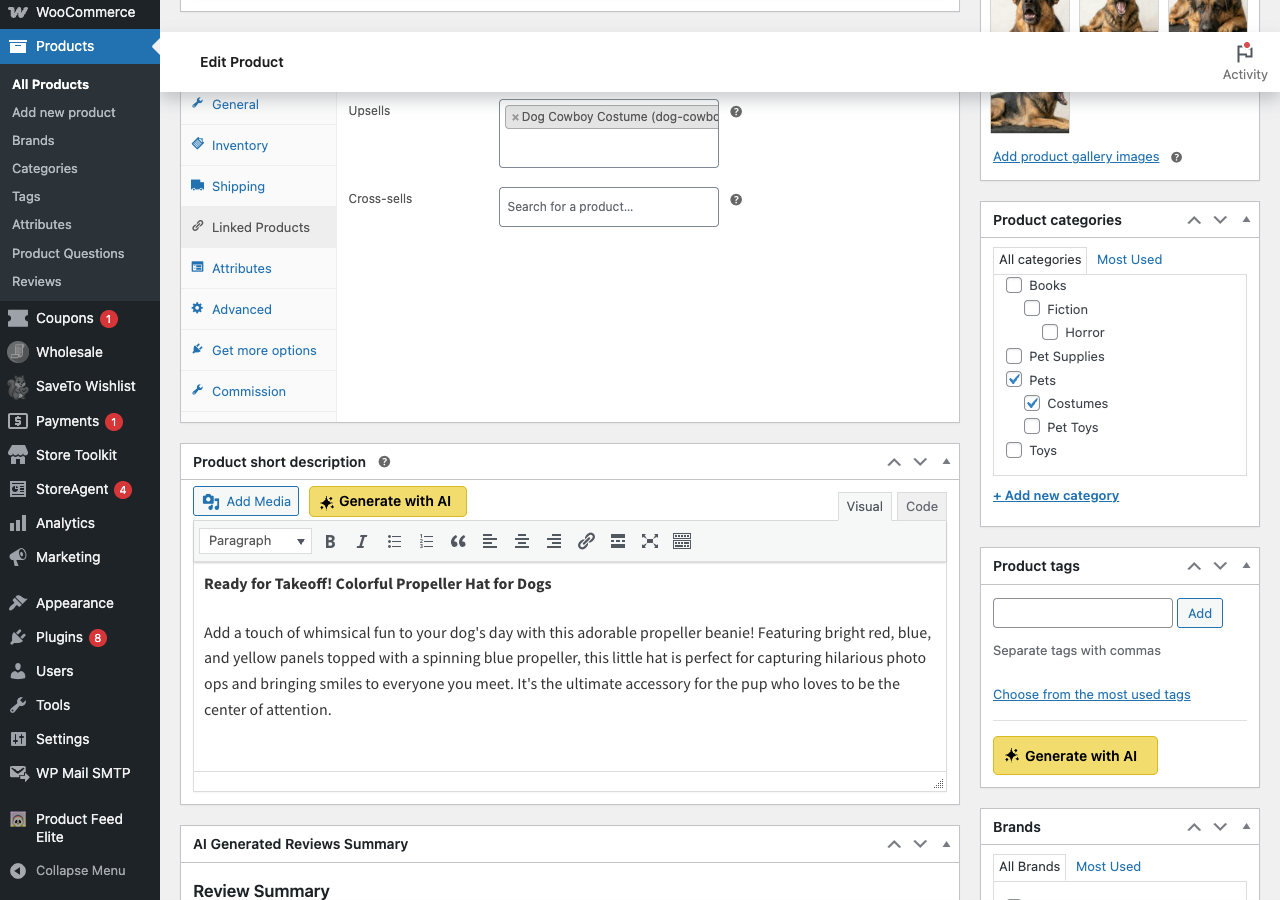
WooCommerce will display these upsell products on the product page, below the product description. When a shopper is looking at Product A, they’ll see your upsell suggestions as alternatives.
Same process, but use the Cross-sells field instead of Upsells. The difference is where they show up: cross-sell products appear on the cart page by default. So when a customer goes to check out, they’ll see your suggested complementary products.
WooCommerce also auto-generates Related Products based on shared categories and tags. You don’t have to configure these manually, they appear on product pages automatically. However, there’s a catch. If your categories and tags aren’t well-organized, the “related” products WooCommerce suggests might not actually make sense.
🚀 Power Tip: Take 30 minutes to audit your product categories and tags. Make sure similar products share categories so WooCommerce’s Related Products feature suggests relevant items. A common pattern we see: related products sections showing completely unrelated items because the category structure is messy. A quick cleanup makes this free feature significantly more effective.
Let’s be honest here: WooCommerce’s built-in upsell and cross-sell features are basic. They work, but they have real limitations:
These native features are a great starting point, and they’re free. Still, if you want to seriously move the needle on AOV, you’ll need to go beyond them.
If there’s one upselling tactic I’d recommend setting up first after the native features, it’s order bumps.
An order bump is a small, complementary product offered right on the checkout page. It’s usually displayed as a simple checkbox with a product image and price. Think of it like the candy bars at the grocery store register. The customer is already committed to buying; you’re just adding one small, low-friction offer.
Why do order bumps convert so well? The psychology is simple:
Across stores we’ve audited, well-optimized order bumps commonly convert at 10% to 15%. That’s essentially free revenue on sales you were already making.
What we commonly see: A well-placed order bump with a product priced at 15–25% of the cart total tends to convert at 10–15%. As a rough example, a $4.50 accessory paired with a $28 main product can clear that range easily. The key is keeping the bump product cheap enough to feel like a no-brainer.
FunnelKit makes order bumps dead simple. Within the FunnelKit checkout builder, you can add an order bump in minutes. Select the product, write your copy, choose the display position, and set conditional rules for when it appears. We tested setting one up from scratch and it took under 10 minutes.
Here’s where things get really interesting. Post-purchase upsells appear after the customer completes checkout but before the thank-you page. The customer has already entered their payment info and clicked “Place Order.” Now you present one more irresistible offer.
Why do they work so well? Because the hardest part of the transaction is already done. The customer doesn’t need to re-enter payment details. It’s literally one click to accept the offer.
FunnelKit’s one-click upsell feature is the best implementation we’ve tested for WooCommerce. Here’s how it works:
The downsell strategy is underrated. Say someone passes on a $49 premium product. Offering a $19 starter version catches people who wanted a deal but found the first offer too expensive. Downsells commonly recover 5% to 8% of customers who declined the initial upsell.
🚀 Power Tip: Choose your post-purchase upsell based on what the customer just bought. If they ordered a coffee maker, offer a premium coffee bean bundle. If they bought running shoes, offer a shoe care kit. The more relevant the offer, the higher the conversion. Generic “you might also like” offers consistently underperform compared to targeted, product-specific ones.
You know those “Frequently Bought Together” displays on Amazon? They work incredibly well, and you can add them to your WooCommerce store too.
The concept is simple. Show customers a curated group of products that go together. Set a combined price slightly discounted compared to buying each item separately. It creates a natural “why not grab all three?” moment.
For bundle deals and BOGO (buy-one-get-one) offers, Advanced Coupons is our go-to recommendation. It lets you create:
We tested setting up a BOGO deal in Advanced Coupons and the conditional logic is genuinely impressive. You can target specific product categories, set minimum quantities, and even limit redemptions per customer.
🚀 Power Tip: Bundle discounts work best when the savings are specific and visible. Instead of “Save on this bundle,” try “Buy all 3 and save $17.50.” According to research on discount framing, consumers prefer dollar-amount offers over percentages on higher-priced products. Concrete numbers reduce the mental effort required to evaluate the deal.
For more coupon and discount strategies, check out our ecommerce coupons guide.
The cart page is prime real estate for upselling. The customer has already added something, so they’re clearly interested. This is your chance to grow the order size before they hit checkout.
Here are the most effective cart page strategies.
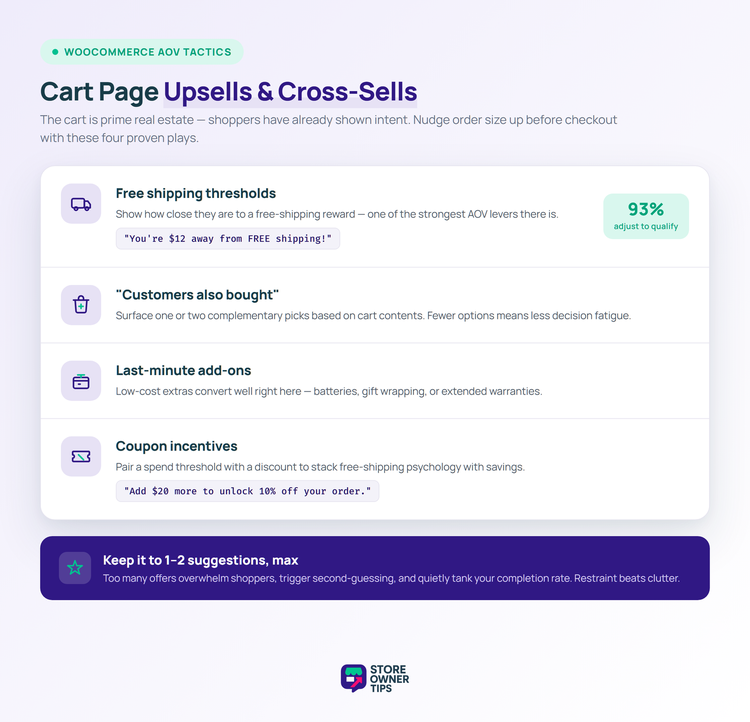
This is one of the most powerful AOV boosters we’ve ever tested. Display a message like: “You’re $12 away from FREE shipping! Add one more item.” According to Capital One Shopping research, 93% of consumers shop to qualify for free shipping. Buying additional items is the most common strategy they use. That’s a huge slice of customers willing to spend more if you tell them how close they are.
Show 1 or 2 complementary products based on what’s in the cart. Keep it focused. Too many suggestions create decision fatigue and actually hurt conversion.
Low-price accessories or consumables work great here. Think batteries, gift wrapping, or extended warranties.
Use Advanced Coupons to create cart-level incentives. As an example: “Add $20 more to unlock 10% off your order.” This combines the free shipping threshold idea with a discount. It’s a powerful one-two punch.
The key rule for cart page upsells: keep it to 1 or 2 suggestions max. We’ve seen stores add five or six product suggestions to the cart page and it backfires. Customers get overwhelmed, second-guess their purchase, and leave. Less is more.
You can’t improve what you don’t measure. Therefore, before rolling out any of these strategies, set a baseline for your current AOV so you can track the impact.
Here’s how to find your AOV in WooCommerce:
Don’t just set up an order bump and forget it. Test different products, different price points, and different copy. Most funnel tools, including FunnelKit, include built-in A/B testing.
🔍️ What we commonly see: Check your AOV weekly for the first month after rolling out any upsell strategy. It’s common to see a spike in the first week (the novelty effect). Then a dip in week two or three as that wears off. Finally, a steady-state improvement once you’ve dialed in the right offers. Don’t panic at the dip, it’s normal. In our experience, the steady-state number commonly lands 8% to 15% above the original baseline.
For more on automating your upsell workflows and tracking results, check out our WooCommerce automation tools guide.
You don’t need to roll out everything in this guide at once. Here’s the priority order we recommend:
Pick one tactic and set it up this week. Then, measure for 30 days before layering on the next one.
Remember, upselling and cross-selling are key stages in your store’s overall sales funnel. To keep customers coming back, pair these tactics with a loyalty program. That’s how you grow customer lifetime value.
You’re leaving money on the table right now. Let’s fix that, starting today. Try FunnelKit for Order Bumps and Upsells!

Copyright © StoreOwnerTips.com. All Rights Reserved.
