Weekly ecommerce tips, deals & news.
Picture your analytics on a Monday. Last week brought 1,800 sessions and a few dozen add-to-carts. You got one order, and it was from your sister.
Traffic but no sales feels like a traffic problem. So the instinct is to buy more visitors or install another plugin.
I’ve seen that instinct spend money on the wrong thing. In our experience, “no sales” is rarely one big problem. It’s usually one broken step that looks general because nobody has checked the steps separately.
This checklist finds that step for you. First, test a real order and confirm your traffic is genuine buyers. Then compare each step of the funnel, and fix the one with the biggest drop.
Jump to:
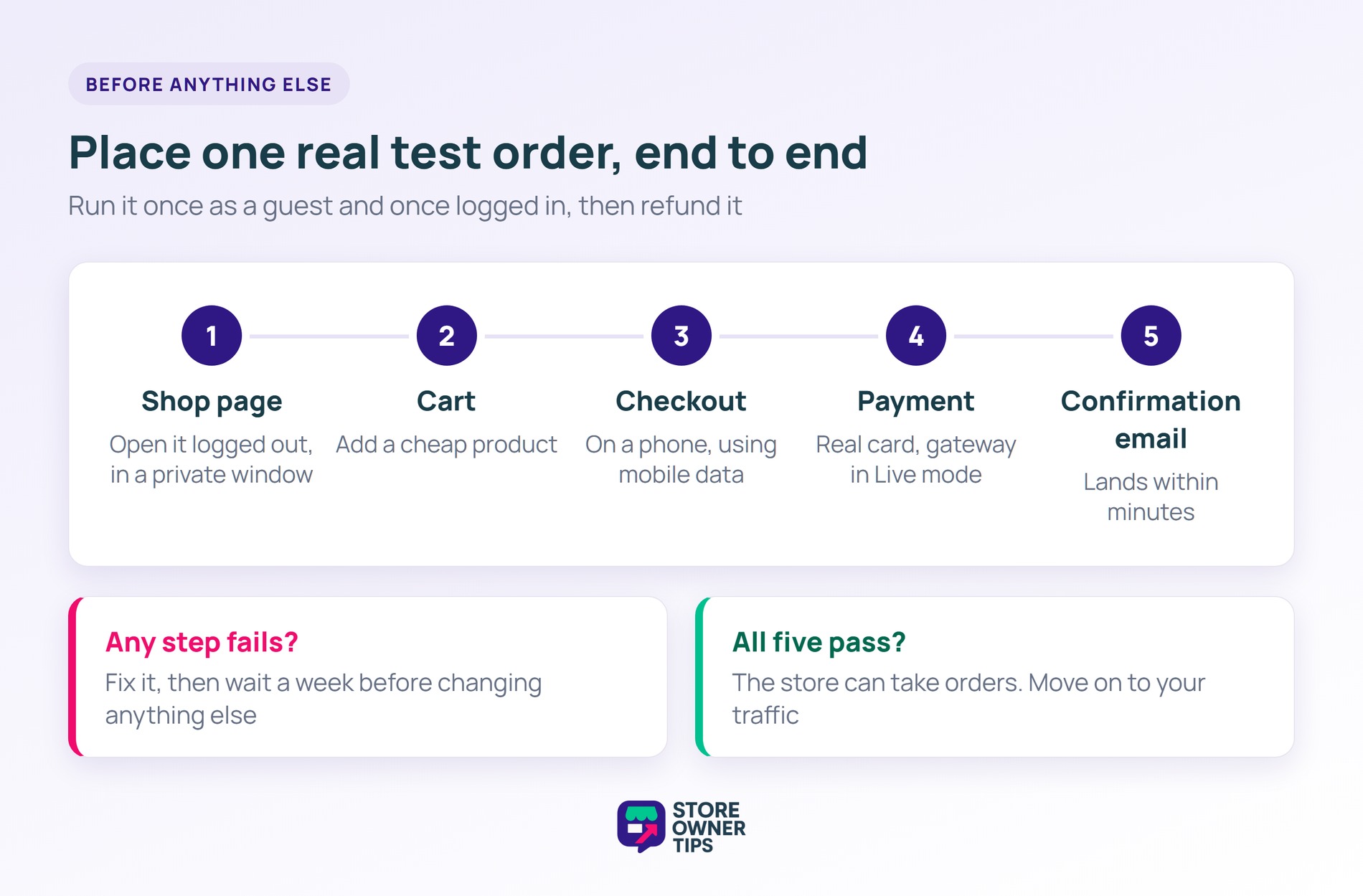
If you’ve had traffic but no sales for weeks, start here, not with conversion tactics. A store that can’t take money looks just like a store nobody wants. No amount of copywriting fixes a payment gateway stuck in test mode.
Run through these checks in one sitting:
Then repeat one check while logged out. Open the shop in a private browser window and add something to the cart. Your admin login can hide a problem that a customer would hit.
If any of these fail, fix that first and give it a week before you touch anything else. Every later step in this guide assumes the store can take an order.
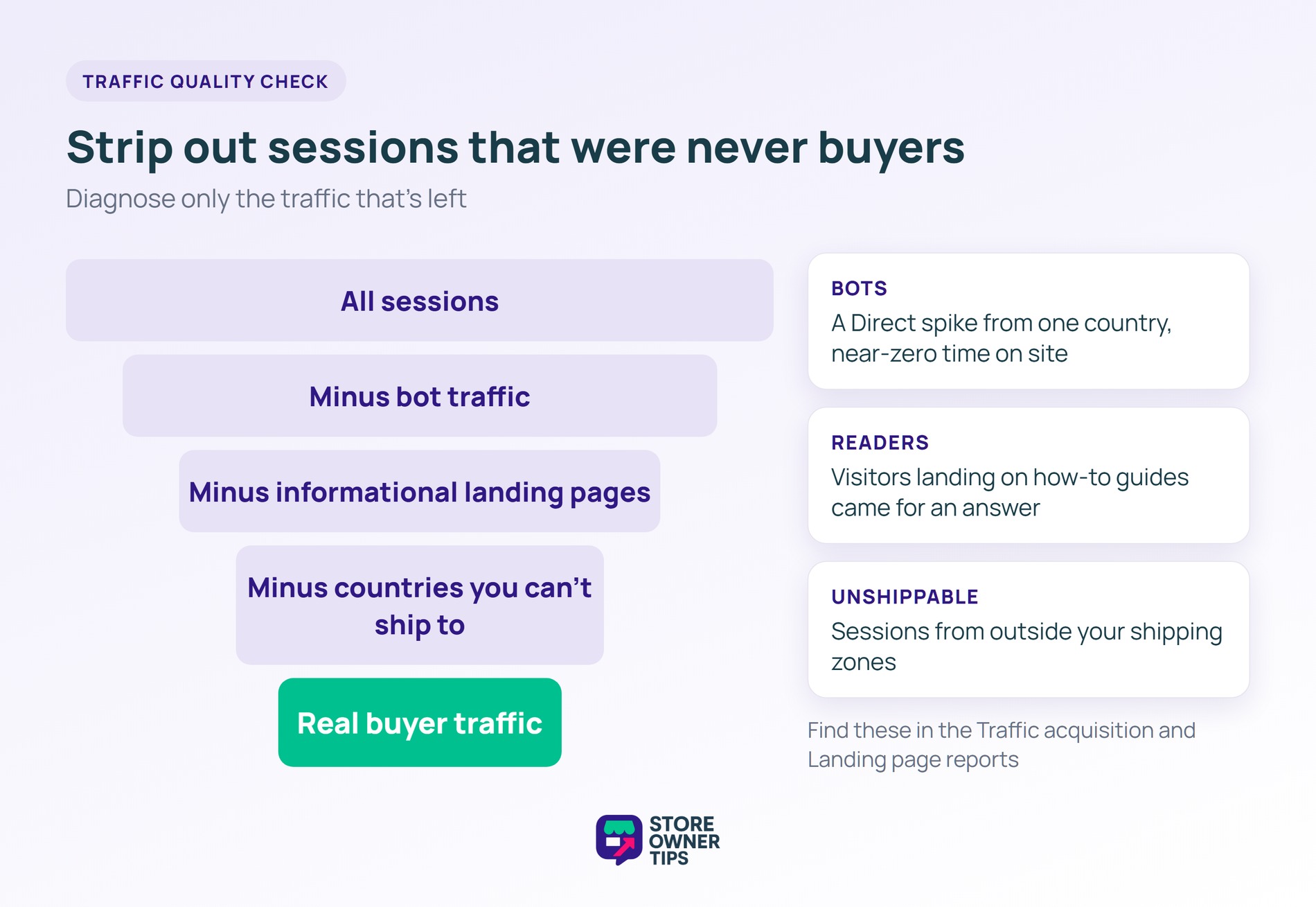
Some cases of traffic but no sales are really reporting problems. Your sessions might come mostly from bots, wrong-intent searches or countries you can’t ship to. In that case, there was never a buyer to lose.
Open the Traffic acquisition and Landing page reports in Google Analytics, then ask three questions.
Look at the channel mix first. Picture a sudden spike in Direct traffic, mostly from one country, with near-zero time on site. That pattern often points to bots rather than shoppers. Those sessions inflate your traffic and drag down your conversion rate without changing a single real sale.
Blog posts bring readers, and not all of them are shoppers. Say your top landing pages are guides like “how to clean leather boots”. Those visitors came for an answer, and most will leave once they have it. That traffic still has value, but don’t judge your product pages by it.
Next, check the country report against your shipping zones. Say your store ships only within Australia. In that case, 600 weekly sessions from the US won’t produce a sale, however good the product page is.
Once you strip out bots, informational landing pages and unshippable countries, look at what’s left. That’s the traffic you’re diagnosing. If you can’t see these numbers yet, set up WooCommerce tracking in Google Analytics first. The next step depends on it.
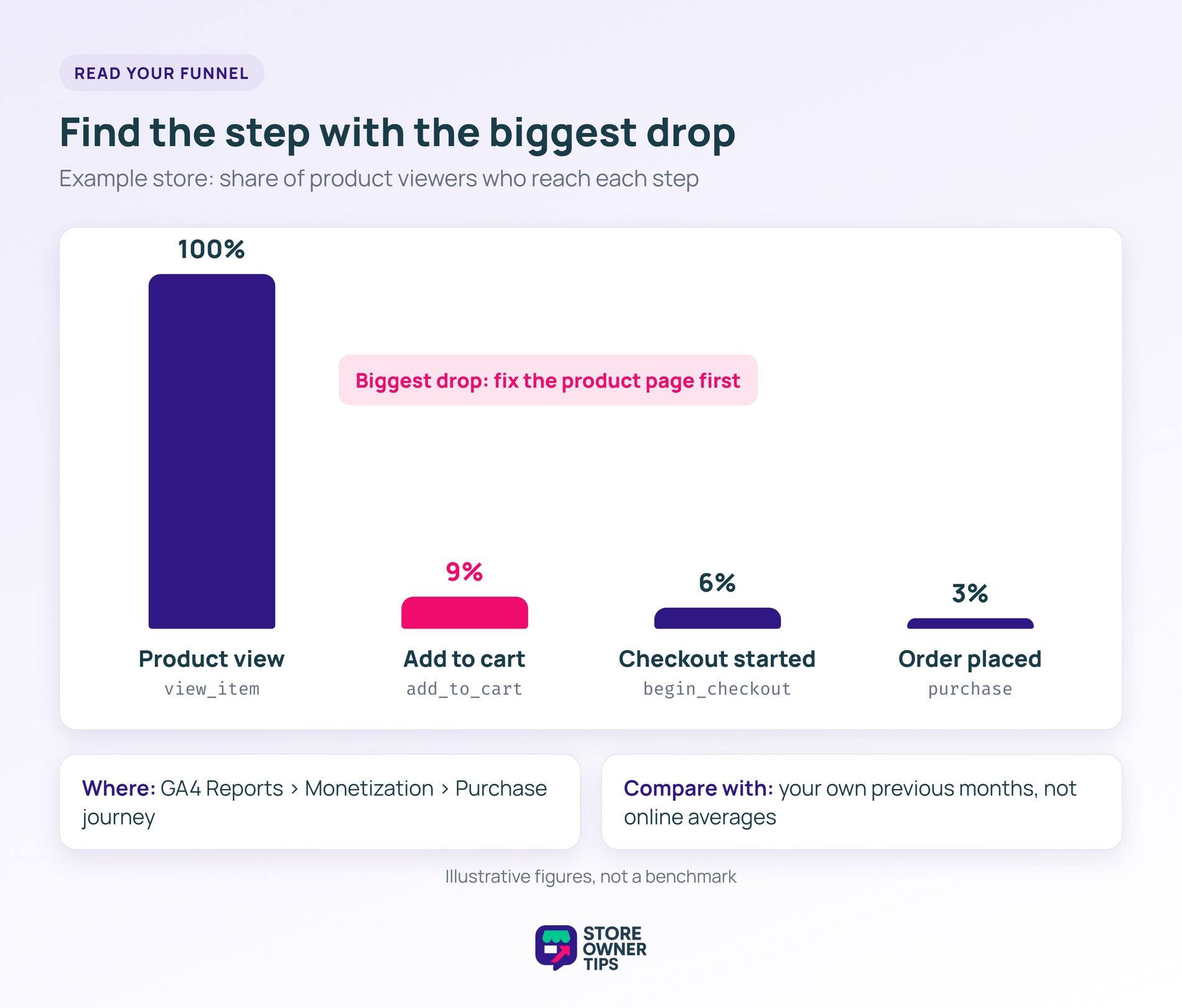
Every WooCommerce order passes through four measurable steps. A shopper views a product, adds it to the cart, starts checkout and places the order. When you have traffic but no sales, the step with the biggest drop is where sales leak.
Google Analytics records each step as an ecommerce event: view_item, add_to_cart, begin_checkout and purchase. Google’s Purchase journey report sits under Reports > Monetization. It shows those steps side by side, so you can see how many users reach each one.
WooCommerce Analytics then gives you the order side. That includes orders that started but never completed payment.
Compare each step with your own previous months, not with an average you found online. A shop selling $900 furniture will never match the add-to-cart rate of one selling $12 phone cases. What matters is whether your own rate fell, and at which step.
Use this table to match what you see to where you should look next:
| What you see | Where to check | Most likely cause | Go to |
|---|---|---|---|
| Zero orders for weeks | Place a real test order | Broken checkout, gateway in test mode, store not public | Broken store check |
| High sessions, few product views | Traffic acquisition and Landing page reports | Wrong-intent or bot traffic | Traffic check |
| Product views high, add-to-cart low | Purchase journey report | Product page, trust, unanswered questions | Product page fixes |
| Add-to-cart healthy, checkouts rarely start | begin_checkout vs add_to_cart | Surprise costs at cart, lost carts | Cart fixes |
| Checkouts start, orders do not complete | Failed and pending orders in WooCommerce | Forced account, form length, payment errors | Checkout fixes |
Fix the earliest step with a big drop first. A leak on the product page starves every step after it. As a result, a checkout fix won’t move your numbers much while few shoppers reach checkout.
This guide only uses these steps as places to measure. Want to see how a full funnel is built, from first visit to repeat purchase? Read how a WooCommerce sales funnel fits together.
When people view products but don’t add them to the cart, you have traffic but no sales at the product page. The page isn’t answering their questions. Usually the cause is unclear photos or price, missing delivery details or weak trust signals. Sometimes it’s a question nobody’s there to answer.
Start with one check. Open your most-viewed product on your phone and read it as a stranger would. Can you tell what it costs, when it arrives, and who you’re buying from? What happens if it doesn’t fit?
Anything you have to scroll or tap to find, some shoppers won’t look for.
The fixes that matter most are the plain ones. Think sharper photos, a price that’s clear at a glance, and stock and delivery details near the button. Then add a description that answers the obvious questions.
Our guide to product page fixes that move add-to-cart covers these in detail.
Trust is the other half. Reviews, a returns policy you can find, and real contact details tell a first-time visitor the store is safe. See the trust signals that turn browsers into buyers for the full list.
Some shoppers are one question away from buying. Will this fit a size 10 foot? Does it work with my model?
If nobody answers, they leave and ask somewhere else. You can set up live chat on your store for the hours you’re online.
For the hours you’re not, an AI chatbot can cover the gap. StoreAgent’s AI chatbot is a WooCommerce plugin that answers customers 24/7 from your live store data. It also has a free plan.
That makes it a fit for size and compatibility questions at 2am, when no one is at the desk. If you’d like to weigh the options first, compare WooCommerce AI chatbots.
Plenty of visitors like the product but aren’t ready yet. They’re comparing, waiting for payday or shopping for a gift. Without a way to save the item, that intent is gone when they close the tab.
SaveTo Wishlist is a free WooCommerce wishlist plugin that lets shoppers save products to buy later. Guests can use it without creating an account, so you keep the intent even from first-time visitors.
To compare it with other options, choose a WooCommerce wishlist plugin from our roundup.
If add-to-cart looks healthy but few shoppers click through to checkout, your traffic but no sales problem sits in the cart. Something there is putting them off. Most often it’s a cost they didn’t expect or a missing delivery estimate. Sometimes the cart disappears between visits.
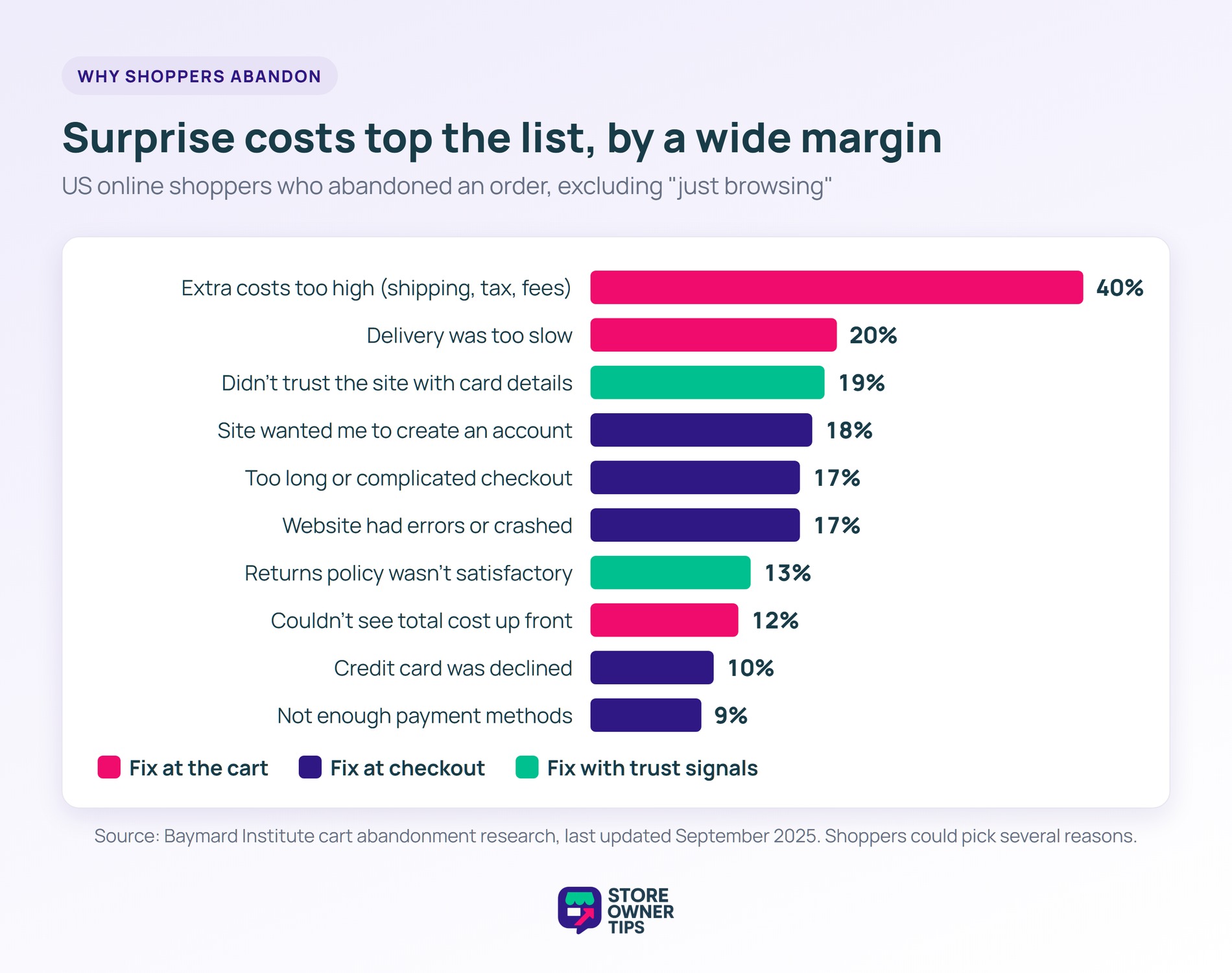
Baymard Institute’s cart abandonment research sets aside shoppers who were “just browsing”. Among the rest, 40% of US shoppers who abandoned said extra costs like shipping, tax and fees were too high. That’s the biggest single reason on the list.
Add a typical product to your cart and look at the total. Can the shopper see the shipping cost, or does it say “calculated at checkout”? A shipping charge that only appears on the last page is the classic surprise. Two other things are worth checking:
Carts also get lost between visits. Someone adds items on their phone at lunch. That evening, they open the store on a laptop and find an empty cart. You can keep carts saved between visits so the second visit picks up where the first left off.
A first-order incentive can tip a hesitant new customer, if it fits how your store works. With the Premium version, you can set up a first-order coupon in Advanced Coupons. Use the Number of Customer Orders cart condition, set to exactly 0.
One caveat matters here. That condition reads the order history of a logged-in customer account. So a guest won’t pass it, and the coupon won’t apply at guest checkout.
That makes it a good fit for stores where shoppers create an account. If most of your orders come through guest checkout, try a different tactic. For example, send a welcome code by email after sign-up.
🔍️ What We’ve Seen: Here’s a typical pattern (example figures). A store adds a 10% sitewide discount because carts aren’t converting, and nothing changes. The real drop happens when a $14 shipping charge first appears on the checkout page. A 10% discount on a $30 order doesn’t cover it.
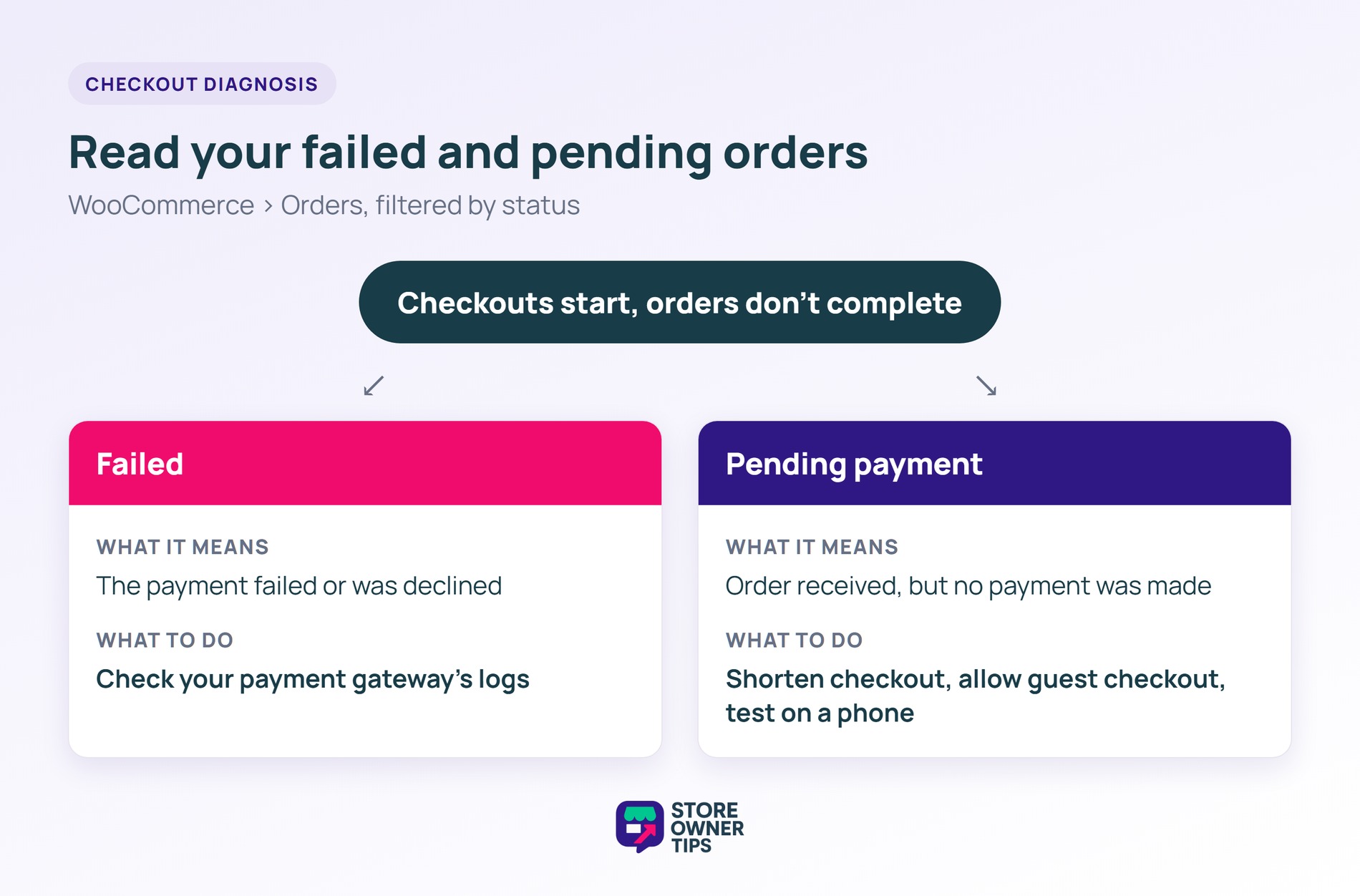
When shoppers start checkout but don’t finish, traffic but no sales comes down to the checkout itself. The usual causes are forced account creation, long forms, a missing payment method, declined cards and mobile errors.
Baymard’s same research found that 18% of those US shoppers left because the site wanted them to create an account. That one is easy to rule out. If your store requires an account to check out, try allowing guest checkout.
Go to WooCommerce > Orders and filter by status. These two statuses tell you different things:
Go through your checkout on a phone and count the fields. Notice every moment you have to stop and think. A shopper who isn’t sure yet will find it slower than you do.
For field-by-field changes, read our WooCommerce checkout optimization guide. Our list of fixes for shoppers who abandon checkout covers the rest. If pages take more than a few seconds to load, speed up a slow store before anything else.
Some shoppers will still leave. Abandoned cart emails bring a share of them back, so they’re worth having even after you fix the checkout.
Run these in order whenever you see traffic but no sales. Stop at the first step that fails, fix it, and re-measure before moving on.
Changing one thing at a time is the step that’s easiest to skip. However, if you change five things at once, you won’t know which one worked or which one made it worse.
Usually the clicks aren’t the buyers you think, or one step between the product page and payment is broken. Check traffic quality first. Then compare each step of your funnel with your own history to find where people leave.
Ad clicks from broad keywords are a common cause. People searching for information click, read and leave.
Start with a real test order, because a broken checkout or a gateway in test mode stops every sale. If the store works, the problem is usually one weak step. Common examples are the product page or surprise shipping costs at the cart.
Give a single change 2 to 4 weeks. That’s usually long enough for a few hundred visits to the step you changed. Compare that step’s rate with the same period before the change, and watch for seasonal swings.
Not until you’ve found the broken step. Ads send more visitors into the same leak, so you pay more to lose the same share. Fix the step with the biggest drop first, then add traffic once the store converts what it already gets.
Not always. Many fixes are settings and content: showing shipping costs early, allowing guest checkout and clearer product pages. A plugin helps when the diagnosis points to a gap it fills, like unanswered questions after hours.
Traffic but no sales feels like the whole store is failing. In most stores, though, one step is leaking. The steps after it only look bad because they sit downstream, and fixing one step is a much smaller job.
Start today with the test order. It takes ten minutes, and if it fails, you’ve found your answer. If it passes, work through the diagnostic checklist and fix the first step that breaks.

Copyright © StoreOwnerTips.com. All Rights Reserved.
