Picture searching the plugin directory for “QuickBooks” and finding a dozen connectors that all promise automatic sync. You pay for one. Only then do you find out it talks to QuickBooks Online, while your bookkeeper runs Desktop.
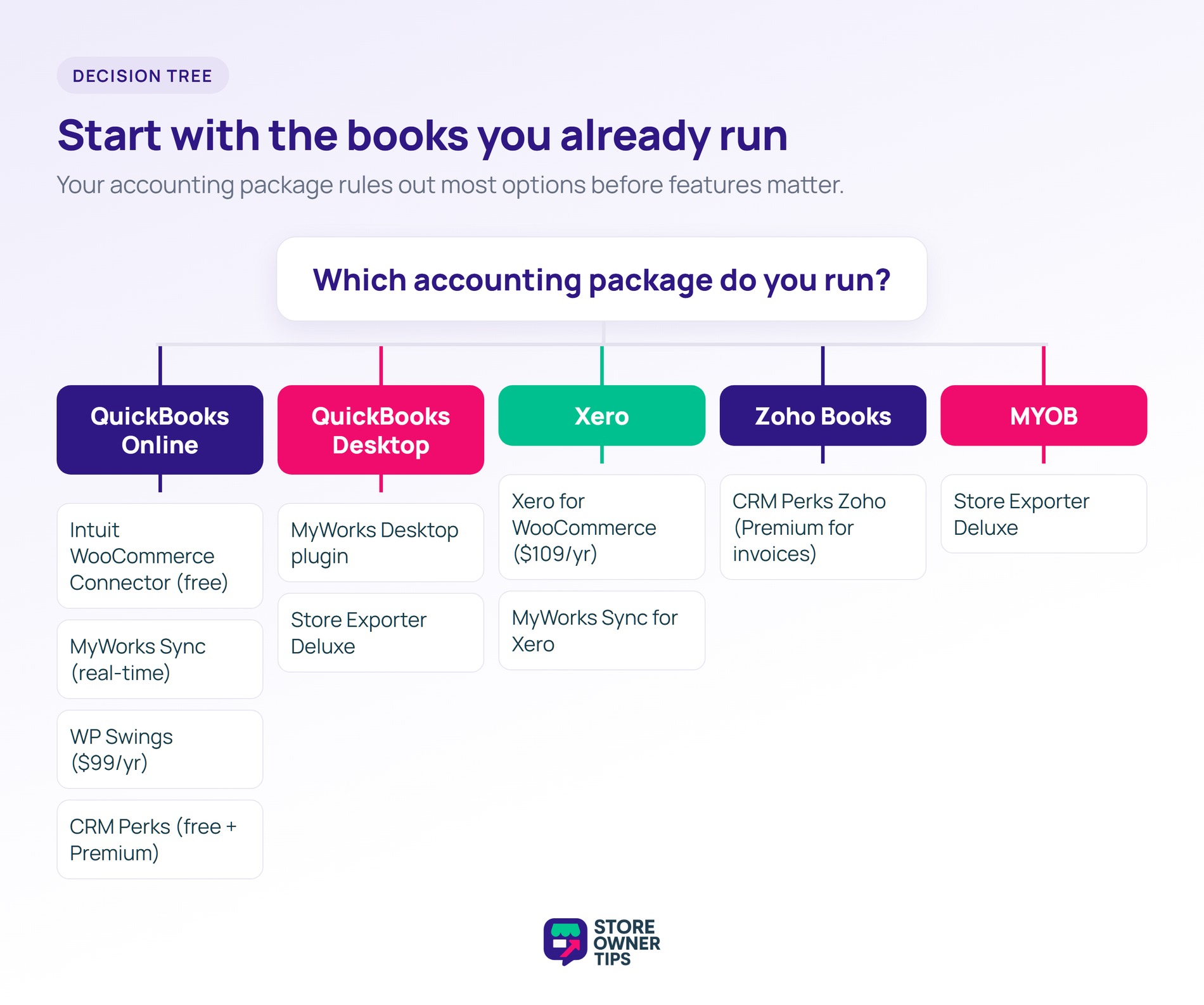
On QuickBooks Online with a hands-off setup, start with Intuit’s free WooCommerce Connector, or MyWorks Sync for deeper settings. On QuickBooks Desktop or MYOB, or if you reconcile monthly, a scheduled export with Store Exporter Deluxe fits better. For Xero, Woo’s own Xero for WooCommerce extension sends each order as an invoice.
Pick the wrong one and you could pay for a sync that can’t reach your books. Or you end up with one that breaks without telling anyone.
So this WooCommerce QuickBooks integration guide is sorted by two facts, not by features. First, which accounting package you run. Second, how you want data to move. Those two facts rule out most of the list before features matter.
Jump to:

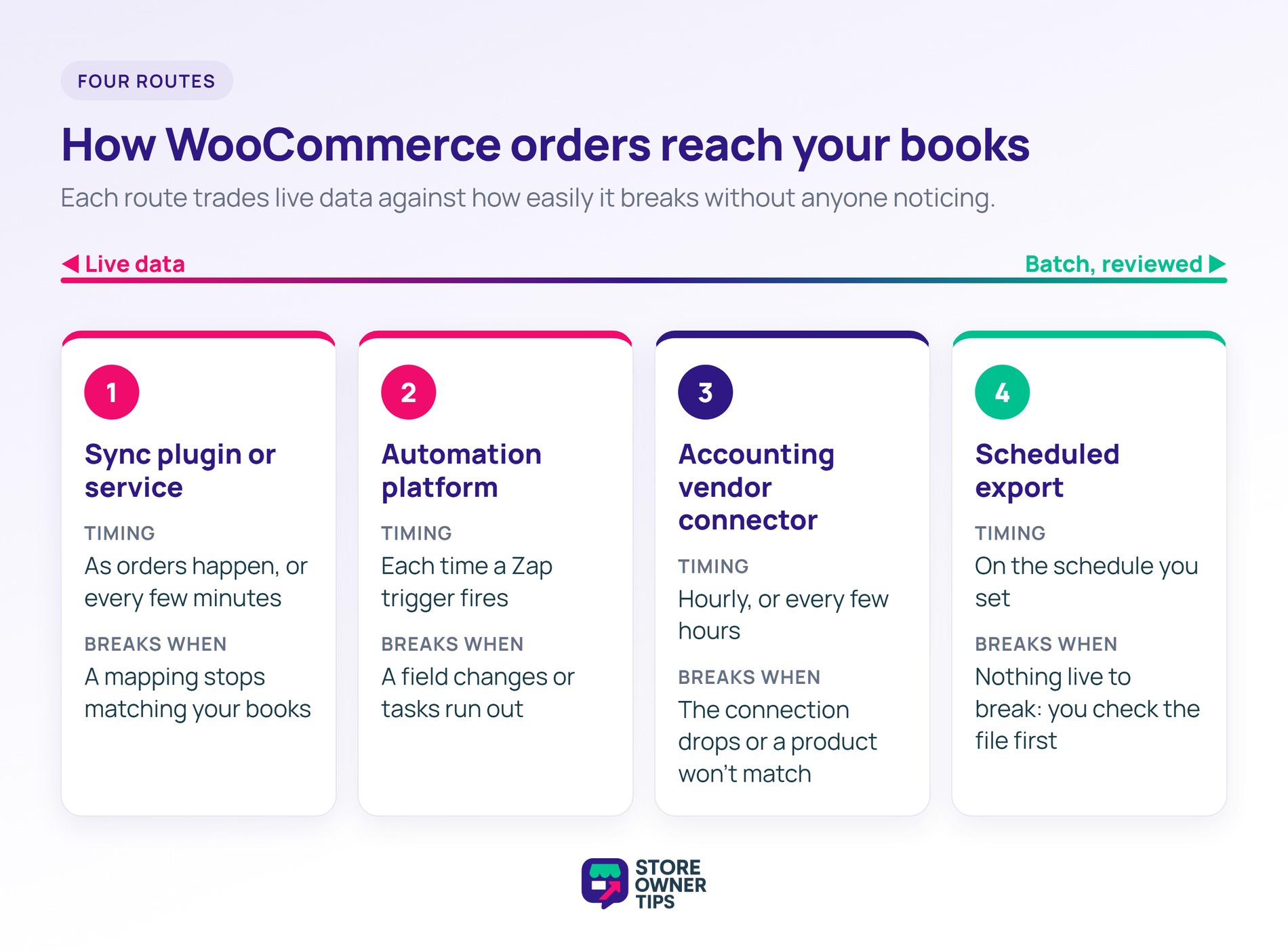
There are four ways to get WooCommerce sales into your books. Each one moves data on a different schedule and breaks in a different place.
Each route creates an accounting record, such as an invoice or sales receipt inside QuickBooks or Xero. That’s different from customer-facing invoices, which are documents you send to buyers.
What each route should send, and how to check it at month end, is a bookkeeping question. We cover that in a separate guide. This one is about choosing the connection.
We compared each WooCommerce QuickBooks integration and its Xero, Zoho and MYOB alternatives on six things:
Tax handling matters too. If you charge sales tax or VAT, the connector must match your tax rates to those in your books. Our guide to WooCommerce sales tax and VAT covers the store side.
We haven’t installed and run every tool here. Instead, every observation below comes from each tool’s own documentation, help article or plugin listing. Prices and install counts were checked on 6 November 2026, and they change over time.
The entries run in this order: QuickBooks connectors, then Xero, then Zoho Books, then automation, then the export route. That way you can skip straight to your accounting package.

This is Intuit’s own connector, set up inside QuickBooks Online under Integration transactions. Intuit’s help article labels it a free integration.
Intuit is moving this connector from its older OneSaas tool to new built-in e-commerce connectors. The two versions behave differently, so check which one your account shows. The older OneSaas article describes an hourly auto-sync, with stock levels flowing back to WooCommerce.
However, Intuit’s migration guide for the new connectors says they currently sync every few hours. It also says two-way inventory sync isn’t available yet. Until it is, you update stock levels in both places.
On the plus side, the new connectors try to match products by SKU and name. Close matches land in a For review tab, so you confirm them before they post. The trade-off is timing: a few hours’ delay suits many small stores, but it isn’t real-time.
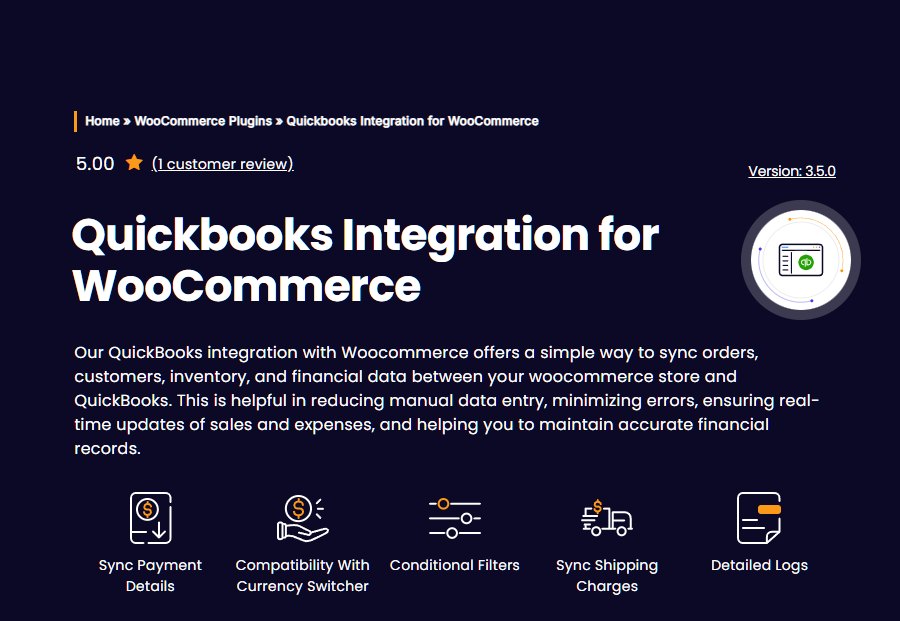
This is a paid extension sold on the WooCommerce Marketplace. Its listing states that it “works only with QuickBooks Online.”
The listing describes a complete sync log report, plus a filter that pulls only the errors out of the logs. Few tools here say this much about failure visibility. It also lists partial refund syncing when an order moves to “refunded”, and syncing of tax value and tax rate.
Invoices can go to QuickBooks automatically on purchase if you switch that option on. You can also send them by hand. The listing also describes two-way product syncing, so products created in QuickBooks can be pulled into your store. Stock sync can be switched on or off.
Its own notes add one condition. The same tax rate must already exist in QuickBooks for tax to sync correctly, so plan that setup work. The listing showed 300+ active installs when we checked.
MyWorks runs a sync service with a free WordPress plugin, and you also need a MyWorks account. Its Marketplace listing says it works with QuickBooks Online, Desktop and POS.
Its FAQ says new orders sync in real time, with inventory every 5 minutes. Products and inventory can sync both ways on paid plans. The listing also mentions transaction fee and bank deposit sync, plus custom field mapping.
The deposit sync groups each day’s orders into one QuickBooks bank deposit. That gives the batch payout in your bank feed something to match.
For failure visibility, the Marketplace listing describes sync status indicators inside your orders and sync updates added to order notes. So a failed order shows up where you already work.
The limitation is history. The FAQ says old data isn’t synced automatically, so you push it over by hand. The free plan only reaches the last 7 days of orders, and monthly plans reach the last 30 days.
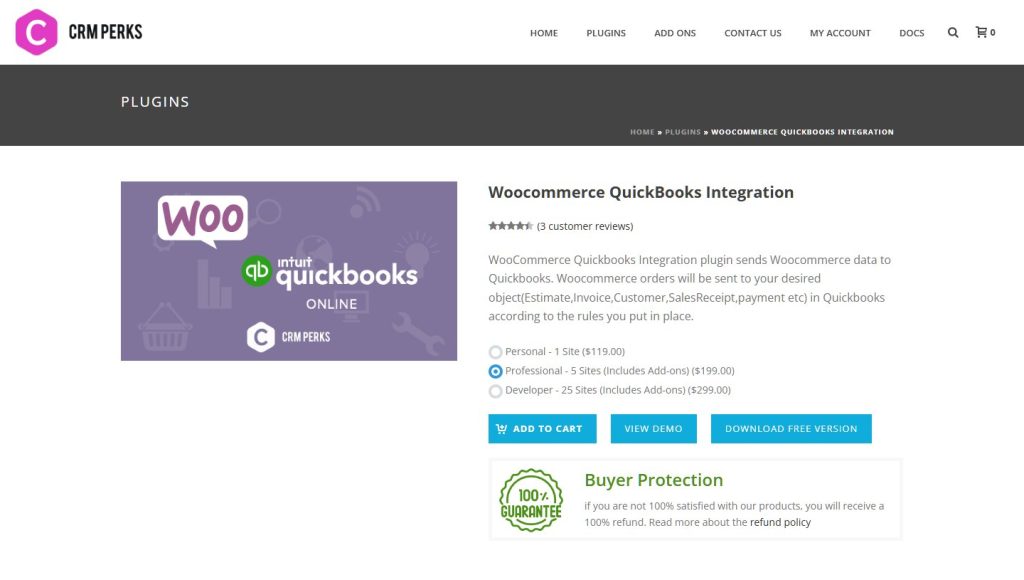
This is a free plugin on WordPress.org with a Premium version. It sends order data to QuickBooks Online through “feeds” you map yourself.
The listing describes error reporting by email. If sending to QuickBooks fails, an email with the error details goes to an address you choose. It also keeps a log of each entry, sent or not, and lets you resend from it.
You also choose the trigger. For example, the listing suggests sending the order when its status changes to “processing”.
The free tier is narrow, though. Sales receipts, credit memos, refund receipts, and shipping and discount details are Premium only. So are bulk sending and inventory sync, per the listing. It showed 1,000+ active installs when we checked.
If you run Xero, start by knowing what a Xero integration connects. Then compare the two Xero options below.
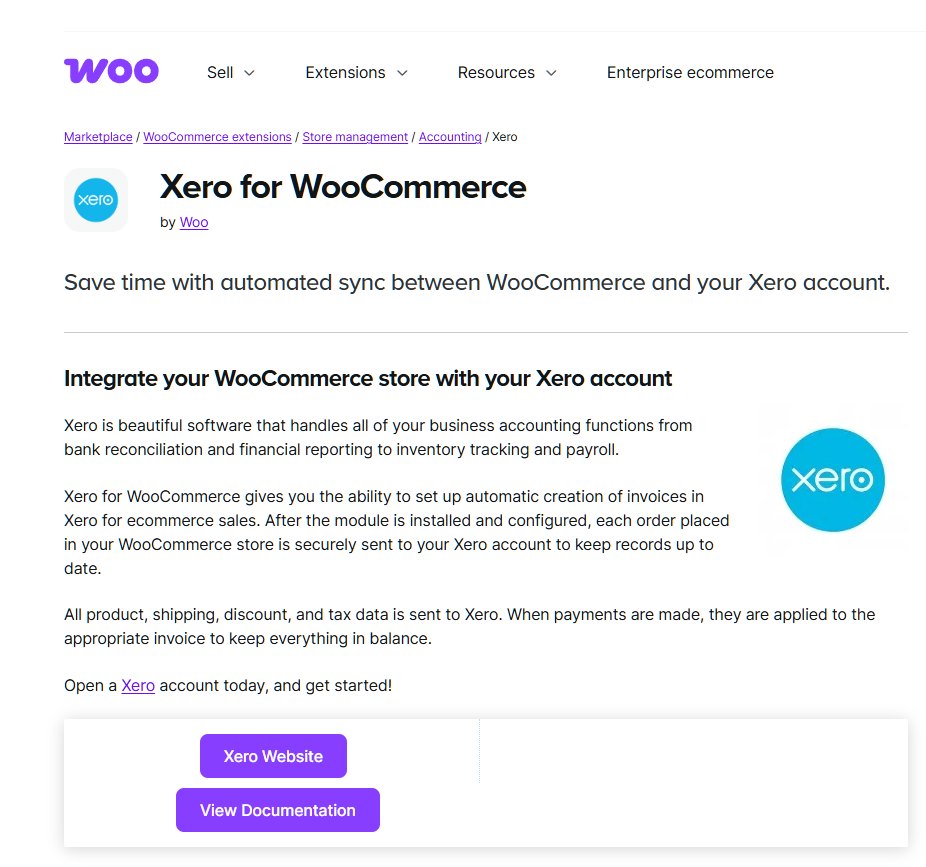
This is WooCommerce’s own Xero extension. Its listing says each order is sent to Xero, with product, shipping, discount and tax data. Payments are then applied to the matching invoice.
Its documentation shows clear failure visibility. A successful export adds an order note with the Xero invoice ID. A rejected one writes Xero’s error into the order notes. You can also switch on a debug log under WooCommerce > Status > Logs.
You choose when invoices and payments go to Xero, from manual sends to automatic ones at a stage you pick. The docs also flag two limits worth knowing. Every payment goes to one Payment Account, whatever gateway the customer used. And Xero refresh tokens expire after 60 days without use, so a quiet store must reconnect.
On refunds, the docs say a fully refunded order triggers an attempt to void the Xero invoice. Paid invoices can’t be voided that way, so those need adjusting in Xero by hand.
MyWorks offers a Xero version of its sync, built the same way as its QuickBooks one. You install a free plugin and connect through a MyWorks account.
Its FAQ says new orders, payments and products sync automatically, as often as every 5 minutes. Products sync both ways. Stock levels and cost pull from Xero on a schedule, and pricing does too on the Grow plan and above.
A payment added in Xero can also update the order’s status in WooCommerce. You control which WooCommerce status triggers an order to sync, as the FAQ notes. As with its QuickBooks sync, historic orders need a manual push. The listing showed 1,000+ active installs when we checked.
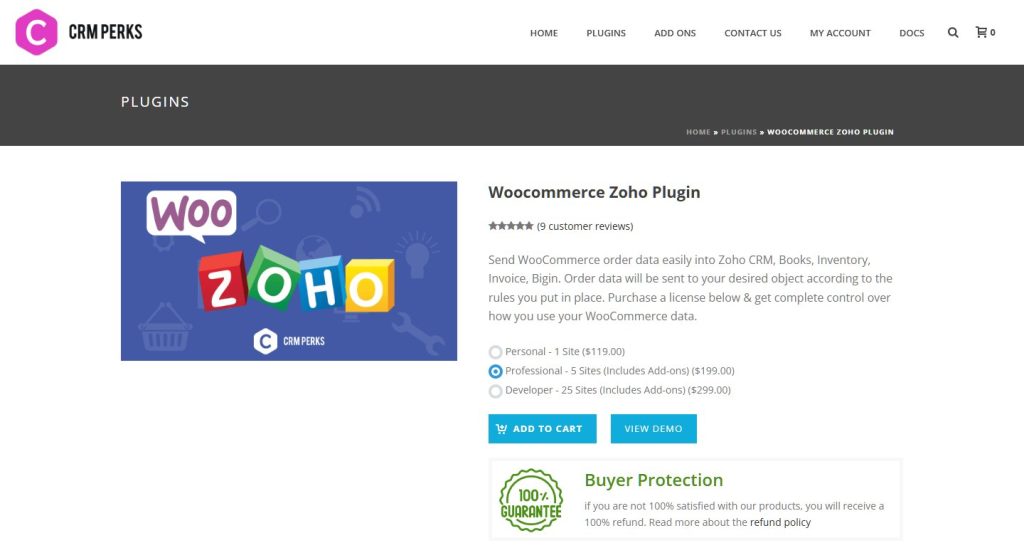
This CRM Perks plugin connects WooCommerce to Zoho Books, Zoho Inventory, Zoho Invoice and Zoho CRM. It uses the same feed and mapping model as its QuickBooks plugin.
For failure visibility, the listing describes an email with error details when a send fails. It also keeps a log of each order, sent or not, with a resend option.
However, read the free tier carefully. The listing says the free version supports contacts in Zoho Books, and every other feature is Premium. For accounting work like invoices and payments, that means the Premium version in practice.
Zapier links WooCommerce to QuickBooks Online, Xero and many other apps through small rules called Zaps. A Zapier integration is a trigger and an action, nothing more.
Zapier’s QuickBooks Online page lists creating invoices from new store orders as a common use. The WooCommerce extension’s listing also shows Zapier task history inside your WooCommerce dashboard, which helps you spot failures.
There are limits, though. Zapier’s WooCommerce app pages say the connection needs a paid extension, and QuickBooks Online is a Premium app on Zapier. Zapier’s pricing page says Premium apps are only on paid plans. Each order also uses at least one task, so costs grow with volume.
Make is the other name you’ll hear in this category. We’ve kept the details here to Zapier, since those are the pages we read. For automation beyond accounting, see our roundup of WooCommerce automation tools.
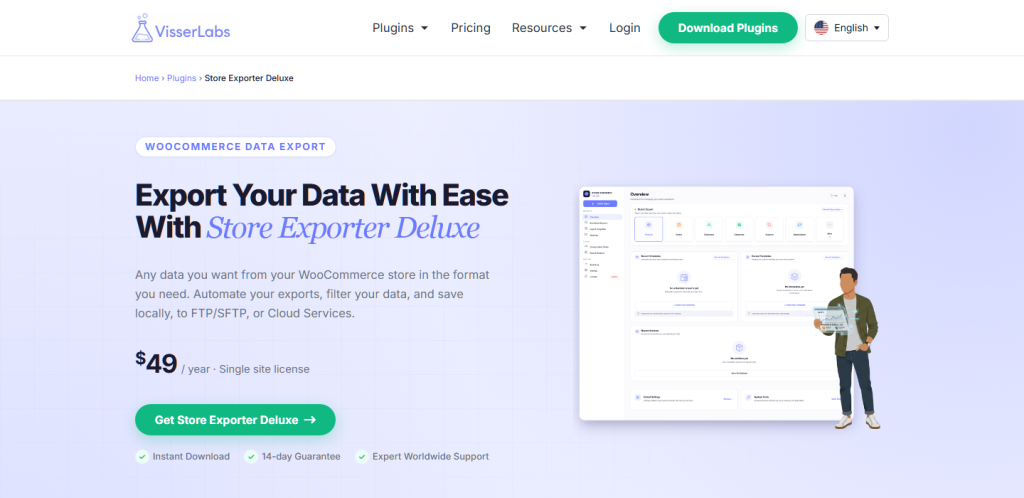
This one is different from everything above. Store Exporter Deluxe isn’t a live sync. It exports your orders, products, customers, coupons and subscriptions to CSV, TSV, XLS, XLSX or XML. You then import that file into your accounting software.
Store Exporter Deluxe is made by Visser Labs, a sister brand of Store Owner Tips.
Because it produces a file you import, it isn’t tied to one accounting package. That’s why it covers MYOB, where we didn’t find a connector we could verify from its own documentation. Visser’s guide to exporting WooCommerce orders for QuickBooks makes the same point. The export method works with both QuickBooks Online and Desktop.
Scheduled exports run on their own. They deliver the file by email, FTP or SFTP, or a cloud service, or save it to your server. Order exports can also filter to a date range, such as last week or a range you set. So a monthly export of last month’s orders can land in your bookkeeper’s inbox without you touching it.
The limitation is prep work. The file isn’t pre-formatted for your accounting software. Visser’s own guide to a scheduled export into Xero explains that you rename columns to match Xero’s import template. Scheduled exports also need the Deluxe version, since the free Store Exporter doesn’t schedule.
For other export plugins, see the wider comparison of WooCommerce export plugins.
That’s nine routes across four accounting packages. The table below lines them up, so you can shortlist in one pass.
All nine are compared below on the axes from our method section. Every cell comes from the tool’s own pages, checked 6 November 2026. “Not stated” means we couldn’t find it there.
| Integration | Accounting package | Direction | Timing | Free tier | Failure visibility | Syncs refunds |
|---|---|---|---|---|---|---|
| WooCommerce Connector by Intuit | QuickBooks Online | One-way for now (two-way stock not yet in the new connectors) | Every few hours (new connectors) | Yes, free | For review tab for close product matches | Not stated |
| QuickBooks Integration for WooCommerce (WP Swings) | QuickBooks Online | Two-way (products) | Automatic on purchase, or manual | No ($99/yr) | Sync log with error filter | Yes, incl. partial |
| QuickBooks Sync for WooCommerce (MyWorks) | QuickBooks Online, Desktop, POS | Two-way (products, stock) | Real-time; stock every 5 min | Yes, Launch plan | Order status indicators, order notes | Not stated |
| Integration for WooCommerce and QuickBooks (CRM Perks) | QuickBooks Online | One-way, plus stock in Premium | On a status you choose | Yes, limited | Email alert, entry log | Premium only |
| Xero for WooCommerce (Woo) | Xero | One-way | Manual or automatic, at a stage you choose | No ($109/yr) | Order notes, optional debug log | Voids unpaid invoices only |
| MyWorks Sync for WooCommerce and Xero | Xero | Two-way (products, stock) | As often as every 5 min | Yes, Launch plan | Not stated | Not stated |
| Integration for WooCommerce and Zoho (CRM Perks) | Zoho Books | One-way | On a status you choose | Contacts only | Email alert, order log | Premium only |
| Zapier | Any supported app | One-way per Zap | Each time the trigger fires | 100 tasks, but no Premium apps | Task history | Only if you build it |
| Store Exporter Deluxe | Any with file import, incl. Desktop and MYOB | One-way (export) | Scheduled or on demand | No (free version has no scheduling) | You review the file before import | Not applicable |
If you’re on QuickBooks Desktop, your choice is MyWorks’ Desktop plugin or a scheduled export. On MYOB, the export route is the one we can point you to. We didn’t find a MYOB connector we could verify from its own pages.
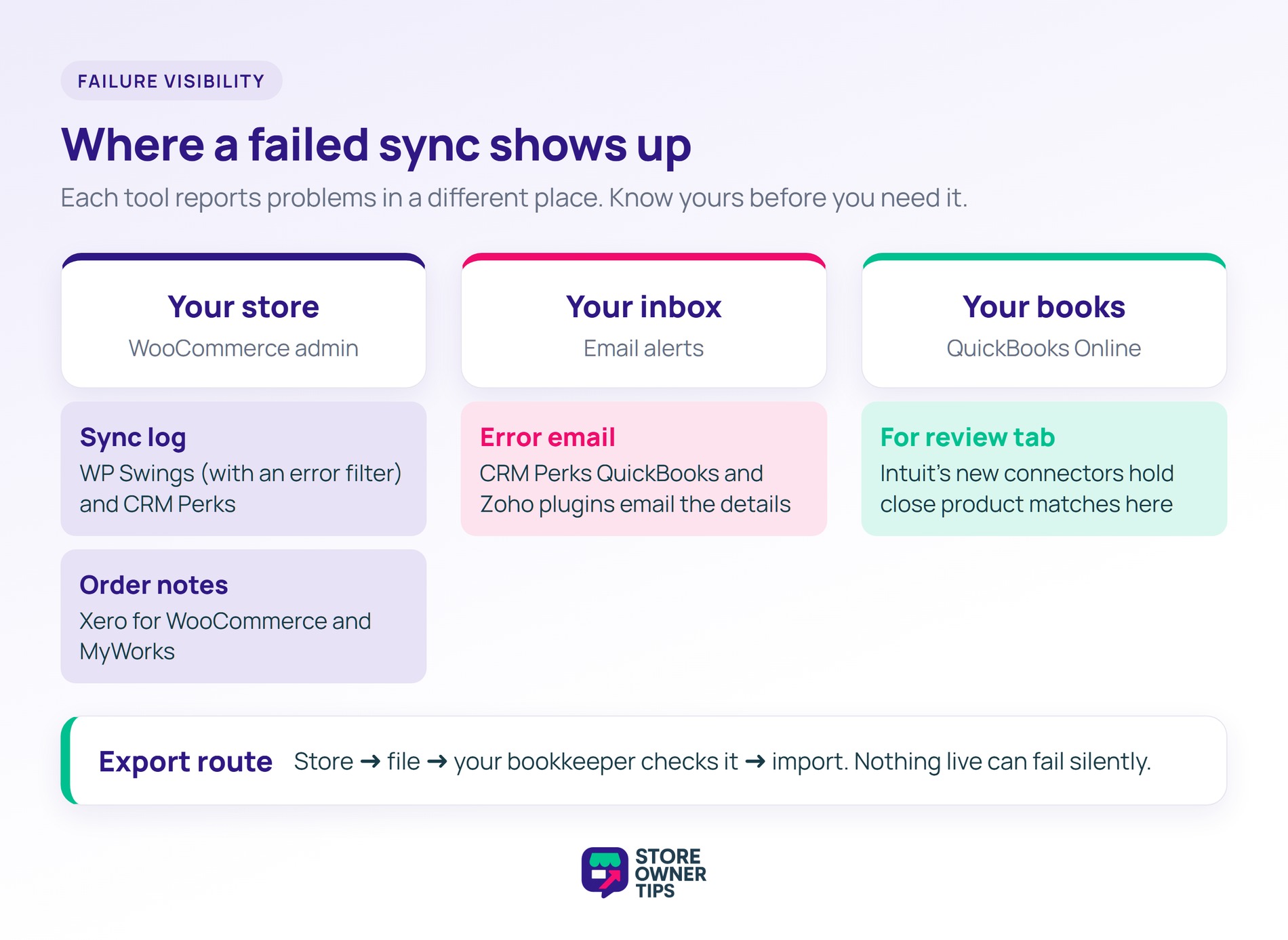
A sync failure costs the most when nobody hears about it. So treat failure visibility as a buying criterion, not an afterthought.
Look for these before you buy:
The export route works differently. There’s no live link to break, and the file sits between your store and your books. Your bookkeeper can open it, check it, and only then import it. That review step is slower, but it’s also a safety net.
🔍️ What we’ve seen: a connector stops syncing after a change on the accounting side. A renamed tax rate or a deleted product is enough. Nothing tells the store owner, and the gap shows up weeks later when the month won’t reconcile. Whatever you pick, find out where its error log lives before you need it.
Checking your books against your orders at month end is a separate bookkeeping task, with its own checklist.
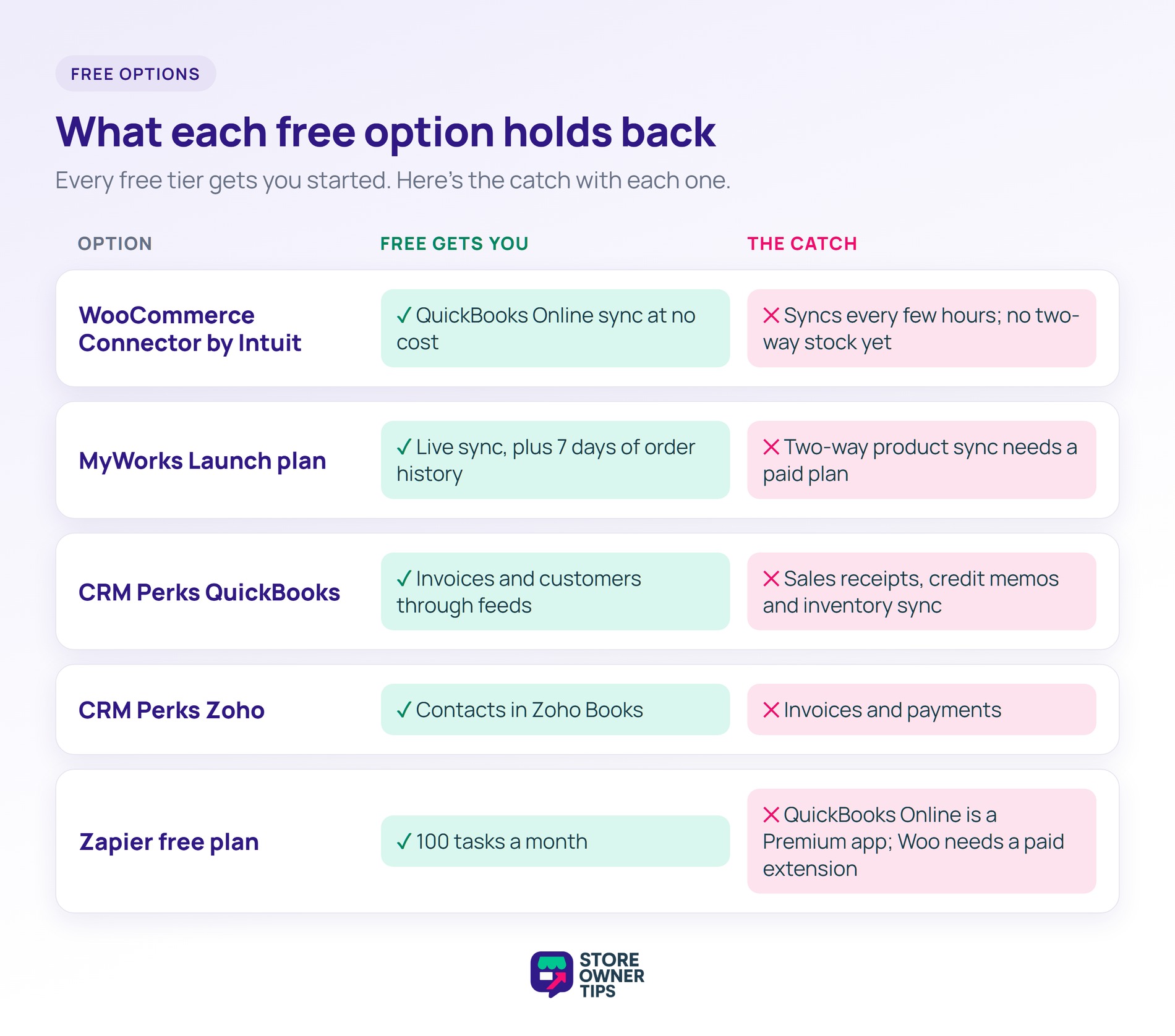
Free options exist, but each one holds something back, according to each tool’s own pages:
Then there’s the zero-cost route. WooCommerce’s Analytics reports have a Download button that saves the report as a CSV. Most accounting packages can import a CSV, so it costs nothing but your time. It’s a fair start for a store with a handful of orders a month.
Once you’re doing it every week, though, a scheduled export or a connector earns its price.
Yes. WooCommerce connects to QuickBooks through a connector plugin, an automation platform like Zapier, or a file export. For QuickBooks Online, Intuit’s free WooCommerce Connector is the simplest start. For QuickBooks Desktop, use MyWorks’ Desktop plugin or a scheduled export you import yourself.
No, WooCommerce isn’t accounting software. It records orders, taxes and refunds, but has no chart of accounts or bank reconciliation. For that you need an accounting package such as QuickBooks, Xero or Zoho Books. Then you connect it with one of the routes in this guide.
Two routes work with Desktop. MyWorks supports QuickBooks Desktop Pro, Premier and Enterprise from 2015 onward, through a separate plugin from its Online one. The other route is a scheduled export with Store Exporter Deluxe, imported with QuickBooks Desktop’s own tools. Intuit’s connector and WP Swings are Online only.
Partly. MyWorks offers a forever-free Launch plan for Xero, with paid plans for more features. Woo’s own Xero for WooCommerce extension is paid, at $109 a year. The zero-cost option is exporting orders to CSV and using Xero’s import, which means renaming columns to match its template.
Use a dedicated connector if one supports your accounting package. It’s built for orders, taxes and payments, and the cost doesn’t grow with each order. Zapier suits stores already paying for it, or flows no connector covers. Remember that QuickBooks Online is a Premium app on Zapier.

The right WooCommerce QuickBooks integration starts in your accounting software, not the plugin directory. Ask your bookkeeper which version they run and how often they close the month. Those two answers narrow nine options to one or two.
Once you’re connected, the next job is making sure the right numbers arrive. That means fees, refunds and tax landing where your accountant expects them. And if you’re filling out the rest of your stack, here are the WooCommerce plugins every store ends up needing.
Run QuickBooks Desktop or MYOB? Or would you rather review every file before it reaches your books? Store Exporter Deluxe gives you a scheduled WooCommerce QuickBooks integration you control. Set up one monthly export, and last month’s orders reach your bookkeeper on their own.

Copyright © StoreOwnerTips.com. All Rights Reserved.
