Put the store in maintenance mode and change every password and payment key. Take a copy of the hacked site, then restore your last clean backup with your host’s help. Re-enter orders placed since that backup and check what customer data was exposed.
Picture opening your store on a Tuesday morning and landing on a page of spam ads you never built. Orders came in overnight, so customers are still reaching you. You just don’t know what they saw at checkout, or where their card details went.
Most guides treat a hacked WordPress site as a cleanup job: scan the files, remove the malware, reinstall core. A store is different, because money and personal data keep moving while you clean. Orders keep arriving, payment keys stay live, and a careless restore can wipe out today’s sales.
This guide puts the first hour in time order. It covers what to do in each 15-minute block and what to protect first. It also covers what you may owe your customers afterward.
Jump to:

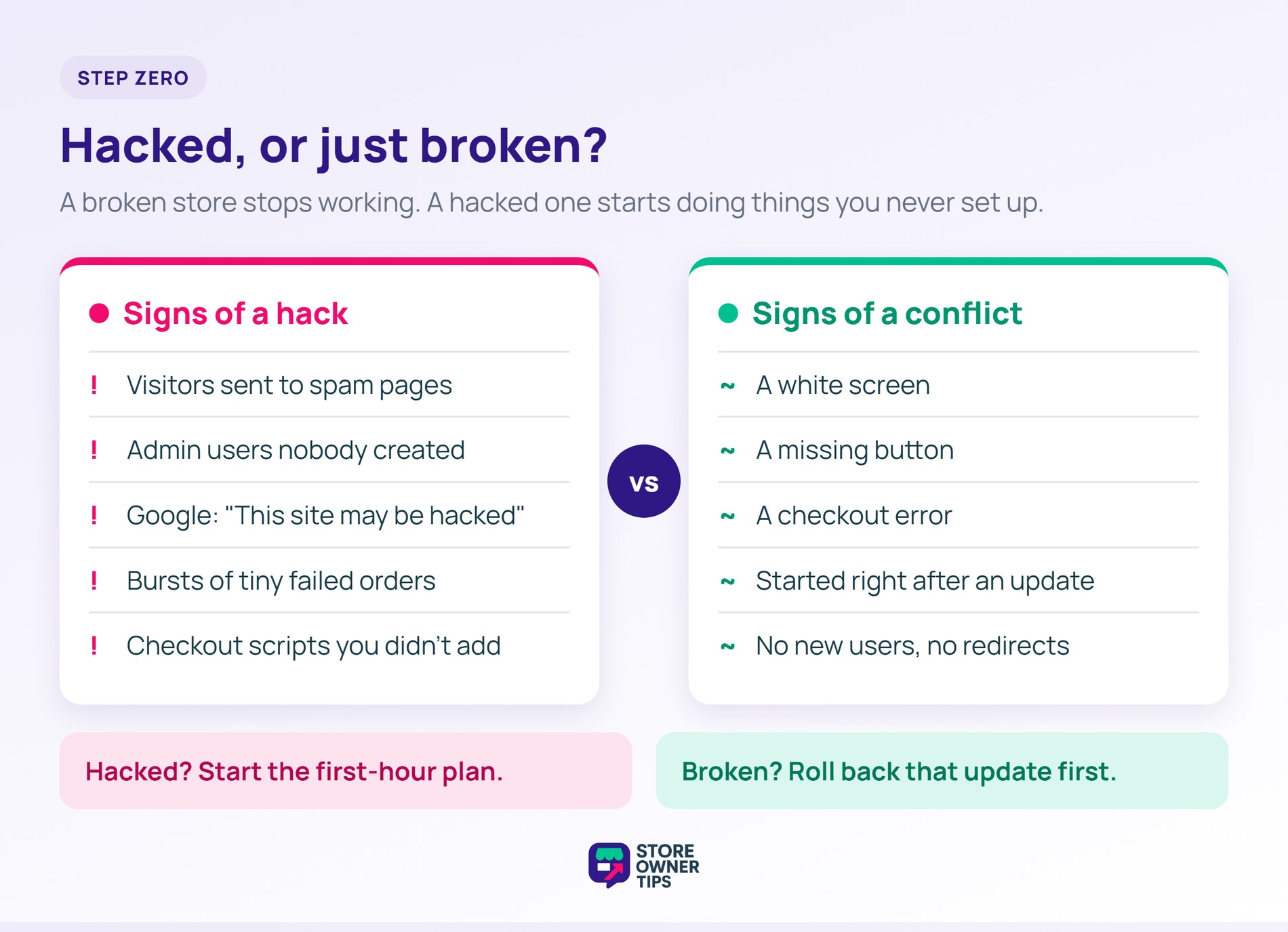
A hacked store shows signs a broken one doesn’t. Visitors land somewhere you never built, unknown accounts appear, or money behaves strangely. Check for these six.
The usual culprits are an outdated plugin or theme, a stolen or reused admin password, or an injected script. You don’t need to know which one yet. You’ll find out from the copy you take in the next step.
A plugin conflict looks different. It breaks things, such as a white screen, a missing button or a checkout error. However, it doesn’t add users, send visitors elsewhere or change your code without you. If a problem started right after an update and nothing else changed, roll that update back first.
Your first job is to stop new customers from getting hurt while keeping the evidence intact. Don’t start deleting things, and work through these steps in order rather than at speed.
The whole hour at a glance (example timeline, adjust it to your store):
| Time | Do this | Why |
|---|---|---|
| 0–15 min | Maintenance mode, call your host, snapshot files + database | Stop new victims, keep evidence |
| 15–30 min | New passwords everywhere, remove unknown admins, rotate gateway keys, check payout details | Shut every door they used |
| 15–30 min | Check gateway for card-testing bursts; look for unknown checkout scripts | Money and card data first |
| 30–60 min | Find the way in, note orders since last clean backup, restore, update, re-scan | Recover without reopening the hole or losing sales |
| Same day | Work out what customer data was exposed; start the notification clock | Legal duties may apply |
Don’t delete files, users or plugins yet. Change nothing you can’t undo until the copy is safe.
Next, close every door the attacker might still be holding. That means every login, every key and every payment setting that could send money somewhere else.
Start with passwords. Reset them for every WordPress admin, your hosting control panel, SFTP or SSH, and the database user. Use new passwords that aren’t used anywhere else. Then delete any admin user you don’t recognize, but note its username and creation date first.
Changing a password doesn’t end sessions that are already logged in. To sign everyone out, change the security keys (often called salts) in wp-config.php. Per the WordPress wp-config documentation, changing these keys invalidates all existing cookies, so every user has to log in again. Your host can do this for you if you’d rather not edit the file.
After that, cut off machine access:
Next, open each payment gateway’s own dashboard, outside WordPress:
A changed payout account is the costly one. Your sales still go through, but the money goes to someone else.
The checkout is where a hack costs real money, so check it for two separate problems. Card testing uses your store to check stolen cards. A skimmer copies real customers’ card details as they type.
Card testing looks like a burst of small orders in a short window, nearly all declined. Picture 140 orders between 2 a.m. and 3 a.m., every one for $1.20, every one failed. Nobody bought anything. Someone was using your checkout to find out which stolen cards still work.
Call your payment gateway first. They can see the attempts across their network and can often block them at their end. If the burst is still going, pause checkout or add friction such as a bot challenge until it stops.
Once the gateway logs show where the burst is coming from, you can block that pattern. Visser’s Checkout Guard is a block list that stops matching orders before payment is attempted. It blocks by email, IP address, or first and last name together, and accepts wildcards like *@example.com. It’s a list you fill in after you’ve spotted the pattern, not an automatic detector.
For the full setup, see how to stop card-testing and spam orders. Chargebacks are covered in our guide to fraud prevention and chargebacks.
Open your checkout page in a private browser window and view the page source. Look for scripts loading from domains you don’t recognize, or a second set of card fields. If you find one, assume card data may have been exposed. Treat it as a data breach, covered in the customer data section below.
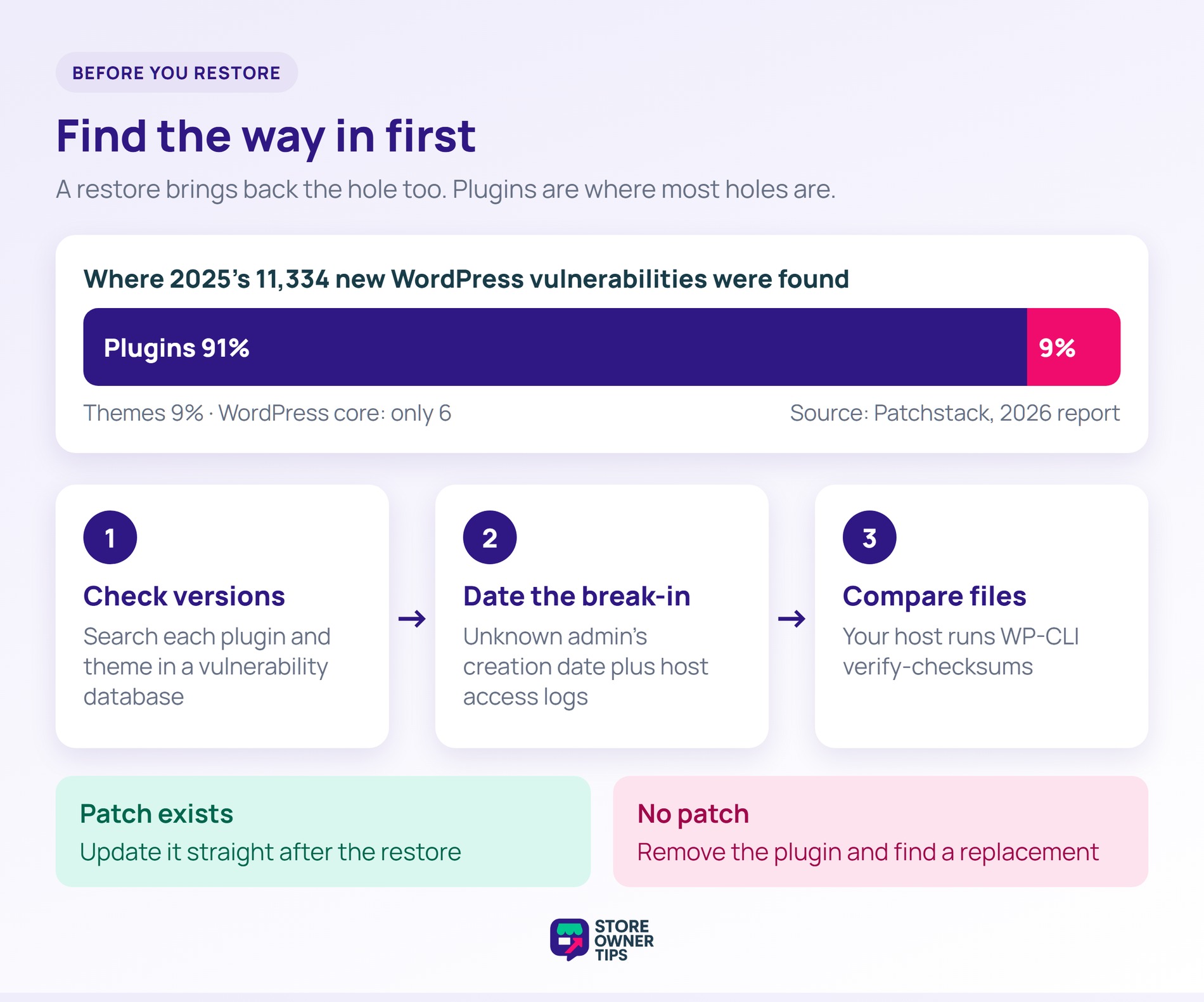
A restore brings back your files and database from before the hack. It also brings back whatever let the attacker in. Use the copy you took to find that hole before you restore.
Start with your plugins, because that’s where most holes are. Patchstack’s 2026 security report counted 11,334 new WordPress vulnerabilities in 2025. Of those, 91% were in plugins and 9% in themes, with only 6 in WordPress core.
verify-checksums commands for core and plugins. They check your files against the official WordPress.org copies and flag anything that doesn’t match.The updates you run after the restore close the hole when a patched version exists. If there’s no patch, updating won’t help, so remove that plugin and find a replacement. Patchstack found 46% of 2025’s vulnerabilities had no fix from the developer by the time they went public.
Speed matters here too. Patchstack reports that about half of high-impact vulnerabilities are exploited within 24 hours. That’s why the updates can’t wait until after you reopen. If the way in was a stolen password instead, the password and key changes you already made have closed it.
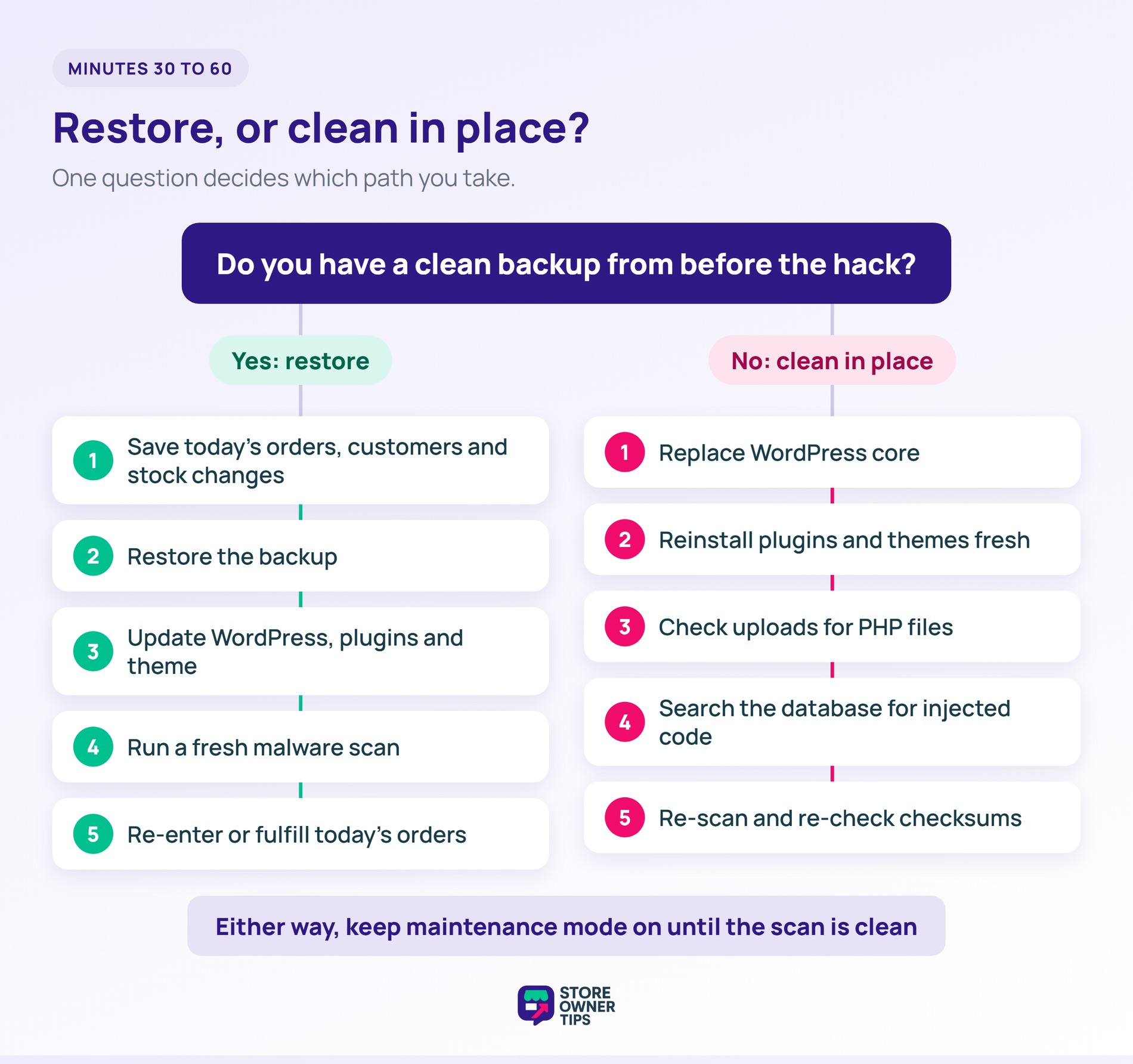
For most stores, restoring a clean backup is faster and safer than cleaning infected files by hand. The catch is that a backup from before the hack is also a backup from before today’s orders.
Restore when you have a backup from before the compromise. Clean in place only when no clean backup exists, or when every backup already carries the hack. Hand-cleaning is slow, and missing one file means reinfection. The steps are in cleaning it in place below.
Choose the most recent backup from before the first sign of trouble. Your unknown admin’s creation date and your host’s logs help you date it. If you’re unsure, go one backup further back.
Before you restore anything, record or export what happened since that backup:
You’ll re-create or fulfill these after the restore. A database-only restore rolls back products and orders but keeps files, while a full restore replaces both. Our guide to how WooCommerce backups and restores work explains the difference.
🔍️ What We’ve Seen: An owner restores yesterday’s backup and the site looks fine. Then the morning’s paid orders turn out to be gone from WooCommerce. Those customers are still waiting for their parcels.
This is where your host does most of the work. Levamo is a managed WordPress and WooCommerce host. Here’s what its plans include that matters in this hour:
Can your current host give you a clean backup within the hour? If not, weigh that when you review your WooCommerce hosting.
Once the restore is done, update WordPress, every plugin and your theme. Then run a fresh malware scan before you turn maintenance mode off.
Without a clean backup, you replace everything you can with fresh copies and inspect what’s left. This takes longer than an hour, so keep maintenance mode on until you finish.
wp-config.php and the wp-content folder, which hold your settings, plugins, themes and uploads.wp-content/uploads should hold images and documents. A .php file in there is a strong sign of a backdoor.🔍️ What We’ve Seen: A common miss is reinstalling a premium plugin from the zip file still sitting on the server. If the attacker edited that file, the backdoor comes straight back with it.
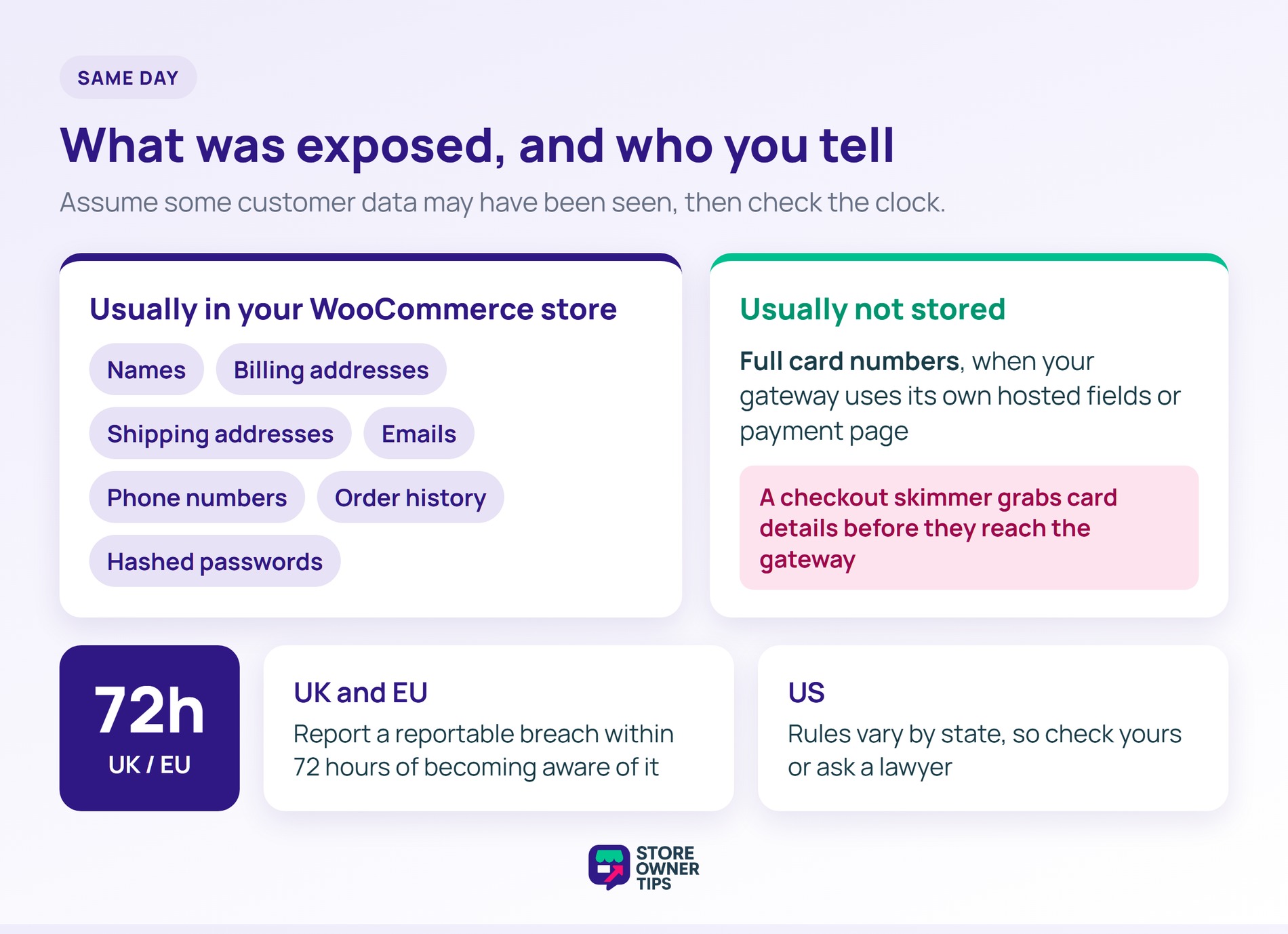
A WooCommerce store holds a lot of personal data, so assume some of it may have been seen. That usually includes customer names, billing and shipping addresses, emails, phone numbers and order history. Accounts also carry hashed passwords.
Full card numbers usually aren’t stored in WooCommerce when your gateway uses its own hosted fields or payment page. Confirm that with your gateway, and remember a checkout skimmer captures card details before they ever reach it.
If you sell to people in the UK or EU, data protection law may set a clock. The UK Information Commissioner’s Office says a reportable breach must be reported without undue delay and within 72 hours. That clock starts when you become aware of the breach, not when it happened. The rules can change, so check the ICO’s current guidance on the day.
In the US, by contrast, breach notification rules vary by state. Check the rules for the states your customers live in, or ask a lawyer.
When the risk to customers is high, such as card details or passwords, tell them soon and in plain words. Say what happened, what data was involved and what they should do, such as watching their card statements. This section is a starting point, not legal advice.
Once the store is clean and back online, a few loose ends remain. If Google flagged the site, fix every issue listed in Search Console’s Security issues report and then request a review. Google’s documentation says a review can take from a few days to a few weeks.
After that, watch for reinfection for the next seven days. That means new admin users, files changing without you, and redirects coming back.
Then close the gaps that let them in. Each of these is covered step by step in the WooCommerce security checklist:
Look for signs a plugin bug can’t cause. These include redirects to spam sites, admin users nobody created and a Google “This site may be hacked” warning. Scripts on checkout you didn’t add are another. A sudden burst of tiny failed orders points to card testing.
Yes, switch on maintenance mode straight away so shoppers can’t reach a tampered checkout. It won’t stop malware running on the server, so call your host as well. Take a full copy of the files and database before you change anything.
It can. A restore takes the database back to the moment of the backup, so any orders placed since then disappear. Record or export those orders, new customers and stock changes first, then re-create or fulfill them after the restore.
It depends on the data and where your customers live. UK and EU law can require reporting to the regulator within 72 hours of discovery. Those rules also require telling customers directly when the risk to them is high. US rules vary by state, so check with a lawyer.
Many hosts will help, and some include it. Levamo’s team, for example, can assist with malware investigation and cleanup, though complex work may cost extra. At the least, your host can restore a backup, share server logs and block attack traffic.

Work in this order whatever tools you use. Contain the store, lock down payments and check the checkout. Then find the way in, restore without dropping orders and deal with the data. A hacked WordPress site that sells things needs all six, in that order.
Recovery goes quicker next time when your host keeps daily backups and scans for malware for you. See how Levamo handles backups, restores and cleanup for WooCommerce stores.

Copyright © StoreOwnerTips.com. All Rights Reserved.
