Weekly ecommerce tips, deals & news.
A badge only means something when most products don’t have one. Put a “Sale” flash on all 300 items in a catalogue and you haven’t highlighted anything, you’ve just added colour.
That makes badges a question about conditions rather than design. It’s the part almost every guide on WooCommerce product labels skips. It’s also the part that decides whether your merchandising works.
I’ll be straight about one finding that surprised me while checking these plugins. AND/OR condition logic is no longer the differentiator it used to be. Four of the five options here support it, so the real question has moved on.
One quick disambiguation first: this is about merchandising labels on product images and listings. If you want printed shipping labels, that’s fulfilment and a different set of tools.
Jump to:
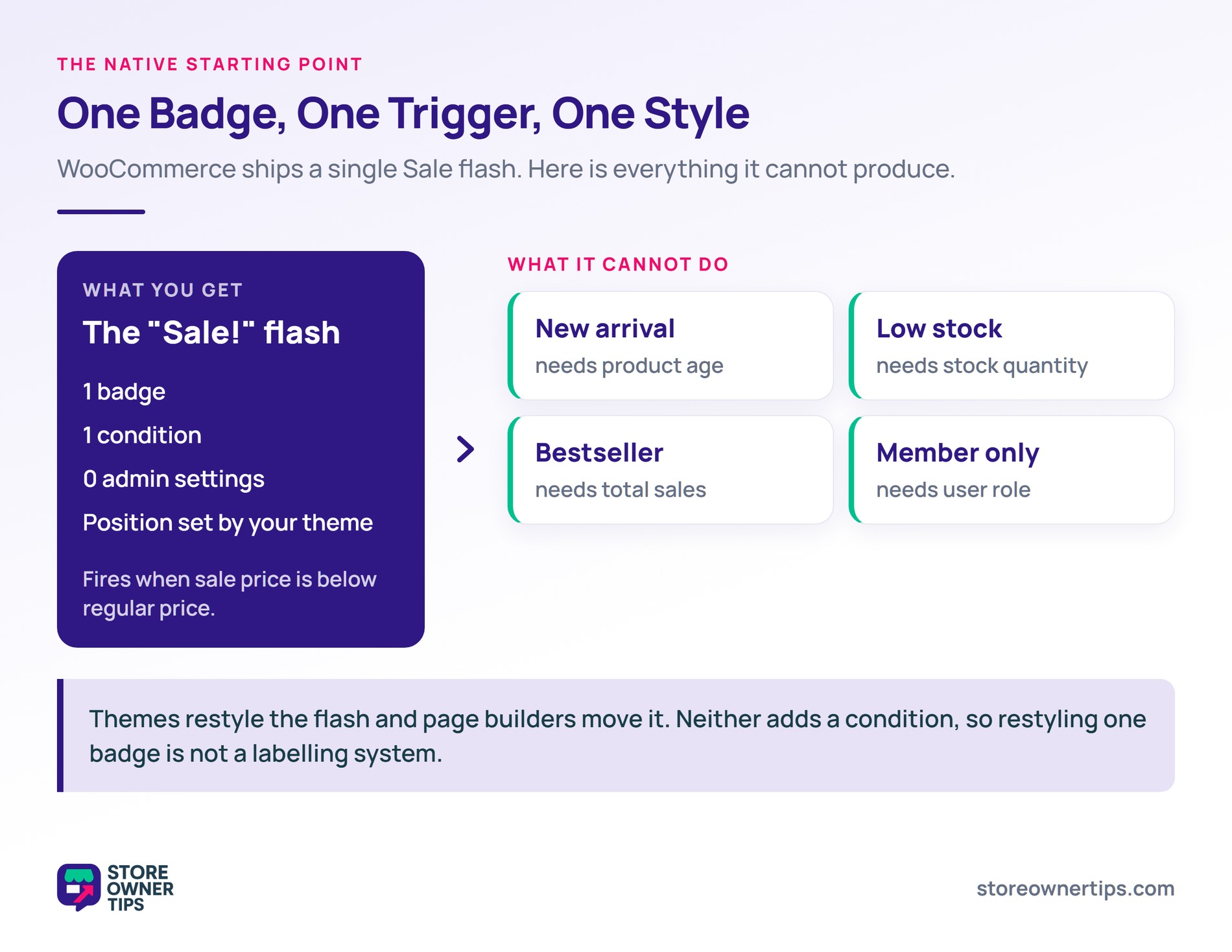
One badge. WooCommerce ships a single “Sale!” flash that appears when a product has a sale price lower than its regular price.
It’s automatic, driven by that one condition, and there’s no admin screen to configure it. You get one badge, one trigger, one style, and whatever position your theme decides.
For plenty of stores that’s genuinely fine. If your only merchandising signal is “this is discounted,” the native flash does the job with nothing extra to maintain.
You’ve outgrown it when you want any of these:
Themes often restyle the sale flash and page builders can move it, but neither adds conditions. Restyling one badge isn’t the same as having a labelling system.
Think of a product label as a rule: when these things are true about a product, show this badge.
That reframing changes what you evaluate. Styling options are easy to compare and mostly interchangeable. Conditions are where the work happens.
What triggers a badge. Common conditions include on-sale status, stock level, category or tag, featured status, publish date, price, and discount size. The more expressive the condition set, the fewer badges you maintain by hand.
Combining conditions. Real merchandising rules are rarely single-condition. “Show ‘Last chance’ when the product is on sale AND stock is below five” joins two conditions with AND. “Show ‘Staff pick’ when it’s featured OR in the Editors category” joins two with OR.
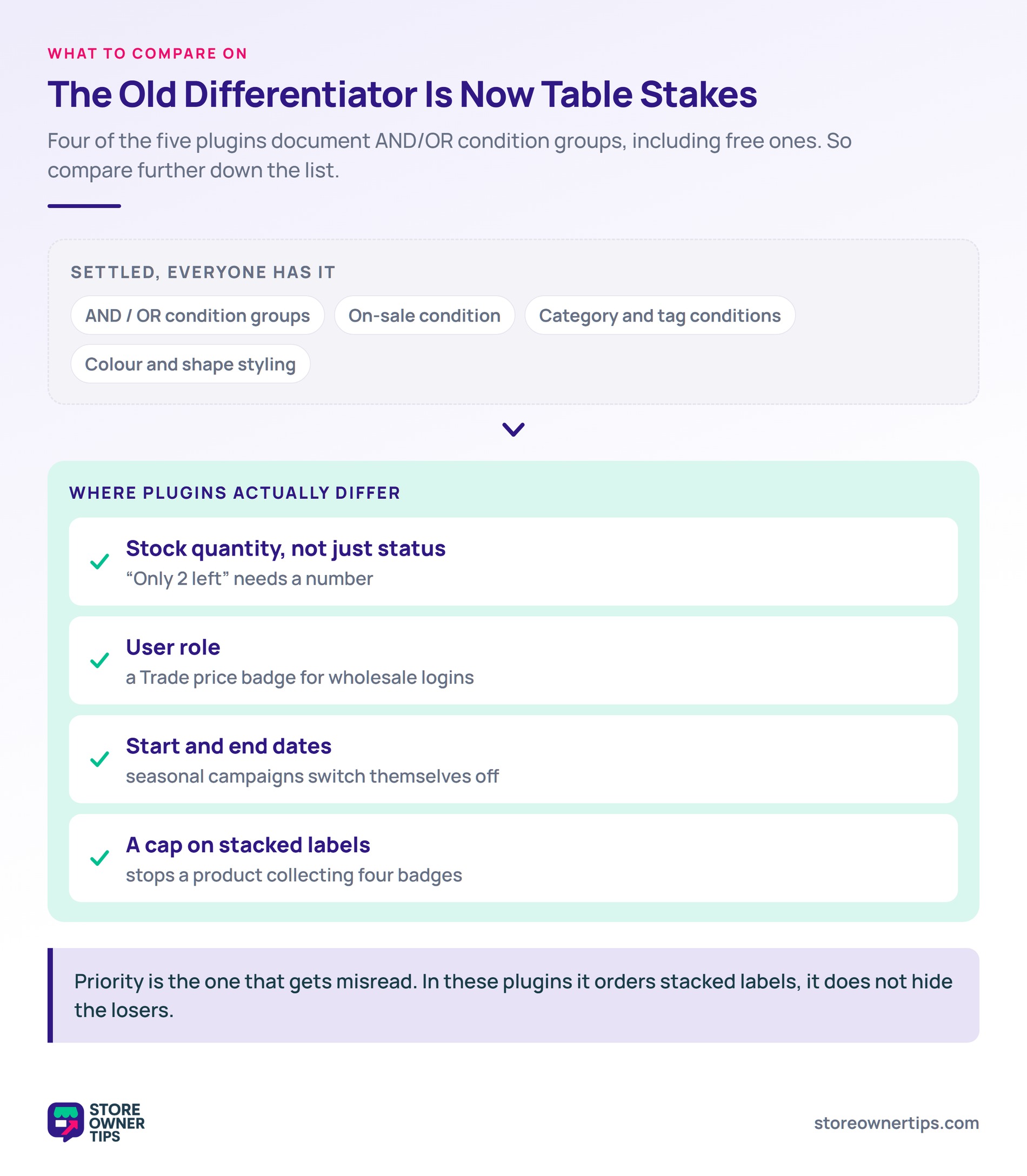
Here’s where I’d correct the usual advice, including advice I’ve given before. AND/OR logic used to be the thing that separated a real labelling system from a styling plugin. It isn’t any more. Four of the five plugins below document condition groups with AND/OR, including the free ones.
So compare on two other things instead.
Which conditions you actually get. Everyone does on-sale and category. Fewer do stock quantity as a number rather than just in-stock or out.
Fewer still do user role, which is what you need for “Trade price” shown only to logged-in wholesale customers. Scheduling with real start and end dates is the other common gap.
What happens when several rules match. This is the part that breaks in production. A product that’s new, on sale and low on stock might match three rules at once.
Worth being precise here. It’s easy to assume priority means “pick one and hide the rest”, and in most of these plugins it doesn’t. Advanced Promo Kit lets you enable stacking and cap how many labels a product may show, up to 10. You then drag labels into a priority order, so the most important one reads first.
Its own documentation recommends keeping that number minimal, which I’d echo. The plugin gives you the ordering; deciding that a product shows one badge and not four is still your call.
Five options, ordered by how much rule-driven merchandising they’ll carry. Every capability below comes from each vendor’s own documentation, checked in August 2026.
The strongest fit when labels are part of a promotion strategy rather than a standalone badge layer.
Its condition set is the widest here. Labels target product tag, specific products, stock quantity, product price and discount percentage. They also target user role, product type, product age, category and on-sale status. Those combine into structured condition groups with AND/OR logic, so one label covers what would otherwise be three near-duplicates.
The feature I’d point to first is the one no other plugin here has. Labels can pull real coupon data, showing an actual discount, BOGO deal or cashback offer. The plugin validates the coupon’s conditions before displaying the label. So the badge and the offer can’t drift apart, which is the usual way promotional labels start lying.
Two more things worth knowing. Global Labels apply automatically to every product matching your conditions. Product-Specific Labels are set on one product from its edit screen. And labels carry Start Date and End Date fields, so seasonal campaigns switch themselves on and off.
Styling covers multiple shapes and layouts, colours, backgrounds, borders, spacing, rotation and opacity. You can also animate a label, or make it clickable with a custom URL. That turns a badge into an entry point rather than a flag.
The honest limitation: there’s no free tier. It’s sold on its own, or in the All Access Bundle. That bundle adds Advanced Coupons, Advanced Loyalty Program and Advanced Gift Cards.
If you want to try conditional labelling for nothing first, two options below are free. There’s a fuller walkthrough of the label setup in the Advanced Coupons guide to sale badges and product labels.
Best for: stores running conditional or seasonal merchandising, especially alongside coupons and discounts.
The best free rules engine of the bunch, and the one to beat on context conditions.
Advanced Woo Labels goes further than any other option here on who and where, not just what. It covers stock status, sale status, featured status, taxonomy and price range. Then it adds user role, country, language, device, cart contents and past purchases.
It also documents AND and OR condition groups. When several labels group together, you set the maximum number shown, their alignment, priority and spacing. That’s genuine conflict handling in a free plugin.
The catch is where the free line falls. Date scheduling is a pro feature, as are product age, image labels, rotation, animations and label links. So the free version covers rules well but not timed campaigns.
Best for: stores needing role, country or device conditions without paying for them.
A well-established free option with sensible logic and a large install base.
BeRocket conditions labels on product name, category, sale status, stock status, bestseller position, price and total sales. AND and OR conditions are available. Multiple labels can show on one product, and you control their placement in the stack.
Premium adds product age, stock quantity and sale price conditions. You also get 30-plus templates, in-title positions, rotation, gradients and discount timers. Scheduling isn’t documented either way, so check it if timed campaigns matter to you.
Best for: stores wanting a proven free plugin with real condition logic and stack control.
The pick if you want good-looking badges fast and your rules are simple.
Acowebs ships a free plugin, “Product Labels For WooCommerce (Sale Badges)”, and a premium version of it. Treat them as one product at two price points. The premium library runs to 600-plus badge styles plus seasonal designs. That’s far more visual variety than anything else here.
Conditions cover on-sale status, out-of-stock and low-stock states, categories, tags and hand-picked products. Scheduling is a strength: start and end date and time, plus weekday schedules. Premium starts at $49 a year for one site, or $119 for a lifetime licence.
What isn’t documented is AND/OR grouping, user-role conditions or label priority. If you’ll run more than a handful of label types, that last gap is the one to test first.
Best for: stores choosing on badge design and scheduling rather than condition depth.
The official marketplace extension, and stronger on conditions than its plain interface suggests.
It documents fourteen condition types. Those cover on sale, category, product, product type, bestsellers, product age, price and sale price. The rest are stock status, stock quantity, shipping class, tag, total sales and featured.
A product must match all conditions in at least one condition group. That’s AND inside a group, OR between groups.
Smart label placeholders are a nice touch. A label can print the actual percentage, discount or price rather than static text. You get six label styles or your own image, three alignments plus drag-and-drop positioning, and a live preview.
Two documented gaps decide it against the others: no user-role targeting and no start and end date scheduling.
Best for: stores that prefer buying from the official marketplace and don’t need role or date rules.
Here’s how they compare on the things that genuinely differ now that AND/OR logic is common.
| Plugin | AND/OR groups | Stock quantity | User role | Start/end scheduling | Priority or stacking control | Free version |
|---|---|---|---|---|---|---|
| Advanced Promo Kit | Yes | Yes | Yes | Yes | Drag-and-drop order, cap of 10 | No |
| Advanced Woo Labels | Yes | Pro | Yes | Pro | Priority plus max count | Yes |
| BeRocket Advanced Product Labels | Yes | Premium | Not documented | Not documented | Stack placement | Yes |
| Acowebs Product Labels | Not documented | Low-stock state | Not documented | Yes, plus weekdays | Not documented | Yes |
| WooCommerce Advanced Product Labels | Yes | Yes | No | No | Not documented | No |
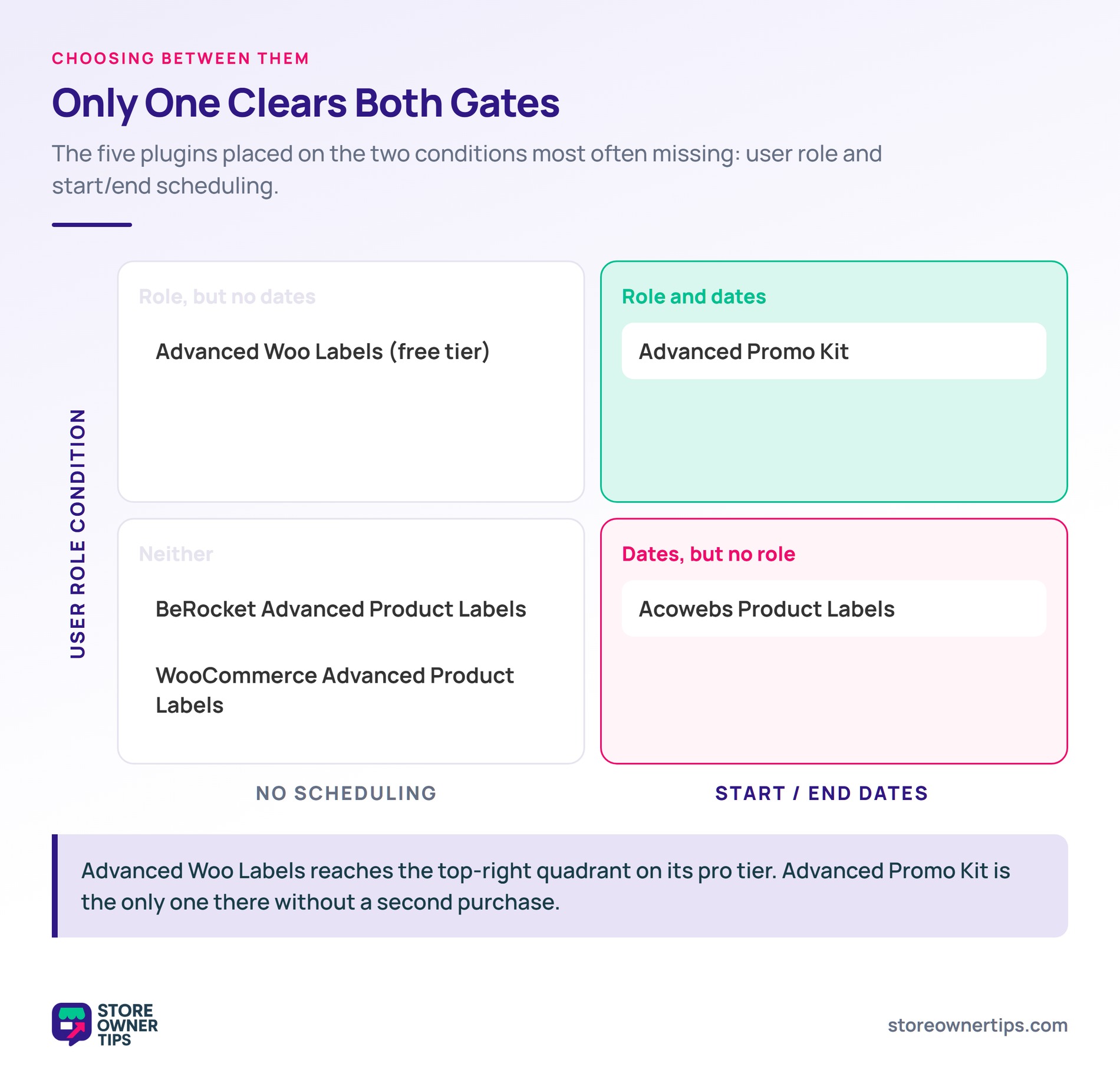
Read that table by the rule you can’t live without. If it’s role-based labelling, two options qualify. If it’s timed campaigns, a different two do. Only one covers both and ties labels to real coupon data.
Where a badge sits matters as much as when it appears.
On-image versus outside it. On-image badges look tidier and are the default nearly everywhere. They also collide with theme elements, because wishlist icons, quick-view buttons and image carousels tend to occupy the same corners. Placing labels outside the image avoids the collision, at the cost of vertical space in the grid.
Corner choice. Top-left is conventional and reads first in left-to-right layouts. Top-right frequently conflicts with wishlist and quick-view controls. Bottom positions get cropped by some grid layouts.
Mobile. This is where badge systems break. A badge sized for a desktop grid can cover a third of a product image on a phone.
Text that fits at 200px wide truncates at 120px. So check every badge on a real device, not a narrowed browser window.
One more thing worth knowing: badges are display-only. They live on your storefront and don’t travel, so a badge won’t appear in shopping channels like Google Shopping. Those read your product data feed instead, and a “Sale” flash on your category page has no bearing on it.
If you’re labelling by customer type, such as a “Trade price” badge for logged-in wholesale customers, you need user-role conditions. Our roundup of wholesale plugins covers the pricing side that sits behind that badge.
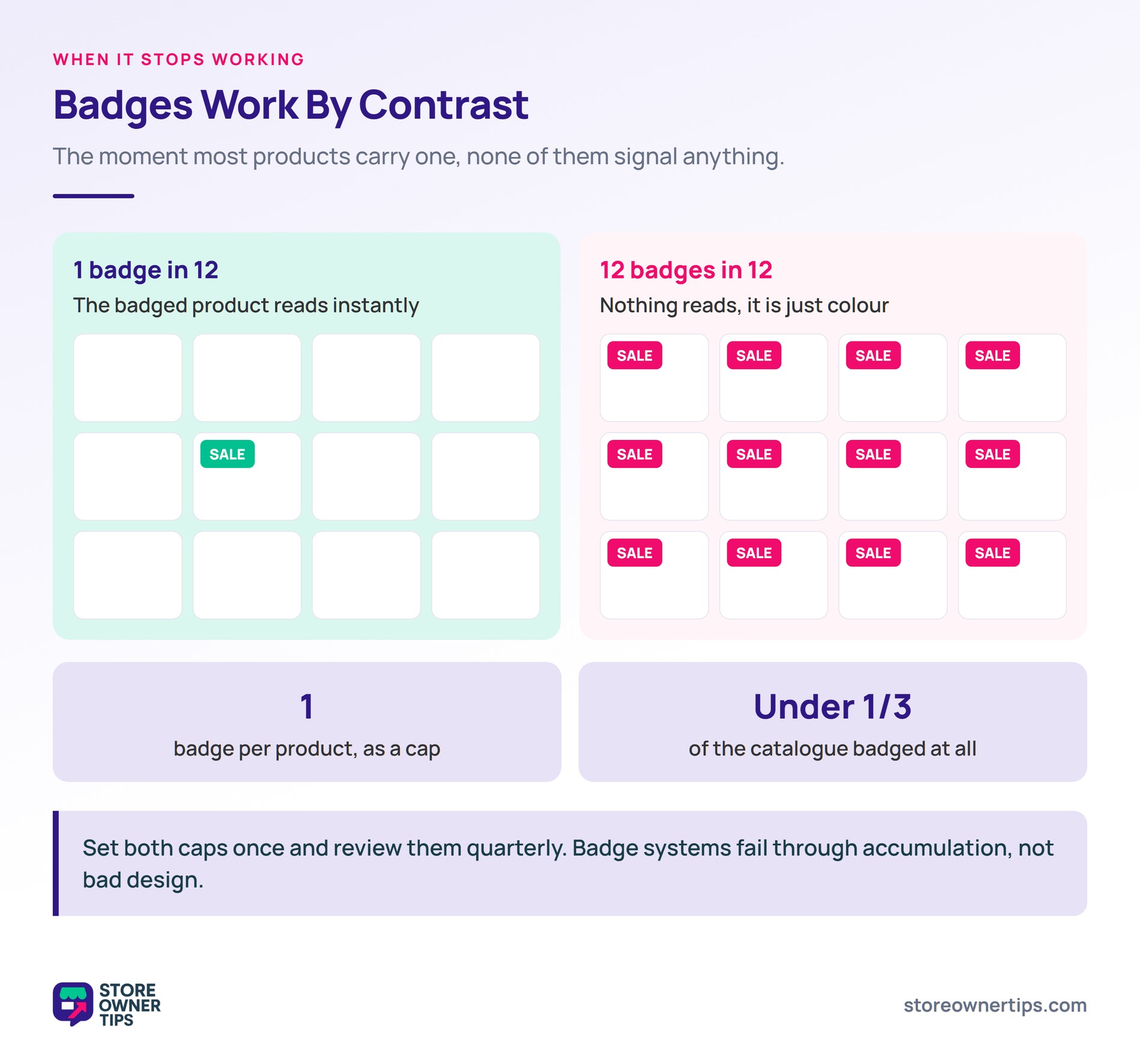
Badges work by contrast. The moment most products carry one, none of them signal anything.
That’s the mechanism behind the badge-everything catalogue. When every item has a “Sale” flash, the badge stops being information and becomes wallpaper. Worse, it removes your ability to highlight anything, because there’s no visual room left to say “this one specifically.”
🔍️ What we’ve seen: stores add a new badge type each time someone has an idea, and nobody removes one. Six months later there are nine label types. Most products carry two or three, and the category page is a wall of colour. The fix is a rule most stores never set. Cap the share of your catalogue that may carry a badge, and cap the number per product. One badge per product and under a third of the catalogue is a reasonable start.
The related failure is badges that lie. An “Only 3 left” badge driven by a stale stock figure does more damage than no badge at all. So does a “New” badge on a product published fourteen months ago. Customers notice, and they stop trusting the rest of your merchandising.
Two settings prevent most of that. Use product age rather than a hand-set “New” label. Point urgency badges at a stock quantity threshold, rather than typing a number into the badge text.
Labelling is one element of the wider product page, not a substitute for the rest of it. Our guide to WooCommerce product page optimization covers imagery, descriptions and trust signals.
And if the badge you want is really about stock running out, the label is the wrong tool. A restock notification captures that demand instead of just announcing the shortage.
WooCommerce shows one “Sale!” badge automatically when a product has a sale price. For anything more, install a label plugin. Create a label with your text and styling, then define the conditions that make it appear.
Most plugins also let you set the position and pick which pages a label shows on. You choose whether it sits on or outside the product image.
Yes, though check which kind of stock condition you get. Some plugins only read stock status, meaning in stock or out. Others read stock quantity as a number, which is what “Only 2 left” needs.
Be careful pairing stock badges with backorders, where a low figure may not mean what the badge implies.
Usually both show, stacked on the image. Priority settings in these plugins control the order they appear in, not which single one wins.
So look for two controls together: a priority order, and a cap on how many labels one product can display. Without the cap, a busy product can collect three or four badges and communicate none of them.
Not directly. Badges are display elements on your storefront and don’t change how a product page is indexed.
They can affect click-through on your own category pages by drawing attention to particular products. A badge that misrepresents availability can also push up your bounce rate. There’s no direct ranking mechanism either way.
One, in most cases. Badges work through contrast, so stacking several on one product undermines all of them.
If several rules genuinely apply, set your priority order and cap the count. Then let the most useful signal for the buyer win. Note that plugins allow far more than one. Advanced Promo Kit permits up to ten, and its own docs suggest keeping it minimal.

Badge systems fail through accumulation, not bad design. Nobody sets out to badge their whole catalogue. It happens one reasonable idea at a time, and by then the tool is doing exactly what it was told.
Say your labelling is genuinely rule-driven: seasonal campaigns, stock-based urgency, role-specific pricing. Advanced Promo Kit covers all three. It’s also the only option here that reads live coupon data. So a discount badge and the discount itself stay in step.

Copyright © StoreOwnerTips.com. All Rights Reserved.
