Weekly ecommerce tips, deals & news.
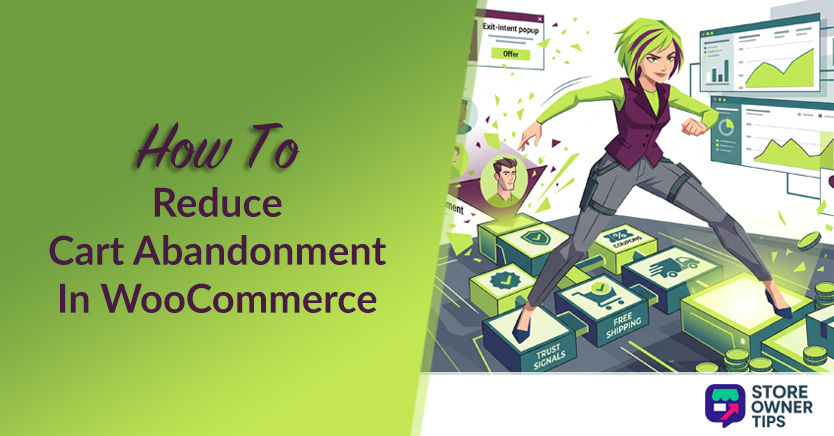
A customer spends ten minutes browsing your online store, adds three items to their cart, heads to checkout… and vanishes. No order. No email. Just an abandoned cart sitting in your dashboard.
If that sounds painfully familiar, you’re not alone. According to the Baymard Institute, the average cart abandonment rate across ecommerce hovers around 70.22%. That means nearly 7 out of every 10 shoppers who add something to their cart leave without buying.
For a WooCommerce shop doing $10K a month, that could mean $20K+ in potential revenue slipping through the cracks every single month.
But here’s the good news: most of those lost sales are recoverable. The fix isn’t a single plugin or trick; it’s a layered approach. We’ve tested these strategies across stores of all sizes and the results speak for themselves.
In this guide, we’ll walk through 9 proven strategies you can implement to reduce cart abandonment in WooCommerce. We’ve ordered them from front-of-funnel friction removers to post-abandonment recovery, so you can prioritize what makes sense for your store.
Before we jump into fixes, let’s look at why shoppers bail. Understanding the root causes helps you prioritize which strategies to tackle first.
The Baymard Institute’s verified research (based on up to 50 independent studies) breaks it down. Keep in mind that mobile shoppers abandon carts far more often (80.2%) than desktop shoppers (70–73%).
| Reason | % of Shoppers | Strategy That Fixes It |
|---|---|---|
| Just browsing / not ready to buy | 43% | 7 Wishlists, #8 Retargeting |
| Unexpected extra costs (shipping, tax, fees) | 39% | #2 Free Shipping Threshold |
| Forced account creation | 19% | #3 Guest Checkout |
| Didn’t trust the site with credit card info | 19% | #4 Trust Signals |
| Complicated checkout process | 18% | #6 One-Page Checkout |
| Not enough payment options | 10% | #5 Multiple Payment Methods |
(Source: Baymard Institute, 2026)
Notice something? The top reason, “just browsing,” isn’t really abandonment at all. Those people were never ready to buy. That’s why wishlists and retargeting are so important for capturing those “maybe later” shoppers.
The rest? Those are friction problems. And every one of them has a fix. Let’s get into it.
Picture this: a shopper has items in their cart, moves their mouse toward the browser’s close button, and right at that moment, a popup appears offering 10% off if they complete their order right now.
That’s an exit-intent popup, and it’s one of the most effective last-chance interventions you can deploy to reduce cart abandonment in WooCommerce.
We recommend OptinMonster for WooCommerce integration. Just know that the pricing is tiered based on the features you need.
The basic $7/month plan gives you simple time and scroll triggers. But to get the powerful “exit-intent” technology that detects when a user is actually leaving, you need the Pro plan at $29/month. Want the tool to look inside the cart and offer a specific coupon based on what is in it? You’ll have to upgrade to the Growth plan at $49/month.

The best offer types we’ve tested:
🚀 Power Tip: A/B test a discount popup vs. a “save your cart” popup. We’ve seen stores where offering to email the cart contents (no discount at all) actually outperformed a 10% off coupon. Sometimes people just need a reminder, not a bribe.
Unexpected shipping costs are the #1 reason shoppers abandon at checkout (after “just browsing”). There’s a deep psychological sting when you’ve committed to buying something and then see $8.99 tacked on at the end.
The fix isn’t necessarily offering free shipping on everything. After all, that can eat into margins. Instead, set a free shipping threshold just above your average order value (AOV).
For example, if your AOV is $45, set free shipping at $50. This eliminates the shipping surprise for most customers and nudges them to add one more item to qualify.
Here’s how to set it up: go to WooCommerce > Settings > Shipping > Shipping Zones. Then, pick your zone, click “Add shipping method,” and choose “Free Shipping.” From there, set your minimum order amount.
Crucial warning: Make sure you pay close attention to the checkbox that asks if the minimum amount applies before or after a coupon discount. If you leave it unchecked, WooCommerce looks at the discounted price. If you check it, someone could use a massive coupon code and still get free shipping, completely wiping out your profit!
Also, if you only want to offer free shipping on light items, you will need to set up specific “Shipping Classes” and “Packages” so you don’t accidentally ship a heavy couch for free.
Want a full threshold-calculation method, including how to factor in your margins? Then check out our free shipping strategy guide!
Forced account creation is a top friction point. In fact, 19% of shoppers say it’s the reason they abandon. And honestly, can you blame them? Nobody wants to create yet another username and password just to buy a pair of socks.
If you’re using an older WooCommerce setup, you can fix this by going to WooCommerce > Settings > Accounts & Privacy and checking “Allow customers to place orders without an account.”
However, if your site uses the newer Gutenberg Block checkout (which is the modern default), that backend toggle won’t work! Instead, you must open the Checkout block page editor, click on the email block, and turn on the guest checkout setting right in the sidebar menu.
The smart balance: let guests check out freely, but offer optional account creation after purchase. Most ecommerce platforms do this by auto-generating an account and emailing the credentials post-checkout. You still capture the customer data. You just don’t make them jump through hoops before they buy.
If a customer doesn’t trust your site, they’re not entering their credit card number. Period. And many WooCommerce stores, especially newer ones, underestimate how much trust signals matter.
Here’s what works:
Placement is everything. These trust signals should be directly below or beside the “Place Order” button, as that’s the moment of maximum anxiety. We’ve tested moving trust badges from the sidebar to right below the payment button, and it made a noticeable difference in checkout completion rates.
The best part? These are quick wins that cost nothing. You probably already have an SSL certificate and a return policy. Just make them visible at the right moment.
Ever been ready to buy something online, only to realize the store doesn’t accept your preferred payment method? That’s a guaranteed lost sale.
Today’s shoppers expect options. At a minimum, your WooCommerce store should support:
🔍️ What We’ve Seen: One store we worked with added Apple Pay, and the speed boost was huge. In fact, Apple Pay processes transactions 65% faster than typing in a credit card because it skips the clunky security steps and lets buyers just double-click to pay with their face or fingerprint. Another store added Klarna’s “Pay in 4” option and saw a massive jump in spending. “Buy Now, Pay Later” (BNPL) options typically boost Average Order Value (AOV) by 15% to 40%. Some stores targeting Gen Z or Millennials see jumps as high as 57%. Furthermore, BNPL users spend up to 72% more per transaction. Shoppers simply feel more comfortable buying more when they can split up the bill.
The key is not to overwhelm. 3 to 4 payment options covers the vast majority of shoppers. More than that and you risk cluttering the checkout page, which is its own form of friction.
Multi-step checkouts add friction with every click. Name and address on page one. Shipping method on page two. Payment on page three. Review on page four. Each step is another opportunity for the customer to think, “I’ll do this later,” and never come back.
A one-page checkout condenses everything into a single, scrollable page. The customer can see their cart, enter their details, and pay, all without a single page reload.
We recommend FunnelKit for building optimized one-page checkouts to reduce cart abandonment in WooCommerce.. Starting at $129/year ($99.50 on the first year), this tool’s Basic Plan gives you a drag-and-drop checkout builder with templates designed specifically to reduce visual friction.
However, keep in mind that this basic plan only changes how your checkout page looks. If you want the tool to actually track abandoned carts and send automated recovery emails or texts, you’ll need to upgrade to their Automations Elite plan, which costs $399 a year. You need both pieces to build a complete recovery system.
Looking for advanced checkout layout tips and testing strategies? Then check out our checkout optimization guide!
🚀 Power Tip: With FunnelKit, try moving the order summary to the right sidebar on desktop and collapsible at the top on mobile. We’ve seen this layout reduce abandonment by 8–15% compared to the default WooCommerce checkout, because shoppers can always see what they’re buying while they fill in their details.
Ever added something to a cart just to “save it for later”? Your customers do the exact same thing. And when they’re not actually ready to buy, that cart either gets abandoned, or worse, they forget about it entirely.
Wishlists solve this perfectly. They give “just browsing” shoppers a way to bookmark products without the pressure of a cart, which keeps your cart abandonment rate cleaner and gives you a retargeting goldmine.
We recommend the SaveTo Wishlist plugin for WooCommerce. The free version gives shoppers a great way to save products from your shop and product pages, and it even lets them save their entire cart at once as a bulk list.
But the real magic happens in the Pro version, which starts at $99/year ($49.50 for the first year). The Pro plan tracks when someone saves an item and acts like a silent salesperson, automatically sending them an email if the price drops or if it comes back in stock.
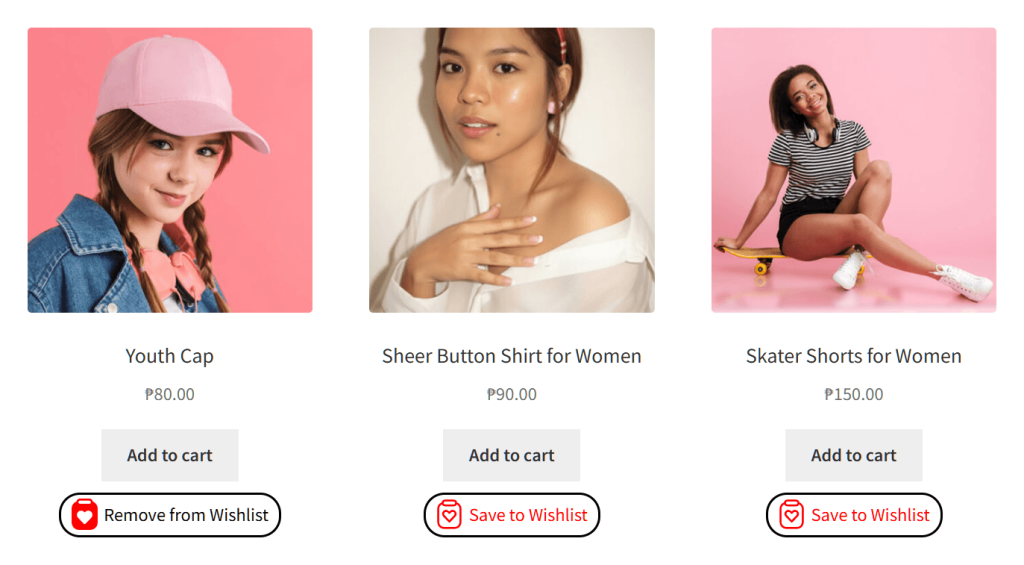
Here’s why wishlists are so powerful for reducing abandonment:
🚀 Power Tip: Enable the “Save for Later” button on the cart page, not just product pages. This catches shoppers who added items impulsively and are about to abandon because they weren’t ready to commit. Moving those items to a wishlist keeps them in your ecosystem.
Some shoppers need a nudge (or three) before they come back to complete a purchase. That’s where retargeting ads come in.
The basics: install the Facebook/Meta Pixel and Google Ads remarketing tag on your WooCommerce store. These track visitors who added items to their cart but didn’t check out. Then, you serve them ads showing the exact products they left behind.
Dynamic product ads are particularly effective. Instead of a generic “come back” ad, the customer sees the specific shirt, gadget, or pair of shoes they were looking at. It’s personalized and relevant.
Budget tip: start small. $5–10 per day is enough to test whether retargeting works for your store. Measure your ROAS (return on ad spend, or how much revenue you earn per dollar spent on ads) before scaling up. We typically see retargeting ROAS between 4x and 10x, which makes it one of the highest-ROI marketing channels available.
According to InvespCRO research, retargeted visitors are 70% more likely to convert compared to non-retargeted visitors. But to run these ads effectively, your ad network (like Google or Meta) needs to know exactly which product the shopper left behind. To do this, they use universal product codes (like GTIN or UPC barcodes).
WooCommerce doesn’t handle these codes well out of the box. That’s why you need Product Feed Elite by AdTribes, which starts at $199/year ($99.50 for the first year). It automatically injects those specific codes into your data feed, acting like a perfect translator between your store and the ad network so your ads actually hit the right target.
Cart recovery emails are the strategy most people think of when they hear “abandoned cart,” and for good reason. They work. But they’re deliberately last on this list because they’re reactive. The first eight strategies prevent cart abandonment; this one recovers lost sales after the fact.
The ideal timing sequence:
For that third email, giving them a coupon can be the final push they need. The free version of Advanced Coupons lets you manually make codes that expire on a certain date.
However, if you want the plugin to act like a smart robot—automatically applying a discount when a shopper clicks a link or meets specific cart rules—you’ll need their Growth plan, which starts at $199/year ($99.50 for the first year). Without it, you have to hand out the codes manually, which completely defeats the purpose of an automated recovery loop.
Here’s every strategy at a glance, with our assessment of difficulty, cost, and expected impact:
| Strategy | Difficulty | Cost | Expected Impact |
|---|---|---|---|
| Exit-Intent Popups | Easy | $$ (OptinMonster) | High |
| Free Shipping Threshold | Easy | Free (margin adjustment) | High |
| Guest Checkout | Easy | Free | Medium |
| Trust Signals | Easy | Free | Medium |
| Multiple Payment Options | Medium | Free–$ | Medium |
| One-Page Checkout | Medium | $$ (FunnelKit) | High |
| Wishlists | Easy | $ (SaveTo Wishlist) | Medium |
| Retargeting Ads | Medium | $$ (ad spend) | High |
| Cart Recovery Emails | Medium | Free–$$ | High |
Our recommended priority order if you’re just getting started:
The key insight is that these strategies compound. Each one chips away at a different reason people abandon. Stack three or four of them and you can realistically bring your abandonment rate down by 15–25%.
The global average sits around 70%, so if your store is in that range, you’re not doing anything wrong. In fact, you’re just normal.
That said, well-optimized WooCommerce stores can bring this down to the 55–65% range by stacking several of the strategies we’ve covered above. Don’t obsess over hitting a specific number; focus on steady improvement.
WooCommerce natively has no idea what an abandoned cart is. In fact, it only starts tracking once an order is placed!
Thus, you’ll need either Google Analytics 4 or a powerful tool like Metorik. This plugin doesn’t just show you native data; it uses its own custom tracking engine (a piece of software that sits between your store and the database) to watch exactly what shoppers do in real time.
Metorik’s data proves that abandoned carts hold the highest value. The average WooCommerce order is $105, but recovered carts average $155!
The plugin scales its pricing based on your order volume, and they sell extra email packs starting at $25 to help you win back those big spenders.
They work when done right. The key is relevance and timing. A single, well-designed popup that triggers only when a shopper is about to leave with items in their cart is very different from bombarding every visitor with three popups in 30 seconds. We’ve consistently seen exit-intent popups recover 5–10% of abandoning visitors.
Not always. Start your recovery sequence without a discount (just a friendly reminder). Only offer a small discount in the second or third email if the reminder alone didn’t work. If you lead with discounts, you’re training customers to abandon carts on purpose to get a deal.
The first email should go out about 1 hour after abandonment, which is soon enough that the purchase is still fresh, but not so fast that it feels creepy. Follow up at 24 hours and again at 72 hours if they still haven’t converted.
No. Shoppers want to use the payment methods they already trust, like Apple Pay or PayPal. Giving them those familiar options removes friction and helps push them across the finish line.
Enabling guest checkout is generally the quickest win. It takes less than five minutes to toggle on and immediately removes the friction of forced account creation, which frustrates roughly 19% of shoppers.
Cart abandonment is normal. A 70% rate means your store isn’t broken, it just has room to improve. And now you’ve got 9 concrete strategies to do exactly that.
You don’t have to implement all nine today. Start with the two or three easiest wins: guest checkout, trust signals, and a free shipping threshold. Then, measure the impact, and layer on the higher-effort strategies like one-page checkout and retargeting ads.
To recap, this guide covered the following strategies to reduce cart abandonment in WooCommerce:
Remember, the stores that recover the most abandoned carts are the ones that treat it as an ongoing system, not a one-time fix.
Which of these strategies are you tackling first? Let us know in the comments!

Copyright © StoreOwnerTips.com. All Rights Reserved.
