Weekly ecommerce tips, deals & news.
Most WISMO emails come from silence between payment and delivery. Fill that silence, and the customer has far less reason to write. Say when the order will ship and put the tracking link in the shipped email. Then give customers one place to check, and send a delay notice before they ask.
Picture Tuesday’s inbox. There are eleven new emails, and seven of them are some version of “Hi, just checking on my order.” Every one of those orders is fine. The customer can’t see that, though. So you open the admin, find the order and type the same reply seven times.
WISMO is short for “where is my order?” Each one is a manual lookup that a single sentence in the right email could have prevented. I’d always start with a timeline audit of your own store, so that’s where this guide begins. After that, it works through the emails, the status page and the delay notice, and saves tools for the end.
Jump to:
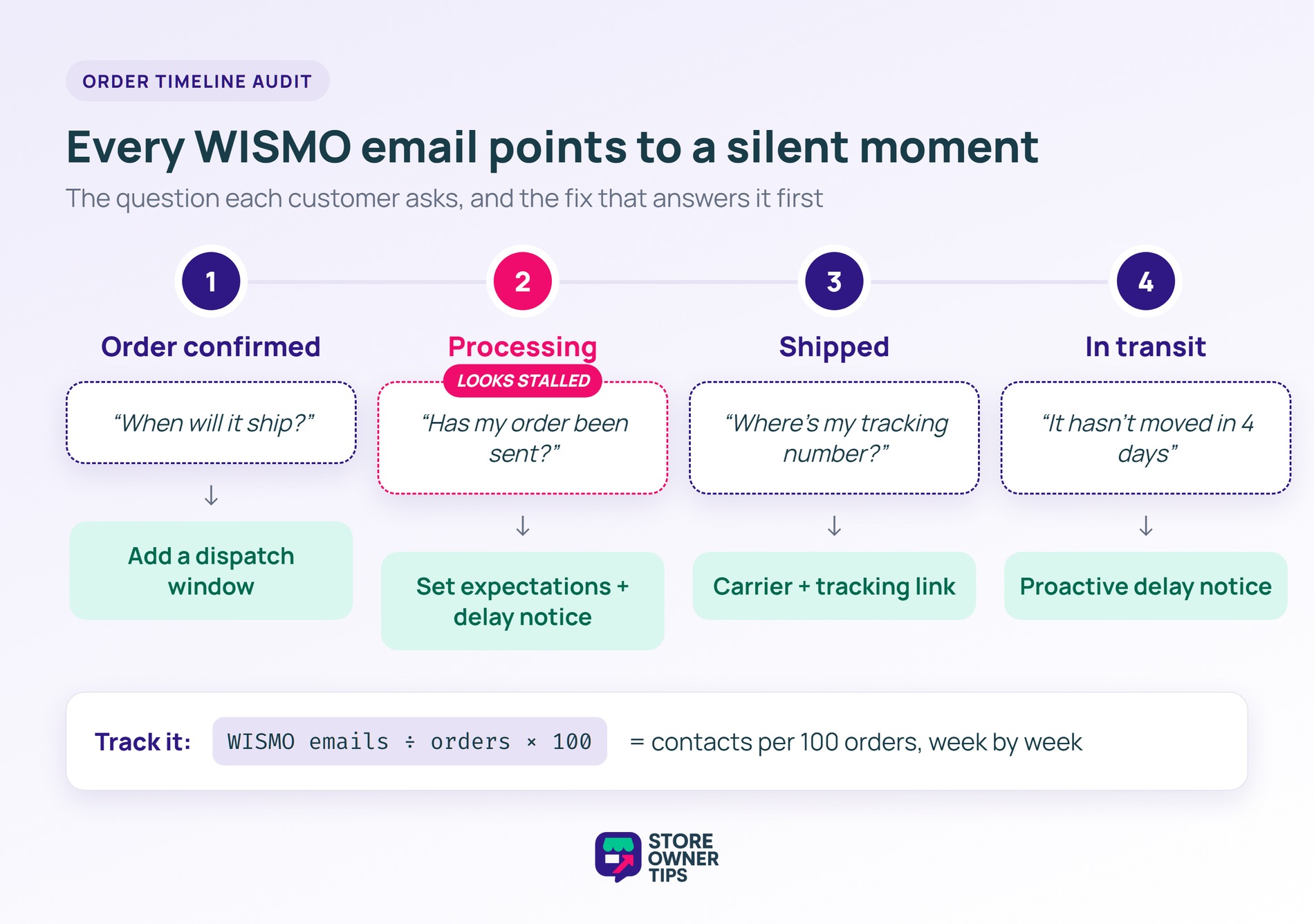
Each WISMO email points to a moment when your store told the customer nothing. There are four of these moments: order confirmed, waiting to ship, shipped, and in transit. Find which one your questions come from before you change anything.
Start with a count. Take one week of order-status emails and tag each one by the moment it came from. Then divide the total by that week’s orders and multiply by 100. That gives you WISMO contacts per 100 orders, and it’s the figure that shows whether your fixes work.
Here’s what a typical audit looks like (example data, not from a real store):
| Moment | What the customer sees by default | Typical WISMO email | Fix |
|---|---|---|---|
| Order confirmed | Confirmation email, no ship date | “When will it ship?” | Add a dispatch window to the confirmation |
| Waiting to ship (“Processing”) | Nothing | “Has my order been sent?” | Set expectations, and send a delay notice past your normal window |
| Shipped | Completed email, maybe no tracking | “Where’s my tracking number?” | Carrier and tracking link in the shipped email |
| In transit or stalled | The carrier’s page only | “It hasn’t moved in 4 days” | A proactive delay notice, plus one status page link |
Pay close attention to the “Processing” row. To the store, Processing means payment arrived and the order is waiting to be shipped. That’s how WooCommerce’s order status documentation defines it, and the store then changes the order to Completed by hand. To a customer, however, a status that never changes reads as stalled.
What we’ve seen: Stores whose orders sit in “Processing” for days with no message tend to get more WISMO emails. Customers read “processing” as “nothing is happening”, so they ask.
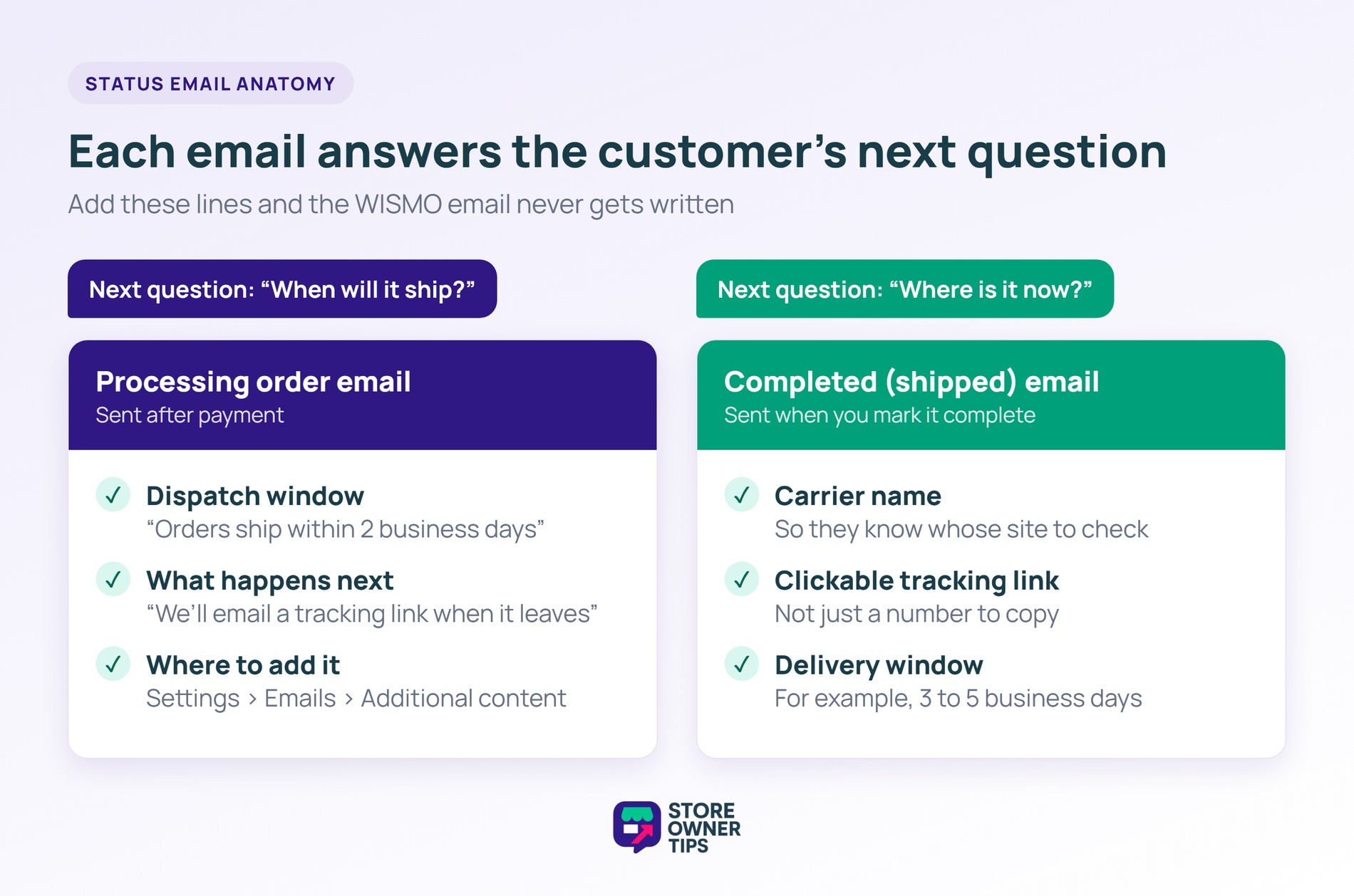
Each status email should answer the question the customer will have next. For a new order, the next question is “when will it ship?” Once it ships, it’s “where is it now?”
WooCommerce sends a Processing order email after payment and a Completed order email when you mark the order complete. Per WooCommerce’s email settings documentation, the Completed email “usually indicates that their orders are shipped”. However, out of the box neither email says when the order leaves or how to follow it.
The Processing email is your confirmation, so give it a dispatch window. Each email in WooCommerce > Settings > Emails has an Additional content field for text below the main content. Add a line like “Orders ship within 2 business days. We’ll email you a tracking link when yours leaves.” That answers the first WISMO question before anyone asks it.
The shipped email needs three things:
Does your store have no tracking field? In that case, add the tracking number as a customer note. WooCommerce emails it to the customer straight away.
For the look of these emails, see our guide to customising how your WooCommerce emails look.
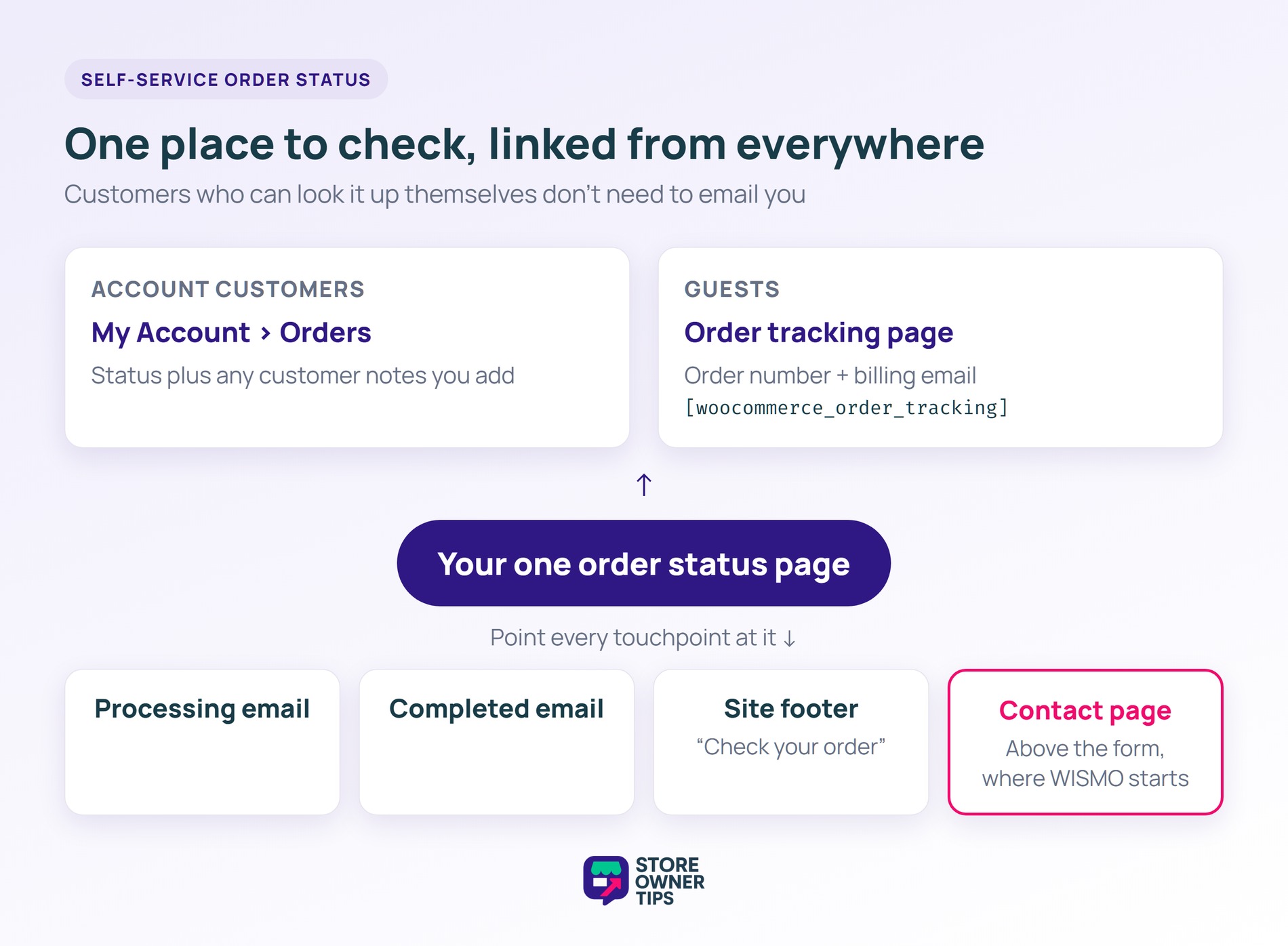
Customers who can check an order themselves have far less reason to email you. Give them one place to look, and point every email at it.
For customers with an account, that place is the Orders tab in My Account. It shows each order’s status, and any customer notes you add appear in the order details too.
Guests need something else, since they have no account to log in to. For them, WooCommerce includes an order tracking form. A guest enters their order number and billing email, then sees the order’s status. You add the form to any page with the [woocommerce_order_tracking] shortcode.
Once the page exists, use it everywhere:
The contact page matters most, because that’s where a WISMO email starts.
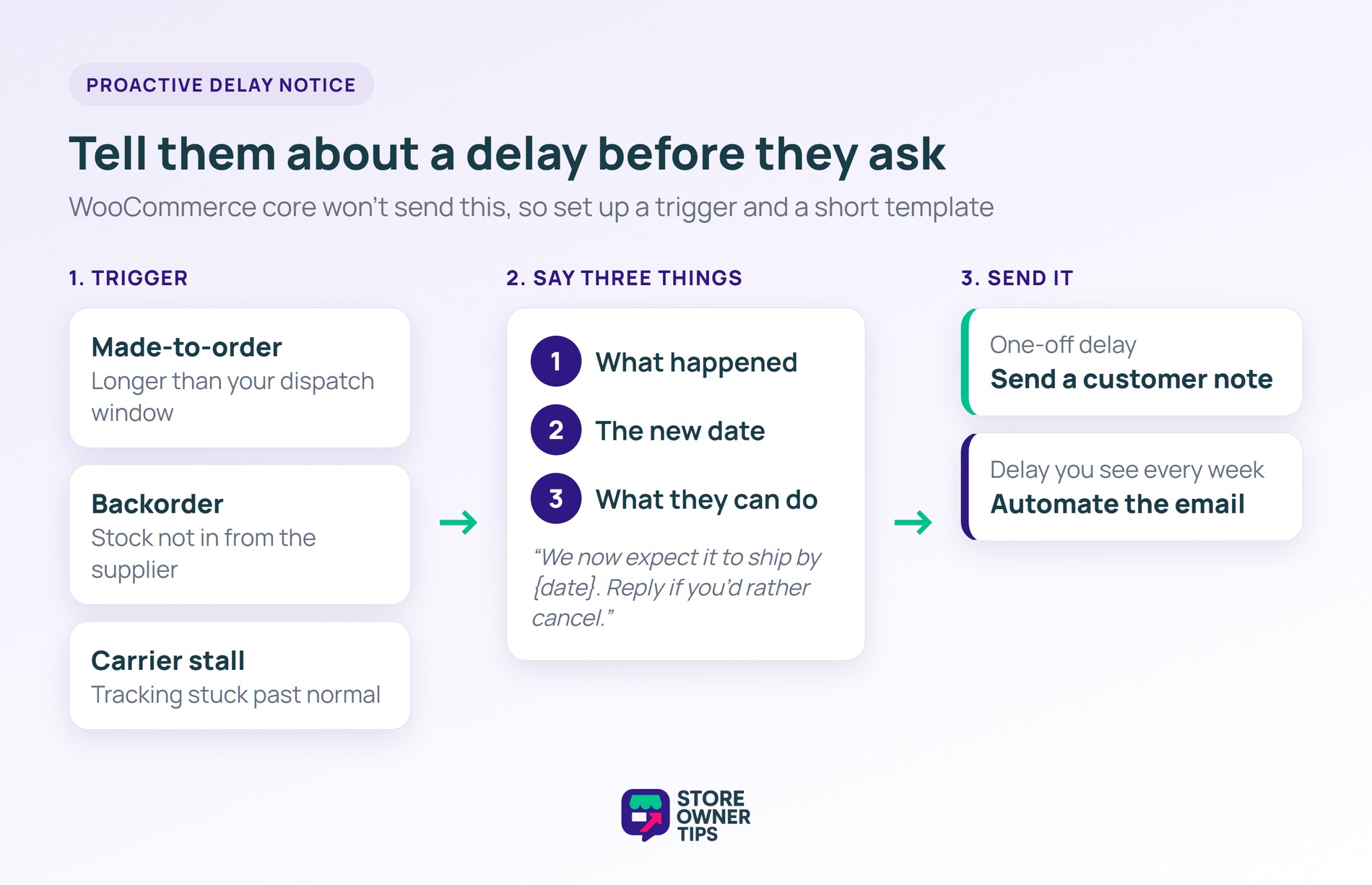
Send a delay notice before the customer notices the delay, and the WISMO email never gets written. WooCommerce core doesn’t send one, so you need a trigger and a short template.
Three triggers cover most delays:
Once a trigger fires, say what happened, give a new date, and say what the customer can do. Use a plain-text template like this one:
Hi {first name}, a quick update on order {order number}. It’s taking longer than planned because {reason}. We now expect it to ship by {date}. You don’t need to do anything, and we’ll email the tracking link as soon as it leaves. If you’d rather cancel, just reply to this email.
For one-off delays, send it as a customer note on the order. WooCommerce emails the note straight away and shows it in the customer’s My Account order details. For delays you see every week, such as backorders, automate the notice instead. Make it one of your automated WooCommerce email workflows, so it goes out without anyone remembering.
The fixes above cost nothing, and many stores never need more. A tool starts to pay off once pasting tracking numbers by hand begins to slip. It also earns its place when carrier stalls make up most of your audit.
A tracking plugin adds branded tracking pages and pulls carrier status into the order. Many can also email the customer when the parcel moves. We compare the options in our roundup of WooCommerce order tracking plugins. Run your timeline audit first, though, so you know which gap the plugin has to close.
Some WISMO emails will still arrive, so make each answer fast. Write a saved reply for each timeline moment from your audit. Leave a slot for the order number and the tracking link. Most email clients and help desks support saved replies. They’re one part of a customer service setup that scales.
Another option is to let the customer ask your store directly. We build StoreAgent, an AI chat bot for WooCommerce, here at Rymera, the team behind Store Owner Tips. It answers shopper questions from your product data, live prices and stock. Plus, the chat can look up a logged-in customer’s order and report its status, items and totals.
The catch is that the customer has to be logged in. A logged-in customer can only see their own orders. Guest shoppers can’t look up orders through the chat at all. The setting for this, “Allow the chat to look up orders”, is on by default. Guests still need the tracking link in their email and your order tracking page, so set those up first.
A WISMO ticket is any customer contact asking where their order is. That includes emails, chats or calls about order status, shipping or tracking. It’s often one of the most repeated questions a store answers. Most WISMO tickets trace back to a moment in the order timeline when the store sent no update.
Usually the tracking link is hard to find, or the tracking hasn’t moved. Customers miss a number with no link, or a link buried below the order table. When a parcel sits at a depot for days, they ask too. A short delay notice and a clear status page answer both.
Not a dedicated one. WooCommerce sends a Completed order email when you mark an order complete, which usually means it has shipped. That email doesn’t include a tracking link unless you add one. A customer note with the tracking number is the simplest way to send one without a plugin.
Add a dispatch window to the Processing email and put the order tracking page link in every email. Send tracking with a customer note when you ship. Then send a delay notice whenever an order runs late. Finally, count WISMO contacts per 100 orders for a week to see what changed.
Your WISMO emails already tell you where to start. Each question you get points to a moment your store left quiet. Fix the emails first, because they reach every customer. After that, add tools only for the gap your audit says is still open.
Start with the audit. Count this week’s WISMO emails by timeline moment, then fix the gap with the most questions first.

Copyright © StoreOwnerTips.com. All Rights Reserved.
