Weekly ecommerce tips, deals & news.
WooCommerce email customization works on two layers. A settings screen changes the logo, colors and footer across every email. A template override changes the structure of individual ones.
Start with the settings, and only touch templates for the emails customers actually open.
Picture the last email your store sent. A purple accent nobody picked, a table of line items, and a footer with just your site name and address.
The fastest way to see your store’s emails is to place an order on it. I’ve found plenty of owners never have, so customers get a first post-purchase message in a design nobody chose.
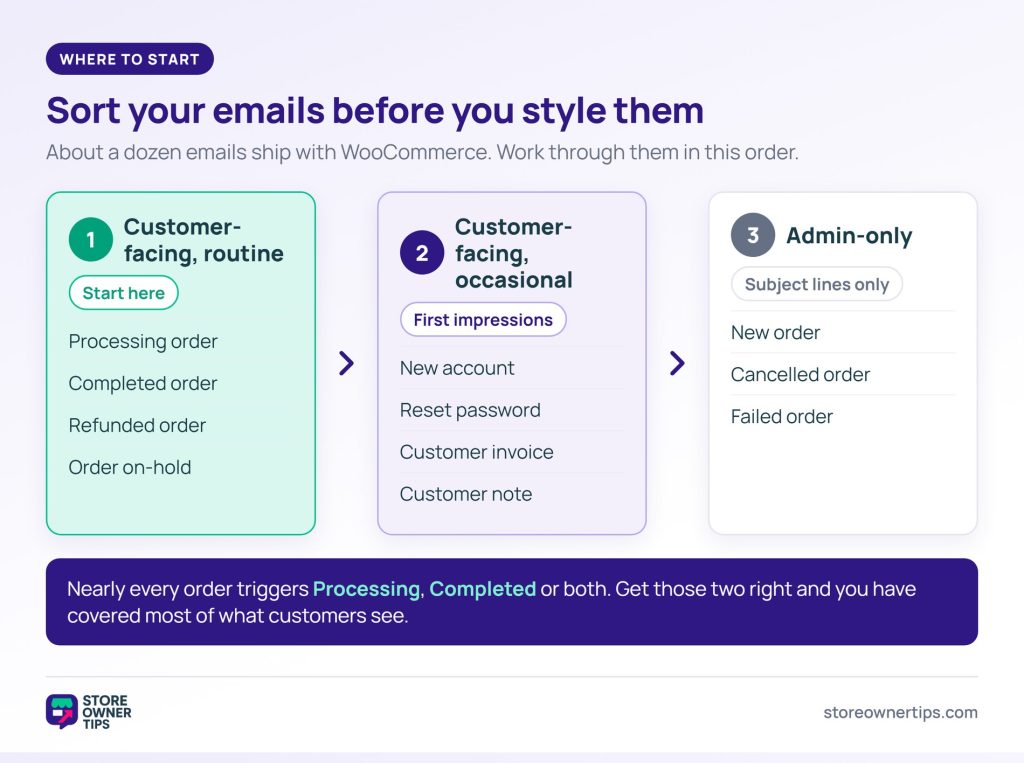
WooCommerce ships about a dozen transactional emails out of the box, and they aren’t equally worth your time. Some go to you, not the customer. Others fire on order states most orders never reach.
Before changing anything, sort them into three groups:
Work in that order. Getting Processing and Completed right covers most of the email customers get from you, so that’s where WooCommerce email customization pays off first. In fact, doing only those two is a perfectly good stopping point.
All of these are transactional email, which differs from marketing email in how it’s sent, regulated and received. That difference matters for the From address section below.
Go to WooCommerce > Settings > Emails for the settings that apply to every message. Three of them do most of the visible work:
Each email also has its own controls. You can switch it on or off and edit its subject line and heading individually. I’d start with subject lines, since every customer sees them and rewriting two takes about ten minutes.
That covers the branding layer of WooCommerce email customization. However, it won’t change an email’s structure, reorder its content, or add anything that isn’t already there.
Also worth knowing before you shop for tools: WooCommerce is testing a block-based email editor. For now, though, it’s labeled alpha and switched off by default. Third-party email customizer plugins fill that gap today.
Click into any single email on the Emails tab and you’ll find more than an on/off switch. Three fields there change what the customer reads, and they’re the most overlooked part of WooCommerce email customization:
{site_title}, {site_address}, {site_url} and {store_email}. Order emails such as Processing order add {order_number} and {order_date}.Each field lists the placeholders it accepts right underneath it, so you never have to guess. For example, “Your {site_title} order #{order_number} is on its way” names the store and the order before it’s opened.
The main settings screen has grown on recent versions, too. Beyond Accent, the palette adds Email background, Content background, Heading & text, and Secondary text.
Logo width, Header alignment and Font family appear there as well. However, they only become editable once WooCommerce’s newer email templates are switched on. Meanwhile, the Footer text field takes its own placeholders, including {store_address}. That pulls the address from your store settings, so you never retype it.
Template overrides change structure. Use them when the goal of your WooCommerce email customization is adding, removing or reordering content rather than recoloring it.
WooCommerce email templates are PHP files, and you override one by copying it into your theme. Once copied, your version takes precedence and the original stays untouched.
Two things to know before you do this:
Overrides don’t update themselves. When WooCommerce changes a template, your copy keeps the old version. That’s the point, but it’s also a maintenance job. An override left alone for two years can miss changes the platform made for good reasons.
Put them in a child theme. An override inside a parent theme disappears the next time that theme updates. This catches a lot of store owners, and it’s confusing because the emails quietly revert.
Inside a template, you have the full order object. That puts order details, customer details and store information within reach. Placeholders like {order_number}, by contrast, only work in the settings fields.
If you attach PDFs to these emails, read this alongside our guide to WooCommerce invoices. Invoice plugins usually let you choose which emails carry the PDF.
For one small addition, like a dispatch note in the Processing email, a hook is a lighter form of WooCommerce email customization than an override. No template file gets copied, so there’s nothing to fall out of date when WooCommerce updates.
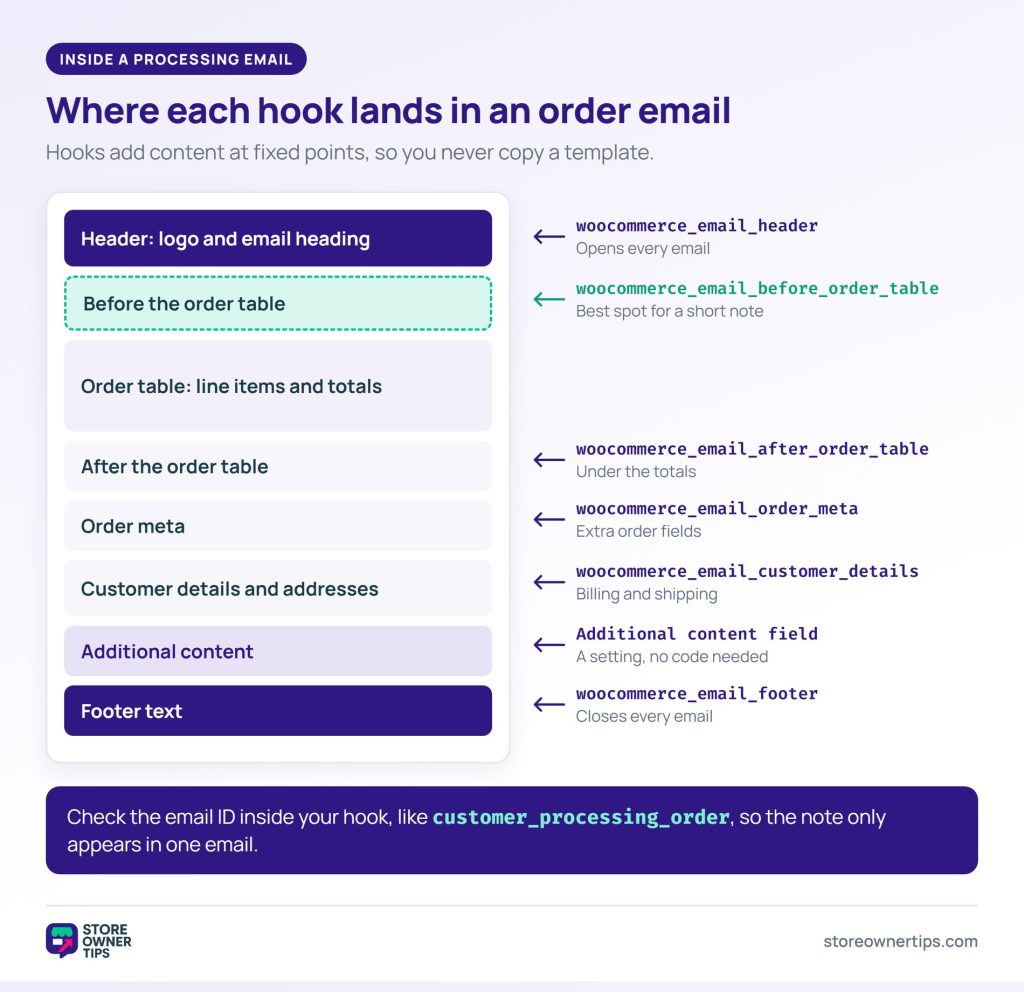
Order emails fire woocommerce_email_before_order_table and woocommerce_email_after_order_table on either side of the line items. Each hook passes the order, an admin flag, a plain-text flag and the email itself. Checking the email’s ID limits your change to one email:
add_action( 'woocommerce_email_before_order_table', function ( $order, $sent_to_admin, $plain_text, $email ) {
    if ( $sent_to_admin || 'customer_processing_order' !== $email->id ) {
        return;
    }
    $note = 'Orders placed before 2pm ship the same day.';
    echo $plain_text ? $note . "\n\n" : '<p>' . esc_html( $note ) . '</p>';
}, 10, 4 );
Swap in your own text, then add the snippet to a child theme’s functions.php or a code snippets plugin. Keep the plain-text branch. Without it, customers on plain-text email would see raw HTML tags.
Styling works the same way. The woocommerce_email_styles filter hands you the email CSS, so you can append your own rules without copying email-styles.php.
If you do need a full override, each template names its own destination in the file header. Processing order, for example, copies to yourtheme/woocommerce/emails/customer-processing-order.php. Every template also carries an @version number.
After an update, open WooCommerce > Status and check the Templates section. It flags any override whose version is behind the core file. That tells you exactly which copies need a refresh.
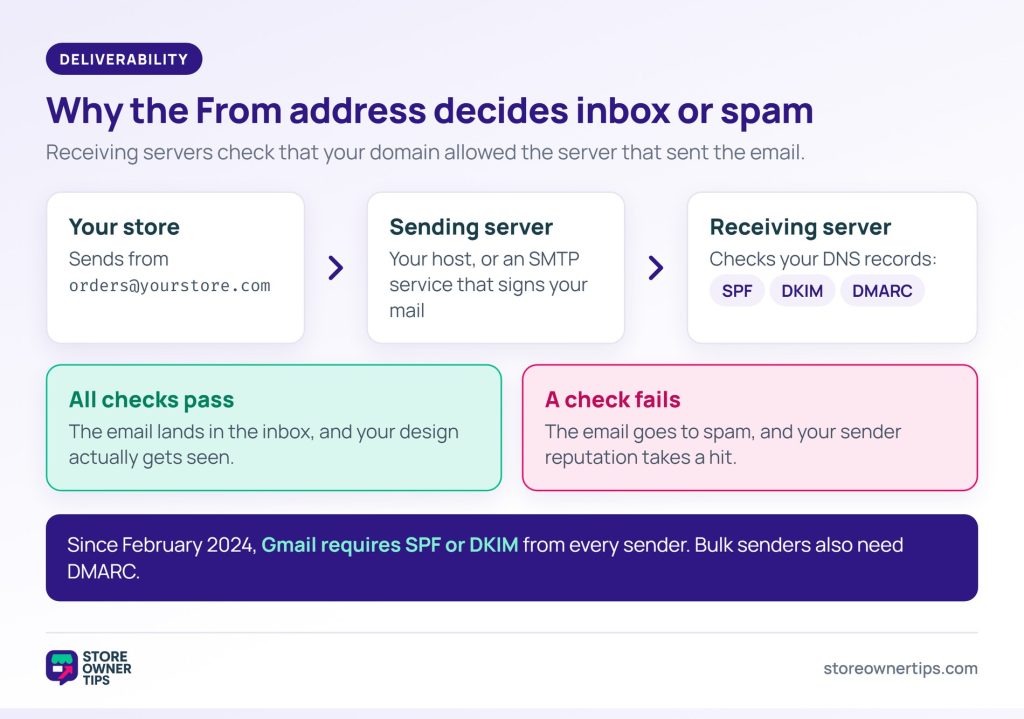
No amount of WooCommerce email customization matters if the email lands in spam. The most common cause is a From address on a domain your sending server isn’t authorized to use.
WooCommerce lets you set any “From” name and “From” address under Email sender options. Say you use an address at your own domain, but your host sends from a server that domain doesn’t authorize. Receiving servers spot that mismatch and treat it as a spam signal.
The fix is authentication, which lives in your DNS rather than in WooCommerce:
This isn’t optional for Gmail anymore. Since February 2024, Google requires every sender to Gmail accounts to set up SPF or DKIM. Senders of more than 5,000 messages a day need SPF, DKIM and DMARC.
Failed authentication also wears down your sender reputation, which follows every email you send after it. For most stores, the practical route is a transactional email service plus an SMTP plugin. It handles authentication for you and adds delivery logs.
Also set a reply address someone actually monitors, since customers often reply to order emails. Recent WooCommerce versions include an Add “Reply-to” email option for exactly this.
🔍️ What we’ve seen: a store owner spends a weekend restyling every template. Then they learn the emails were going to spam the whole time. The From address was on a domain the host didn’t send for. The design work was fine, but it was landing in a folder nobody opens.
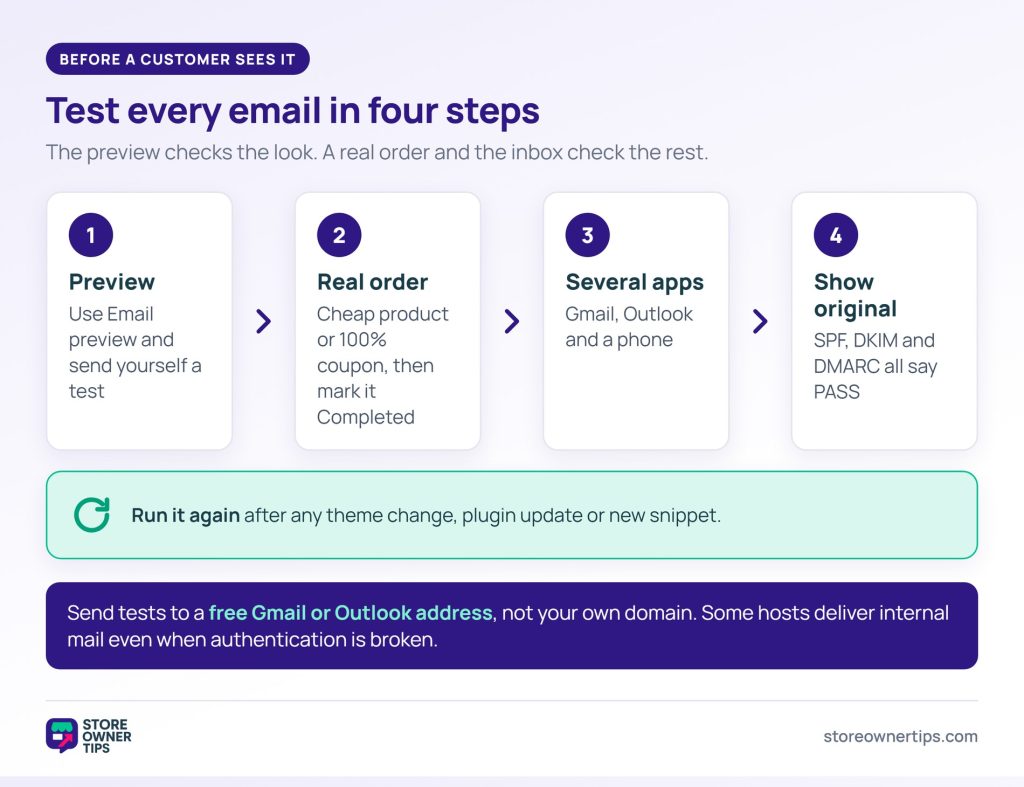
Before any WooCommerce email customization goes live, check three things: how the email looks, how it handles real order data, and whether it reaches the inbox.
Run the same checks after any theme change, plugin update or new snippet. Email layouts can break quietly, and customers rarely mention it.
🔍️ What we’ve seen: test orders sent to an address on the store’s own domain. Some hosts deliver that mail internally, so it arrives even when authentication is broken. Send your test to a free Gmail or Outlook address to see what customers see.
Once WooCommerce email customization has your existing emails looking right, the next question is which messages your store never sends at all.
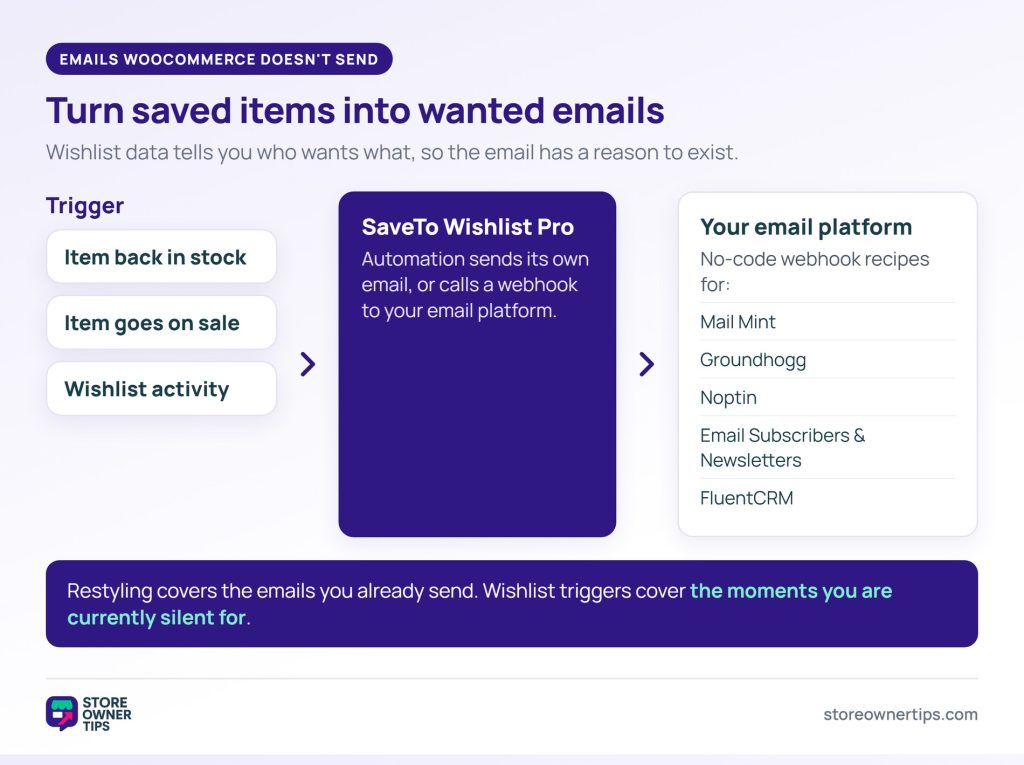
Out of the box, WooCommerce has no customer email for a product coming back in stock. Nor does it email a price drop on a saved item, or a shopper who saved items and went quiet. Those are moments where a message is genuinely wanted, not just expected.
Wishlist data makes them possible, because a saved item is a clear signal of intent tied to a customer. SaveTo Wishlist Pro handles this with no-code automation recipes. You pick a trigger and paste an inbound webhook URL from your email platform. The method, headers and payload come pre-filled.
Shipped recipes cover Mail Mint, Groundhogg, Noptin and Email Subscribers & Newsletters, and version 1.0.4 added FluentCRM. Pro’s automations also include back-in-stock and on-sale triggers for products on a customer’s wishlist.
That’s a different job from restyling a Processing email. It runs through your marketing platform rather than WooCommerce’s own mail. If back-in-stock alerts are your gap, our roundup of back-in-stock and price-drop alert plugins compares the options.
Use the built-in email settings for the logo, accent color and footer text. Then edit each email’s subject line and heading individually. For structural changes, copy the template file into your child theme and edit your copy. For small additions, a hook in your child theme’s functions.php works without copying anything.
Most often, the From address is on a domain your sending server isn’t authorized to send for. Set up SPF, DKIM and DMARC records for your domain. Alternatively, route mail through a transactional email service with an SMTP plugin, which handles authentication for you.
Some platforms can take over transactional email, though it’s usually unnecessary. Marketing platforms are built for campaigns, while WooCommerce emails fire on order status and need to arrive immediately. The more common setup routes sending through an SMTP service and leaves WooCommerce in control of the content.
Each email has an enable toggle, so technically all of them. In practice, keep every customer-facing email tied to money or order status. Customers expect confirmation of what they paid and what’s happening. The admin-only emails are the safe ones to trim if your inbox is overflowing.
Not if the overrides sit in your child theme, which is why that placement matters. The risk runs the other way. Your copy keeps working while the original template moves on. After major updates, check WooCommerce > Status for overrides flagged as out of date.

Most stores treat these emails as plumbing. Yet they’re among the few messages customers reliably open, and they arrive right after someone trusts you with money.
You don’t need to do all of it. The settings screen plus rewritten subject lines on Processing and Completed close most of the gap. That’s an afternoon’s work, not a project.
Here’s what to do next:
WooCommerce email customization is the first half of the job. The second half is deciding which extra messages are worth sending. Our guide to the email workflows every store should set up covers that in full.
Choosing where campaign email lives is a separate decision. For that, start with our comparison of WooCommerce email marketing plugins.

Copyright © StoreOwnerTips.com. All Rights Reserved.
