Weekly ecommerce tips, deals & news.
Picture a potential customer clicking your Google Shopping ad. They land on your product page, and they wait. Three seconds. Five seconds. They’re gone.
Every second of load time costs you conversions. For WooCommerce stores with hundreds of products, website speed problems tend to creep in fast. WooCommerce speed optimization isn’t a one-time fix, it’s an ongoing revenue lever.
How much does it actually move the needle? According to Portent’s research, a 1-second ecommerce page converts 2.5x better than a 5-second one. For an ecommerce store doing $10,000 a month, that’s serious money to leave on the table.
The good news? Most performance issues have straightforward fixes. In this guide, I’ll walk you through the complete WooCommerce speed playbook, step by step. Plus, we’ll use a before-and-after benchmarking approach so you can measure your progress along the way.
Speed matters for every website. However, WooCommerce stores face a unique set of challenges that make optimization even more important.
First, there’s the conversion rate impact. According to Portent’s research, 1-second ecommerce pages convert 2.5x better than 5-second pages. When your business depends on people completing a checkout, every millisecond counts.
Then there’s SEO. Google’s Core Web Vitals factor into Search ranking as part of the page experience signals. Slow stores get pushed down in results, which means less organic traffic. That, in turn, means fewer sales.
It’s a compounding problem. A slow site leads to higher bounce rates, which leads to lower rankings, which leads to less traffic. Meanwhile, your competitors who optimized last year keep pulling ahead.
Here’s what makes WooCommerce specifically tricky: your ecommerce store is doing a lot more work than a regular WordPress blog. Dynamic pricing calculations, cart sessions, large product catalogs with dozens of variations, checkout scripts, payment gateway integrations. All of this adds processing overhead that a simple blog post never has to deal with.
Say you’re running a flash sale and 500 people hit your site at once. A blog can handle that with basic caching. A WooCommerce store needs to manage individual cart sessions, check inventory, calculate shipping, and process dynamic prices in real time. That’s a fundamentally different performance challenge.

Here’s a mistake I see all the time. Store owners start tweaking settings, installing caching plugins, and swapping hosting providers without measuring where they started. That’s like going on a diet without stepping on the scale.
Before you optimize anything, you need a baseline.
Head over to our Store Health Check tool and run a scan on your store. It’s free, it takes about 60 seconds, and it gives you the numbers you need to measure progress.
Pay attention to these key metrics:
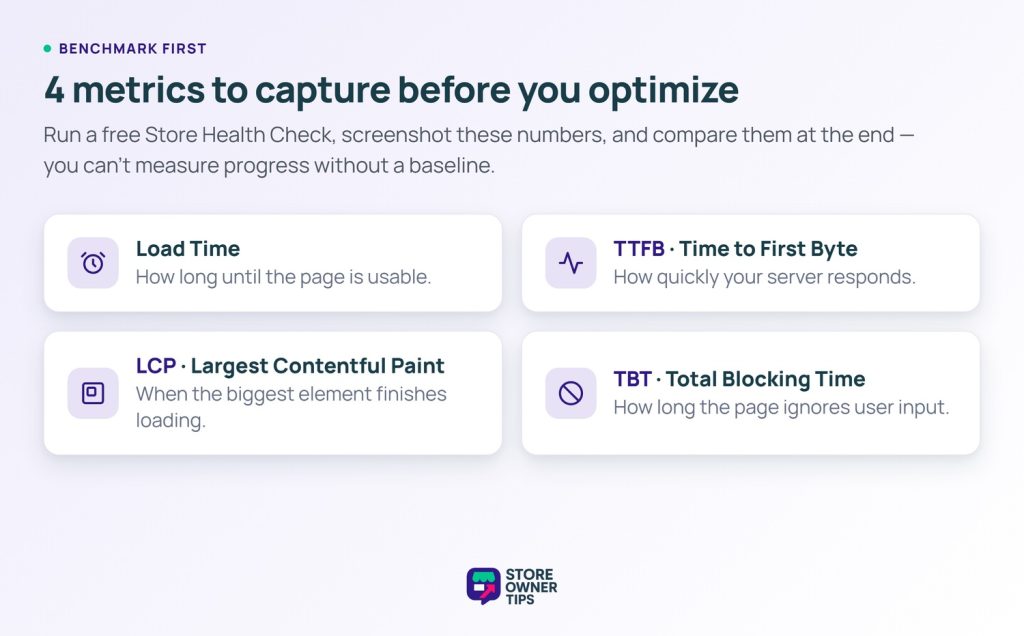
Screenshot your results. Save them somewhere. You’ll compare them at the end of this guide. The before-and-after difference is one of the most satisfying parts of this whole process.
🚀 Power Tip: Run your Store Health Check on at least three page types. Test your homepage, a product page, and your shop or catalog page. WooCommerce performance varies widely across these pages, and your bottleneck might not be where you expect. A common pattern: a fast homepage paired with a painfully slow catalog page. Usually it traces back to unoptimized product thumbnails.
If speed optimization were a house, hosting would be the foundation. You can install every caching plugin in the world. Still, if your server is slow, underpowered, or shared with hundreds of other sites, you’re fighting an uphill battle.
Shared hosting is where most store owners start. For very small stores, it can work fine. However, the moment your traffic grows or your product catalog expands, shared hosting becomes a bottleneck. You’re sharing CPU, memory, and disk I/O with dozens, sometimes hundreds, of other websites.
When one of your neighbors has a traffic spike, your store slows down. That’s the hidden cost of cheap hosting.
Managed WooCommerce hosting is where I typically recommend store owners move once they’re serious about performance. Providers like Cloudways, SiteGround, and Kinsta offer server-level caching, current PHP versions, SSD storage, and resources tuned for WooCommerce.
For a deeper look at provider tradeoffs, see our best WooCommerce hosting roundup.
Here’s what to look for when evaluating hosting:
| Store Size | Monthly Orders | Recommended Hosting Tier |
|---|---|---|
| Starter (< 100 products) | < 50 | Quality shared or entry managed |
| Growing (100–1,000 products) | 50–500 | Managed WooCommerce hosting |
| Established (1,000+ products) | 500+ | Dedicated or cloud-based managed |
Signs your hosting is the bottleneck: TTFB stays above 800ms. You see frequent 503 errors during traffic spikes. Wp-admin runs slow even when the frontend is cached.
Choosing the right host also has security implications. For more on that side, see our WooCommerce security checklist.

Caching is one of the highest-impact, lowest-effort optimizations you can make. However, with WooCommerce, there are some critical gotchas that generic caching guides completely miss.
Page caching works by saving a static HTML copy of your pages. The server then doesn’t have to rebuild them from scratch for every visitor. Instead of running dozens of PHP scripts and database queries, it just hands over the saved copy. That’s dramatically faster.
Object caching (using Redis or Memcached) takes it a step further. It caches database query results in memory, so repeated queries don’t hit the database every time. For WooCommerce stores running complex queries (product filtering, variable pricing, inventory checks), object caching can make a serious difference. According to WordPress Developer Resources, a persistent object cache cuts database trips. It also improves Time to First Byte during traffic spikes.
But here’s the WooCommerce-specific part that trips people up:
🚀 Power Tip: Always exclude /cart/, /checkout/, and /my-account/ from page caching. Caching these pages is a common mistake. It causes customers to see stale cart data or someone else’s session, a fast way to lose trust and sales. Most caching plugins have a WooCommerce-specific option for this, but always double-check.
The right caching configuration for WooCommerce looks like this:
In our work analyzing Store Health Check reports, we see a clear pattern. Properly configured page and object caching commonly cuts load times by 40% to 60% on catalog-heavy stores. That’s a single afternoon of work for what’s often the biggest speed win available.
If I had to bet on the single biggest speed issue on most WooCommerce stores, it would be images. Product photos are large and there are a lot of them. Most store owners upload them straight from camera or designer without any optimization.
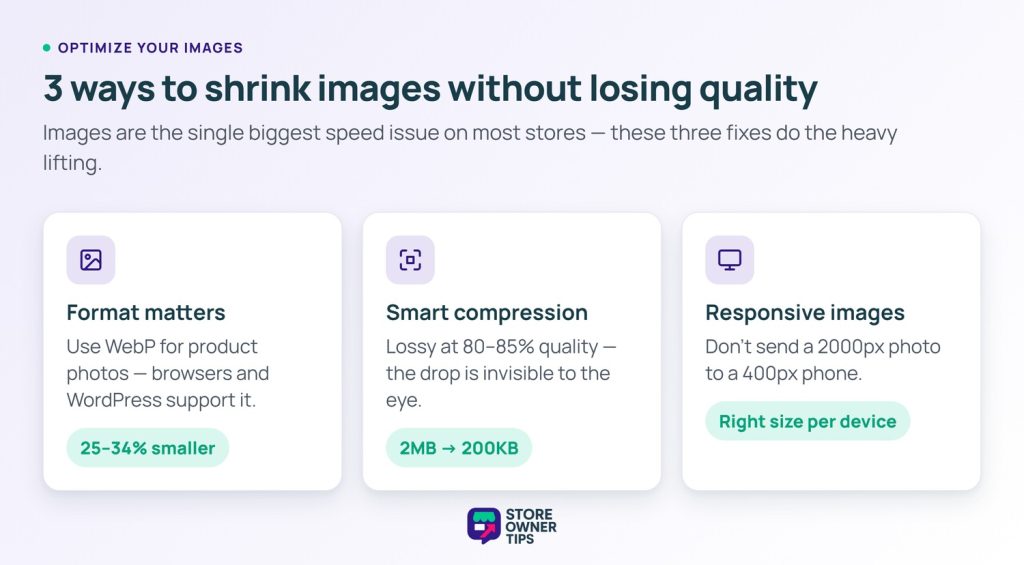
Format matters. We recommend WebP for most product images. According to Google’s WebP compression study, WebP files run 25% to 34% smaller than JPEG at equivalent quality. Most modern browsers support it. Plus, WordPress added native WebP support in version 5.8.
Compression is next. For product photos, lossy compression at 80% to 85% quality is the sweet spot. The difference between 85% and 100% quality is virtually invisible to the human eye. However, the file size difference can be enormous. Product images regularly drop from 2MB to 200KB without any visible quality loss.
Responsive images are often overlooked. There’s no reason to serve a 2000px-wide image to someone browsing on a phone with a 400px screen. WordPress handles responsive images automatically. Still, make sure your theme is generating the right image sizes. Also check that your product images aren’t bypassing the system.
For stores with existing product libraries, bulk optimization is essential. Plugins like ShortPixel, Imagify, and Smush can process your entire media library retroactively. Bulk optimization commonly reduces total page weight by 60% to 70% on image-heavy catalog pages.
Speed matters even more on product pages, where every second counts toward a purchase decision.
A CDN (Content Delivery Network) stores copies of your static files (images, CSS, JavaScript) on servers around the world. Say a customer in Tokyo visits your store hosted in New York. They get those files from a server in Asia. That’s much faster than waiting for them to cross the Pacific.
For stores with geographically diverse customers, a CDN can shave 200ms to 1 second off load times. The exact gain depends on the visitor’s location.
The easiest way to get started is with Cloudflare’s free tier. It acts as both a CDN and a DNS provider, and setup takes about 15 minutes. Many managed hosting providers also bundle a CDN. If yours does, activate it.
Here’s how CDN and caching work together:
Quick wins with a CDN:
WooCommerce databases bloat over time. It’s not a question of if, it’s a question of how badly. Every product revision, expired transient, abandoned cart session, and orphaned piece of metadata adds weight to your database. That weight slows down every query your store makes.
What We Commonly See: WooCommerce stores running for several years often have wp_options tables ballooning past 50MB. The culprit is usually autoloaded transients left behind by plugins that aren’t even active anymore. A single database cleanup can shave a noticeable chunk off TTFB. This is one of those fixes that takes 10 minutes but makes you wonder why you didn’t do it sooner.
Here’s a safe database cleanup checklist:
define('WP_POST_REVISIONS', 5); to your wp-config.php.wp_wc_sessions table can grow enormous on high-traffic stores.For ongoing maintenance, schedule automatic weekly cleanups using a plugin like WP-Optimize. Prevention is easier than cure.
WooCommerce-specific tables to watch: wp_wc_sessions, wp_postmeta (especially on stores with thousands of orders), and wp_options (check the autoload column).
“How many plugins is too many?” is the wrong question. I’ve seen stores run 40 plugins at lightning speed, and I’ve seen stores grind to a halt with just 12. It’s not about quantity, it’s about quality.
The real question is: which of your plugins are adding meaningful load time?
Here’s how to find out:
Common offenders we see across WooCommerce audits:
When you find a heavy plugin, look for a lighter alternative. As an example, take a bloated social sharing plugin adding 1.5 seconds to your load time. A simple icon-based solution can do the same job in a fraction of the time. Custom-coded share links work just as well.
Looking for guidance on choosing well-built plugins? Then check out our top WooCommerce plugins roundup!
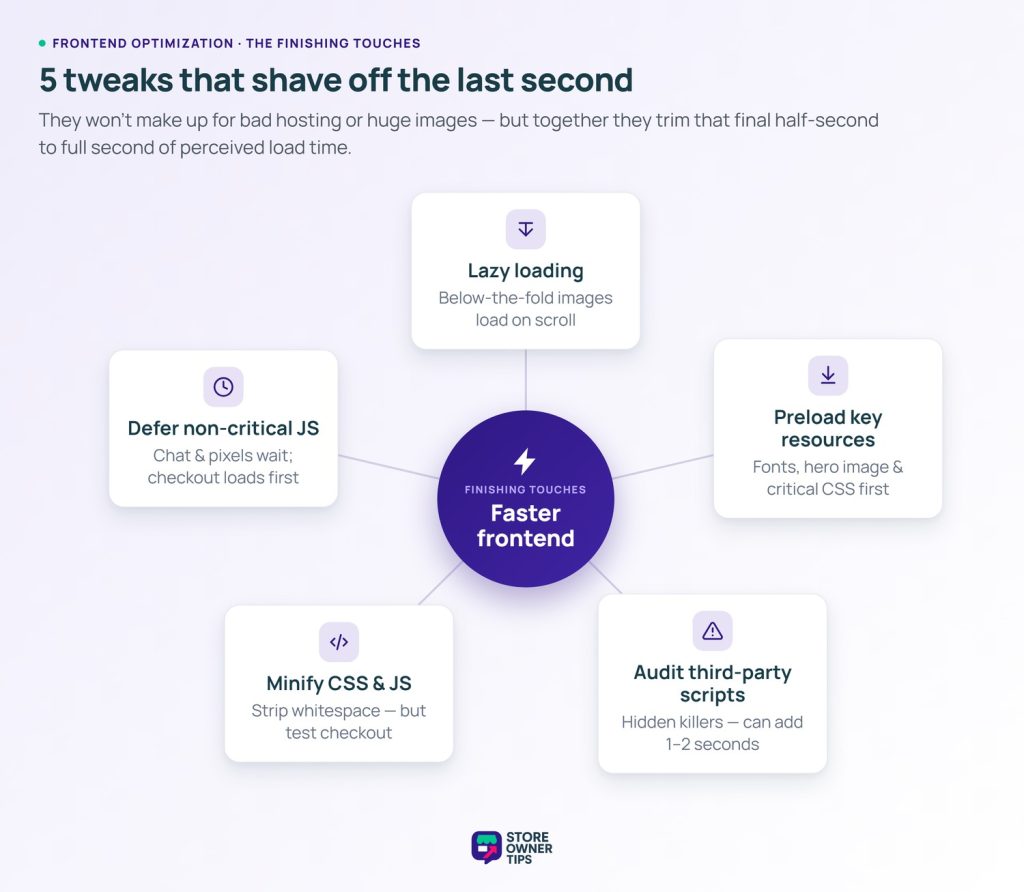
These frontend optimizations are the finishing touches. They won’t make up for bad hosting or unoptimized images. However, they can shave off that last half-second to a full second of perceived load time.
Lazy loading means images and iframes below the fold don’t load until the user scrolls down to them. Modern browsers support this natively with the loading="lazy" attribute, and WordPress adds it automatically as of version 5.5. Still, check that your theme isn’t overriding this behavior.
Deferring non-critical JavaScript keeps render-blocking scripts from holding up the page. Your checkout and cart scripts need to load immediately, but that chat widget and marketing pixel? They can wait.
Minifying CSS and JavaScript removes whitespace and comments to reduce file sizes. Most caching plugins include this feature. A word of caution though: aggressive minification and file combining can break WooCommerce checkout flows. We’ve seen this trip up store owners many times, so always test your checkout process after enabling these features.
Third-party scripts are often the hidden killers. Chat widgets, tracking pixels, social embeds, and retargeting scripts can add 1 to 2 seconds of load time. Audit them regularly and remove anything you’re not actively using.
Preloading critical resources (fonts, above-the-fold images, and key CSS files) tells the browser to start downloading them immediately. That beats waiting until the parser discovers them mid-render.
Now for the fun part. Head back to the Store Health Check tool. Run the same tests on the same pages you measured at the start.
Compare your before-and-after numbers:
Here’s a reference for what kind of improvements are realistic:
| Optimization | Typical Impact | Effort Level | Priority |
|---|---|---|---|
| Upgrade hosting | 1–3s load time reduction | Medium (migration required) | High |
| Page + object caching | 0.5–2s reduction | Low | High |
| Image optimization | 0.5–3s reduction | Low to Medium | High |
| CDN setup | 0.2–1s reduction (varies by audience location) | Low | Medium |
| Database cleanup | 0.1–1s TTFB reduction | Low | Medium |
| Plugin audit | 0.5–2s reduction | Medium | Medium |
| Lazy loading + frontend | 0.2–1s perceived improvement | Low | Medium |
We recommend running a Store Health Check monthly to catch performance regressions early. New plugins, theme updates, and content changes can all introduce slowdowns over time.
WooCommerce speed optimization doesn’t have to be overwhelming. The priority order is clear:
Hosting → Caching → Images → CDN → Database → Plugins → Frontend
Start with the biggest impact items first. For most stores, upgrading hosting and setting up proper caching delivers the most dramatic improvements. Image optimization is usually the next biggest win. Everything after that is about fine-tuning.
The most important thing? Measure your progress. Run that Store Health Check before and after, and let the numbers guide your next move. With a methodical approach, stores routinely go from painfully slow 6-second load times to sub-2-second speeds. This playbook is how they get there. Yours can too.
Now go make your store lightning fast!
Aim for under 3 seconds for full page load, with a target of under 2 seconds for optimal conversions. Google’s Core Web Vitals measure Largest Contentful Paint (LCP), which should land under 2.5 seconds. Interaction to Next Paint (INP) should stay under 200 milliseconds, and Cumulative Layout Shift (CLS) should stay under 0.1. For WooCommerce stores, product pages with multiple images tend to be the slowest, so focus optimization efforts there first.
WP Rocket is a popular pick for WooCommerce stores. It handles the complexity of dynamic ecommerce pages well out of the box. It also excludes cart, checkout, and account pages from caching by default. That prevents common issues that break the shopping experience.
W3 Total Cache and LiteSpeed Cache are solid free alternatives. However, they require more manual configuration to work properly with WooCommerce.
Yes, hosting is typically the single biggest factor in WooCommerce performance. Shared hosting that costs a few dollars per month will struggle under the database-heavy queries WooCommerce runs. That includes product filtering, cart calculations, and inventory checks. Managed WordPress hosting providers like Cloudways, Kinsta, and SiteGround tune their server stacks for WordPress and WooCommerce. The result is much faster server response times.
Yes, especially if you have customers in multiple geographic regions. A CDN serves your static assets (images, CSS, JavaScript) from servers close to your visitors, reducing load times significantly. Cloudflare offers a generous free tier that includes CDN, basic firewall protection, and DDoS mitigation. For most WooCommerce stores, enabling Cloudflare is one of the easiest performance wins available with minimal configuration required.

Copyright © StoreOwnerTips.com. All Rights Reserved.
