Weekly ecommerce tips, deals & news.
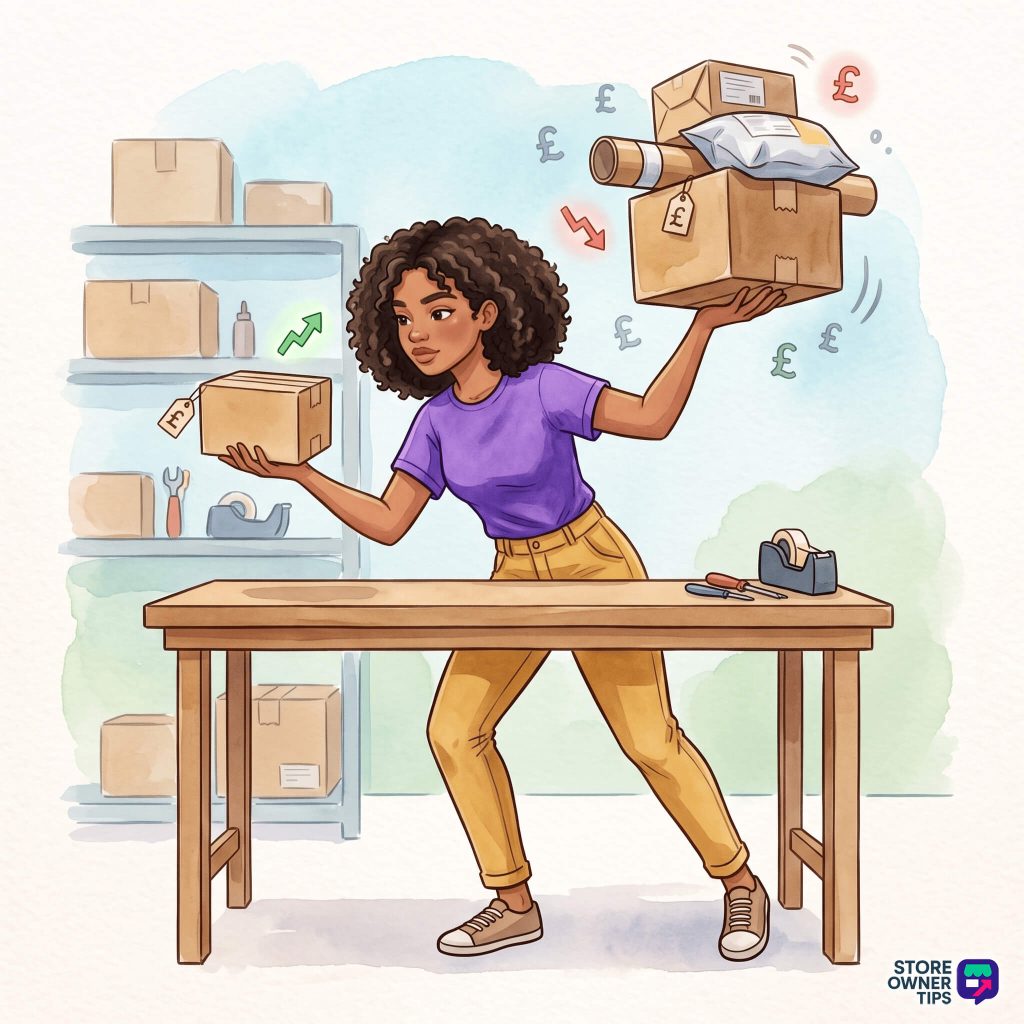
Here’s a pattern I see a lot. A store’s WooCommerce shipping rates were set on day one and never touched again. Every order still charges £4.95, whatever the box weighs or wherever it goes.
Now picture two of those orders. One cost you £3.10 to ship. The other, heading to the Scottish Highlands, cost you £14.40.
Nobody did anything wrong here. The rate made sense when the catalogue was small and everything fitted in one box. The store grew past it, and nothing in WooCommerce flags that moment.
The fix starts with a comparison, not a setting. Line up what you charged for shipping against what you actually paid, order by order. That gap tells you whether you need a better flat rate, weight-based rates, or live carrier rates.
Jump to:
Start by finding which orders lose money. In my experience, the losses often cluster in a few types of order rather than spreading evenly. That changes the fix entirely.
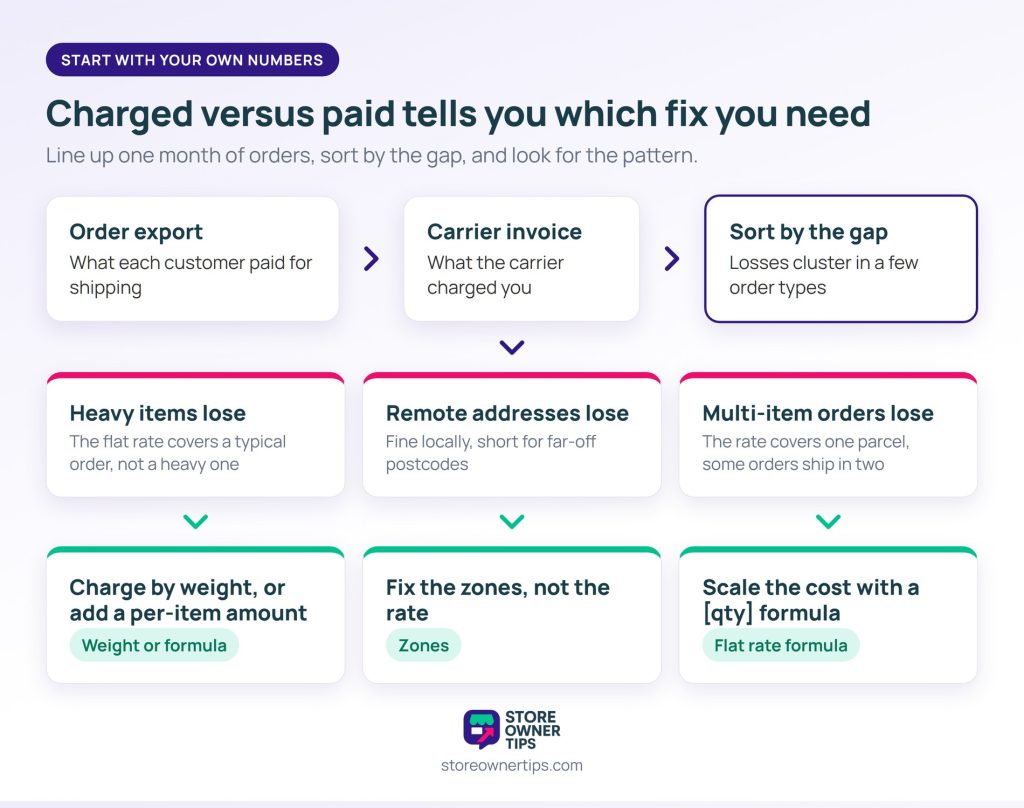
You need two numbers per order: what the customer paid for shipping, and what the carrier charged you. The first comes from an order export. The second comes from your carrier invoice, People tend to skip that part, because it lives somewhere less convenient.
Line them up for a typical month and sort by the gap. Three patterns come up again and again:
Each pattern points at a different fix. Knowing which one you have stops you configuring something that solves someone else’s problem. So do the export first. The rest of this guide is easier to act on with your own numbers in front of you.
WooCommerce shipping works zones first, methods second. The order in which it picks a zone is the part that surprises people.
A zone is a set of regions, defined by country, state, or postcode. A method is a rate inside a zone: flat rate, free shipping, local pickup, or one an extension adds.
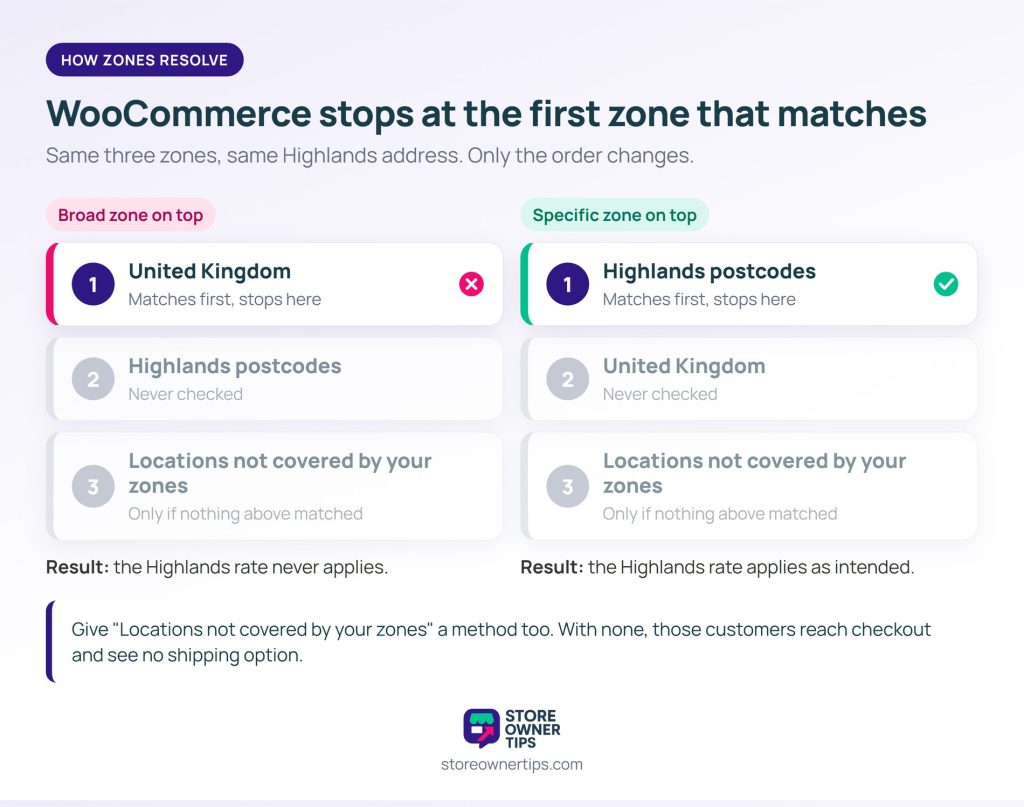
Here’s the rule that matters. WooCommerce checks zones from top to bottom and uses the first one that matches the customer’s address. Each customer matches only one zone, and it’s the first match, not the most specific one.
That one behaviour explains a lot of misconfigured WooCommerce shipping rates. A broad zone sitting above a narrow one means the narrow zone never applies, however carefully you set it up. So if a postcode-specific zone never seems to fire, check its position in the list before anything else.
Meanwhile, every address outside your zones falls into “Locations not covered by your zones”. If that zone has no methods, those customers reach checkout and find no shipping option at all. To them, that looks like a broken store rather than a deliberate policy. Decide explicitly what happens there, especially if you sell internationally.
Flat rate doesn’t have to be a single number. The cost field accepts a formula, and it’s the feature many stores never discover.
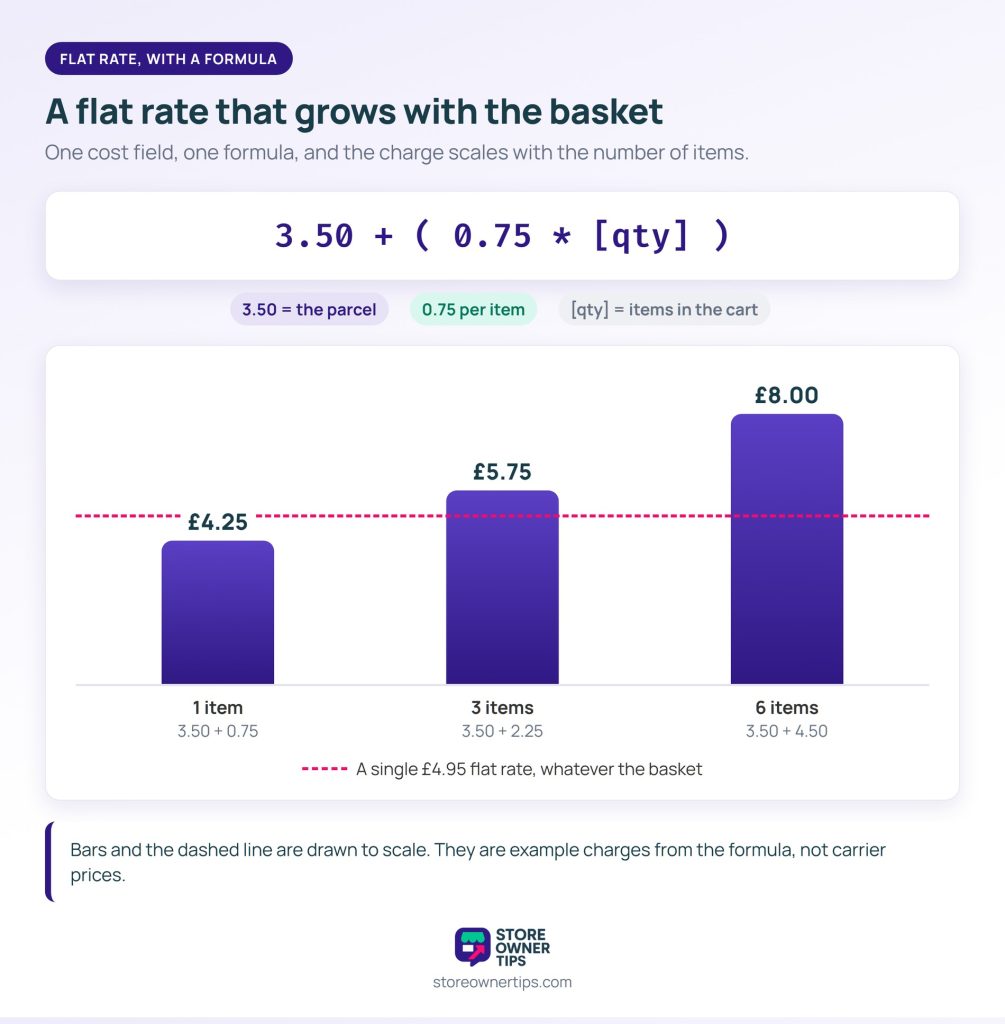
Beyond a fixed amount, the cost field supports placeholders. The two most useful are [qty] and [fee percent="10"]. The first counts items in the cart, and the second charges a percentage of the product total. You can combine either with a base amount, and the fee can carry a minimum or maximum.
So a cost of 3.50 + ( 0.75 * [qty] ) charges £3.50 for the parcel plus 75p per item. As a result, the charge grows with the basket instead of staying fixed. That’s enough for a lot of catalogues, and it needs no extension at all.
Shipping classes take this further. They let product types carry different costs within one method. So a bulky item can add a surcharge that a small one doesn’t.
In practice, a formula suits stores with similar-sized products and a compact delivery area. It trades exact cost recovery for predictable pricing that customers understand at a glance. Our definition of flat rate shipping covers the term in more detail.
However, it stops fitting once your catalogue spans widely different weights or sizes.
Weight-based shipping charges by what the parcel weighs, usually through a table of weight bands with a price for each. It needs an extension, since core WooCommerce ships only flat rate, free shipping and local pickup.
The prerequisite is the part that catches people out: your products need accurate weights. Every one of them. A weight table working from missing or wrong weights gives worse results than the flat rate you replaced. That’s because the errors are now hidden rather than predictable.
If your catalogue has built up over years, budget real time for that audit. It’s usually the bulk of the work.

Dimensional weight is the second thing to plan for. Carriers generally bill on whichever is greater: the actual weight, or a volumetric weight worked out from the parcel’s dimensions. That means a light, bulky item can cost far more to ship than its weight suggests.
If you ship anything large and light, WooCommerce shipping rates built on weight bands alone will keep losing money. You need dimensions in the calculation too.
Plus, clean shipping data pays off beyond checkout. AdTribes builds the shipping costs in your Google Shopping feed from your WooCommerce zones and methods. Fix the rates here, and the prices shoppers see in their ads line up with checkout.
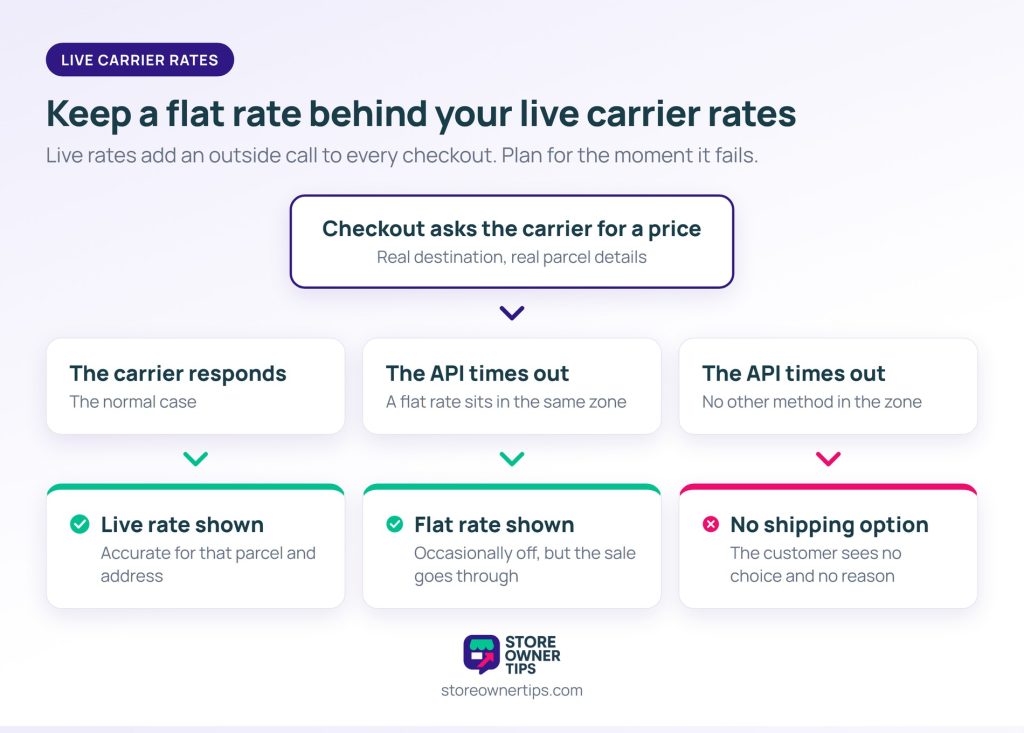
Live rates ask the carrier for a price at checkout, using the real destination and parcel details. They’re accurate by design, but they add a dependency your checkout didn’t have before.
They earn their place when your parcels vary widely in size, weight and destination. They also make sense when shipping is a big enough share of order value that getting it wrong hurts. A store shipping furniture nationally is the clear case, while a store shipping jewellery locally is the clear opposite.
That said, the costs are real. Every checkout makes an external API call, which adds delay at the least patient moment of the purchase. Carrier accounts and credentials need upkeep. And carriers occasionally return rates that surprise you, particularly for remote postcodes.
🔍️ A common mistake we’ve seen: switching on live carrier rates with no fallback method in the zone. If the carrier API times out during a busy period, the plugin can return nothing. The customer then reaches checkout with no shipping option and no explanation. So keep a flat rate in the same zone as a backstop, because no option at all loses the sale.
Once a zone has several methods, customers see all of them at once. Some of those combinations make no sense.
The most frequent one is free shipping showing next to a paid rate. A customer who qualifies sees both, and while most pick the free option, you’ve added a decision nobody needed.
Others worth suppressing:
For free shipping, core has you covered. The free shipping method can require a minimum order amount, a free shipping coupon, either one, or both. To discount a paid method rather than remove it, Advanced Coupons can apply shipping override coupons to specific methods.
Hiding other methods conditionally generally needs an extension, and it’s one of the better reasons to add a shipping plugin. B2B stores have a specific version of this. Wholesale Suite maps wholesale roles to chosen shipping methods, so trade buyers see only the methods you’ve mapped for them.
Before adding rules, check your free shipping thresholds still make sense. A threshold set when your average order was smaller is easy to miss. It’s often part of the gap you measured.
Create a shipping zone for each area you deliver to, then add methods inside each zone. Core gives you flat rate, free shipping and local pickup. Order your zones from most specific to most general, because WooCommerce uses the first zone that matches the address.
Weight-based rates need an extension, since core doesn’t include them. Before installing one, make sure every product has an accurate weight. A weight table working from missing data gives worse results than a flat rate.
Both methods exist in the zone that matches that customer, and both are eligible for that cart. The usual pair is free shipping next to a paid rate. Set a minimum order amount on free shipping. Or use conditional rules to hide the paid option when free shipping applies.
Use them if your parcels vary a lot in weight, size and destination. They add an external API call to every checkout and a dependency you have to maintain. For similar-sized products and a compact delivery area, a flat rate with a cost formula is usually more reliable.
Their address is probably landing in a zone with no methods, most often “Locations not covered by your zones”. Check which zone their address actually matches. Remember that WooCommerce uses the first matching zone, not the most specific one.
Shipping turns into a margin problem because it’s set up once, early. At that point the catalogue is simpler than it will ever be again. Nothing alerts you when it stops fitting. The orders keep coming, and some cost more to ship than you charge.
The fix is rarely the most sophisticated option. Often a formula-based flat rate and one extra zone close most of the gap, without carrier accounts or API dependencies. Your export will tell you whether that’s enough for your store.
Here’s what to do next:
Rates are one part of a bigger job. Our guide to the fulfilment run from order to doorstep covers the rest. It’s also worth weighing local pickup for your nearest customers. Collection takes the shipping cost out of the equation entirely for the people closest to you.
Shipping charges also land on every invoice, and our guide to WooCommerce invoices covers automating those.
Marketplaces face their own version of this, since each seller ships from a different place with different costs. WC Vendors Pro gives each vendor flat rate or table rate shipping, with tiers by quantity or weight. That way, sellers set rates that match their own costs instead of sharing one set of store-wide zones.

Copyright © StoreOwnerTips.com. All Rights Reserved.
