Weekly ecommerce tips, deals & news.
Picture the email that lands when a customer asks for an invoice. You open the order and copy the lines into a document in a folder somewhere. Then you change the number by hand and hope you haven’t reused one.
The giveaway is a folder called Invoices with a file named invoice-final-2. It works until the week you ship forty orders. Or until someone asks for last quarter’s documents and there’s no list to hand over.
Here’s the fix. To make WooCommerce invoices generate themselves, install an invoicing extension. Point it at the order status that means the sale is final. Then let it keep its own numbering sequence.
WooCommerce doesn’t produce a numbered invoice document on its own. That’s why the job lands on you until this is set up. I’ve found the setup itself is quick. The decisions around numbering and timing are where it pays to slow down.
Jump to:
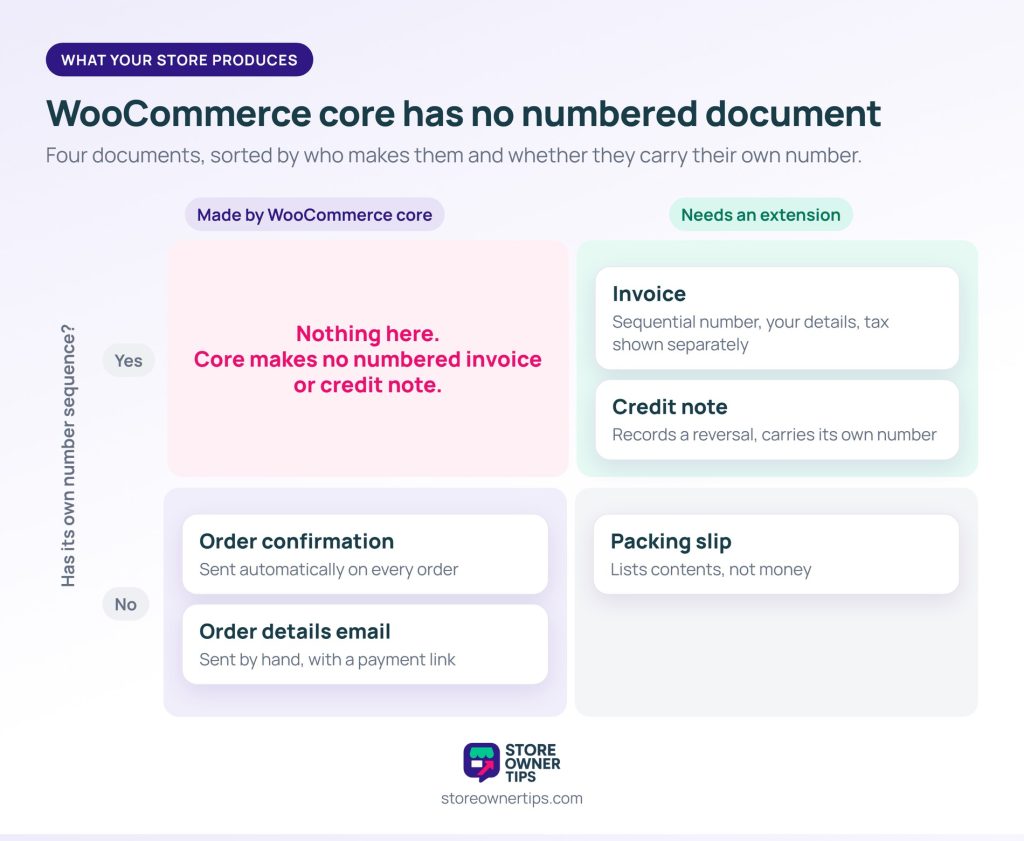
Your store already sends order confirmations. It doesn’t send invoices, and the difference matters for your accounts.
An order confirmation email tells a customer their order went through. It lists what they bought and what they paid, and it goes out automatically on every order.
An invoice is a numbered document that records a sale for accounting and tax. In the UK, for example, HMRC requires a sequential number that uniquely identifies each VAT invoice. It also expects your details, your VAT number, and the tax shown separately.
Some rules allow a lighter document for small sales. HMRC lets VAT-registered sellers issue a simplified invoice for supplies of £250 or less. Other countries set their own thresholds, so check the rules where you’re registered.
Two other documents get mixed up with both. A packing slip goes in the parcel and lists contents, not money. It belongs to the fulfilment run from order to doorstep. A credit note records a reversal and carries its own number.
WooCommerce core doesn’t produce any of these as documents. The naming overlap is what sends people looking in the wrong place.
Core has an Order details email you send by hand from the Edit Order screen. It shares invoice details and a payment link. It’s useful, but it’s an email, not a numbered invoice.
If you sell to businesses, plan for one more field. A buyer who raised a purchase order needs that reference on your invoice. Their accounts team usually matches the two before paying. Some trade buyers are also tax exempt, which changes how tax shows on the invoice.
The setup is short, and three of its four steps are decisions rather than clicks.
1. Install an invoicing extension. Any well-maintained option will do for this part. Choosing between them is its own job, and our roundup of WooCommerce invoice plugins compares them.
2. Fill in your seller details completely. That means trading name, full address, tax registration number, and company number where you have one. It’s the part people tend to skim, and it’s what makes the document valid.
3. Set your numbering scheme. Pick a prefix and a starting number, and let the plugin keep its own counter. Avoid tying invoice numbers to order numbers, since WordPress hands out IDs from a shared pool. Other content takes numbers between orders, leaving gaps.
4. Choose which email the invoice attaches to. This is the decision that matters most, and it gets its own section below.
Once those are set, test it properly. Place a real order, take it through to the status you chose, and open the PDF that arrives. Check the number, the tax figures and your own address.
Testing on a live store is fine, as long as you refund your own order afterwards. The risk is assuming the defaults produced something correct without looking.

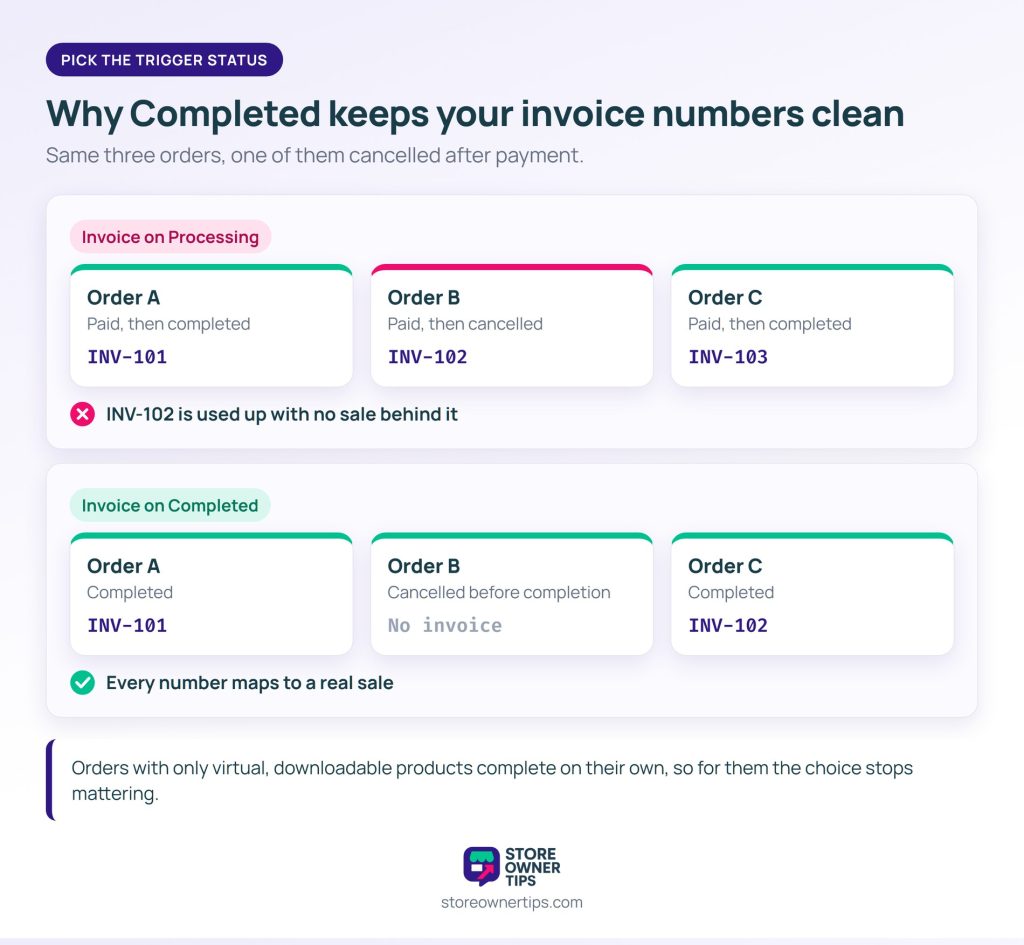
Pick the status that means the sale is final and the money is yours. For many stores that’s Completed rather than Processing.
Processing is where an order lands once an online payment succeeds. It feels like the right moment, but it creates a specific problem. If that order is later cancelled, it has already used an invoice number. Your sequence now has a gap with no sale behind it.
Completed is the status you set once the order is fulfilled. The customer waits a little longer for the document, and in return your numbering stays clean. If you offer local pickup, Completed may already mean “ready for collection”, so plan around that.
On-hold and Pending Payment should produce nothing. An invoice for an unpaid order is a pro-forma, which is a different document. HMRC’s guidance says a pro-forma can’t be used to reclaim input tax, even with every VAT invoice detail.
There are two common exceptions. Orders containing only virtual, downloadable products move to Completed on their own, so the distinction stops mattering. Stores selling on net terms to trade customers sit at the other extreme. There, the invoice starts the payment clock and has to go out well before the money arrives.
For net terms, Wholesale Payments from Wholesale Suite handles invoice billing on plans such as Net 30, 60 or 90. That way, the terms invoice is built into the order flow instead of sent by hand.
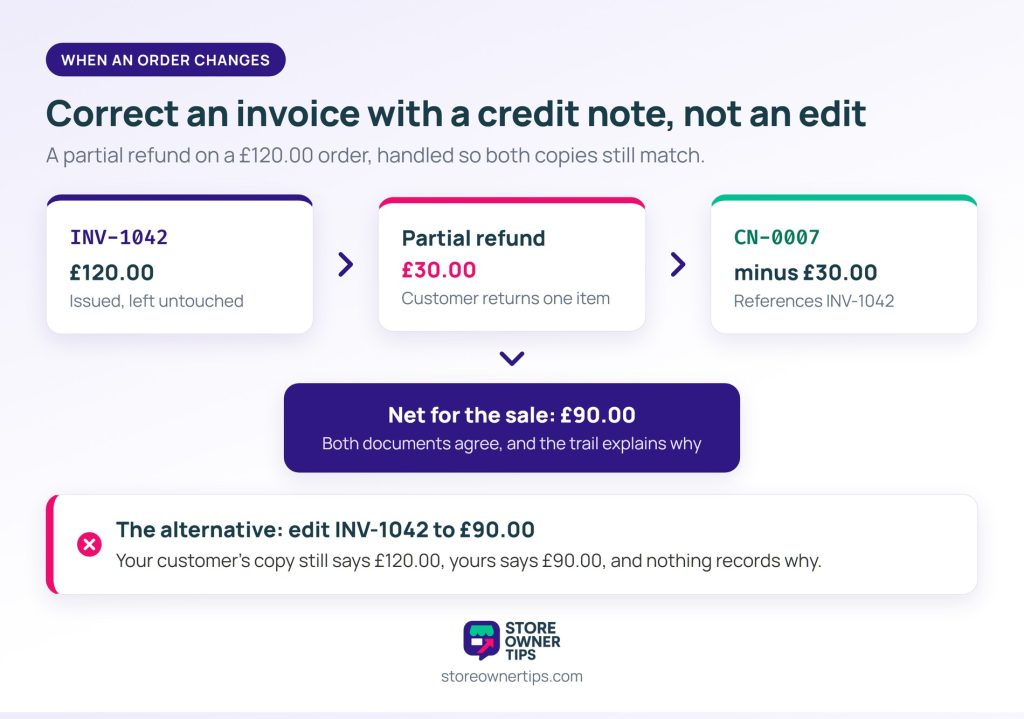
Leave an issued invoice as it is, and issue a credit note to correct it. HMRC’s VAT guidance agrees: to adjust a VAT charge, issue a credit note and keep a copy.
Editing the original breaks the audit trail, because the document your customer holds no longer matches yours. A credit note leaves both intact and explains the difference.
Three situations come up regularly:
Not every invoicing plugin produces credit notes. If partial refunds are routine in your store, let that capability decide which plugin you choose. It’s far easier to check before you install than after. Some stores refund to store credit instead, which Advanced Coupons covers in its store credit refunds guide.
🔍️ A common slip we’ve seen: invoices set to generate on Processing, because that’s when the money lands. Then a run of cancellations hits. Those invoices are already numbered. At year end, the accountant asks what the missing numbers were for, and by then nobody remembers.
Many invoicing plugins can create documents for past orders in bulk, usually filtered by date range or order status.
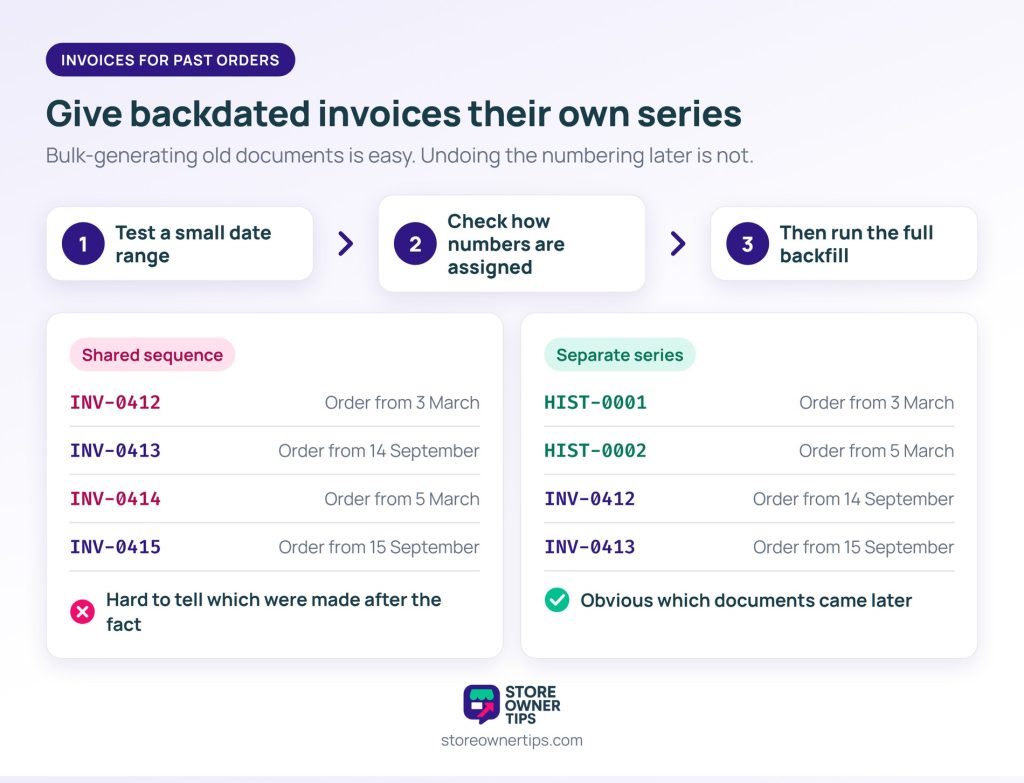
Run it on a small date range first. Watch how the plugin numbers backdated documents. Some number them by order date and some by when they were generated. Across a year, those give quite different sequences.
Before you run it, decide on numbering. Historical documents can share your current sequence or get their own prefixed series. A separate series is usually cleaner, because it shows which documents were produced after the fact.
Whatever you choose, it’s hard to undo. Numbering is the one part of this setup that’s difficult to change later.
No. WooCommerce sends order confirmation emails, and you can manually send an Order details email with a payment link. Neither produces a numbered invoice document, so you need an extension for that.
Not usually. An order confirmation records that a transaction happened, while an invoice is a numbered tax document with required fields. Some tax authorities accept a simpler document for small sales, but business customers generally need a full invoice.
Let the invoicing plugin keep its own counter rather than using WooCommerce order IDs. Order IDs come from a pool shared with other content, so they skip numbers. If your plugin ties the two together, add a sequential order numbering plugin underneath it.
Send a credit note for the refunded portion, and leave the original invoice untouched. Check that your invoicing plugin can produce credit notes, because not all of them can. Issuing corrections by hand undoes much of the benefit of automating.
Yes, if you collect it. Add a checkout field for the purchase order reference, then set the invoice template to display it. Business buyers often won’t pay an invoice that doesn’t quote their own reference.

The setup takes an afternoon. What takes longer is choosing the numbering scheme and the trigger status. Both deserve the time, because they’re hard to change once a year of documents exists.
Here’s what to do next:
One case this guide doesn’t solve is the marketplace order. There, one checkout is fulfilled by several sellers, and each needs to invoice their own portion. WC Vendors Pro added printable separate invoices for each vendor’s purchases in version 2.0.7. Each seller’s share gets its own document.
If you haven’t chosen an invoicing plugin yet, start with our comparison of WooCommerce invoice plugins. Your tax setup is the other half of getting these documents right. Our WooCommerce tax guide covers how rates and registration numbers should appear on what you send. Shipping charges appear on invoices too, so our guide to WooCommerce shipping rates is worth a look.

Copyright © StoreOwnerTips.com. All Rights Reserved.
