Weekly ecommerce tips, deals & news.
You know that shopper who spent 15 minutes browsing your store, added nothing to the cart, and disappeared? There’s a good chance they wanted to come back later but had no way to save what they found. A WooCommerce wishlist solves that exact problem by giving visitors a “save for later” button on every product page.
The surprising part is how few WooCommerce stores actually offer this. Most store owners focus on checkout optimization and cart recovery, but wishlists catch shoppers much earlier in the buying journey. They’re the bridge between “just browsing” and “ready to buy.”
Setting one up takes less time than you’d think. In this guide, we’ll walk you through choosing the right plugin, installing it, and configuring it so your customers can start saving products today.
A WooCommerce wishlist lets your customers save products they’re interested in without adding them to the cart. They can come back days or weeks later and pick up right where they left off.
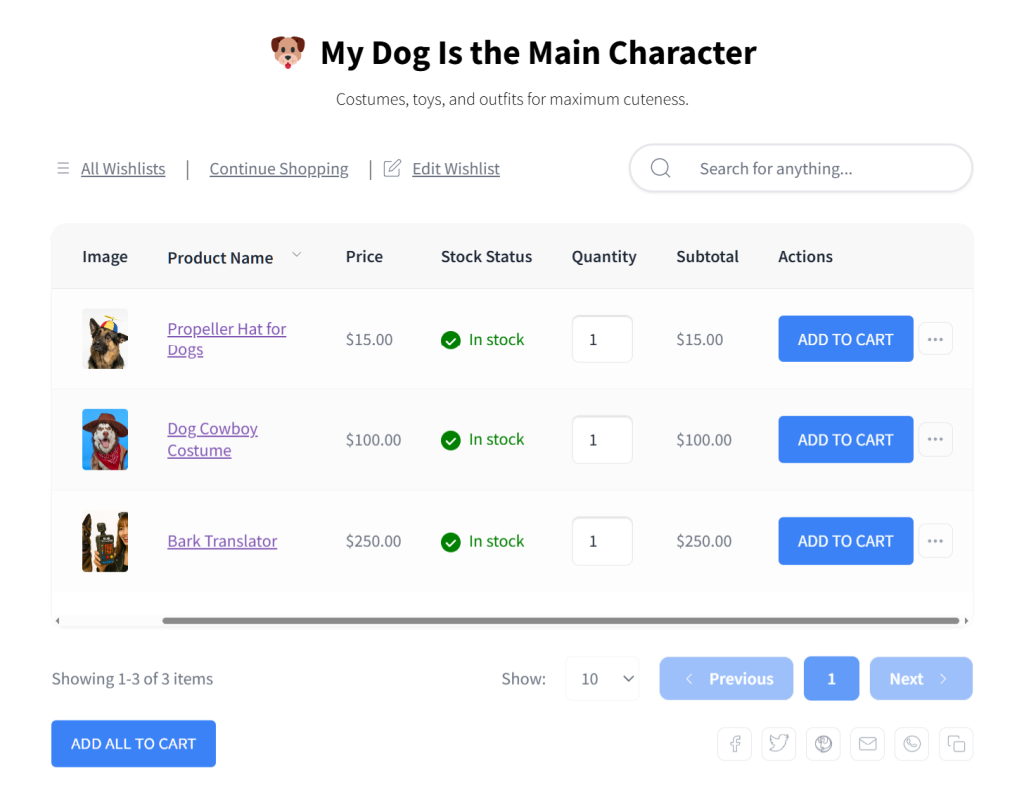
Implementing a wishlist feature has a ripple effect on your business:
🔍️ One thing we commonly see: Store owners assume wishlists are only useful for large catalogs or gift-giving seasons. In practice, even stores with 50 products benefit. Customers use wishlists for budgeting, comparing options, and planning purchases around pay cycles.
Not every wishlist plugin is the same. Before you install one, check these five things:
Looking for a detailed comparison of the top plugins across all these criteria? Then check out the following guide:

For this walkthrough, we’ll use SaveTo Wishlist because it’s free, lightweight (2.5 KB frontend payload), and includes multiple wishlists and guest saving out of the box. You can follow similar steps with any wishlist plugin you choose.
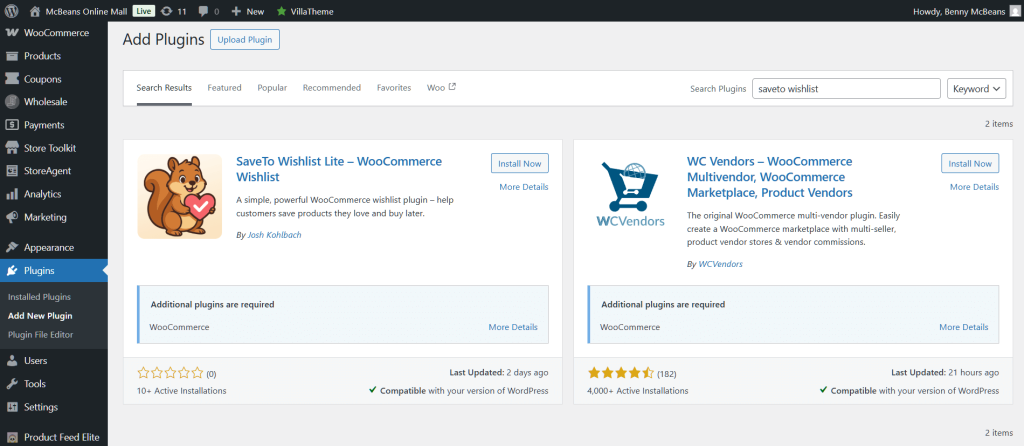
That’s it for installation. No license key needed for the free version.
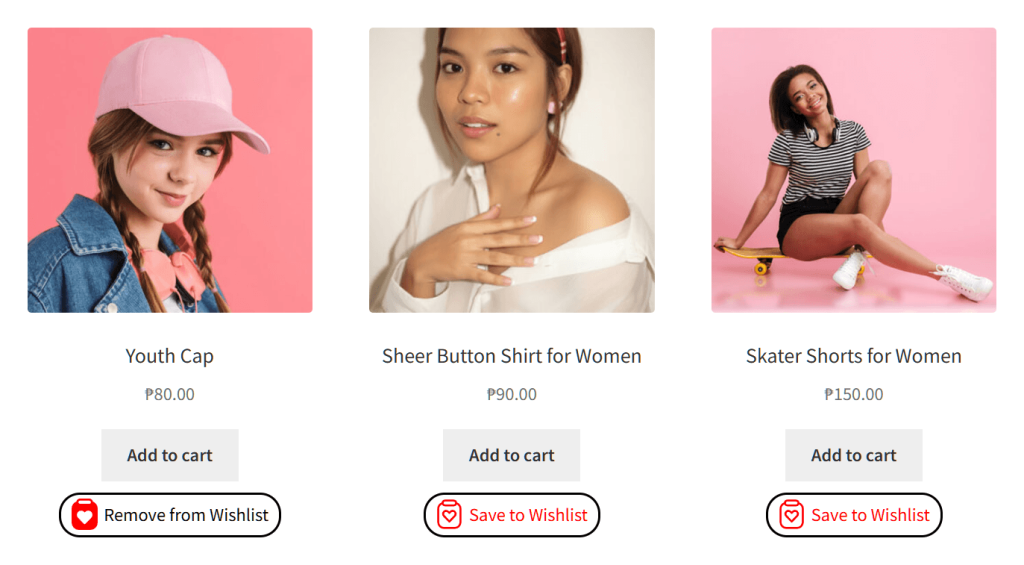
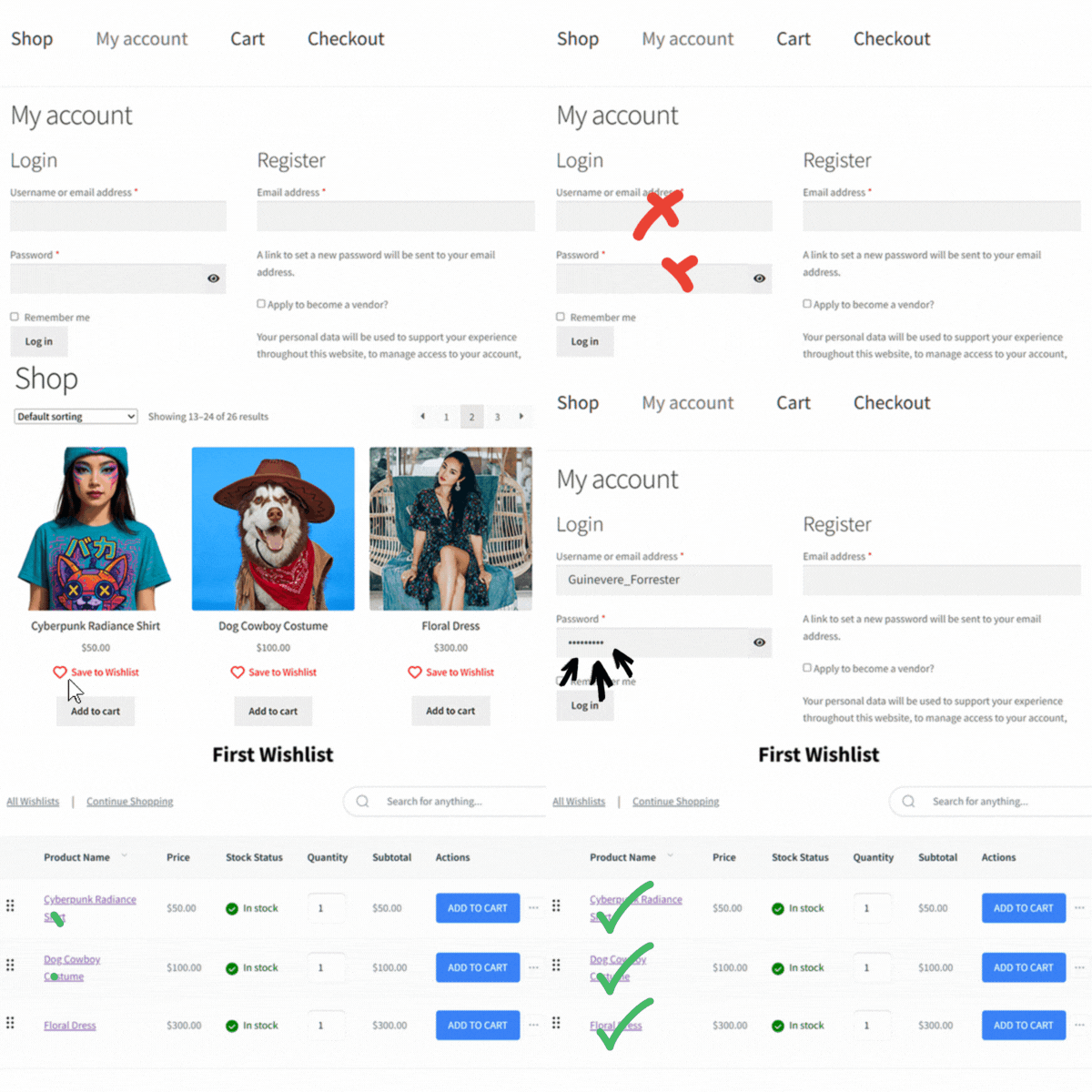
After activation, visit any product page on your store’s frontend. You should see a wishlist button (typically a heart icon) on each product. SaveTo Wishlist adds this automatically without any shortcodes or manual placement.
Navigate to the plugin’s settings in your WordPress dashboard. The key options to review:
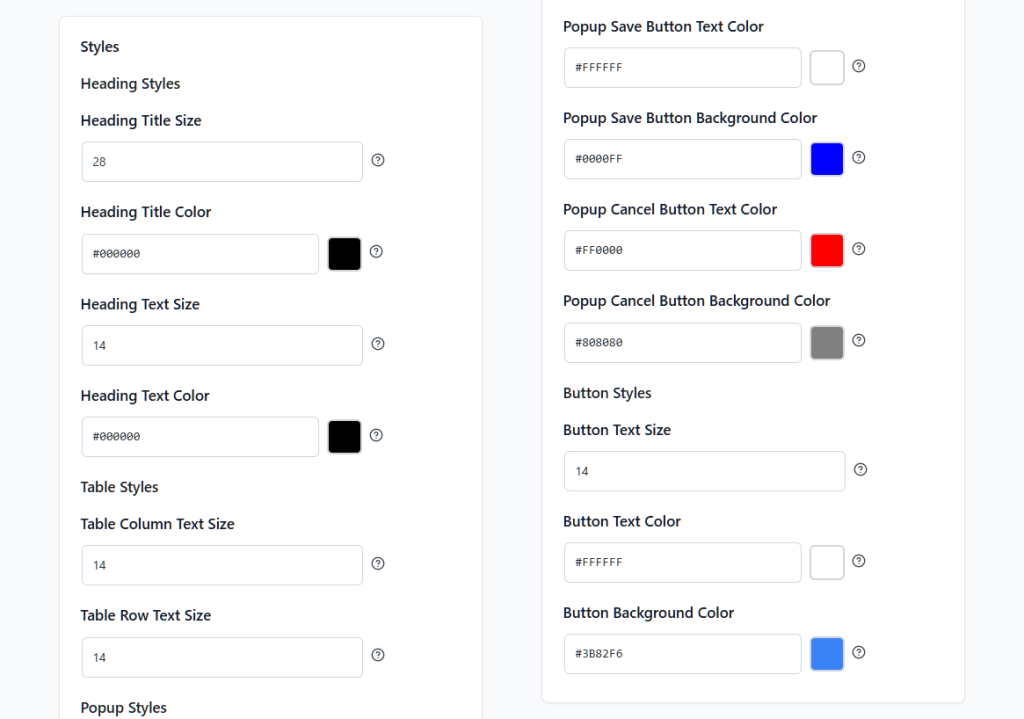
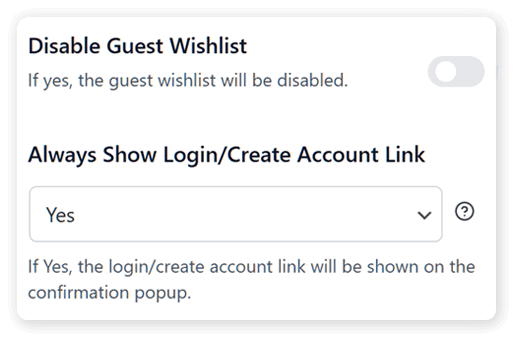
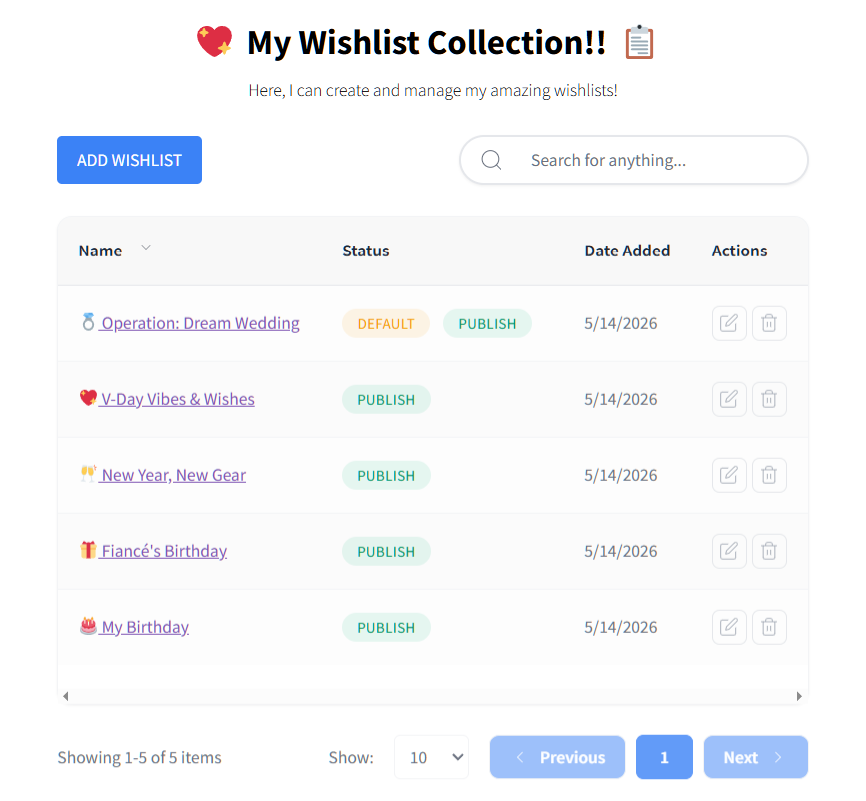
SaveTo Wishlist uses native Gutenberg blocks, so adding a wishlist page is simple:
This page is where customers will view and manage their saved items.
Before announcing the feature to customers, test the full flow:
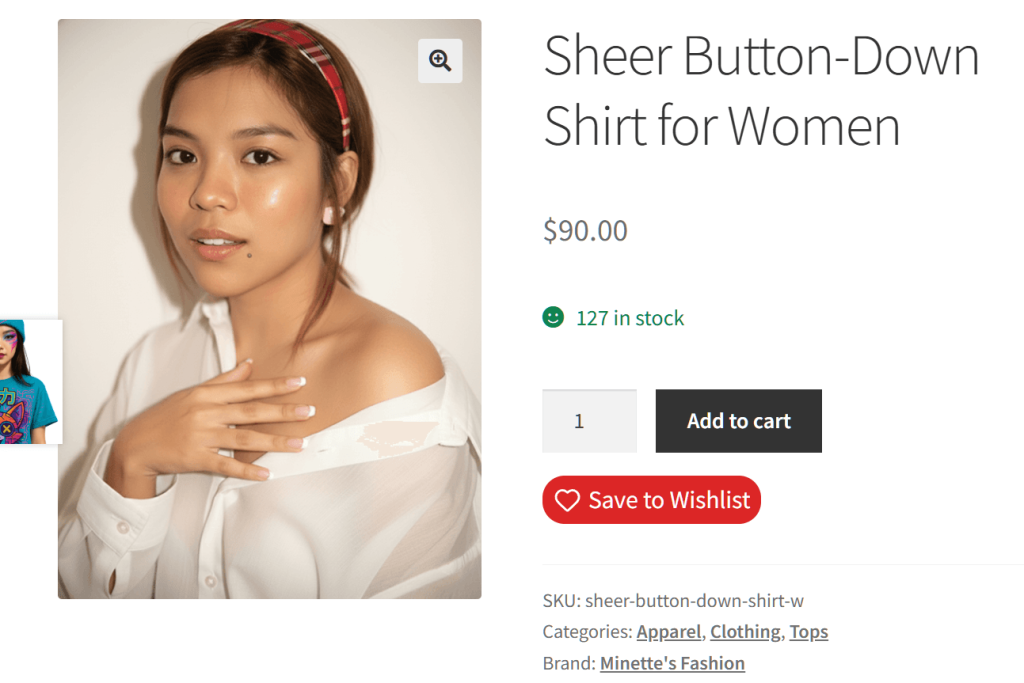
🔍️ One thing we commonly see: Store owners skip this testing step and miss that their theme’s CSS conflicts with the wishlist button placement. Five minutes of testing saves you from customer complaints.
Adding a wishlist plugin is step one. Here’s how to make it work harder for your store:
Make sure customers can easily find their saved items. Add a wishlist icon or link to your site’s header navigation, right next to the cart icon. This reminds visitors that they have saved items waiting.
If you send abandoned cart emails, add a line about wishlists too. Something like: “Not ready to buy yet? Save items to your wishlist and come back when you’re ready.” This trains customers to use the feature.
Your most-wishlisted products are your highest-intent items. Consider running promotions or bundling offers around them, or displaying them as related products on other popular pages. If a product is wishlisted often but rarely purchased, the price might be the barrier.
This is the single most impactful setting. If you require account creation before saving items, most casual browsers won’t bother. Guest saving removes that friction completely. With SaveTo Wishlist, guest items automatically sync when the visitor eventually registers, so you don’t lose any data.
It depends on the plugin and the features you need. SaveTo Wishlist offers unlimited multiple wishlists, guest saving, and Gutenberg block support completely free.
Other plugins like TI WooCommerce Wishlist and WPC Smart Wishlist for WooCommerce offer basic free versions but charge $32 to $80 per year for features like multiple wishlists. YITH WooCommerce Wishlist Premium costs around €99.99 per year.
They can, depending on the plugin. The performance impact ranges from 2.5 KB (SaveTo Wishlist) to over 300 KB (YITH WooCommerce Wishlist). Always test your page speed before and after installing a wishlist plugin. A heavy plugin can hurt your Core Web Vitals scores, which affects both user experience and search rankings.
Most WooCommerce wishlist plugins include sharing features, either in the free or premium version. Customers can typically share wishlists via a direct link or social media buttons. This is especially useful for gift registries, holiday lists, and wedding registries.
Yes. Even stores with a small catalog benefit from wishlists. Customers use them for budgeting, comparing similar products, and planning future purchases. In short, a wishlist gives visitors a reason to come back instead of forgetting about your store entirely.
Typically, wishlist data is stored in your WordPress database. However, the format varies between plugins. Thus, if you switch, existing wishlist data from the old plugin may not transfer automatically.
However, some plugins, like SaveTo Wishlist, come with their own importers. Basically, this lets store owners quickly and safely transfer wishlist data between plugins, so nothing is lost.
If you decide to upgrade from a free option to a paid plugin, always check their refund policy first. Many premium plugins offer a 14-day or 30-day money back guarantee, which gives you peace of mind to test the advanced features on your store risk-free before fully committing.
Adding a WooCommerce wishlist to your store is one of the easiest ways to capture purchase intent from browsers who aren’t ready to buy yet. The setup takes minutes, and the long-term payoff in return visits and higher order values makes it well worth the effort.
Here’s what we covered:
If you’re ready to add a WooCommerce wishlist to your store today, SaveTo Wishlist gives you the most features for free with the lightest performance footprint. Download SaveTo Wishlist free from the official website and have your wishlist running in under 10 minutes.

Copyright © StoreOwnerTips.com. All Rights Reserved.
