Weekly ecommerce tips, deals & news.
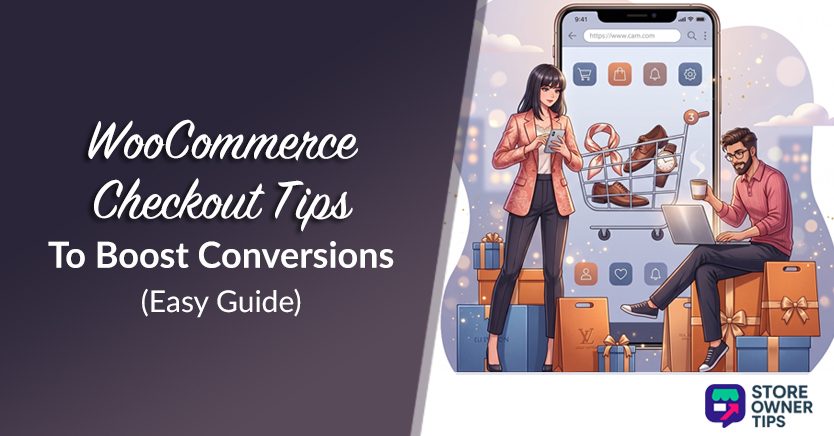
Picture this: A shopper fills their cart with $120 worth of products, clicks “Proceed to Checkout”… and bounces. No sale. No email. Gone.
Does that sound painfully familiar? Then your checkout page is probably the culprit. According to the Baymard Institute, 70.22% of online shopping carts get abandoned, and a clunky WooCommerce checkout experience is one of the top reasons why.
We’ve spent years helping WooCommerce store owners clean up their checkout flows, and the patterns are surprisingly consistent. The good news? Most checkout friction is fixable. Moreover, you don’t need a developer for the majority of these changes.
In this guide, we explore 10 WooCommerce checkout optimization tips we keep coming back to because they actually work. They’re roughly ordered from quick wins to deeper changes, so you can start at the top and work your way down.
🔍️ What We’ve Seen: Across the stores we’ve worked with, simplifying checkout from a multi-step process to a single-page layout has consistently lifted conversions by 15–25%. When you start to optimize your WooCommerce checkout, you’ll notice the biggest gains usually come from the simplest changes For instance, you could remove unnecessary form fields, enable guest checkout, and put trust badges where customers can actually see them. If your checkout page hasn’t been touched since you first launched, there’s almost certainly low-hanging fruit waiting.
Every extra page in your checkout flow is another opportunity for a customer to change their mind. Multi-step checkouts create friction. After all, each click is a micro-decision, and each page load is a moment of doubt.
I tested this on a mid-size apparel store, swapping their three-step checkout for a single-page layout using FunnelKit. The result? A 21% lift in completed orders within the first month. No other changes, just consolidating everything onto one page.
FunnelKit makes this particularly easy because it gives you a drag-and-drop checkout builder designed specifically for WooCommerce. You can customize field order, layout, and even add order bumps, all without writing code.

Forced account creation is one of the top drivers of cart abandonment. According to Baymard Institute research, 19% of shoppers abandon their cart specifically because a site wanted them to create an account.
The fix takes about 30 seconds:
💖 The compromise approach we love: Enable guest checkout but offer account creation after purchase on the thank-you page. You still capture the sale, and many customers will opt in when there’s no pressure.
Adding express payment methods like Apple Pay, Google Pay, PayPal Express, and Amazon Pay is a massive win for WooCommerce checkout optimization because they reduce checkout form fields to near-zero for returning buyers. Instead of filling out name, address, and card details, you can offer multiple payment options so customers just tap a button and they’re done.
We’ve seen express payment adoption rates of 20–35% on stores that offer them prominently. That’s a significant chunk of customers who might have abandoned a traditional form.
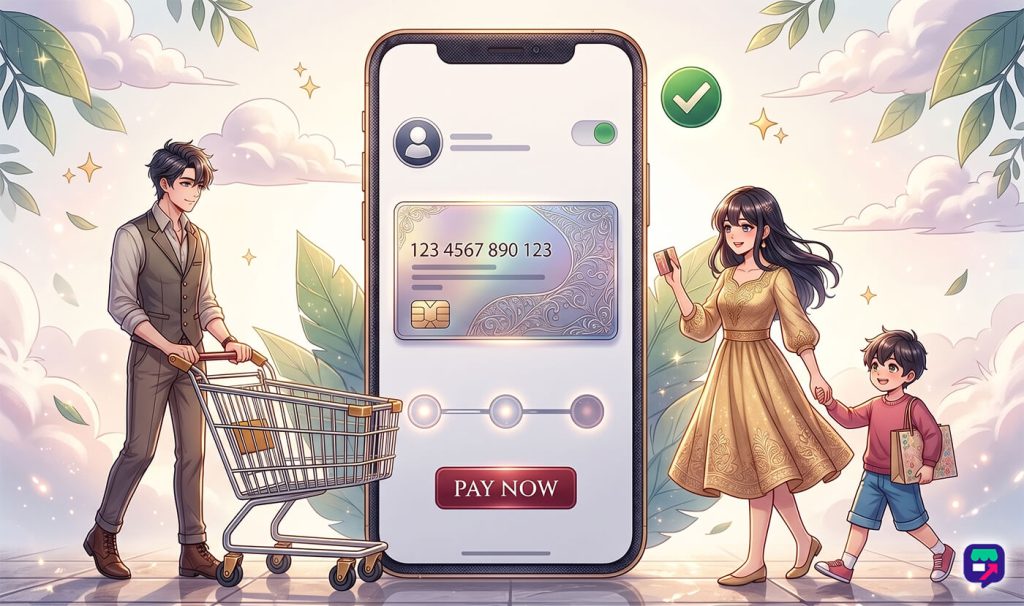
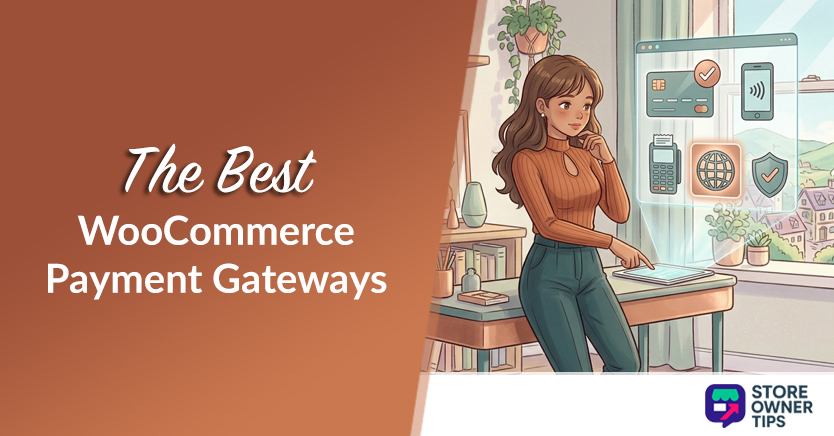
Are you still deciding on payment gateways? Then check out our guide on choosing the right WooCommerce payment gateway for a deeper comparison!
🚀 Power Tip: Place express payment buttons above the traditional checkout form, not below it. Customers who have Apple Pay or Google Pay set up want to see those options immediately, burying them below 15 form fields defeats the purpose.
Every form field your customer has to type into is a potential friction point. Google Places autocomplete for address fields lets shoppers start typing their address and select it from a dropdown, cutting a 5-field entry down to a single interaction.
I tested this on a home goods store and saw checkout completion time drop by roughly 20 seconds on average. That doesn’t sound like much, but on mobile (where typing is painful), it makes a real difference.
Beyond speed, using address auto-fill for WooCommerce checkout optimization also reduces typos and failed deliveries. Fewer returned packages means lower costs and happier customers.
Look for plugins that integrate Google Places autocomplete with WooCommerce checkout fields. There are several good free options in the WordPress plugin directory.
Trust plays a huge role in WooCommerce checkout optimization, because when someone is about to enter their credit card number, they need to feel safe. Trust badges, such as SSL seals, payment provider logos, and money-back guarantee badges, provide that reassurance.
According to a CXL Institute study, 42% of shoppers worry about security at least half the time they buy online. To ease that anxiety, you need the right trust badge for your specific crowd. It’s not just about placement; it’s about knowing your audience. For example, older shoppers tend to feel safest seeing a PayPal logo, while younger buyers usually prefer Google. Slapping a random security badge on your page won’t help if your customers don’t recognize or trust that specific brand.
We’ve found the biggest impact comes from positioning trust badges in two spots:
However, don’t overdo it. Three or four well-placed badges beat a wall of logos. The payment method icons your customers actually recognize (Visa, Mastercard, PayPal) plus an SSL indicator is usually the sweet spot.
If you decide to keep a multi-step checkout (some industries genuinely need it for complex orders), a visual progress bar reduces perceived effort. Customers who can see “Step 2 of 3” are far less likely to bail than customers who have no idea how much longer the checkout process will take.
Adding a progress bar is a low-effort, low-risk change that can subtly improve your overall WooCommerce checkout optimization. FunnelKit includes built-in progress indicators in its checkout templates, or you can add a simple breadcrumb-style indicator with a bit of CSS and your theme’s customizer.
Here’s a stat that should get your attention: mobile devices now drive roughly 78% of all online retail traffic worldwide. Yet, they only account for about 59% of global sales revenue.
Why the gap? Because shoppers love to window-shop on their phones, but they often switch to a laptop to actually finish the purchase when checkouts get clunky. If your checkout doesn’t work beautifully on a phone, you’re losing a massive chunk of sales right when people are most interested.

Mobile WooCommerce checkout optimization isn’t just about having a responsive theme. I tested several checkouts on actual phones (not just browser resizing) and found issues that only show up on real devices:
✨️ Our recommendation: Grab your phone right now and go through your own checkout. Try to buy something. You’ll probably spot at least two things that need fixing.
This one’s sneaky. An open, visible coupon code field actually causes cart abandonment. Here’s what happens: a customer sees the empty coupon field, thinks “I should find a coupon code,” opens a new tab to search for one, gets distracted, and never comes back.
We’ve seen this pattern repeatedly across stores we’ve worked with, making coupon field management a vital part of WooCommerce checkout optimization. The fix is straightforward:
Advanced Coupons makes both of these approaches dead simple. You can set up URL-based auto-apply coupons (great for email campaigns), scheduled discounts, and smart coupon field behavior, all without touching code.
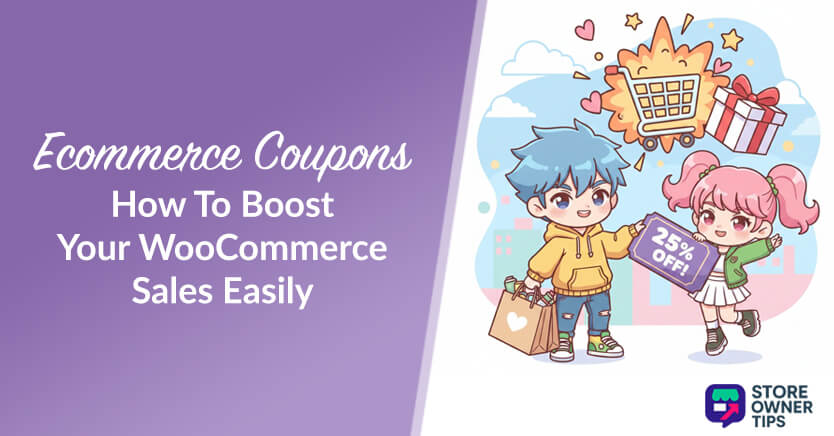
Want more coupon strategies? Then check out our guide on ecommerce coupon best practices.
Proper WooCommerce checkout optimization requires complete transparency. After all, surprise costs are the number one reason for cart abandonment. If a customer doesn’t see the final total—including shipping, taxes, and any discounts—until the very last step, you’re asking for trouble.
Your order summary should include a clear, itemized breakdown:
On mobile, consider a sticky or collapsible order summary that stays visible as customers scroll through the form fields. They should never have to wonder “wait, how much am I actually paying?” at any point during checkout.
Here’s the thing about optimization: what works for one store might not work for yours. Don’t guess—measure.
After implementing a few of the tips above, set up A/B tests to validate the changes. And no, we’re not talking about testing button colors (the impact of green vs. orange is wildly overstated). Test the things that actually matter:
FunnelKit includes built-in A/B testing for WooCommerce checkout pages, which makes improving your entire checkout process much easier than cobbling together a separate testing tool.
I ran an A/B test on a store that removed the “Company Name” and “Phone Number” fields from checkout. The simplified version converted 12% better. It turns out those fields were scaring off individual buyers who thought the store was B2B-only.
Here’s a quick-reference table so you can prioritize based on your resources:
| Tip | Effort Level | Expected Impact | Tools / Plugins |
|---|---|---|---|
| One-page checkout | Medium | High | FunnelKit |
| Guest checkout | Low | High | WooCommerce core setting |
| Express payment | Medium | High | Stripe, PayPal, WooPayments |
| Address auto-fill | Low | Medium | Google Autocomplete plugin |
| Trust badges | Low | Medium | Theme or custom HTML |
| Progress indicator | Low | Low–Medium | FunnelKit or theme |
| Mobile optimization | Medium | High | Responsive theme + testing |
| Smart coupon field | Low | Medium | Advanced Coupons |
| Clear order summary | Low | Medium | Theme or FunnelKit |
| A/B testing | Medium | Varies | FunnelKit |
You don’t have to implement all 10 tips this weekend. Start with the ones that match your biggest pain points. For example, if you know mobile users are dropping off, prioritize Tip 7. If you’ve never enabled guest checkout. Tip 2 takes 30 seconds and can have an outsized impact.
To recap, this guide covered the following WooCommerce checkout optimization strategies:
The most important thing regarding WooCommerce checkout optimization is to measure before and after. Thus, check your WooCommerce analytics, note your current checkout conversion rate, make a change, and see what happens. Small changes compound into big conversion gains over time.
And for the shoppers who still slip away despite a polished checkout? That’s where cart abandonment recovery strategies come in: the perfect companion to everything you’ve optimized above.
Want more tips like these? Then keep an eye on Store Owner Tips. After all, we’re always testing new ways to help WooCommerce stores convert better.
Extra costs at checkout, like shipping and taxes, are the number one cause of abandoned carts, driving away 39% of ready-to-buy shoppers according to current Baymard Institute data. The next biggest dealbreakers are slow delivery times (21%) and forced account creation (19%). Together, these issues cause a huge chunk of drop-offs. Being clear about costs early, offering fast shipping, and setting up a smooth guest checkout are your best bets to save those sales. Enabling guest checkout and being transparent about costs before the checkout page addresses both.
One-page checkouts generally perform better for simple purchases with fewer form fields. Multi-step checkouts work well when you need to collect more information and want to show progress. The key principle is reducing perceived complexity. Whichever format you choose, minimize required fields, show a progress indicator, and keep the design clean. Test both if possible and let your conversion data decide.
Most WooCommerce themes allow you to add trust badges via widgets or custom HTML blocks in the checkout sidebar or below the payment fields. Free plugins like Trust Badge by Developer 99 provide pre-made badge sets. Place badges near the payment form and order button for maximum impact. According to CXL Institute research, placement matters more than which badges you use. Basically, the key is visibility at the moment of purchase decision.
Not significantly, because you still collect the customer’s email address during checkout for order confirmation. The difference is you’re not requiring a password and account creation step. You can always invite customers to create an account on the thank-you page after purchase, when friction is lowest. Many stores find that the conversion uplift from guest checkout far outweighs any reduction in registered accounts.

Copyright © StoreOwnerTips.com. All Rights Reserved.
