Weekly ecommerce tips, deals & news.

Picture three emails after three orders. One asks, “Can you engrave Mom on the back?” Another says, “I forgot to say it’s for the 14th.” A third adds, “The card should say Happy Birthday Sam.”
Each one arrived after checkout. Each one means opening the order, copying the text onto a sticky note and hoping it reaches the bench.
The fix is to ask on the product page. Offer only the options you’ll act on, and charge for the ones that cost you time or materials. Add them as WooCommerce product add-ons. Then place a test order and check the answer shows everywhere it’s needed.
Asking afterward costs you twice. Orders wait while you chase the detail, and hand-copied text is where misspelled names and missed dates creep in. This guide covers which options to offer, what to charge and how to word each field. Then it shows how to check the answer reaches the packing bench.
Jump to:

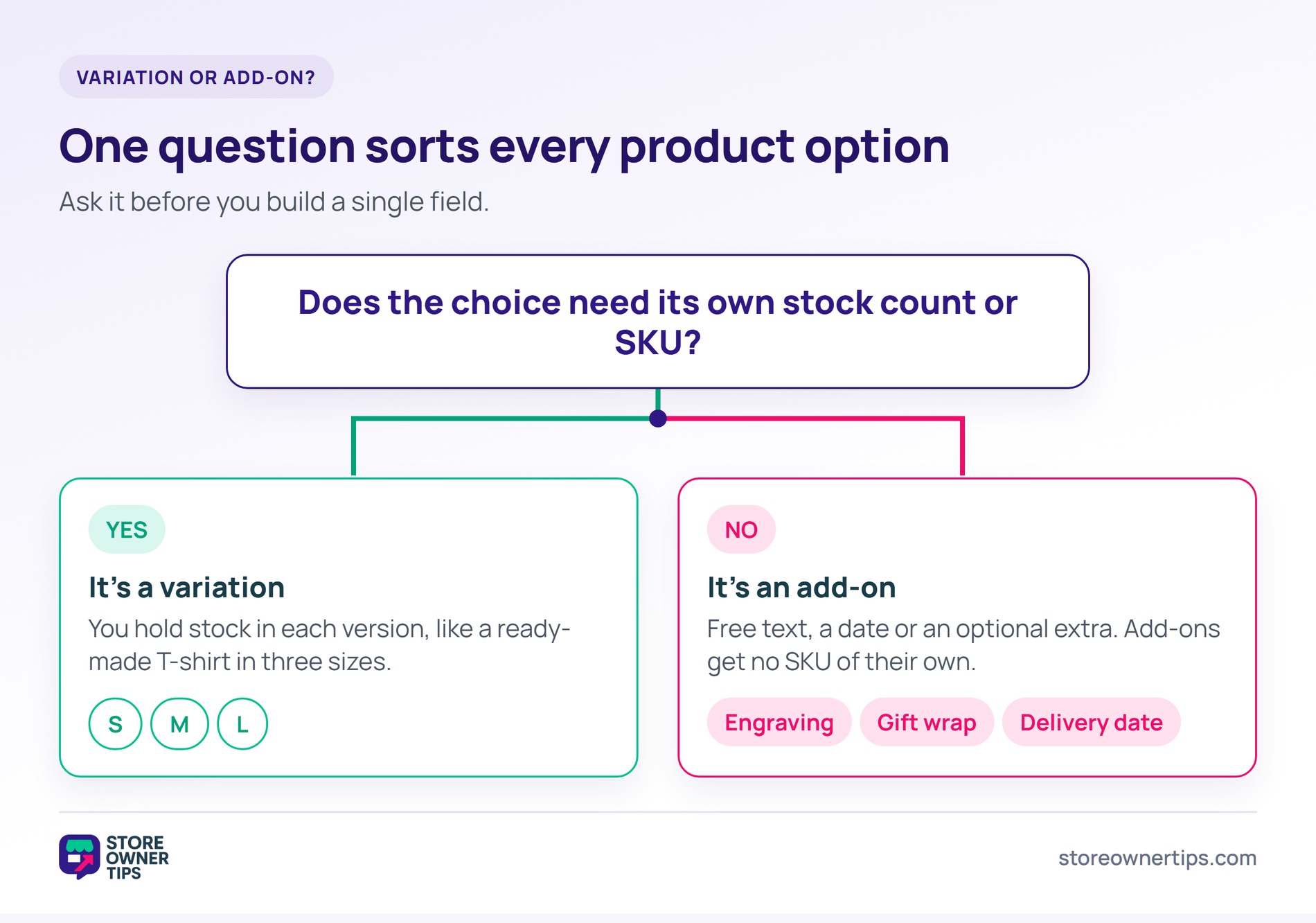
If the choice needs its own stock count or SKU, it’s a variation. If it’s free text, a date or an optional extra, it belongs in WooCommerce product add-ons. A ready-made T-shirt in three sizes is a variable product, because you hold stock in each size. Engraving isn’t stock you count, and WooCommerce’s add-on documentation confirms add-ons get no SKU.
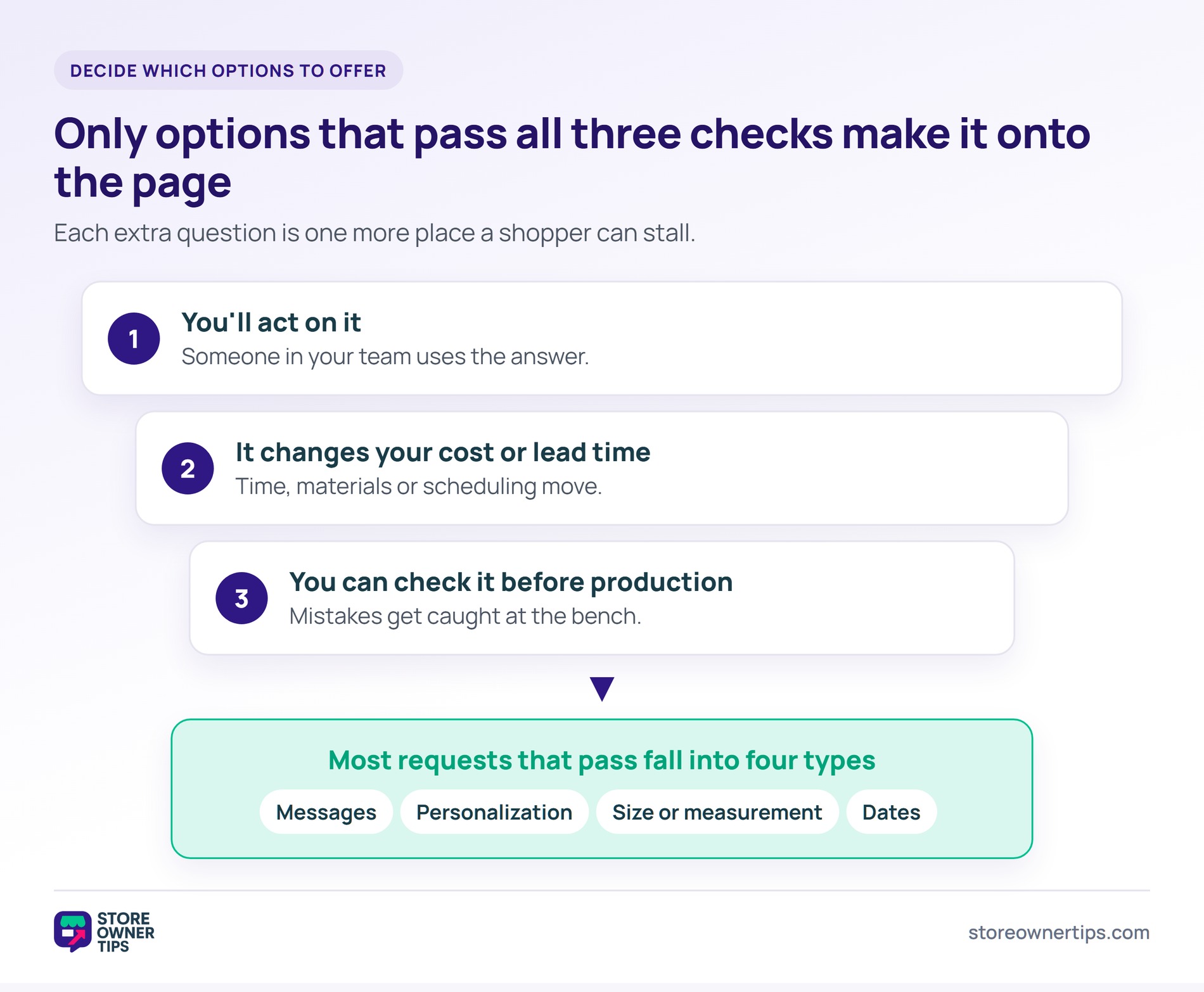
Offer an option as one of your WooCommerce product add-ons only if it passes three checks. You’ll act on it, it changes your cost or lead time, and you can check it before production.
Most requests fall into four types:
Keep the list short, since every extra question is one more place a shopper can stall. Our guide to product page optimization covers the rest of the page around those fields.
Here’s how each option breaks down (a general guide, not data from a specific store):
| Option | Field type | Validation | Price model (depending on the plugin) | Must appear on |
|---|---|---|---|---|
| Gift message | Multi-line text | Character limit sized to the card | Free or flat fee | Packing slip, admin order |
| Engraving or name | Single-line text, plus a font dropdown | Limit set to what fits; no emoji | Flat fee or per character | Admin order, packing slip or production list, confirmation email |
| Made-to-measure size | Number fields or dropdown | Minimum and maximum per field; units stated | Flat fee or percentage | Admin order, production list, confirmation email |
| Delivery or event date | Date picker | Block lead-time and closed days, if your plugin allows it | Free or rush fee | Confirmation email, admin order, packing slip |
| Gift wrap | Checkbox | None needed | Flat fee | Packing slip |
Charge for WooCommerce product add-ons that cost you time or materials, and think about giving low-effort ones away. Engraving, gift wrap and rush dispatch take labour or stock, so they carry a price. A free gift message can be the reason someone orders from you.
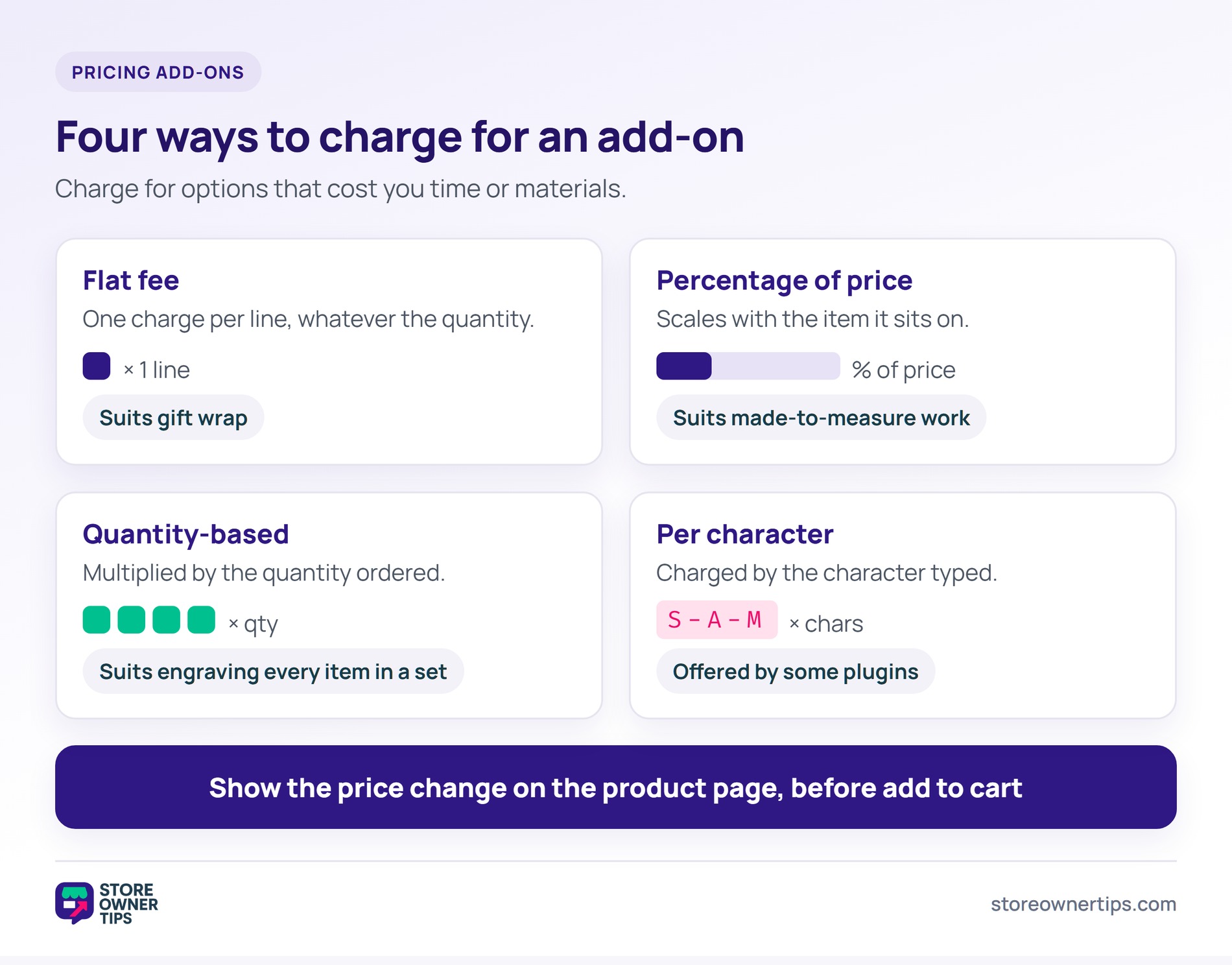
Depending on the plugin, you’ll usually see these price types:
Show the price change on the product page, before the shopper adds to cart. A total that jumps at checkout invites an abandoned cart.
An add-on customises the product the shopper already chose, which makes it a different job from upsells and cross-sells.
Personalized items usually can’t be resold, so add a returns exception before the first engraved order ships. Check it against your local consumer rules.
A field in your WooCommerce product add-ons gets usable answers when it does three things. Its label asks a question, its placeholder shows an example, and its limits match what you can make.
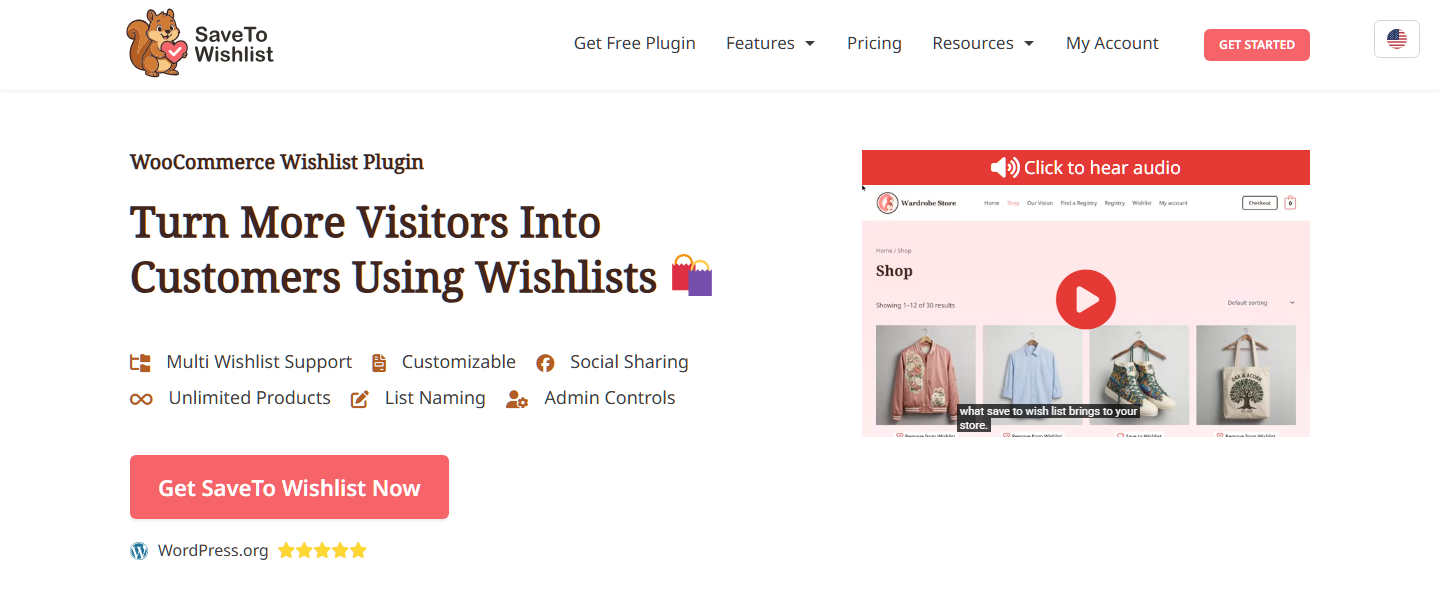
If shoppers save personalized items for later, SaveTo Wishlist’s Flexible Product Fields integration keeps their values with each wishlist item.
🔍️ What we’ve seen: A common one is an engraving field with no character limit. A shopper types a full sentence for a ring band that fits fifteen characters. Nobody notices until the ring is on the bench. Then comes an email, a wait and a late dispatch.
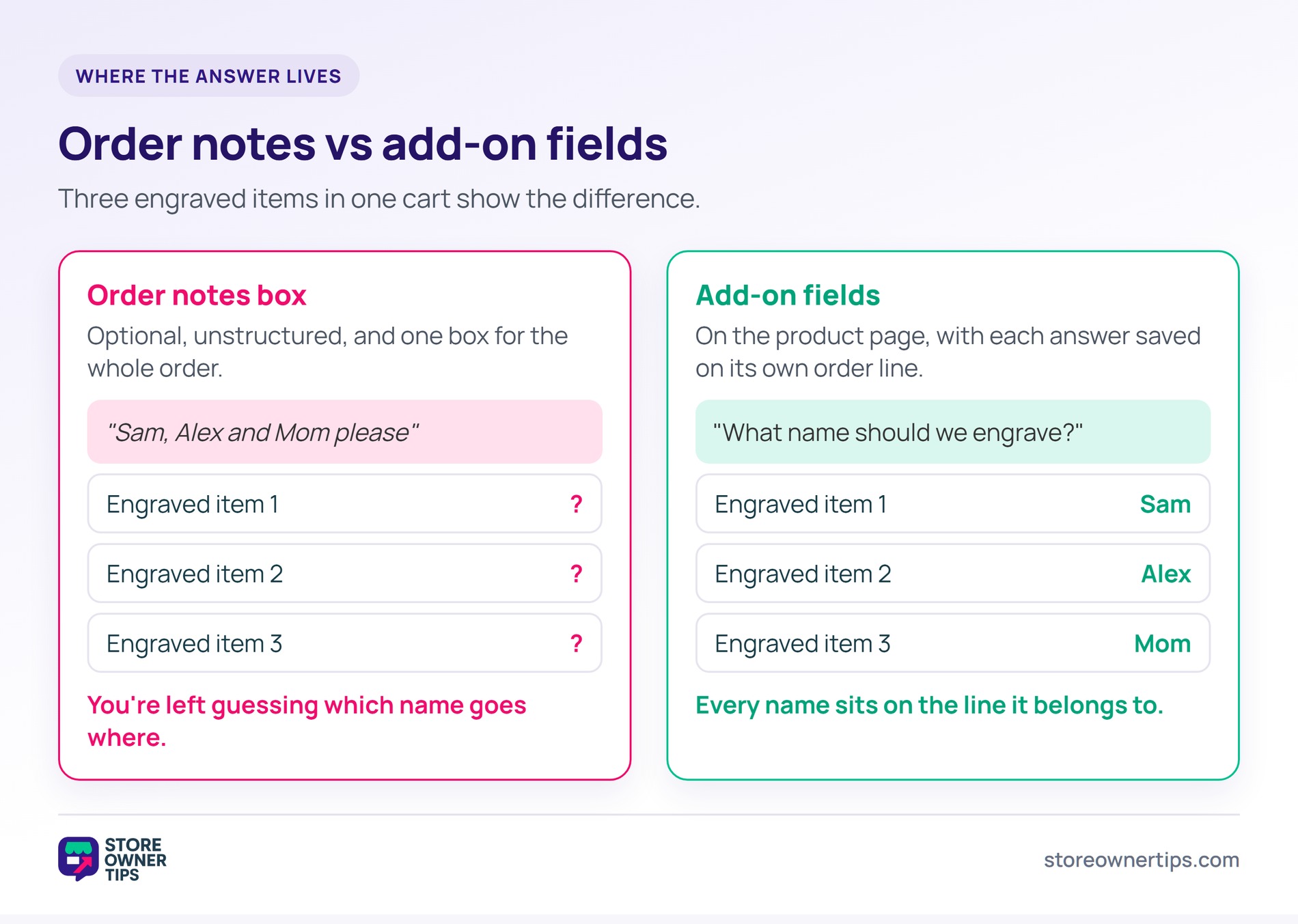
Core WooCommerce gives you attributes, variations and one order notes box at checkout, but no per-product fields for shoppers.
Order notes don’t work well as a workaround. They’re optional and unstructured, and they belong to the whole order. With three engraved items in a cart, you’re left guessing which name goes where.
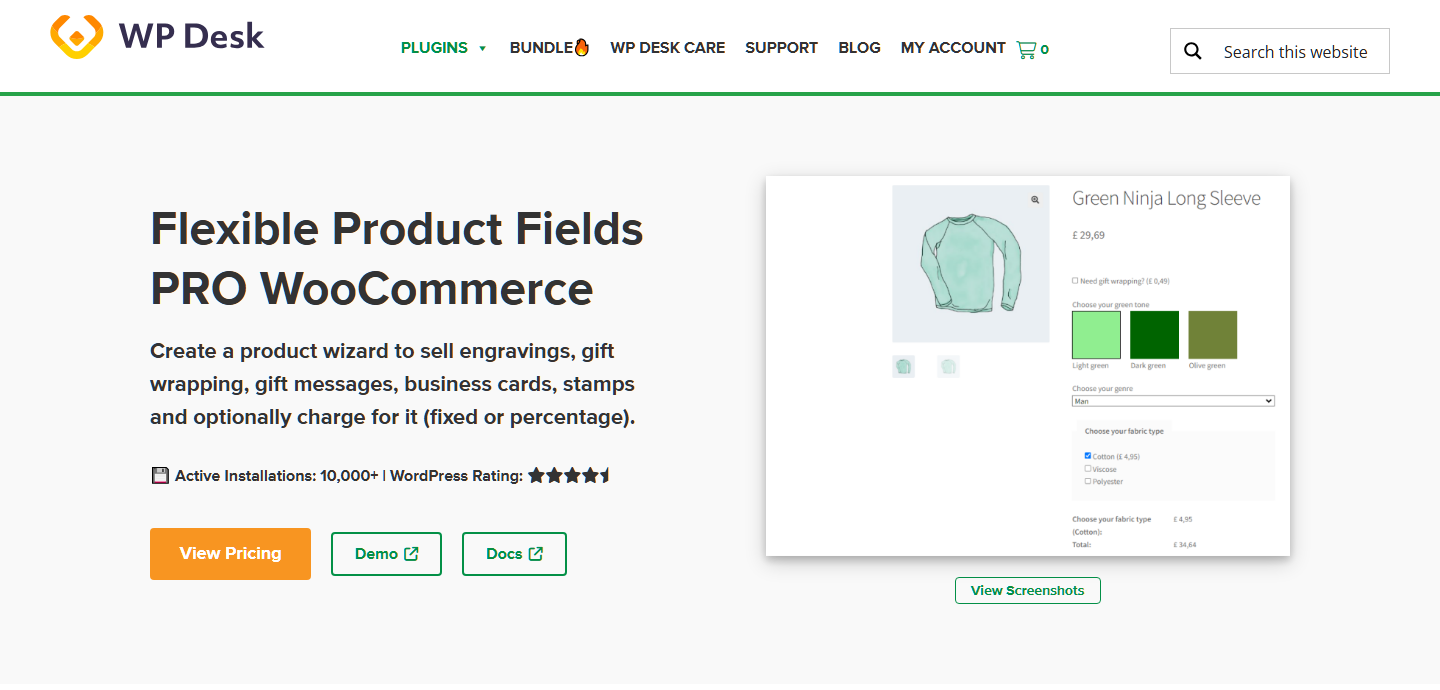
A plugin for WooCommerce product add-ons puts fields on the product page and saves each answer with its order line. Field setups usually don’t carry over from one plugin to another, so it pays to choose once. Before you pick, ask three questions:
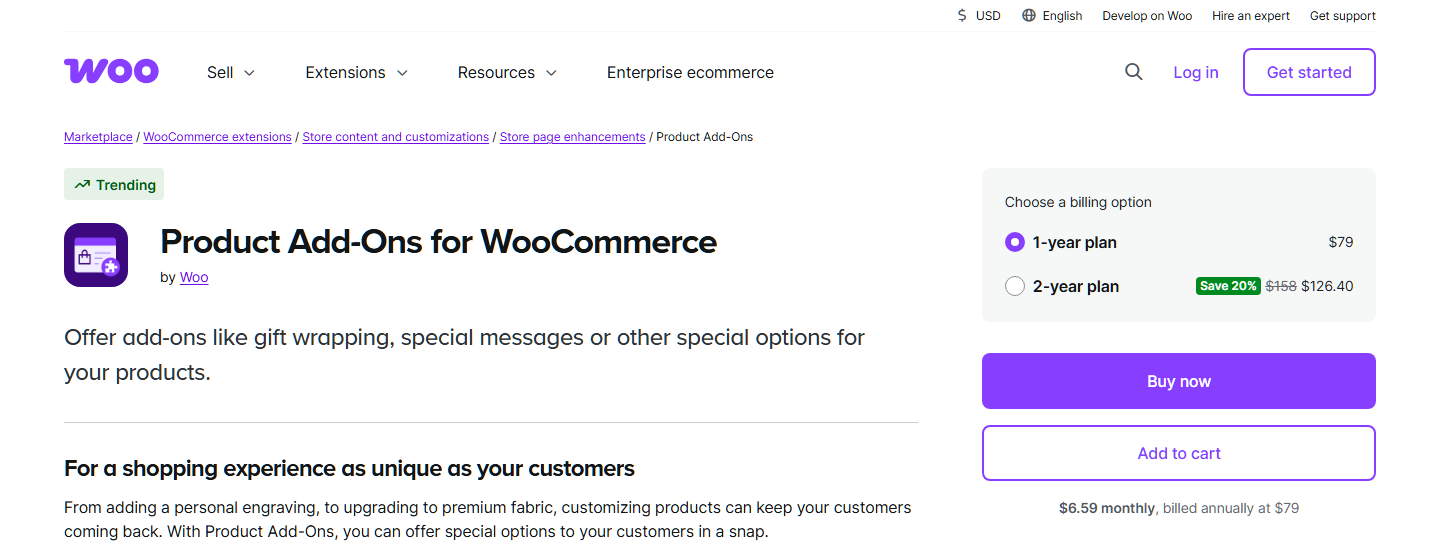
WooCommerce’s own Product Add-Ons extension makes a handy reference, because its documentation names every setting. Other plugins use different labels, but you’ll face the same choices.
Fields you reuse across a range belong in a global group. Go to Products > Add-Ons, select Create your first add-on, then use Product Categories to limit the group. Leave categories empty and every product in the store gets the group.
For a one-off, edit the product and open the Product data > Add-ons tab. To keep global groups off that product, untick Use Global Add-Ons?
Display Order sets where a group sits on the page. Lower numbers show higher, and per-product add-ons sit at 10.
Two limits are worth knowing before you build. On a variable product, every variation inherits the same add-ons, and you can’t set different ones per variation. The Date Picker’s documented settings also include nothing for blocking dates. If lead times matter, check that calendar in your test order before you promise a date.
To reuse a finished set on another product, select Export, which copies the add-ons to your clipboard. Then select Import on the other product and paste. CSV import isn’t supported, so this is the way to copy them.
Place one test order for each type of WooCommerce product add-on and follow it from cart to packing bench.
Check each of these:
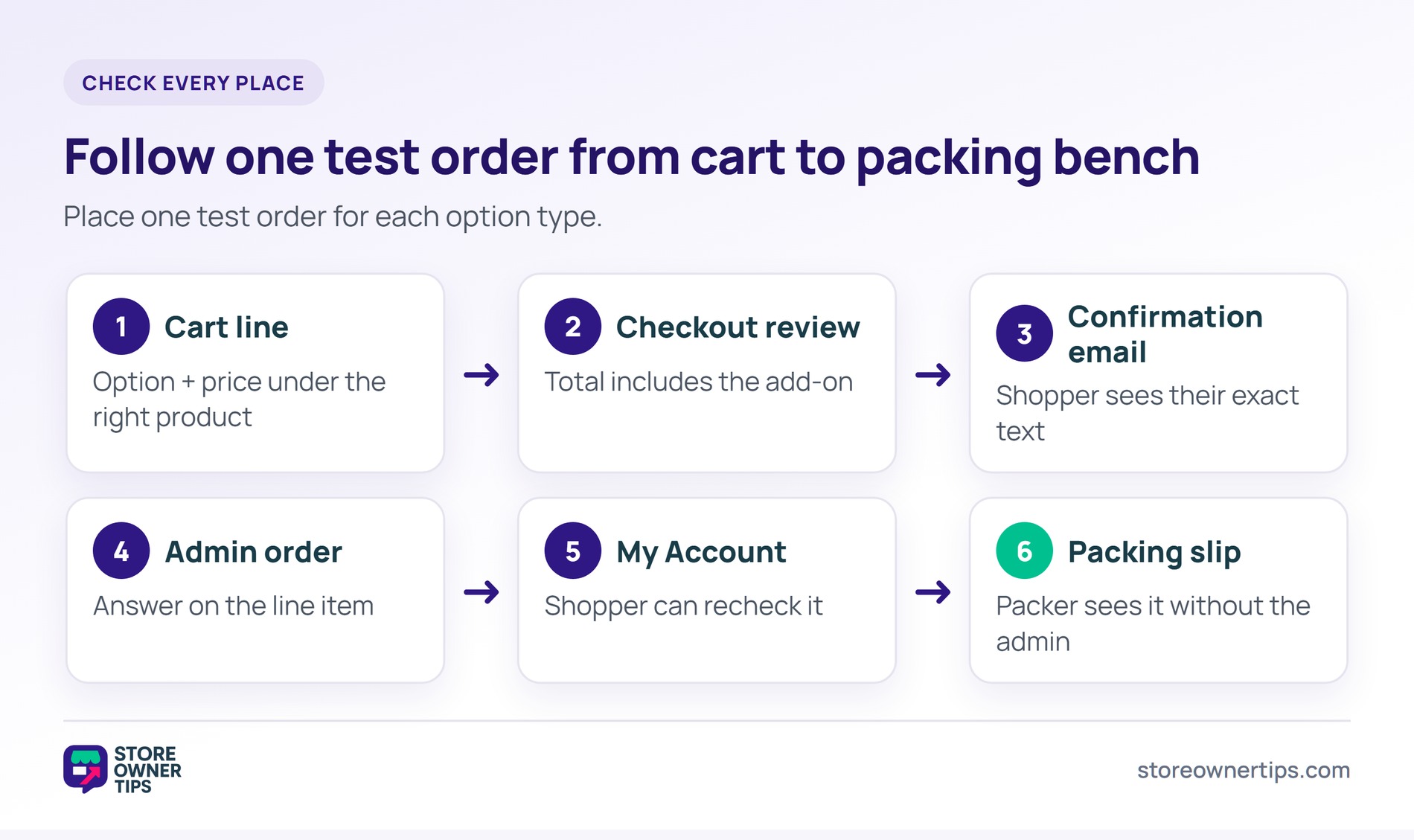
Watch the price display closely. By default, WooCommerce’s own Product Add-Ons shows only flat-fee prices beside the option name in the cart and checkout. Other price types need extra setup to show, according to its documentation. Your plugin may behave differently, and the test order shows you how.
Change requests will still arrive after purchase. Set a cut-off before production and edit the order line itself, so the slip prints the new text. A change that never reaches the bench is a textbook fulfillment error.
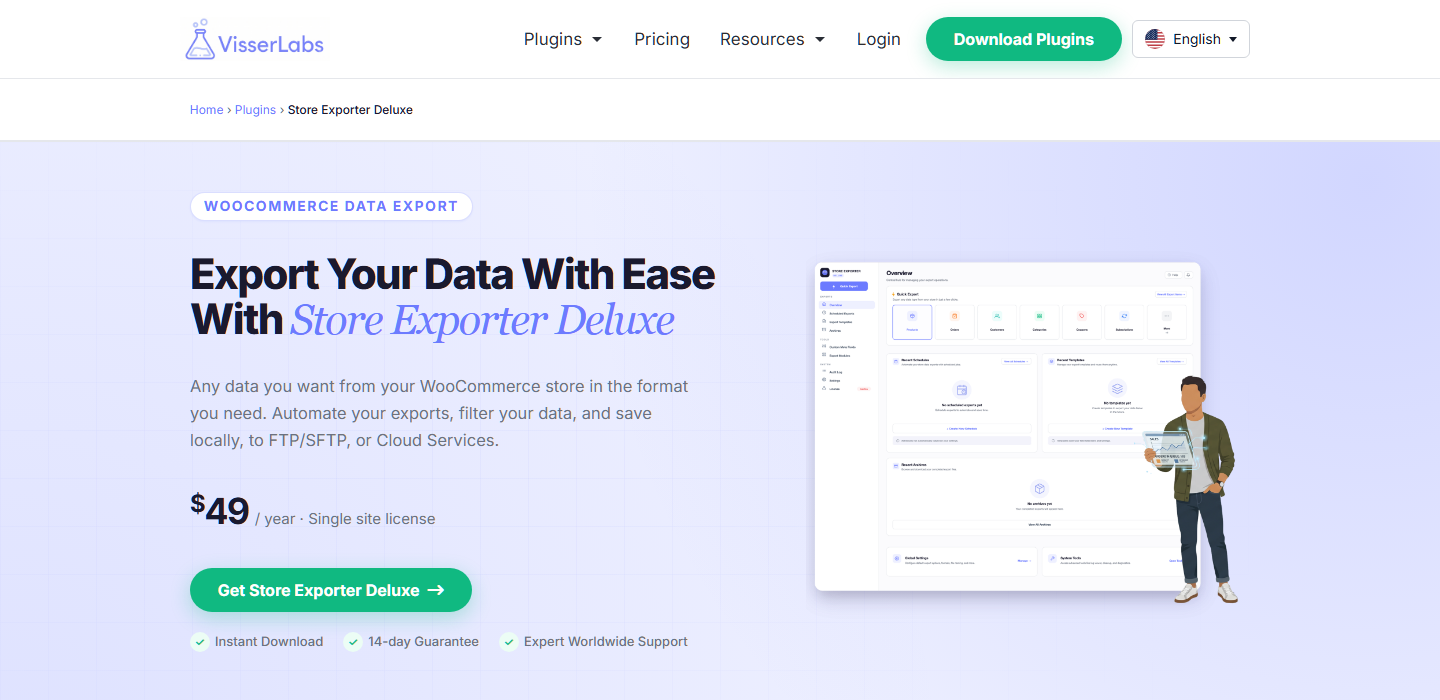
If your workshop or packer works from a spreadsheet, give each option value its own column, not one crowded cell. Visser Labs’ WooCommerce export plugin, Store Exporter Deluxe, can help here. It lists native export support for several add-ons plugins, including WooCommerce’s own Product Add-Ons.
WooCommerce’s Product Add-Ons documentation gives fixes for three common problems.
Customer uploads need a privacy check too. Product Add-Ons stores them in randomized folders under wp-content/uploads/product_addons_uploads/. Some hosts switch on directory listing, which lets anyone browse those folders. Ask your host to turn it off before you start accepting photos.
Not through the product settings. Core WooCommerce offers attributes, variations and a single order notes box at checkout. Per-product fields that save with each order line need an add-ons plugin or custom code.
Usually not. A gift message costs you a card and a minute, and offering it free gives shoppers a reason to buy.
Add a date field to the product. If your plugin can block dates, block your lead time and the days you don’t dispatch. If it can’t, state your earliest dispatch date under the field.
No. WooCommerce’s Product Add-Ons documentation says add-ons aren’t treated as products and have no SKU for inventory tracking. If an option needs its own stock count, set it up as a variation.
Yes, if you allow it before production starts. Edit the order line directly so the change reaches the packing slip, and state your cut-off on the product page.

The plugin is the quick part. What saves you emails is knowing why each field exists, what it costs, and who reads the answer. Get that right and WooCommerce product add-ons stop being extra admin.
Start with your option list today. Then place a test order for each WooCommerce product add-on before the first real order arrives.

Copyright © StoreOwnerTips.com. All Rights Reserved.
