Weekly ecommerce tips, deals & news.
Picture a trade buyer working through a 40-line reorder on a standard WooCommerce shop. Open the product page, pick options, add to cart, go back to the catalogue. Somewhere around item eleven, most buyers stop and email a spreadsheet instead. That store doesn’t have a layout problem, and a WooCommerce product table is the usual fix.
I’ve seen this pattern on a lot of stores, and it almost never arrives as a design complaint. Instead it arrives as orders in your inbox, with someone on your team keying them in by hand.
A product table replaces the browse-click-add-return loop with one screen. The buyer enters quantities against many products at once, then submits the lot in a single action.
This guide covers what that actually changes, which plugins handle it well, and how the five main options compare. We’ll also be straight about who genuinely shouldn’t use one.
Jump to:
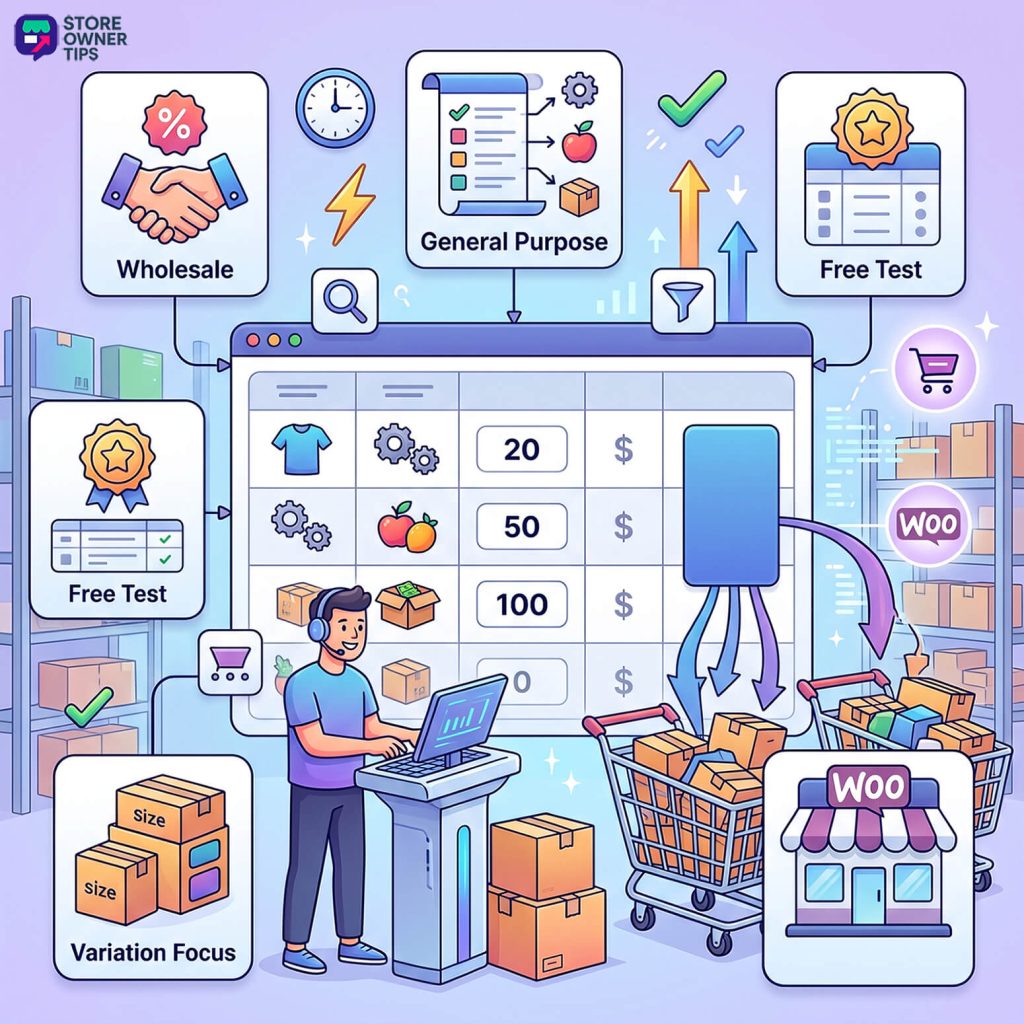
A product table is a list view of your catalogue with one row per product. Each row carries a quantity field, so a customer can add many products to the cart in one action.
That’s the whole idea. Compare it to a grid of images, where each purchase means opening a product page. A table gives you something closer to an order form. Rows, columns, a quantity box, and one add-to-cart action at the end.
Most of these plugins add a few things on top:
The reason it matters is that these are two different jobs. A product grid is designed for discovery, and an order form is designed for speed. A shopper browsing for a gift benefits from big images and a considered product page. By contrast, a restaurant owner reordering the same 30 items every Monday does not.
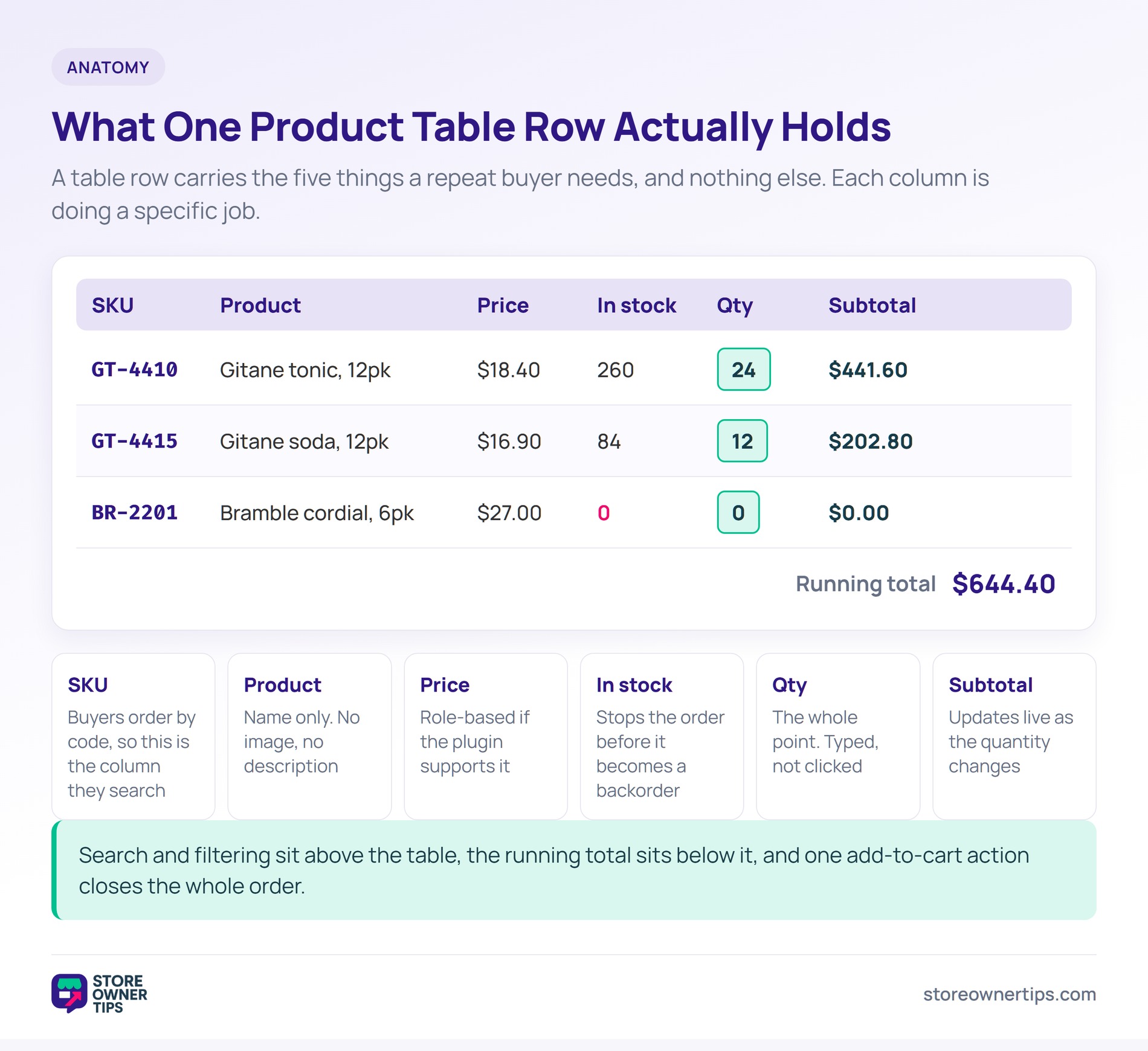
The clearest test is how many products a typical order touches.
A product table is probably right if:
A product table is probably wrong if:
That second list is the one nobody writes about. A table strips out the imagery and detail that help someone decide. For a store selling considered purchases, that’s actively worse than the grid it replaced.
I’ve seen a table applied to a whole catalogue where most orders were single items. It helped a handful of trade buyers. Meanwhile it made the store harder to use for everyone else, which is a bad trade.
The better pattern in that situation is a table on a dedicated page, or one restricted to certain user roles. The normal shop grid stays exactly as it is.
🔍️ What we’ve seen: store owners install a table plugin and apply it to the entire shop. It’s an easy call to make, and the cost only shows up later in the numbers. A table is an interface for a type of buyer, not a replacement for your storefront. If you have both retail and trade customers, give trade the table and leave retail the grid.
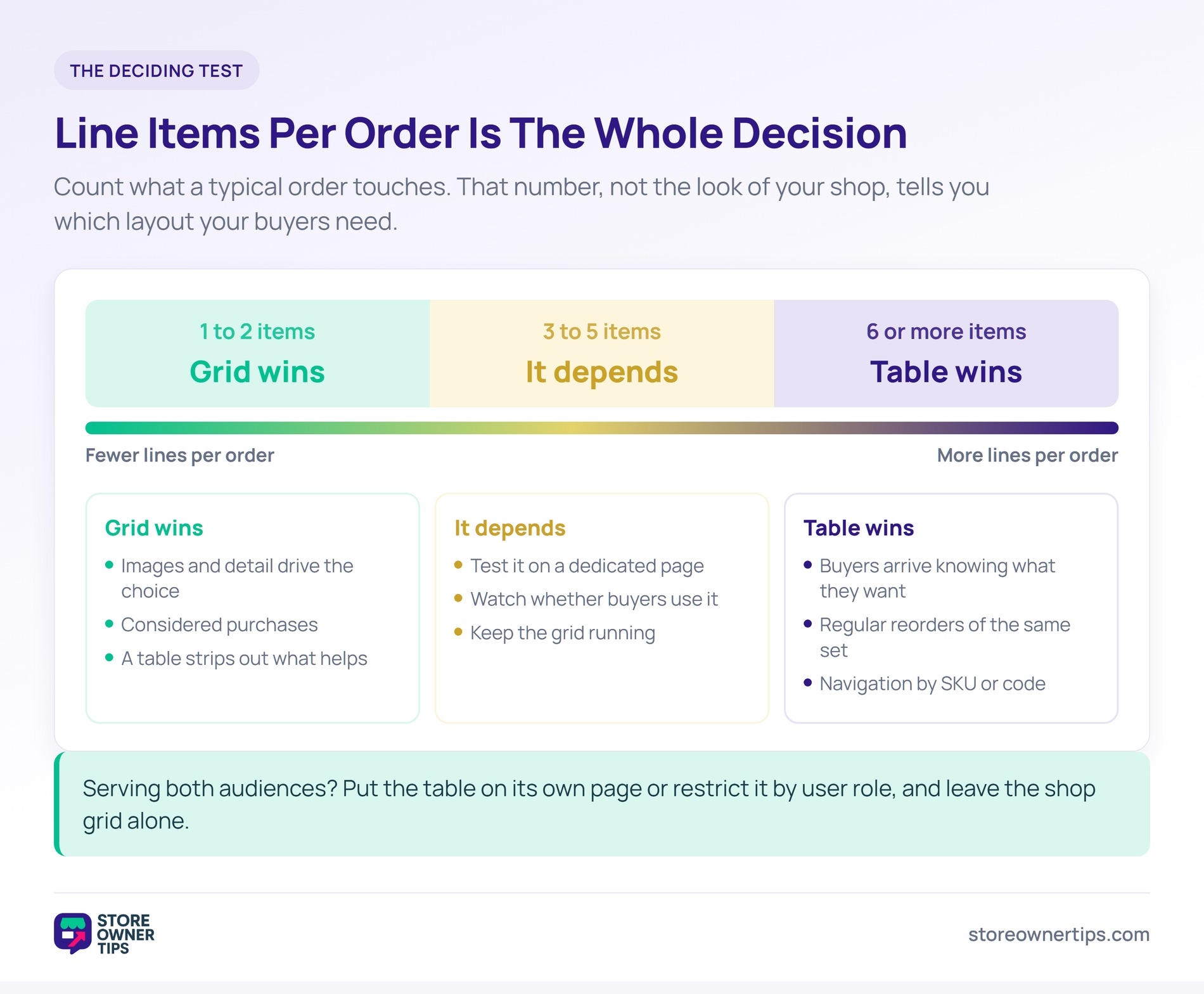
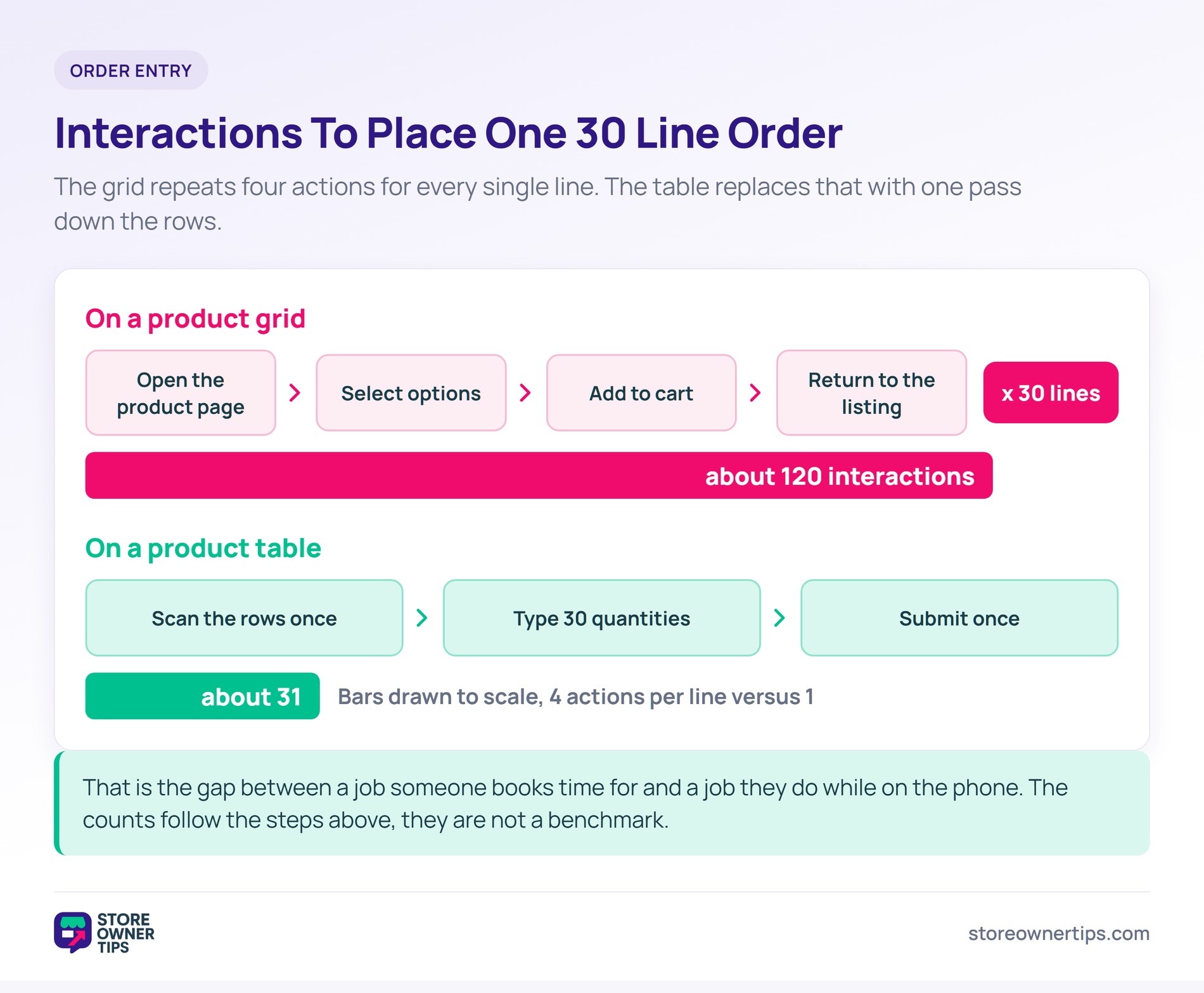
The measurable difference is the number of interactions needed to place one order.
On a standard grid, adding one product takes four steps. Open the product page, select options, add to cart, return to the listing. Repeat that per line. On a table, the buyer scans rows, types quantities, and submits once.
A quick view popup shortens that loop a little. Still, it handles one product at a time, which is the part a table actually changes.
For a 30-line order, that difference is the whole story. It’s a task someone schedules time for, versus one they do while on the phone.
Two secondary effects are worth knowing about. A buyer who sees the whole range on one screen notices items they’d have forgotten. A grid can’t do that on a reorder. Plus the manual keying-in moves off your team, because emailed spreadsheet orders finally have somewhere else to go.
That last one is the hidden cost of not having a table. Someone in your business is already doing this work, just by hand. Visser Labs has a full guide to WooCommerce order management if that side needs tidying up.
Five options cover almost every real use case, and they split cleanly by buyer type. Every feature below was checked against each plugin’s own documentation in August 2026.
Built specifically for trade ordering rather than as a general table plugin, which shows in the details.
The form is assembled in a drag-and-drop editor, so the table is a configured layout rather than a fixed output. That matters when you need SKU as its own visible column for buyers who order by code. It also matters when you want particular products excluded, and excluded products never appear in the form’s results.
Two details I’d flag before you build your first form. SKU search isn’t a single switch. You add both the SKU column and the Search Input element, then turn on SKU searching in that element’s settings.
The SKU field also has to be filled in on the product itself. For variable products, that means each individual variation.
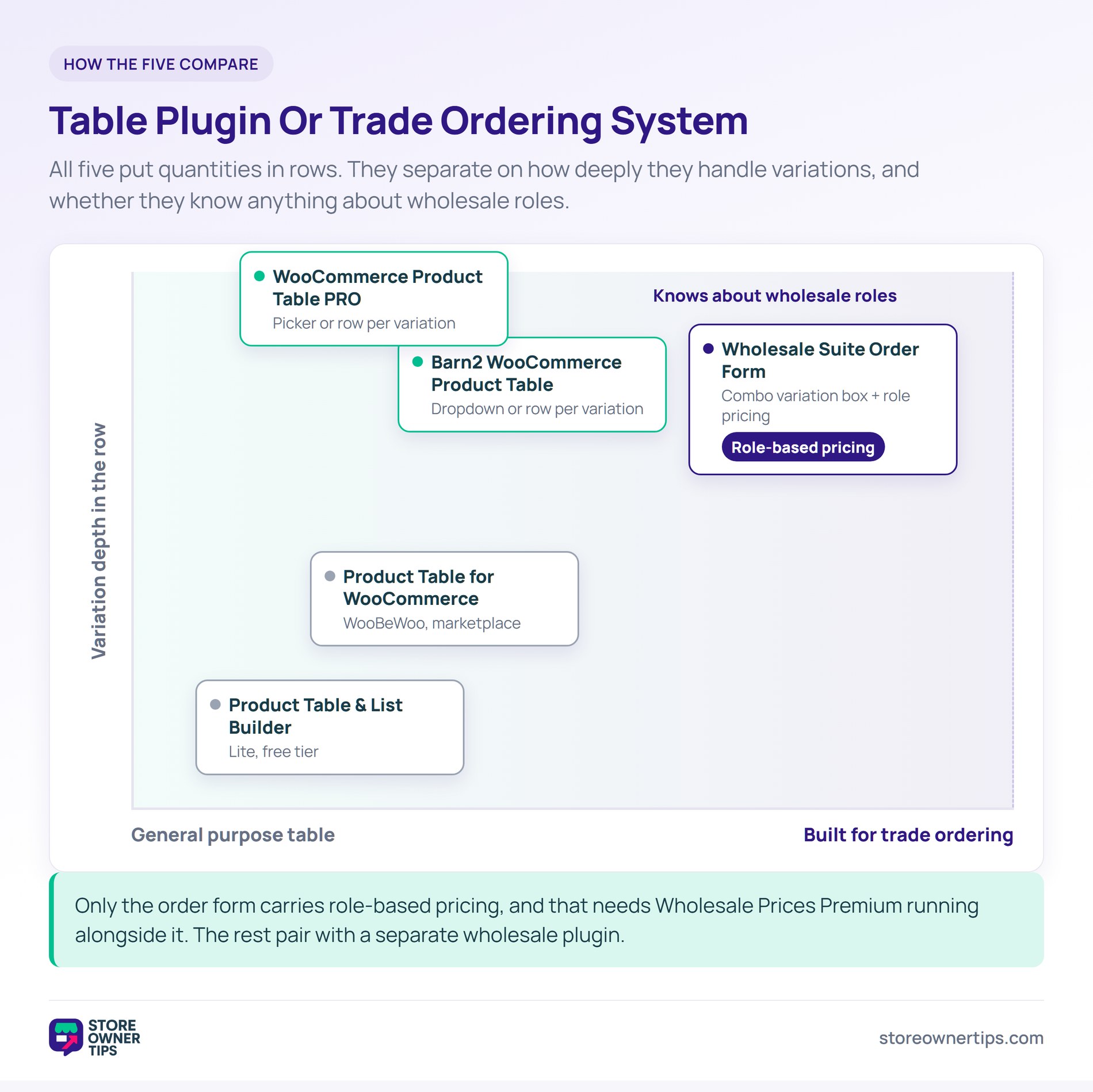
The bigger draw is pricing. Role-based prices and quantity-tier discounts apply automatically inside the form. One form then serves retail and trade, with no second catalogue to maintain. Worth knowing: that behaviour needs Wholesale Prices Premium active alongside the order form, so budget for both.
One more thing that catches people out. The order form isn’t restricted to wholesale roles by default. Anyone can reach it until you set the role restrictions yourself. That’s a two-minute job, but it’s a deliberate step rather than an assumption.
If your buyers are trade customers, the WooCommerce wholesale order form is the closest fit in this list. Ordering speed and role-based pricing are the same problem for those stores. It’s the only option here that solves both in one place.
Best for: wholesale and trade stores where buyers order many lines and see role-specific pricing.
The most established general-purpose table plugin, and the one most stores land on first.
It’s genuinely flexible about what goes in a table. You can show SKU, stock level, categories, tags, attributes, custom fields, weight, dimensions and a per-row sub-total, among others. An AJAX search box handles lookups, and the table drops onto a page via block or shortcode without much fuss.
Variations are handled three ways. There’s a dropdown in the add-to-cart column, or each variation as its own row. The third is a button through to the product page.
In practice the configuration surface is large, which cuts both ways. You can build almost any table, and you will spend real time deciding what belongs in it.
The gap for trade stores is pricing. There’s no native role-based pricing, so wholesale rates mean adding a separate wholesale plugin and configuring the two to agree. That’s two purchases and two sets of settings to keep in sync.
Best for: general catalogues that need a table on specific pages rather than a trade ordering system.
The cheapest way to find out whether your buyers will use a table at all. The Lite version is free.
Lite covers a searchable, sortable, filterable table with quantity fields and add-to-cart. That’s enough to put a real table in front of real buyers and watch what happens. It sits alongside the other free WooCommerce plugins worth trying before you spend anything.
Be aware of where the free tier stops, though. Variation dropdowns inside the table are a paid feature. Lite shows a popup instead when a shopper adds a variable product. If your catalogue is variation-heavy, the free version won’t give you a fair test of the format.
Best for: testing the concept, and small catalogues with simple needs.
A focused paid plugin aimed squarely at order-form use cases.
Its strength is variation handling, which is the point most general tables get awkward about. You can put a variation picker in every row as a dropdown, radio buttons or a popup. Alternatively, each variation becomes its own row with variation-specific data in each column.
That second mode is what a buyer ordering one shirt in six sizes actually wants. Six rows, six quantity boxes, one screen, rather than six trips through a variation selector. A per-product sub-total multiplies price by quantity as the buyer types, so the running number updates live.
Search covers any product property, SKU included. Role-based pricing isn’t native here either, so trade rates again mean pairing it with a wholesale plugin.
Best for: catalogues with heavy variation use where each variation is a separate order line.
The official marketplace option, built by WooBeWoo, and worth knowing exists if you prefer buying inside the WooCommerce marketplace.
The column set is broader than you might expect. There are 19 types, including SKU, attributes, stock status, sales and custom fields. Quantity inputs are on by default. An “add all to cart” action lets a buyer select several products and send them through together.
Variations can also be displayed separately rather than hidden behind the parent product.
Where it stops short is conditional behaviour. Filtering is documented for category, attribute, author and tag rather than SKU. There’s no role-based pricing or conditional column display either. That’s fine for a straightforward listing, and limiting once different customers need to see different things.
Best for: simple listings where you want an extension from the official marketplace.
Here’s how the five compare on the features that decide a bulk-ordering setup:
| Plugin | Inline quantity | SKU search | Variations in row | Role-based pricing | Best for |
|---|---|---|---|---|---|
| Wholesale Suite Wholesale Order Form | Yes | Yes, via the Search Input element | Yes, combo variation box | Yes, with Wholesale Prices Premium | Trade ordering |
| Barn2 WooCommerce Product Table | Yes | Yes, AJAX search | Yes, dropdown or separate rows | No, pairs with a separate plugin | General catalogues |
| Product Table & List Builder (Lite) | Yes | Limited | No, popup only in Lite | No | Testing the concept |
| WooCommerce Product Table PRO | Yes | Yes, any property | Yes, picker or separate rows | No, pairs with a separate plugin | Variation-heavy catalogues |
| Product Table for WooCommerce | Yes | Not documented | Variations shown separately | No | Simple listings |
The pattern in that last column is the useful one. Four of the five are table plugins that happen to support ordering. One is an ordering system that happens to use a table.
Five things separate a table that gets used from one that gets abandoned.
🔍️ What we’ve seen: the easiest configuration mistake to make is leaving too many columns switched on. Eleven columns turns an order form back into a spreadsheet. It works against buyers the same way the paradox of choice works against shoppers. Start with SKU, name, price, stock and quantity, then add only what buyers ask for.
For stores where the table is part of a wider trade setup, there are other pieces to get right. Our guide to WooCommerce B2B plugins covers them. Our roundup of the best WooCommerce wholesale plugins compares the pricing tools that usually sit alongside a table. And if you’re at an earlier stage, start a WooCommerce wholesale store covers the groundwork first.
It’s worth remembering that a wholesale customer has different expectations from a retail one. The wholesale order form is only one of them.
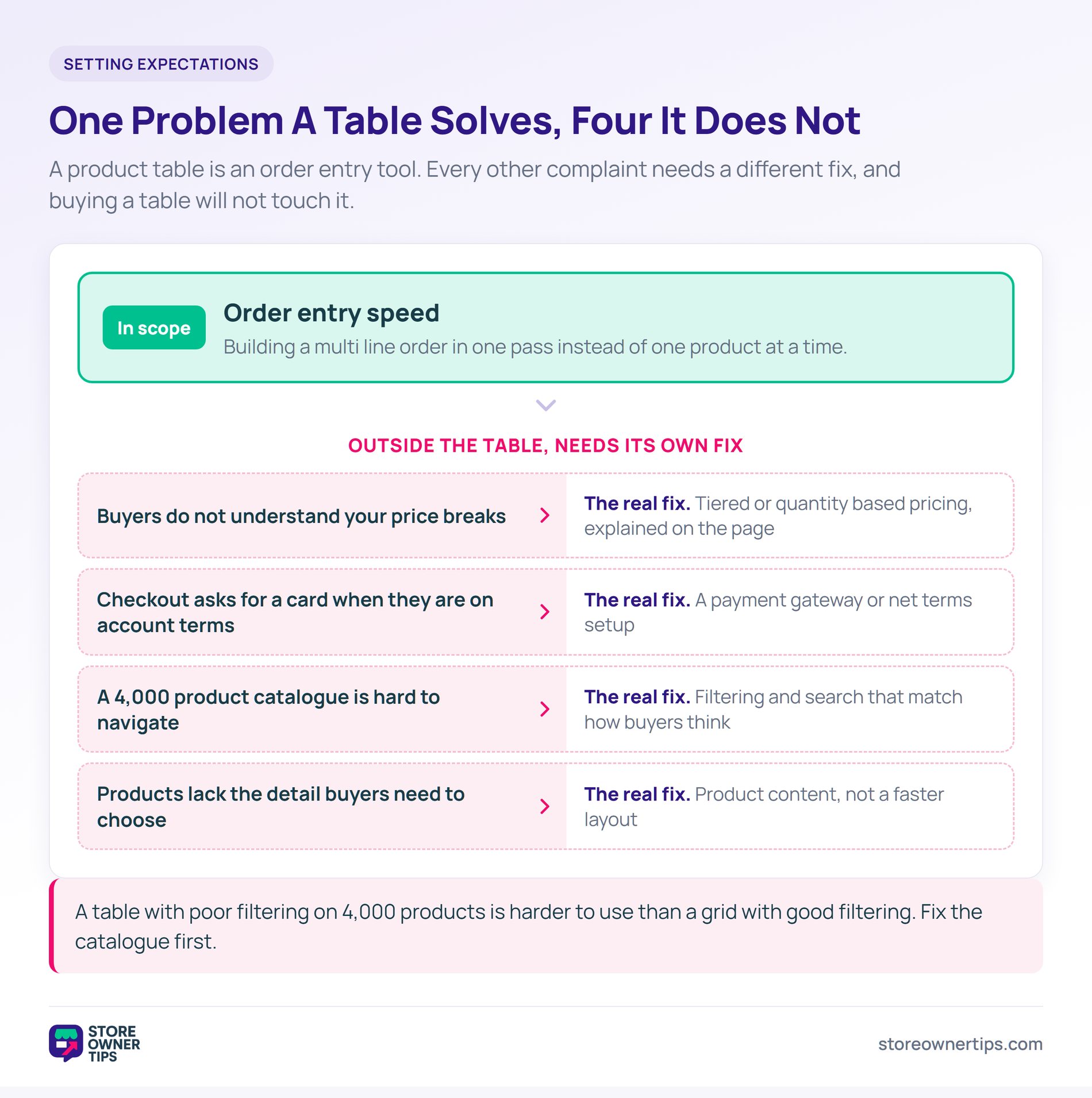
A product table solves order entry. It doesn’t solve anything else, and it’s regularly bought in the hope that it will.
It won’t fix unclear pricing. If buyers don’t understand your price breaks, seeing them in a table doesn’t help.
It won’t fix a checkout that asks trade buyers for card details when they’re on account terms. That’s a payment gateway problem, not a layout one. The same goes for buyers who expect to negotiate. A request for quote flow does the job a table can’t.
It won’t fix a catalogue that’s hard to navigate. A table with poor filtering on 4,000 products is harder to use than a grid with good filtering.
And it won’t fix products that lack the information buyers need to choose. Stripping a catalogue down to rows only works when buyers already know what they want.
It’s a list view of your catalogue with one row per product and a quantity field on each row. Customers add several products to the cart in one action. It replaces the grid-and-product-page flow with something closer to an order form. That suits buyers who order many items at once.
Install a product table plugin, then place the table on a page using the shortcode or block it provides. Most plugins let you control which products appear and which columns show. You can usually switch filtering and search on or off too. The common pattern is a dedicated ordering page rather than replacing the main shop.
Yes, if your table plugin supports role-based visibility, or you pair it with a wholesale plugin that does. Note that it’s usually something you switch on rather than a default. This is the recommended setup when you serve both retail and trade. Retail keeps the normal shop grid, and trade gets a table with their pricing on a restricted page.
They can, but it varies a lot between plugins and needs checking on a real device. Tables are the hardest layout to adapt to small screens. Some become horizontally scrollable in ways buyers find awkward. If your buyers order from phones or from a warehouse floor, test this before choosing.
For buyers placing multi-line orders it usually helps, because it removes most of the interactions needed to build an order. For single-item shoppers it can work against you. It strips out the imagery and detail that support a buying decision. That’s why applying a table to an entire shop is rarely the right move.
The useful reframe is that a product table isn’t a design decision. It’s an admission about who your buyers are. Stores that need one usually have the evidence sitting in their inbox already. Emailed orders, spreadsheets, phone calls with a list read out.
If your buyers are trade customers ordering many lines at trade prices, Wholesale Suite is the fit. It handles ordering speed and role-based pricing together. That’s the combination the general table plugins leave you to solve twice, with two plugins and two sets of settings.
Whichever you pick, start it on one dedicated page with five columns and your real SKUs loaded. You’ll know inside a fortnight whether your buyers use it.

Copyright © StoreOwnerTips.com. All Rights Reserved.
